Use groups to organize objects, and to add pivots so you can animate objects from more than one point.
A group is an empty container. It isn’t drawn, but its children inherit its position, rotation, and scale, like any other parent in the Hierarchy. Use groups to:
Organize related objects, so you can select, move, and hide them together.
Add a pivot, so you can rotate or scale objects from a point other than their own origin. See Using groups as pivots.
Each object rotates and scales around its own origin. Nesting it in a group adds a second origin, and the group’s rotation and scale move the object around that point. Nest more groups to add more pivots, and animate each one separately. In motion graphics this is often called a transform space.For example, a moon can spin on its own axis while it orbits the Earth:
An Earth group rotates the Earth.
A Moon group sits at the Earth’s center and rotates, carrying the moon around the Earth.
Inside it, a group at the moon’s center rotates the moon on its own axis.
To change where a group rotates and scales from without moving its children, use Freeze.
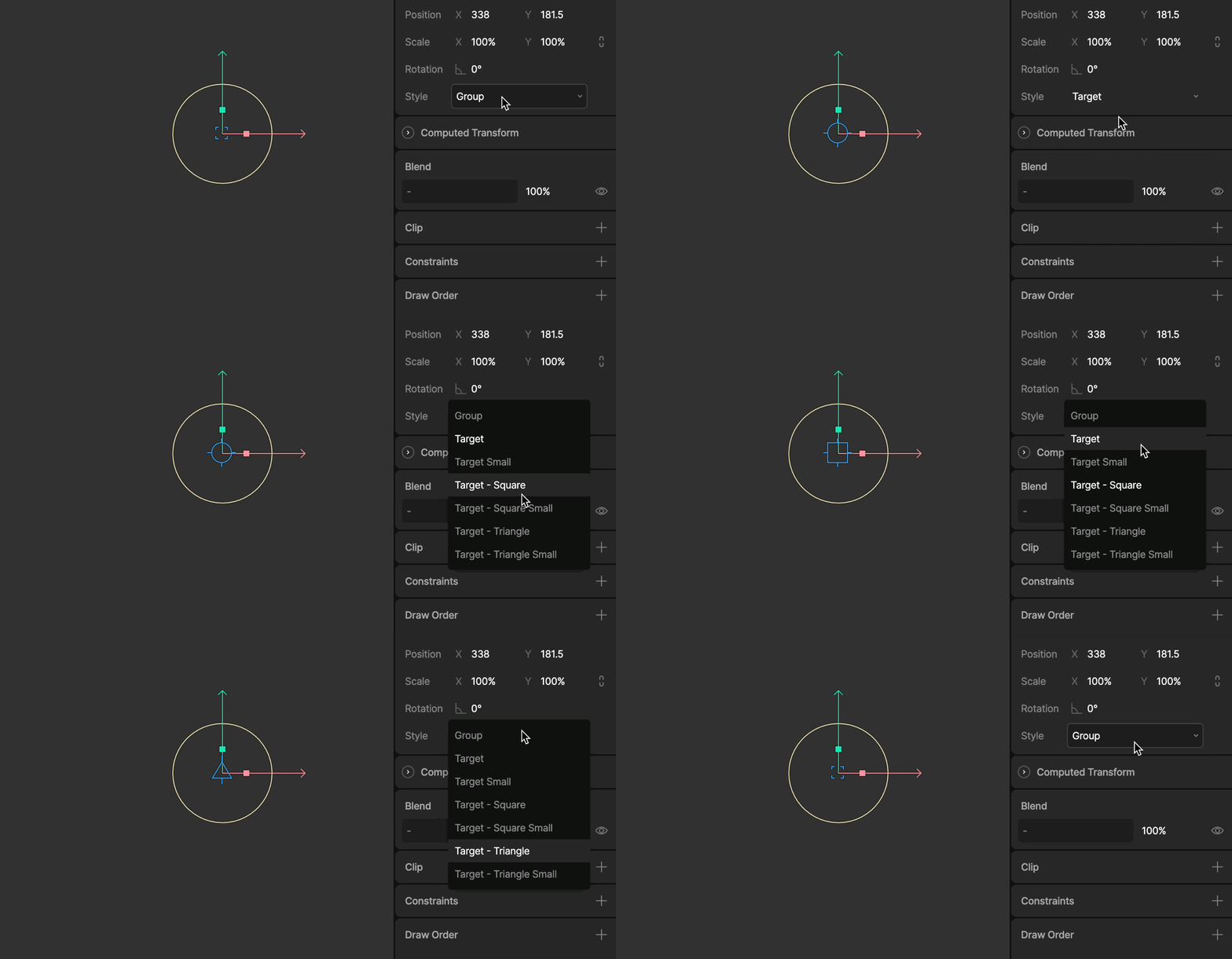
Set a group’s Style in the Inspector to choose how it appears on the stage.
Group is the default. A group only shows an icon on the stage when it’s empty.
The Target styles always show an icon on the stage, even when the group has children. Choose a circle, square, or triangle, at full or small size.
Targets are directly selectable on the stage without Deep Select. This makes them useful as handles for constraints, such as an IK target for a foot. The style only affects the editor.
If targets aren’t visible on the stage, open the View Options menu and make sure Targets is enabled.
{"docsConfig":{"theme":"mint","$schema":"https://mintlify.com/docs.json","name":"Rive","colors":{"primary":"#ffa41c","light":"#ffa41c","dark":"#ffa41c"},"logo":{"light":"https://mintcdn.com/rive/tBktbqSaEr9ZwywZ/logo/rive_top_logo_black.svg?fit=max\u0026auto=format\u0026n=tBktbqSaEr9ZwywZ\u0026q=85\u0026s=e09b8659935986a837947ae7c3b104e0","dark":"https://mintcdn.com/rive/tBktbqSaEr9ZwywZ/logo/rive_top_logo_white.svg?fit=max\u0026auto=format\u0026n=tBktbqSaEr9ZwywZ\u0026q=85\u0026s=d2ccc2c4dec459d584f578475de89248","href":"https://rive.app?utm_source=docs\u0026utm_medium=header_nav"},"favicon":"https://mintcdn.com/rive/IGEy4oJSivuQmjey/favicon_black.png?fit=max\u0026auto=format\u0026n=IGEy4oJSivuQmjey\u0026q=85\u0026s=986c81e5b82e1138420d773296030a3a","appearance":{"default":"dark"},"background":{"decoration":"grid"},"navbar":{"links":[{"href":"/tutorials/learn-rive","label":"Learn"},{"href":"/community/support","label":"Support"}],"primary":{"type":"button","label":"Get Rive","href":"https://rive.app/downloads?utm_source=docs\u0026utm_medium=header_nav"}},"footer":{"socials":{"youtube":"https://www.youtube.com/channel/UCPal2R1FxwRTPylhP_7ofEg","x":"https://twitter.com/rive_app","instagram":"https://www.instagram.com/rive.app","github":"https://github.com/rive-app","discord":"https://discord.gg/rive-app"},"links":[{"header":"Resources","items":[{"label":"Community","href":"https://community.rive.app?utm_source=docs\u0026utm_medium=footer_nav"},{"label":"Blog","href":"https://rive.app/blog?utm_source=docs\u0026utm_medium=footer_nav"},{"label":"Case Studies","href":"https://rive.app/blog/case-studies?utm_source=docs\u0026utm_medium=footer_nav"},{"label":"Marketplace","href":"https://rive.app/marketplace?utm_source=docs\u0026utm_medium=footer_nav"},{"label":"Feature Requests","href":"https://community.rive.app/c/feature-requests"}]},{"header":"Company","items":[{"label":"Careers","href":"https://rive.app/careers?utm_source=docs\u0026utm_medium=footer_nav"},{"label":"Terms of Service","href":"/docs/legal/terms-of-service"},{"label":"Acceptable Use Policy","href":"/docs/legal/acceptable-use-policy"},{"label":"Privacy Policy","href":"/docs/legal/privacy-policy"},{"label":"Your Privacy Choices","href":"https://rive.app/?cookie-settings"}]}]},"fonts":{"heading":{"family":"Tomorrow Placeholder","weight":500,"source":"https://framerusercontent.com/assets/nCpxWS6DaPlPe0lHzStXAPCo3lw.woff2","format":"woff2"}},"integrations":{"amplitude":{"apiKey":"38803036884a752b104ee4bf501e0945"},"cookies":{"key":"rive_analytics","value":"granted"}},"contextual":{"options":["copy","view","chatgpt","claude"],"display":"header"},"variables":{"runtimeCurrentNameApple":"New Runtime","runtimeLegacyNameApple":"Legacy Runtime","monthlyCreditsVoyager":"$20","monthlyCreditsEnterprise":"$40","pricingCadetMonthly":"$17","pricingCadetYearly":"$108","pricingVoyagerMonthly":"$49","pricingVoyagerYearly":"$384","pricingEnterpriseYearly":"$1,440","cliAllowanceFree":"50","cliAllowanceCadet":"500","cliAllowanceVoyager":"5,000","versionWeb":"2.40.1","versionReact":"4.33.0","versionApple":"6.24.0","versionAndroid":"11.9.2","versionReactNative":"0.5.5","versionFlutter":"0.14.11","versionDevFlutter":"0.15.0-dev.4","versionUnity":"0.4.5","versionUnreal":"0.4.25","supportForm":"https://forms.rive.app/support?utm_medium=support_page","supportFormEducational":"https://forms.rive.app/education?utm_medium=support_page"},"styling":{"latex":false},"navigation":{"pages":[]}},"deployment":{"deploymentMetadataValue":{"subdomain":"rive","hasAudioNarration":false,"actualSubdomain":"rive","customDomains":["rive.app"],"gitSource":{"type":"github","owner":"rive-app","repo":"rive-docs","deployBranch":"main","contentDirectory":"","isPrivate":false,"mountPath":"","label":""},"feedback":{"edits":true,"issues":true,"thumbs":true},"entitlements":{"AI_CHAT":{"status":"ENABLED"},"REMOVE_BRANDING":{"status":"ENABLED"},"WEB_MCP":{"status":"ENABLED"},"NARRATION":{"status":"ENABLED"}},"buildId":"6af2942236353e262b4c0307","clientVersion":"0.0.4094","searchFilterCounts":[{"language":"default","tag":"Runtimes","count":283},{"language":"default","tag":"Scripting","count":188},{"language":"default","tag":"Scripting API","count":167},{"language":"default","tag":"Editor","count":103},{"language":"default","tag":"Fundamentals","count":89},{"language":"default","tag":"GPU","count":45},{"language":"default","tag":"Design","count":37},{"language":"default","tag":"Artboards","count":25},{"language":"default","tag":"Interfaces","count":24},{"language":"default","tag":"React Native","count":20}]},"assistantConfig":{},"basePath":"/docs","hasChatPermissions":false,"hasWebMcpPermissions":true,"toggles":[{"name":"kill-isr","enabled":true,"variant":{"name":"disabled","enabled":false,"feature_enabled":true},"impressionData":false},{"name":"custom-rbac-roles","enabled":true,"variant":{"name":"disabled","enabled":false,"feature_enabled":true},"impressionData":false},{"name":"agent-mintlify-slack","enabled":true,"variant":{"name":"disabled","enabled":false,"feature_enabled":true},"impressionData":false},{"name":"agent-integrations-settings","enabled":true,"variant":{"name":"disabled","enabled":false,"feature_enabled":true},"impressionData":false},{"name":"rbac-expansion","enabled":true,"variant":{"name":"disabled","enabled":false,"feature_enabled":true},"impressionData":false},{"name":"automations-pr-grouping","enabled":true,"variant":{"name":"disabled","enabled":false,"feature_enabled":true},"impressionData":false},{"name":"custom-prefix","enabled":true,"variant":{"name":"disabled","enabled":false,"feature_enabled":true},"impressionData":false},{"name":"analytics-v7","enabled":true,"variant":{"name":"disabled","enabled":false,"feature_enabled":true},"impressionData":false},{"name":"user-flows-analytics","enabled":true,"variant":{"name":"disabled","enabled":false,"feature_enabled":true},"impressionData":false},{"name":"no-publish-flow","enabled":true,"variant":{"name":"disabled","enabled":false,"feature_enabled":true},"impressionData":false},{"name":"workos-onboarding","enabled":true,"variant":{"name":"disabled","enabled":false,"feature_enabled":true},"impressionData":false},{"name":"llms-txt-v2","enabled":true,"variant":{"name":"disabled","enabled":false,"feature_enabled":true},"impressionData":false},{"name":"snapshot-serving-live","enabled":true,"variant":{"name":"disabled","enabled":false,"feature_enabled":true},"impressionData":false},{"name":"stripTemperatureMiddleware","enabled":true,"variant":{"name":"disabled","enabled":false,"feature_enabled":true},"impressionData":false},{"name":"support-platform-pylon-zendesk","enabled":true,"variant":{"name":"disabled","enabled":false,"feature_enabled":true},"impressionData":false},{"name":"snapshot-serving","enabled":true,"variant":{"name":"disabled","enabled":false,"feature_enabled":true},"impressionData":false},{"name":"instant-rollback","enabled":true,"variant":{"name":"disabled","enabled":false,"feature_enabled":true},"impressionData":false},{"name":"granular-notifications-server","enabled":true,"variant":{"name":"disabled","enabled":false,"feature_enabled":true},"impressionData":false},{"name":"granular-notifications","enabled":true,"variant":{"name":"disabled","enabled":false,"feature_enabled":true},"impressionData":false},{"name":"automations-fable","enabled":true,"variant":{"name":"disabled","enabled":false,"feature_enabled":true},"impressionData":false},{"name":"fixed-ai-action-pricing","enabled":true,"variant":{"name":"disabled","enabled":false,"feature_enabled":true},"impressionData":false},{"name":"automation-resolve-merge-conflict","enabled":true,"variant":{"name":"disabled","enabled":false,"feature_enabled":true},"impressionData":false},{"name":"scoped-publishing","enabled":true,"variant":{"name":"disabled","enabled":false,"feature_enabled":true},"impressionData":false},{"name":"mintql","enabled":true,"variant":{"name":"disabled","enabled":false,"feature_enabled":true},"impressionData":false},{"name":"page-level-analytics","enabled":true,"variant":{"name":"disabled","enabled":false,"feature_enabled":true},"impressionData":false},{"name":"editor-version-history-v2","enabled":true,"variant":{"name":"disabled","enabled":false,"feature_enabled":true},"impressionData":false},{"name":"billing-page-v2","enabled":true,"variant":{"name":"disabled","enabled":false,"feature_enabled":true},"impressionData":false},{"name":"full-page-search","enabled":true,"variant":{"name":"disabled","enabled":false,"feature_enabled":true},"impressionData":false},{"name":"workspace-projects","enabled":true,"variant":{"name":"disabled","enabled":false,"feature_enabled":true},"impressionData":false},{"name":"assistant-v5","enabled":true,"variant":{"name":"disabled","enabled":false,"feature_enabled":true},"impressionData":false},{"name":"fork-pr-previews","enabled":true,"variant":{"name":"disabled","enabled":false,"feature_enabled":true},"impressionData":false},{"name":"revalidation-jwt","enabled":true,"variant":{"name":"disabled","enabled":false,"feature_enabled":true},"impressionData":false},{"name":"workos-sso-scim","enabled":true,"variant":{"name":"disabled","enabled":false,"feature_enabled":true},"impressionData":false},{"name":"hobby-abuse-scan","enabled":true,"variant":{"name":"disabled","enabled":false,"feature_enabled":true},"impressionData":false},{"name":"dashboard-inbox","enabled":true,"variant":{"name":"disabled","enabled":false,"feature_enabled":true},"impressionData":false},{"name":"workos-signup","enabled":true,"variant":{"name":"disabled","enabled":false,"feature_enabled":true},"impressionData":false},{"name":"turbopuffer-dual-write","enabled":true,"variant":{"name":"disabled","enabled":false,"feature_enabled":true},"impressionData":false},{"name":"workos-enabled","enabled":true,"variant":{"name":"disabled","enabled":false,"feature_enabled":true},"impressionData":false},{"name":"approve-review-flow","enabled":true,"variant":{"name":"disabled","enabled":false,"feature_enabled":true},"impressionData":false},{"name":"editor-metadata","enabled":true,"variant":{"name":"disabled","enabled":false,"feature_enabled":true},"impressionData":false},{"name":"sso-setup-deadline-banner","enabled":true,"variant":{"name":"disabled","enabled":false,"feature_enabled":true},"impressionData":false},{"name":"turbopuffer-serve","enabled":true,"variant":{"name":"disabled","enabled":false,"feature_enabled":true},"impressionData":false},{"name":"live-agents","enabled":true,"variant":{"name":"disabled","enabled":false,"feature_enabled":true},"impressionData":false}],"googleFontsInlined":false},"customCss":[{"filePath":"custom.css","content":"p{font-size:14px}ul li{font-size:14px}ol li{font-size:14px}.signature .code-block{border:none}.signature .code-block [data-floating-buttons=\"true\"]{display:none}.signature .code-block [data-component-part=\"code-block-root\"]{background:none;padding:0}.dark .card{background-color:var(--background-dark)!important;border-color:rgb(255 255 255 / 0.1)!important}.dark .card:hover{border-color:var(--primary-light)!important}"}],"page":{"pagePath":"editor/fundamentals/groups","slug":"/editor/fundamentals/groups","pageMetadata":{"title":"Groups","description":"Use groups to organize objects, and to add pivots so you can animate objects from more than one point.","href":"/editor/fundamentals/groups"},"description":{"compiledSource":"\"use strict\";\nconst {jsx: _jsx} = arguments[0];\nconst {useMDXComponents: _provideComponents} = arguments[0];\nfunction _createMdxContent(props) {\n const _components = {\n p: \"p\",\n ..._provideComponents(),\n ...props.components\n };\n return _jsx(_components.p, {\n children: \"Use groups to organize objects, and to add pivots so you can animate objects from more than one point.\"\n });\n}\nfunction MDXContent(props = {}) {\n const {wrapper: MDXLayout} = {\n ..._provideComponents(),\n ...props.components\n };\n return MDXLayout ? _jsx(MDXLayout, {\n ...props,\n children: _jsx(_createMdxContent, {\n ...props\n })\n }) : _createMdxContent(props);\n}\nreturn {\n default: MDXContent\n};\n","frontmatter":{},"scope":{}},"pageType":"default","mdx":{"mdxSource":{"compiledSource":"\"use strict\";const{Fragment:_Fragment,jsx:_jsx,jsxs:_jsxs}=arguments[0];const{useMDXComponents:_provideComponents}=arguments[0];const YouTube=({id,timestamp})=>{const videoSrc=timestamp?`https://www.youtube.com/embed/${id}?start=${timestamp}`:`https://www.youtube.com/embed/${id}`;return _jsx(`iframe`,{width:`100%`,height:`400`,src:videoSrc,title:`YouTube video player`,frameBorder:`0`,allow:`accelerometer; autoplay; clipboard-write; encrypted-media; gyroscope; picture-in-picture; web-share`,referrerPolicy:`strict-origin-when-cross-origin`,allowFullScreen:true})};function _createMdxContent(props){const _components={a:`a`,code:`code`,li:`li`,p:`p`,strong:`strong`,ul:`ul`,..._provideComponents(),...props.components},{Heading,OptimizedImage,Tip,_MdxComponentBoundary}=_components;if(!Heading)_missingMdxReference(`Heading`,true);if(!OptimizedImage)_missingMdxReference(`OptimizedImage`,true);if(!Tip)_missingMdxReference(`Tip`,true);if(!_MdxComponentBoundary)_missingMdxReference(`_MdxComponentBoundary`,true);return _jsxs(_Fragment,{children:[_jsxs(_components.p,{children:[`A group is an empty container. It isn’t drawn, but its children inherit its position, rotation, and scale, like any other parent in the `,_jsx(_components.a,{href:`/editor/interface-overview/hierarchy#parent-child-relationships`,children:`Hierarchy`}),`. Use groups to:`]}),`\n`,_jsxs(_components.ul,{children:[`\n`,_jsxs(_components.li,{children:[_jsx(_components.strong,{children:`Organize`}),` related objects, so you can select, move, and hide them together.`]}),`\n`,_jsxs(_components.li,{children:[_jsx(_components.strong,{children:`Add a pivot`}),`, so you can rotate or scale objects from a point other than their own origin. See `,_jsx(_components.a,{href:`#using-groups-as-pivots`,children:`Using groups as pivots`}),`.`]}),`\n`,_jsxs(_components.li,{children:[_jsx(_components.strong,{children:`Mark a point`}),` for a `,_jsx(_components.a,{href:`/editor/constraints/constraints-overview`,children:`constraint`}),` or other feature to target. See `,_jsx(_components.a,{href:`#target-style`,children:`Target style`}),`.`]}),`\n`]}),`\n`,_jsx(Heading,{level:`2`,id:`creating-a-group`,children:`Creating a group`}),`\n`,_jsxs(_components.ul,{children:[`\n`,_jsxs(_components.li,{children:[_jsx(_components.strong,{children:`From a selection`}),`: Select objects and press `,_jsx(_components.code,{children:`Cmd + G`}),` (macOS) or `,_jsx(_components.code,{children:`Ctrl + G`}),` (Windows).`]}),`\n`,_jsxs(_components.li,{children:[_jsx(_components.strong,{children:`With the Group tool`}),`: Press `,_jsx(_components.code,{children:`G`}),`, click the artboard to add an empty group, then drag objects into it in the Hierarchy.`]}),`\n`]}),`\n`,_jsxs(_components.p,{children:[`To remove a group and keep its children, select it and press `,_jsx(_components.code,{children:`Cmd + Shift + G`}),` (macOS) or `,_jsx(_components.code,{children:`Ctrl + Shift + G`}),` (Windows).`]}),`\n`,_jsx(Heading,{level:`2`,id:`using-groups-as-pivots`,children:`Using groups as pivots`}),`\n`,_jsx(_components.p,{children:`Each object rotates and scales around its own origin. Nesting it in a group adds a second origin, and the group’s rotation and scale move the object around that point. Nest more groups to add more pivots, and animate each one separately. In motion graphics this is often called a transform space.`}),`\n`,_jsx(_components.p,{children:`For example, a moon can spin on its own axis while it orbits the Earth:`}),`\n`,_jsxs(_components.ul,{children:[`\n`,_jsxs(_components.li,{children:[`An `,_jsx(_components.strong,{children:`Earth`}),` group rotates the Earth.`]}),`\n`,_jsxs(_components.li,{children:[`A `,_jsx(_components.strong,{children:`Moon`}),` group sits at the Earth’s center and rotates, carrying the moon around the Earth.`]}),`\n`,_jsx(_components.li,{children:`Inside it, a group at the moon’s center rotates the moon on its own axis.`}),`\n`]}),`\n`,_jsx(OptimizedImage,{src:`https://mintcdn.com/rive/07rt4FDXzuE1dMIv/images/editor/groups/planet-transform-spaces.webp?fit=max\u0026auto=format\u0026n=07rt4FDXzuE1dMIv\u0026q=85\u0026s=de4bfdafa1682f33599ce8beba4b5f10`,alt:`An animated moon orbiting a spinning Earth while also spinning on its own axis`,\"data-og-width\":`1000`,width:`1000`,\"data-og-height\":`533`,height:`533`,\"data-path\":`images/editor/groups/planet-transform-spaces.webp`,\"data-optimize\":`true`,\"data-opv\":`3`,srcset:`https://mintcdn.com/rive/07rt4FDXzuE1dMIv/images/editor/groups/planet-transform-spaces.webp?w=280\u0026fit=max\u0026auto=format\u0026n=07rt4FDXzuE1dMIv\u0026q=85\u0026s=59db5e9cc36d9343264504d0a5748fad 280w, https://mintcdn.com/rive/07rt4FDXzuE1dMIv/images/editor/groups/planet-transform-spaces.webp?w=560\u0026fit=max\u0026auto=format\u0026n=07rt4FDXzuE1dMIv\u0026q=85\u0026s=d19f41dbbb161563e160d981d4d4c898 560w, https://mintcdn.com/rive/07rt4FDXzuE1dMIv/images/editor/groups/planet-transform-spaces.webp?w=840\u0026fit=max\u0026auto=format\u0026n=07rt4FDXzuE1dMIv\u0026q=85\u0026s=29eebc5450d9e3d6be112b8b1ce9063b 840w, https://mintcdn.com/rive/07rt4FDXzuE1dMIv/images/editor/groups/planet-transform-spaces.webp?w=1100\u0026fit=max\u0026auto=format\u0026n=07rt4FDXzuE1dMIv\u0026q=85\u0026s=e106dadb0ed361c664f40878f07d307e 1100w, https://mintcdn.com/rive/07rt4FDXzuE1dMIv/images/editor/groups/planet-transform-spaces.webp?w=1650\u0026fit=max\u0026auto=format\u0026n=07rt4FDXzuE1dMIv\u0026q=85\u0026s=138c6775fe0f818dc82fd7ccaf09e3e3 1650w, https://mintcdn.com/rive/07rt4FDXzuE1dMIv/images/editor/groups/planet-transform-spaces.webp?w=2500\u0026fit=max\u0026auto=format\u0026n=07rt4FDXzuE1dMIv\u0026q=85\u0026s=3368852f704b87dbcb74c38ad947993f 2500w`}),`\n`,_jsx(OptimizedImage,{src:`https://mintcdn.com/rive/07rt4FDXzuE1dMIv/images/editor/groups/planet-group-hierarchy.webp?fit=max\u0026auto=format\u0026n=07rt4FDXzuE1dMIv\u0026q=85\u0026s=b641002758af7c3d972e0a2dddd3defb`,alt:`The Hierarchy for the planet animation, with a Moon group that orbits the Earth and nested groups for the moon's own rotation`,\"data-og-width\":`1000`,width:`1000`,\"data-og-height\":`533`,height:`533`,\"data-path\":`images/editor/groups/planet-group-hierarchy.webp`,\"data-optimize\":`true`,\"data-opv\":`3`,srcset:`https://mintcdn.com/rive/07rt4FDXzuE1dMIv/images/editor/groups/planet-group-hierarchy.webp?w=280\u0026fit=max\u0026auto=format\u0026n=07rt4FDXzuE1dMIv\u0026q=85\u0026s=ac9e6eb1140cd357b45be2d64c8bc6e6 280w, https://mintcdn.com/rive/07rt4FDXzuE1dMIv/images/editor/groups/planet-group-hierarchy.webp?w=560\u0026fit=max\u0026auto=format\u0026n=07rt4FDXzuE1dMIv\u0026q=85\u0026s=bfd21a2cade41c03b49561fbc732211c 560w, https://mintcdn.com/rive/07rt4FDXzuE1dMIv/images/editor/groups/planet-group-hierarchy.webp?w=840\u0026fit=max\u0026auto=format\u0026n=07rt4FDXzuE1dMIv\u0026q=85\u0026s=d424d5992366b2955adf64854b0b79ac 840w, https://mintcdn.com/rive/07rt4FDXzuE1dMIv/images/editor/groups/planet-group-hierarchy.webp?w=1100\u0026fit=max\u0026auto=format\u0026n=07rt4FDXzuE1dMIv\u0026q=85\u0026s=0d62de3b0484f6e9a6e1fd57936e548c 1100w, https://mintcdn.com/rive/07rt4FDXzuE1dMIv/images/editor/groups/planet-group-hierarchy.webp?w=1650\u0026fit=max\u0026auto=format\u0026n=07rt4FDXzuE1dMIv\u0026q=85\u0026s=9225d9e8f453a5f1e18e642bcb3569f6 1650w, https://mintcdn.com/rive/07rt4FDXzuE1dMIv/images/editor/groups/planet-group-hierarchy.webp?w=2500\u0026fit=max\u0026auto=format\u0026n=07rt4FDXzuE1dMIv\u0026q=85\u0026s=7d0d6b9cb23a17f5be9bb812d1b5892f 2500w`}),`\n`,_jsxs(_components.p,{children:[`To change where a group rotates and scales from without moving its children, use `,_jsx(_components.a,{href:`/editor/fundamentals/origin#freeze`,children:`Freeze`}),`.`]}),`\n`,_jsx(_MdxComponentBoundary,{name:`YouTube`,children:_jsx(YouTube,{id:`IcSXchdnzHM`})}),`\n`,_jsx(Heading,{level:`2`,id:`target-style`,children:`Target style`}),`\n`,_jsxs(_components.p,{children:[`Set a group’s `,_jsx(_components.strong,{children:`Style`}),` in the Inspector to choose how it appears on the stage.`]}),`\n`,_jsxs(_components.ul,{children:[`\n`,_jsxs(_components.li,{children:[_jsx(_components.strong,{children:`Group`}),` is the default. A group only shows an icon on the stage when it’s empty.`]}),`\n`,_jsxs(_components.li,{children:[`The `,_jsx(_components.strong,{children:`Target`}),` styles always show an icon on the stage, even when the group has children. Choose a circle, square, or triangle, at full or small size.`]}),`\n`]}),`\n`,_jsxs(_components.p,{children:[`Targets are directly selectable on the stage without `,_jsx(_components.a,{href:`/editor/interface-overview/selection-and-navigation#deep-select`,children:`Deep Select`}),`. This makes them useful as handles for `,_jsx(_components.a,{href:`/editor/constraints/constraints-overview`,children:`constraints`}),`, such as an IK target for a foot. The style only affects the editor.`]}),`\n`,_jsx(OptimizedImage,{src:`https://mintcdn.com/rive/Lwf3q5I_sETfAKaI/images/editor/fundamentals/groups-targets.gif?s=fd9245d507c29e91aed35b03f9e7f23a`,alt:`Setting the Style of a group to Target in the Inspector, which adds a selectable target icon on the stage`,\"data-og-width\":`1200`,width:`1200`,\"data-og-height\":`623`,height:`623`,\"data-path\":`images/editor/fundamentals/groups-targets.gif`,\"data-optimize\":`true`,\"data-opv\":`3`}),`\n`,_jsx(Tip,{children:_jsxs(_components.p,{children:[`If targets aren’t visible on the stage, open the `,_jsx(_components.strong,{children:`View Options`}),` menu and make sure `,_jsx(_components.strong,{children:`Targets`}),` is enabled.`]})})]})}function MDXContent(props={}){const{wrapper:MDXLayout}={..._provideComponents(),...props.components};return MDXLayout?_jsx(MDXLayout,{...props,children:_jsx(_createMdxContent,{...props})}):_createMdxContent(props)}return{YouTube,default:MDXContent};function _missingMdxReference(id,component){throw new Error(`Expected `+(component?`component`:`object`)+\" `\"+id+\"` to be defined: you likely forgot to import, pass, or provide it.\")}","frontmatter":{},"scope":{"config":{},"pageMetadata":{"title":"Groups","description":"Use groups to organize objects, and to add pivots so you can animate objects from more than one point.","href":"/editor/fundamentals/groups"}}},"mdxSourceWithNoJs":null,"noJsSplices":[[143,580,")=>null;function _cr"]]},"mdxExtracts":{"tableOfContents":[{"title":"Creating a group","slug":"creating-a-group","depth":2,"children":[]},{"title":"Using groups as pivots","slug":"using-groups-as-pivots","depth":2,"children":[]},{"title":"Target style","slug":"target-style","depth":2,"children":[]}],"codeExamples":{}},"jsLinks":["/docs/_mintlify/custom/rive/6157a238f0df2356/rive-init.js","/docs/_mintlify/custom/rive/f98a4b1fb6965efa/rive-consent.js"],"subdomain":"rive","siteName":"Rive","title":"Groups - Rive","navMaps":{"firstHrefInVersion":{},"firstHrefInLanguage":{}},"lastModified":"2026-11-09T21:27:26.678Z","originalFileLocation":"editor/fundamentals/groups.mdx"},"headHtml":"\u003cscript data-mint-head>(function(){var d=document.documentElement,p=null;if(!p){try{p=localStorage.getItem(\"isDarkMode\")}catch(e){}if(p==='true')p='dark';else if(p==='false')p='light';if(p!=='light'\u0026\u0026p!=='dark'\u0026\u0026p!=='system')p=\"dark\"}var r=p==='system'?(matchMedia(\"(prefers-color-scheme: dark)\").matches?'dark':'light'):p;d.classList.remove(r==='dark'?'light':'dark');d.classList.add(r);d.setAttribute(\"data-theme-preference\",p)})();\u003c/script>\u003cmeta data-mint-head name=\"description\" content=\"Use groups to organize objects, and to add pivots so you can animate objects from more than one point.\">\u003cmeta data-mint-head name=\"application-name\" content=\"Rive\">\u003cmeta data-mint-head name=\"generator\" content=\"Mintlify\">\u003clink data-mint-head rel=\"icon\" type=\"image/png\" sizes=\"192x192\" href=\"/docs/mintlify-assets/_mintlify/favicons/rive/QOppeg00QlFTw5Bu/_generated/favicon/android-chrome-192x192.png\" media=\"(prefers-color-scheme: light)\">\u003clink data-mint-head rel=\"apple-touch-icon\" type=\"image/png\" sizes=\"180x180\" href=\"/docs/mintlify-assets/_mintlify/favicons/rive/QOppeg00QlFTw5Bu/_generated/favicon/apple-touch-icon.png\">\u003clink data-mint-head rel=\"icon\" type=\"image/png\" sizes=\"16x16\" href=\"/docs/mintlify-assets/_mintlify/favicons/rive/QOppeg00QlFTw5Bu/_generated/favicon/favicon-16x16.png\" media=\"(prefers-color-scheme: light)\">\u003clink data-mint-head rel=\"icon\" type=\"image/png\" sizes=\"32x32\" href=\"/docs/mintlify-assets/_mintlify/favicons/rive/QOppeg00QlFTw5Bu/_generated/favicon/favicon-32x32.png\" media=\"(prefers-color-scheme: light)\">\u003clink data-mint-head rel=\"shortcut icon\" type=\"image/x-icon\" href=\"/docs/mintlify-assets/_mintlify/favicons/rive/QOppeg00QlFTw5Bu/_generated/favicon/favicon.ico\" media=\"(prefers-color-scheme: light)\">\u003clink data-mint-head rel=\"icon\" type=\"image/png\" sizes=\"192x192\" href=\"/docs/mintlify-assets/_mintlify/favicons/rive/QOppeg00QlFTw5Bu/_generated/favicon-dark/android-chrome-192x192.png\" media=\"(prefers-color-scheme: dark)\">\u003clink data-mint-head rel=\"icon\" type=\"image/png\" sizes=\"16x16\" href=\"/docs/mintlify-assets/_mintlify/favicons/rive/QOppeg00QlFTw5Bu/_generated/favicon-dark/favicon-16x16.png\" media=\"(prefers-color-scheme: dark)\">\u003clink data-mint-head rel=\"icon\" type=\"image/png\" sizes=\"32x32\" href=\"/docs/mintlify-assets/_mintlify/favicons/rive/QOppeg00QlFTw5Bu/_generated/favicon-dark/favicon-32x32.png\" media=\"(prefers-color-scheme: dark)\">\u003clink data-mint-head rel=\"shortcut icon\" type=\"image/x-icon\" href=\"/docs/mintlify-assets/_mintlify/favicons/rive/QOppeg00QlFTw5Bu/_generated/favicon-dark/favicon.ico\" media=\"(prefers-color-scheme: dark)\">\u003cmeta data-mint-head property=\"og:title\" content=\"Groups - Rive\">\u003cmeta data-mint-head property=\"og:description\" content=\"Use groups to organize objects, and to add pivots so you can animate objects from more than one point.\">\u003cmeta data-mint-head property=\"og:site_name\" content=\"Rive\">\u003cmeta data-mint-head property=\"og:url\" content=\"https://rive.app/docs/editor/fundamentals/groups\">\u003cmeta data-mint-head property=\"og:type\" content=\"website\">\u003cmeta data-mint-head property=\"og:image\" content=\"https://rive.mintlify.site/docs/_mintlify/api/og/v2?division=Hierarchy\u0026amp;title=Groups\u0026amp;description=Use+groups+to+organize+objects%2C+and+to+add+pivots+so+you+can+animate+objects+from+more+than+one+point.\u0026amp;theme=2e225578d6f0bf137ea455bc\u0026amp;signature=cb1d3bcc90bc69da334d906c26caebf9316d069992ea6ce4219fee0e25df5d00\">\u003cmeta data-mint-head property=\"og:image:width\" content=\"1200\">\u003cmeta data-mint-head property=\"og:image:height\" content=\"630\">\u003cmeta data-mint-head name=\"twitter:card\" content=\"summary_large_image\">\u003cmeta data-mint-head name=\"twitter:title\" content=\"Groups - Rive\">\u003cmeta data-mint-head name=\"twitter:description\" content=\"Use groups to organize objects, and to add pivots so you can animate objects from more than one point.\">\u003cmeta data-mint-head name=\"twitter:image\" content=\"https://rive.mintlify.site/docs/_mintlify/api/og/v2?division=Hierarchy\u0026amp;title=Groups\u0026amp;description=Use+groups+to+organize+objects%2C+and+to+add+pivots+so+you+can+animate+objects+from+more+than+one+point.\u0026amp;theme=2e225578d6f0bf137ea455bc\u0026amp;signature=cb1d3bcc90bc69da334d906c26caebf9316d069992ea6ce4219fee0e25df5d00\">\u003cmeta data-mint-head name=\"twitter:image:width\" content=\"1200\">\u003cmeta data-mint-head name=\"twitter:image:height\" content=\"630\">\u003cmeta data-mint-head name=\"msapplication-config\" content=\"/docs/mintlify-assets/_mintlify/favicons/rive/QOppeg00QlFTw5Bu/_generated/favicon/browserconfig.xml\">\u003cmeta data-mint-head name=\"apple-mobile-web-app-title\" content=\"Rive\">\u003cmeta data-mint-head name=\"msapplication-TileColor\" content=\"#ffa41c\">\u003clink data-mint-head rel=\"canonical\" href=\"https://rive.app/docs/editor/fundamentals/groups\">\u003clink data-mint-head rel=\"alternate\" type=\"application/xml\" href=\"/docs/sitemap.xml\">\u003clink data-mint-head rel=\"alternate\" type=\"text/markdown\" href=\"/docs/editor/fundamentals/groups.md\">\u003cscript data-mint-head type=\"application/ld+json\">{\"@context\":\"https://schema.org\",\"@graph\":[{\"@type\":\"Organization\",\"@id\":\"https://rive.app/#organization\",\"name\":\"Rive\",\"url\":\"https://rive.app\",\"logo\":{\"@type\":\"ImageObject\",\"url\":\"https://mintcdn.com/rive/tBktbqSaEr9ZwywZ/logo/rive_top_logo_black.svg?fit=max\u0026auto=format\u0026n=tBktbqSaEr9ZwywZ\u0026q=85\u0026s=e09b8659935986a837947ae7c3b104e0\"}},{\"@type\":\"WebSite\",\"@id\":\"https://rive.app/docs#website\",\"name\":\"Rive\",\"url\":\"https://rive.app/docs\",\"publisher\":{\"@id\":\"https://rive.app/#organization\"}},{\"@type\":\"WebPage\",\"@id\":\"https://rive.app/docs/editor/fundamentals/groups#webpage\",\"url\":\"https://rive.app/docs/editor/fundamentals/groups\",\"name\":\"Groups\",\"description\":\"Use groups to organize objects, and to add pivots so you can animate objects from more than one point.\",\"dateModified\":\"2026-11-09T21:27:26.678Z\",\"isPartOf\":{\"@id\":\"https://rive.app/docs#website\"},\"breadcrumb\":{\"@id\":\"https://rive.app/docs/editor/fundamentals/groups#breadcrumb\"}},{\"@type\":\"BreadcrumbList\",\"@id\":\"https://rive.app/docs/editor/fundamentals/groups#breadcrumb\",\"itemListElement\":[{\"@type\":\"ListItem\",\"position\":1,\"name\":\"Fundamentals\",\"item\":\"https://rive.app/docs/editor/fundamentals/artboards\"},{\"@type\":\"ListItem\",\"position\":2,\"name\":\"Design\",\"item\":\"https://rive.app/docs/editor/fundamentals/artboards\"},{\"@type\":\"ListItem\",\"position\":3,\"name\":\"Hierarchy\",\"item\":\"https://rive.app/docs/editor/interface-overview/hierarchy\"},{\"@type\":\"ListItem\",\"position\":4,\"name\":\"Groups\",\"item\":\"https://rive.app/docs/editor/fundamentals/groups\"}]},{\"@type\":[\"Article\",\"TechArticle\"],\"@id\":\"https://rive.app/docs/editor/fundamentals/groups#article\",\"headline\":\"Groups\",\"name\":\"Groups\",\"description\":\"Use groups to organize objects, and to add pivots so you can animate objects from more than one point.\",\"url\":\"https://rive.app/docs/editor/fundamentals/groups\",\"mainEntityOfPage\":{\"@id\":\"https://rive.app/docs/editor/fundamentals/groups#webpage\"},\"dateModified\":\"2026-11-09T21:27:26.678Z\",\"publisher\":{\"@id\":\"https://rive.app/#organization\"},\"isPartOf\":{\"@id\":\"https://rive.app/docs#website\"}}]}\u003c/script>","siteName":"Rive","nav":{"global":null,"tabs":[{"tab":"Home","pages":[{"title":"Home","href":"/getting-started/introduction"}]},{"tab":"Editor","groups":[{"group":" ","pages":[{"title":"Using the Rive Editor","sidebarTitle":"Get Rive","href":"/editor/get-rive"},{"group":"Editor Interface","pages":[{"title":"Interface Overview","sidebarTitle":"Overview","href":"/editor/interface-overview/overview"},{"title":"File Browser","href":"/editor/interface-overview/file-browser"},{"title":"Viewport","href":"/editor/interface-overview/stage"},{"title":"Toolbar","href":"/editor/interface-overview/toolbar"},{"title":"Design and Animate Modes","href":"/editor/fundamentals/design-vs-animate-mode"},{"title":"Sidebar","href":"/editor/interface-overview/sidebar"},{"title":"Inspector","href":"/editor/interface-overview/inspector"},{"title":"Debug Panel","href":"/editor/interface-overview/debug-panel"},{"title":"Selection and Navigation","href":"/editor/interface-overview/selection-and-navigation"},{"title":"Keyboard Shortcuts","href":"/editor/keyboard-shortcuts"}]}]},{"group":"Fundamentals","pages":[{"group":"Design","pages":[{"title":"Artboards","href":"/editor/fundamentals/artboards"},{"title":"Components","href":"/editor/fundamentals/components"},{"group":"Hierarchy","pages":[{"title":"Hierarchy","sidebarTitle":"Overview","description":"View, organize, and reorder objects in your file.","href":"/editor/interface-overview/hierarchy"},{"title":"Groups","href":"/editor/fundamentals/groups"},{"title":"Solos","description":"Show one object at a time from a group, to switch between skins, rigs, layouts, or frames.","href":"/editor/manipulating-shapes/solos"},{"title":"Origin","href":"/editor/fundamentals/origin"},{"title":"Animating Draw Order","sidebarTitle":"Custom Draw Order","href":"/editor/animate-mode/animating-draw-order"},{"title":"Tagging","href":"/editor/tagging"}]},{"group":"Drawing","pages":[{"title":"Shapes and Paths","href":"/editor/fundamentals/shapes-and-paths-overview"},{"title":"Fill and Stroke","href":"/editor/fundamentals/fill-and-stroke"},{"title":"Color and Gradients","href":"/editor/fundamentals/color-and-gradients"},{"title":"Shape Tools","href":"/editor/fundamentals/procedural-shapes"},{"title":"Shape Builder","href":"/editor/design/shape-builder"},{"title":"Pen Tool","href":"/editor/fundamentals/pen-tool-overview"},{"title":"Edit Vertices","href":"/editor/fundamentals/edit-vertices"},{"title":"Freehand Drawing with Pencil, Brush, Eraser, and Bucket","sidebarTitle":"Freehand Drawing","href":"/editor/design/freehand-drawing"},{"title":"Shape Bend Tool","href":"/editor/design/shape-bend-tool"},{"title":"Vector Feathering","sidebarTitle":"Feathering (Glows \u0026 Shadows)","href":"/editor/fundamentals/vector-feathering"},{"title":"Trim and Dash","href":"/editor/manipulating-shapes/trim-path"},{"title":"Effect Groups","href":"/editor/manipulating-shapes/effect-groups"},{"title":"Clipping","href":"/editor/manipulating-shapes/clipping"}]},{"title":"Align and Distribute","href":"/editor/fundamentals/align-and-distribute"},{"group":"Text","pages":[{"title":"Text","sidebarTitle":"Overview","href":"/editor/text/text-overview"},{"title":"Text Runs","href":"/editor/text/text-runs"},{"title":"Text Styles","href":"/editor/text/text-styles"},{"title":"Text Modifiers","href":"/editor/text/text-modifiers"},{"title":"Text Input","href":"/editor/text/text-input"}]},{"group":"Responsive Design","pages":[{"title":"Responsive Design","sidebarTitle":"Overview","href":"/editor/layouts/layouts-overview"},{"title":"Creating Layouts","href":"/editor/layouts/layout-tools"},{"title":"Sizing and Positioning","href":"/editor/layouts/sizing-and-positioning"},{"title":"Arranging Children","href":"/editor/layouts/arranging-children"},{"title":"Grid and Stack","href":"/editor/layouts/grid-and-stack"},{"title":"Component Sizing","href":"/editor/layouts/component-sizing"},{"title":"Scrolling","href":"/editor/layouts/scrolling"},{"title":"Layout Animation","href":"/editor/layouts/layout-animation"},{"title":"N-Slicing","href":"/editor/layouts/n-slicing"}]},{"title":"Rulers \u0026 Guides","href":"/editor/design/rulers-and-guides"}]},{"group":"Assets","pages":[{"title":"Assets","sidebarTitle":"Overview","href":"/editor/fundamentals/assets-overview"},{"title":"SVG \u0026 Vector Assets","href":"/editor/assets/svg"},{"title":"Photoshop Files","href":"/editor/assets/psd"},{"title":"Font Assets","href":"/editor/text/fonts"},{"title":"Audio Assets","href":"/editor/assets/audio"},{"title":"Libraries","sidebarTitle":"Libraries","href":"/editor/libraries"}]},{"group":"Animation","pages":[{"title":"Animation","sidebarTitle":"Overview","href":"/editor/animate-mode/animate-mode-overview"},{"title":"Timeline","href":"/editor/animate-mode/timeline"},{"title":"Keys","href":"/editor/animate-mode/keys"},{"title":"Interpolation (Easing)","href":"/editor/animate-mode/interpolation-easing"},{"title":"Graph Editor","href":"/editor/animate-mode/graph-editor"}]},{"group":"Rigging \u0026 Control","pages":[{"title":"Rigging Overview","sidebarTitle":"Overview","href":"/editor/manipulating-shapes/manipulating-shapes"},{"title":"Meshes","href":"/editor/manipulating-shapes/meshes"},{"title":"Bones","href":"/editor/manipulating-shapes/bones"},{"title":"Joysticks","href":"/editor/manipulating-shapes/joysticks"},{"group":"Constraints","pages":[{"title":"Constraints Overview","sidebarTitle":"Overview","href":"/editor/constraints/constraints-overview"},{"title":"IK Constraint","href":"/editor/constraints/ik-constraint"},{"title":"Distance Constraint","href":"/editor/constraints/distance-constraint"},{"title":"Scale Constraint","href":"/editor/constraints/scale-constraint"},{"title":"Rotation Constraint","href":"/editor/constraints/rotation-constraint"},{"title":"Transform Constraint","href":"/editor/constraints/transform-constraint"},{"title":"Translation Constraint","href":"/editor/constraints/translation-constraint"},{"title":"Follow Path Constraint","href":"/editor/constraints/follow-path-constraint"},{"title":"Scroll Constraints","href":"/editor/constraints/scroll-constraint"}]}]},{"group":"Interaction","pages":[{"group":"State Machines","pages":[{"title":"State Machine Overview","sidebarTitle":"Overview","href":"/editor/state-machine/state-machine"},{"title":"States","href":"/editor/state-machine/states"},{"title":"Transitions","href":"/editor/state-machine/transitions"}]},{"title":"Listeners","href":"/editor/state-machine/listeners"},{"title":"Actions","href":"/editor/state-machine/actions"},{"group":"Events","pages":[{"title":"Events Overview","sidebarTitle":"Overview","href":"/editor/events/overview"},{"title":"Open URL Events","href":"/editor/events/open-url-events"},{"title":"Audio Events","href":"/editor/events/audio-events"}]}]},{"group":"Data","pages":[{"title":"Data Binding Overview","href":"/editor/data-binding/overview"},{"title":"View Models \u0026 Instances","href":"/editor/data-binding/view-models"},{"title":"View Model Properties","href":"/editor/data-binding/property-types"},{"title":"Binding Data","href":"/editor/data-binding/binding-data"},{"title":"Controlling Data","href":"/editor/data-binding/controlling-data"},{"group":"Advanced Data Binding","pages":[{"title":"Enums","href":"/editor/data-binding/enums"},{"title":"Lists","href":"/editor/data-binding/lists"},{"title":"Converters","href":"/editor/data-binding/converters"},{"title":"Stateful Components","href":"/editor/data-binding/stateful-components"},{"title":"Property Groups","href":"/editor/data-binding/property-groups"},{"title":"Migration Guide","href":"/editor/data-binding/migration-guide"}]}]},{"group":"Publishing","pages":[{"title":"Exporting for Runtime","href":"/editor/exporting/exporting-for-runtime"},{"title":"Sharing \u0026 Embedding","href":"/editor/embed-urls/overview"},{"title":"Exporting Videos \u0026 Images","href":"/editor/exporting/exporting-for-video-and-static-design"},{"title":"Exporting for Backup","href":"/editor/exporting/exporting-for-backup"}]},{"group":"Accessibility","pages":[{"title":"Semantics","href":"/editor/accessibility/semantics"},{"title":"Focus","href":"/editor/accessibility/focus"},{"title":"Reduced Motion","href":"/editor/accessibility/reduced-motion"}]},{"group":"AI","pages":[{"title":"AI Agent vs CLI","sidebarTitle":"AI Agent vs CLI","href":"/editor/ai/agent-vs-cli"},{"title":"AI Agent","href":"/editor/ai-agent/ai-agent"},{"title":"Rive MCP Integration","sidebarTitle":"MCP Integration","href":"/editor/ai/mcp"}]}]},{"group":"Workflows","pages":[{"title":"Performance","href":"/getting-started/best-practices"},{"title":"Dependencies Graph","href":"/editor/workflows/dependency-graph"},{"title":"Revision History","href":"/editor/fundamentals/revision-history"}]}]},{"tab":"Scripting","pages":[{"title":"Scripting","href":"/scripting/getting-started"}]},{"tab":"Runtimes","pages":[{"title":"Runtimes","href":"/runtimes/getting-started"}]},{"tab":"CLI","pages":[{"title":"CLI","href":"/cli/overview"}]},{"tab":" ","pages":[{"title":" ","href":"/tutorials/learn-rive"}]},{"tab":" ","pages":[{"title":" ","href":"/community/support"}]}]},"basePath":"","title":"Groups - Rive","buildId":"dpl_3pZeXn3XukjzFRgAX73A7GNDfRJ1","deploymentId":"dpl_3pZeXn3XukjzFRgAX73A7GNDfRJ1","dynamics":["a74be98ba7"],"chunks":["zoom-image-lightbox-g3ZzIKzc.js","lightbox-handle-r17bVUz3.js"]}