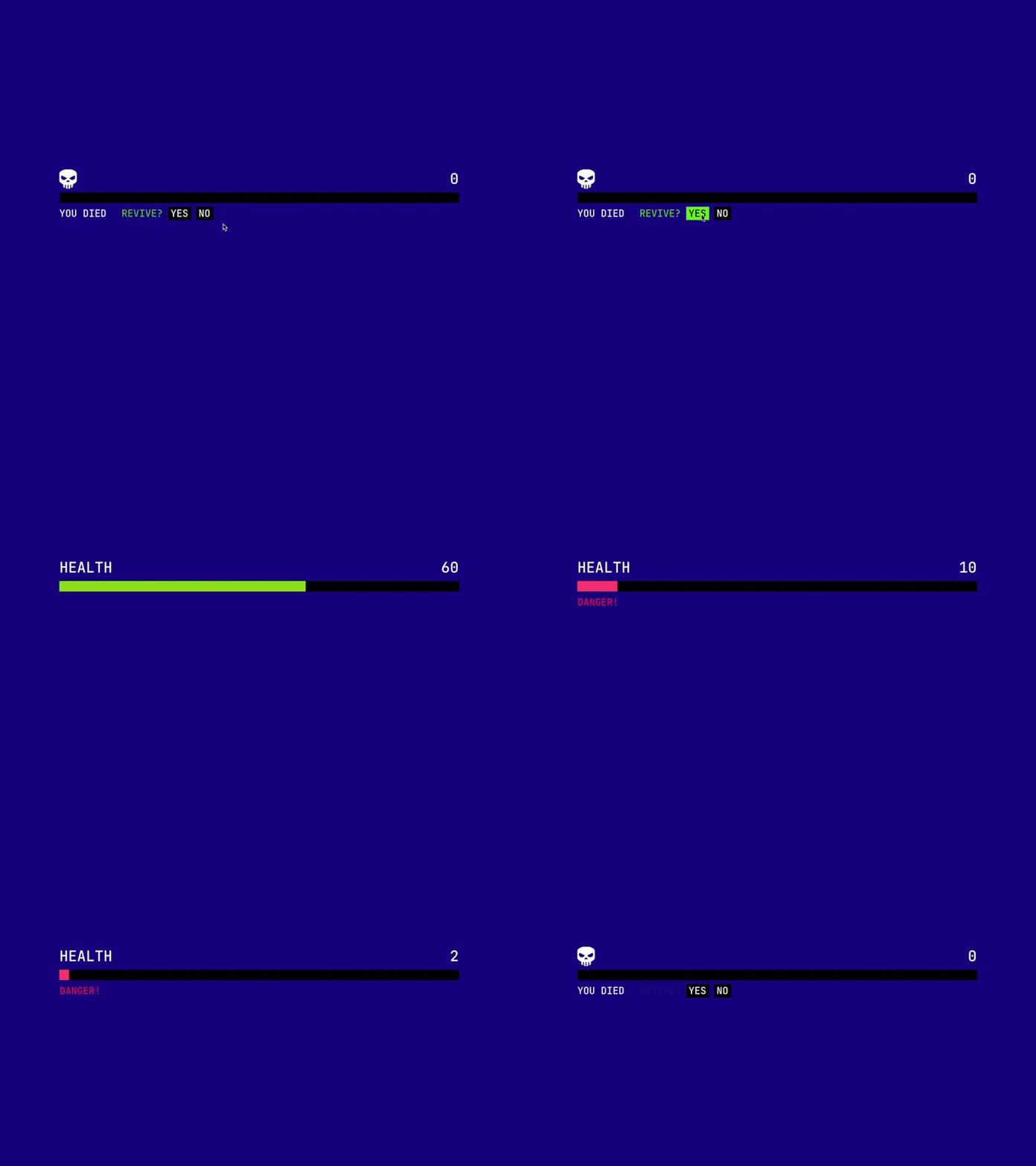
Beginner This tutorial walks through connecting a Rive health bar file to Unity using Data Binding. In this setup, your Unity code updates a single number (health) while the Rive file handles the visuals in response (e.g. color changes, and low-health warnings). GIF of the Health Bar Demo with the value changing from 100 to 0 To view the completed project, see HealthBar Demo.
What you’ll build

  • A scene that displays a Rive health bar file in screen space
  • A HealthBarController script that:
    • Sets a health number property on the view model instance
    • Listens for a gameOver trigger fired from the Rive file
  • (Optional) A small keyboard control script to test damage/heal

Requirements

  • A Unity project with the Rive package installed (see Getting Started)
  • Familiarity with view models and data binding in Rive
  • A .riv file that exposes a view model instance with:
    • health (Number)
    • gameOver (Trigger)
For this tutorial, you can use the demo health bar file available on the Marketplace. Click Download to get the .riv file, or click Preview in Rive to see how it was set up in the Rive Editor.

1. Import the Rive file
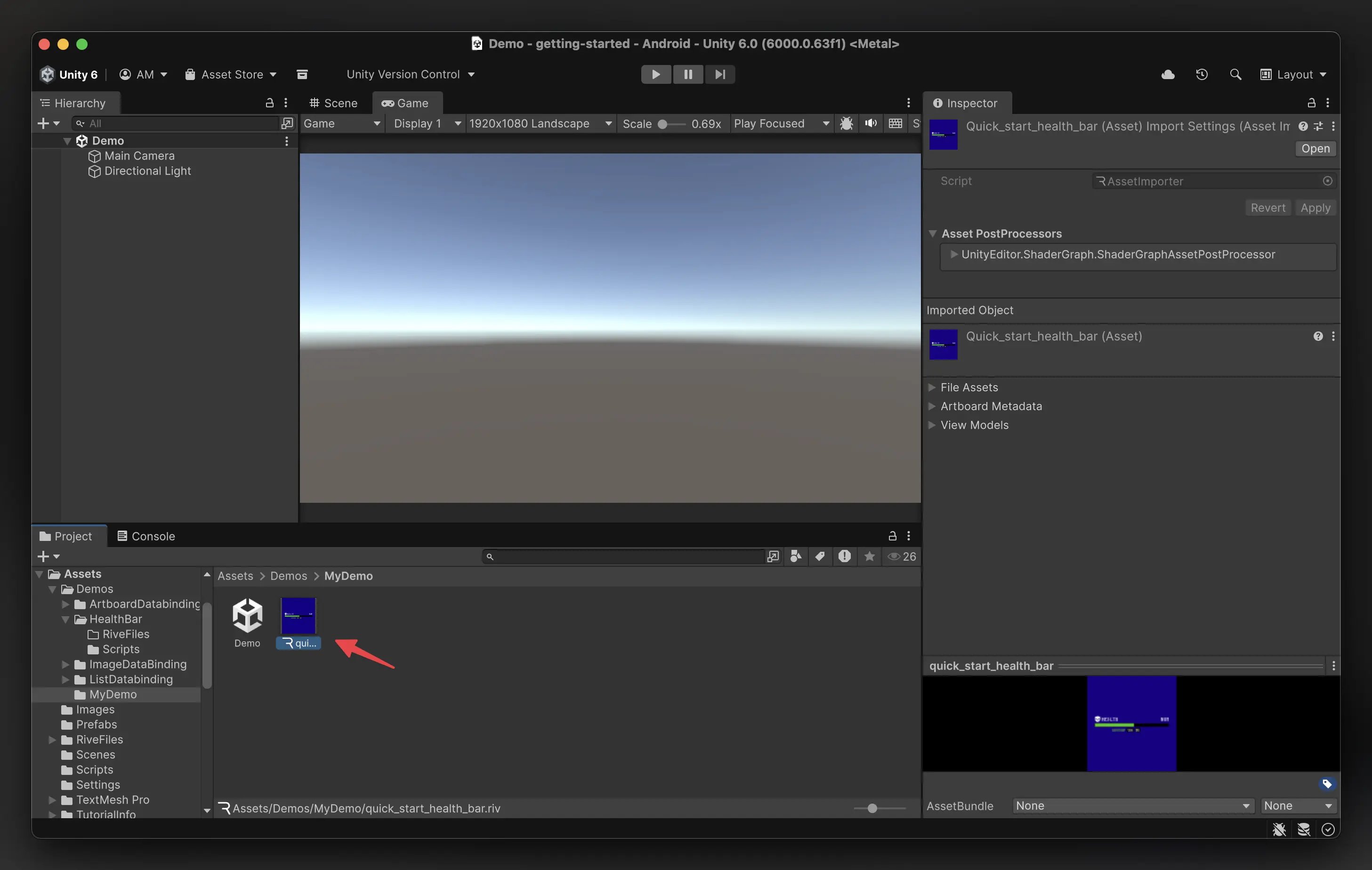
Drag the Rive Asset into the Scene Hierarchy Drag your .riv file into the Unity Project window. Unity will import it and create a Rive Asset.

2. Display the Rive file in UI
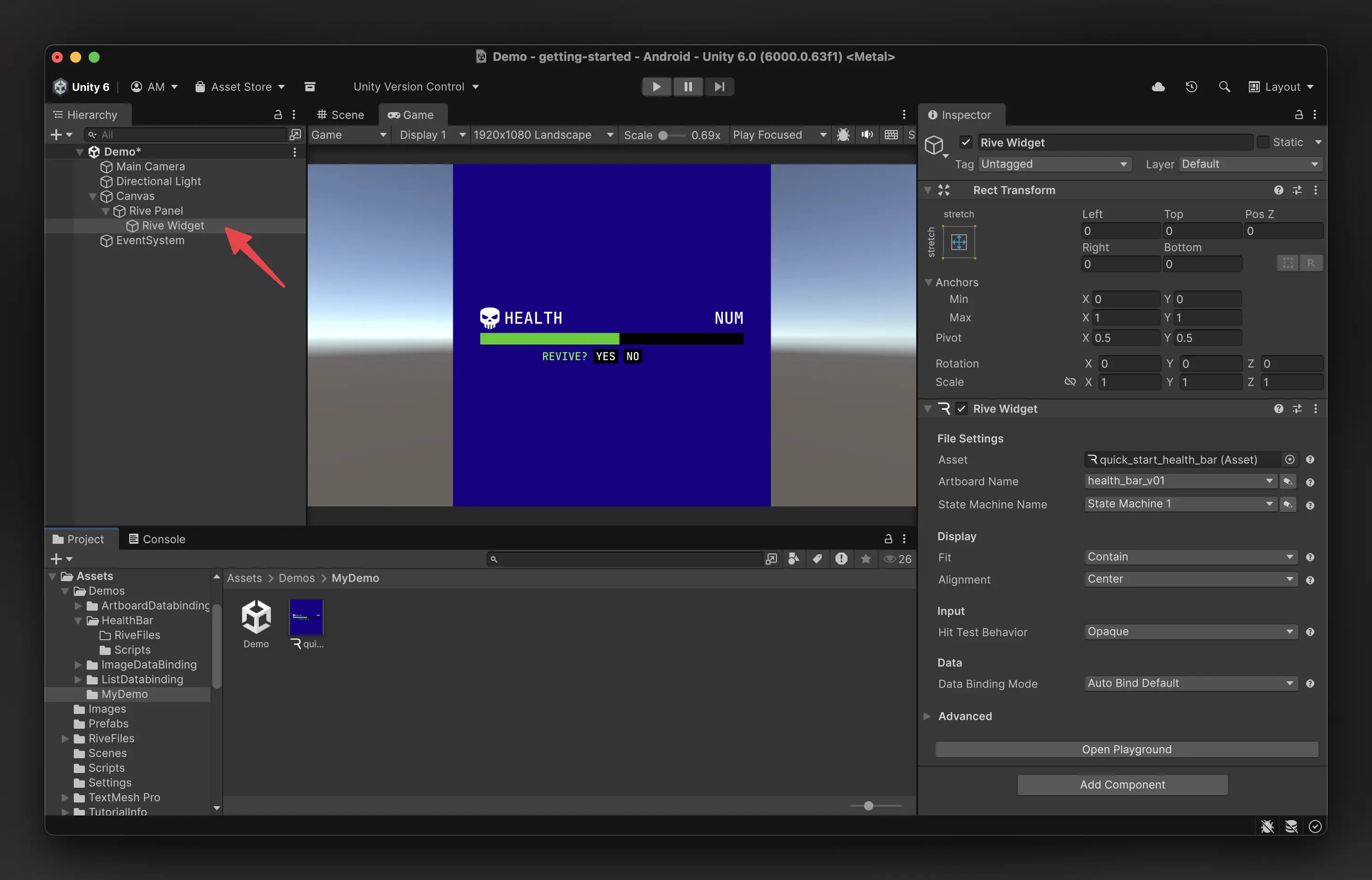
Drag the Rive Asset into the Scene Hierarchy Create a new scene if you haven’t already, then drag the Rive Asset into the Scene Hierarchy to create a Rive Panel/Widget that renders to a uGUI Canvas. This will also add an Event System to the scene, which is required for the Rive Widget to receive pointer events.

3. Configure the Rive Widget

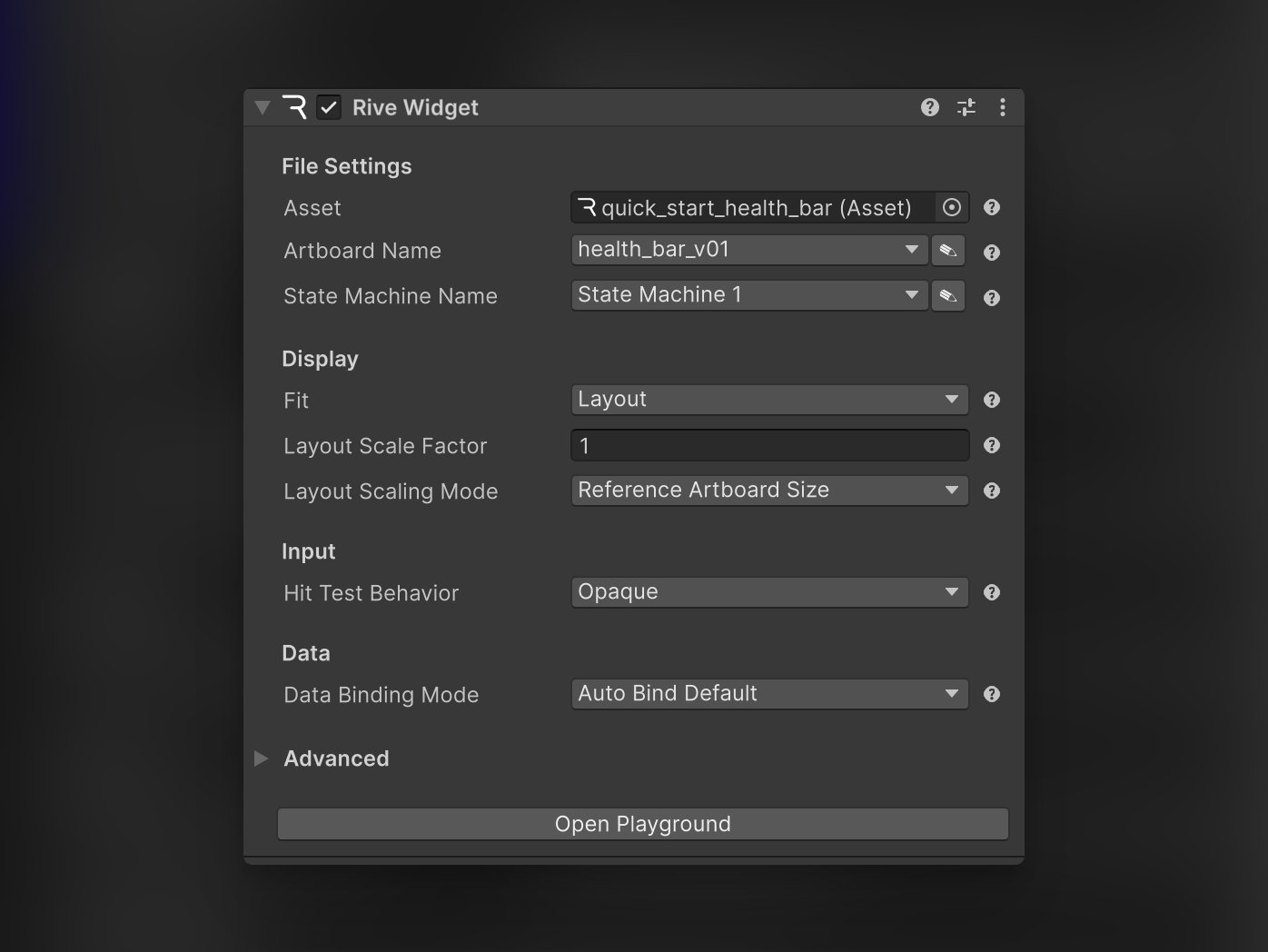
Configure Rive Widget Settings The Rive Widget should already be configured with the default artboard, state machine, and Auto Bind Default mode. If these aren’t set correctly, configure them in the inspector:
1
Select the correct Artboard Name and State Machine Name for your health bar file. For this tutorial, the selected artboard name should be health_bar_v01 and the state machine name should be State Machine 1.
2
Set Data Binding Mode to Auto Bind Default.
The demo file was built with responsiveness in mind, so we also set the Fit mode to Layout to ensure the health bar is scaled to the size of the widget. See Layout to learn more.

4. Add the controller script

Create a C# script named HealthBarController.cs. This is a wrapper script that will be used to control the health bar from your gameplay code. Why use a wrapper script? Even though you can access Rive view model instance properties anywhere in your project, it’s usually better to keep that logic in one place because:
  • It keeps the rest of your code Rive-agnostic: your gameplay scripts can call Damage() / Heal() without knowing about view models, property names, or widget lifecycle.
  • It centralizes Rive-specific details: if the Rive file changes (renamed properties, new triggers, different setup), you update one script instead of hunting through your project.

Step 4.1: Set up the basic fields

Start by adding references to the widget and the property names we’ll look up in the Rive file.
using System;
using Rive;
using Rive.Components;
using UnityEngine;
using UnityEngine.Events;

public class HealthBarController : MonoBehaviour
{
    [Header("Rive")]
    [Tooltip("The Rive Widget that is displaying your health bar file.")]
    [SerializeField] private RiveWidget m_riveWidget;

    [Header("Initial health")]
    [Tooltip("Initial health applied when the widget finishes loading.")]
    [SerializeField] private float m_startingHealth = 100f;

    [Header("ViewModel Property Names")]
    [Tooltip("ViewModel Number property name used by the Rive file.")]
    [SerializeField] private string m_healthPropertyName = "health";

    [Tooltip("ViewModel Trigger property name fired by the Rive file.")]
    [SerializeField] private string m_gameOverPropertyName = "gameOver";

    // Cached references to the view model instance properties we'll be using to interact with the Rive file.
    private ViewModelInstanceNumberProperty m_healthProperty;
    private ViewModelInstanceTriggerProperty m_gameOverProperty;

    // Track whether we've initialized health so we don't overwrite it if the widget GameObject is disabled and re-enabled.
    private bool m_hasInitialized;
}
If you’re not sure where to find the values for the m_healthPropertyName and m_gameOverPropertyName fields, they refer to the names of the health and gameOver properties in the main view model defined in the Rive file.
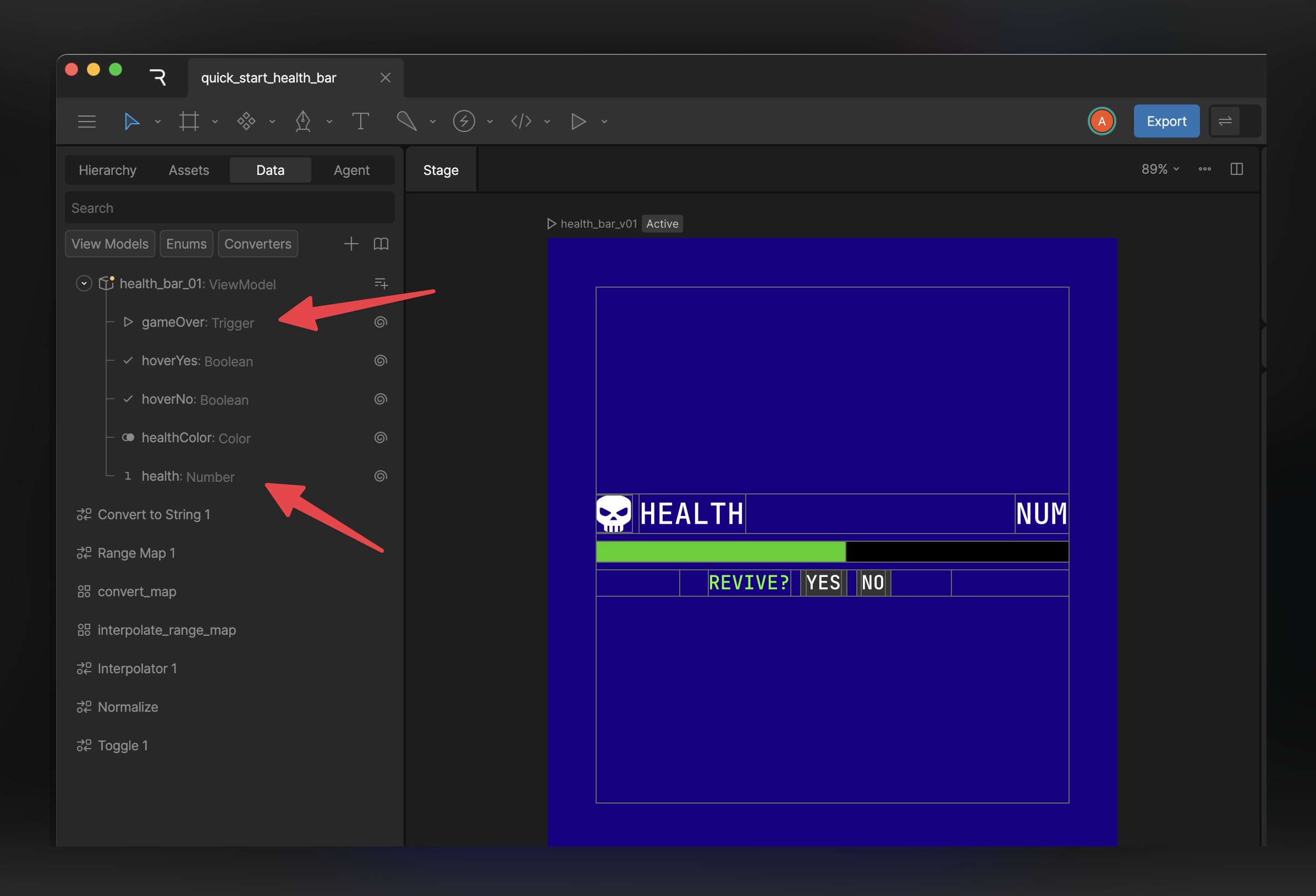
The health bar file in the Rive Editor with the health and gameOver properties highlighted

Step 4.2: Add events

Add UnityEvents so you can react to health changes and game over events (both in the Inspector and from code).
[Header("Events")]
[Tooltip("Invoked whenever health changes in the Rive file.")]
public FloatEvent OnHealthChanged = new FloatEvent();

[Tooltip("Invoked when the Rive file fires the gameOver trigger.")]
public UnityEvent OnGameOver = new UnityEvent();

[Serializable]
public class FloatEvent : UnityEvent<float> { }

Step 4.3: Grab the view model instance properties when the widget is loaded

We use OnWidgetStatusChanged to access the view model instance once the widget is loaded. If you try to access the view model instance before the widget is loaded, it will be null.
The OnWidgetStatusChanged callback also provides a safe window to set initial values before the first frame renders, ensuring they’re visible immediately without delay.
Add the following methods inside HealthBarController:
private void OnEnable()
{
    if (m_riveWidget == null)
    {
        Debug.LogError($"{nameof(HealthBarController)}: No RiveWidget assigned.", this);
        return;
    }

    m_riveWidget.OnWidgetStatusChanged += HandleWidgetStatusChanged;

    // If the widget was already loaded before we subscribed, initialize immediately.
    HandleWidgetStatusChanged();
}

private void OnDisable()
{
    if (m_riveWidget != null)
    {
        m_riveWidget.OnWidgetStatusChanged -= HandleWidgetStatusChanged;
    }

    // Clean up event listeners to avoid duplicate subscriptions.
    if (m_healthProperty != null)
        m_healthProperty.OnValueChanged -= HandleHealthChangedFromRive;

    if (m_gameOverProperty != null)
        m_gameOverProperty.OnTriggered -= HandleGameOverTriggeredFromRive;
}

private void HandleWidgetStatusChanged()
{
    if (m_riveWidget.Status != WidgetStatus.Loaded)
        return;

    ViewModelInstance viewModelInstance = m_riveWidget.StateMachine?.ViewModelInstance;
    if (viewModelInstance == null)
    {
        Debug.LogError($"{nameof(HealthBarController)}: ViewModelInstance is null. " +
                       "Make sure Data Binding Mode is set to Auto Bind Default / Selected.", this);
        return;
    }

    // Clean up old listeners first.
    if (m_healthProperty != null)
        m_healthProperty.OnValueChanged -= HandleHealthChangedFromRive;

    if (m_gameOverProperty != null)
        m_gameOverProperty.OnTriggered -= HandleGameOverTriggeredFromRive;

    // Get the health property by name.
    m_healthProperty = viewModelInstance.GetNumberProperty(m_healthPropertyName);
    if (m_healthProperty == null)
    {
        Debug.LogError($"{nameof(HealthBarController)}: Number property '{m_healthPropertyName}' not found.", this);
        return;
    }

    // Get the gameOver property by name.
    m_gameOverProperty = viewModelInstance.GetTriggerProperty(m_gameOverPropertyName);
    if (m_gameOverProperty == null)
    {
        Debug.LogError($"{nameof(HealthBarController)}: Trigger property '{m_gameOverPropertyName}' not found.", this);
        return;
    }

    // Subscribe to changes from the Rive file for the health and gameOver properties.
    m_healthProperty.OnValueChanged += HandleHealthChangedFromRive;
    m_gameOverProperty.OnTriggered += HandleGameOverTriggeredFromRive;

    // Set the initial health value only once
    if (!m_hasInitialized)
    {
        m_healthProperty.Value = m_startingHealth;
        m_hasInitialized = true;
    }
}

// Rive lets you listen for events when properties change or triggers are fired. We invoke our UnityEvents to notify other scripts of the changes.
private void HandleHealthChangedFromRive(float newValue)
{
    OnHealthChanged.Invoke(newValue);
}

private void HandleGameOverTriggeredFromRive()
{
    OnGameOver.Invoke();
}
This tutorial file includes a default view model instance. If the widget’s Data Binding Mode was set to Manual or if the file did not have a default view model instance, m_riveWidget.StateMachine?.ViewModelInstance would be null.In this case, you would need to manually create and bind a new view model instance to the state machine.Learn more about binding modes and how to configure them in the Data Binding documentation.

Step 4.4: Expose a simple API for gameplay code

Now we add methods that provide a clean interface for gameplay without having to expose the underlying Rive implementation details. First, add a Health property that reads from the health view model instance property when available:
/// <summary>
/// Health is a thin wrapper over the view model number property.
/// Until the widget is loaded, it returns the starting value.
/// </summary>
public float Health
{
    get
    {
        // If the widget is loaded, read from the Rive view model instance property
        if (m_healthProperty != null)
        {
            return m_healthProperty.Value;
        }
        
        // Widget isn't loaded yet, return the starting value
        return m_startingHealth;
    }
}

private void WriteHealth(float value)
{
    // If the widget is loaded, write to the Rive view model instance property
    if (m_healthProperty != null)
    {
        m_healthProperty.Value = value;
        return;
    }

    // Widget isn't loaded yet. Store it so we can apply it when the view model instance is ready.
    m_startingHealth = value;
}
Then add gameplay methods that use this helper:
public void Damage(float amount)
{
    WriteHealth(Health - amount);
}

public void Heal(float amount)
{
    WriteHealth(Health + amount);
}

5. Set up the controller in the Inspector
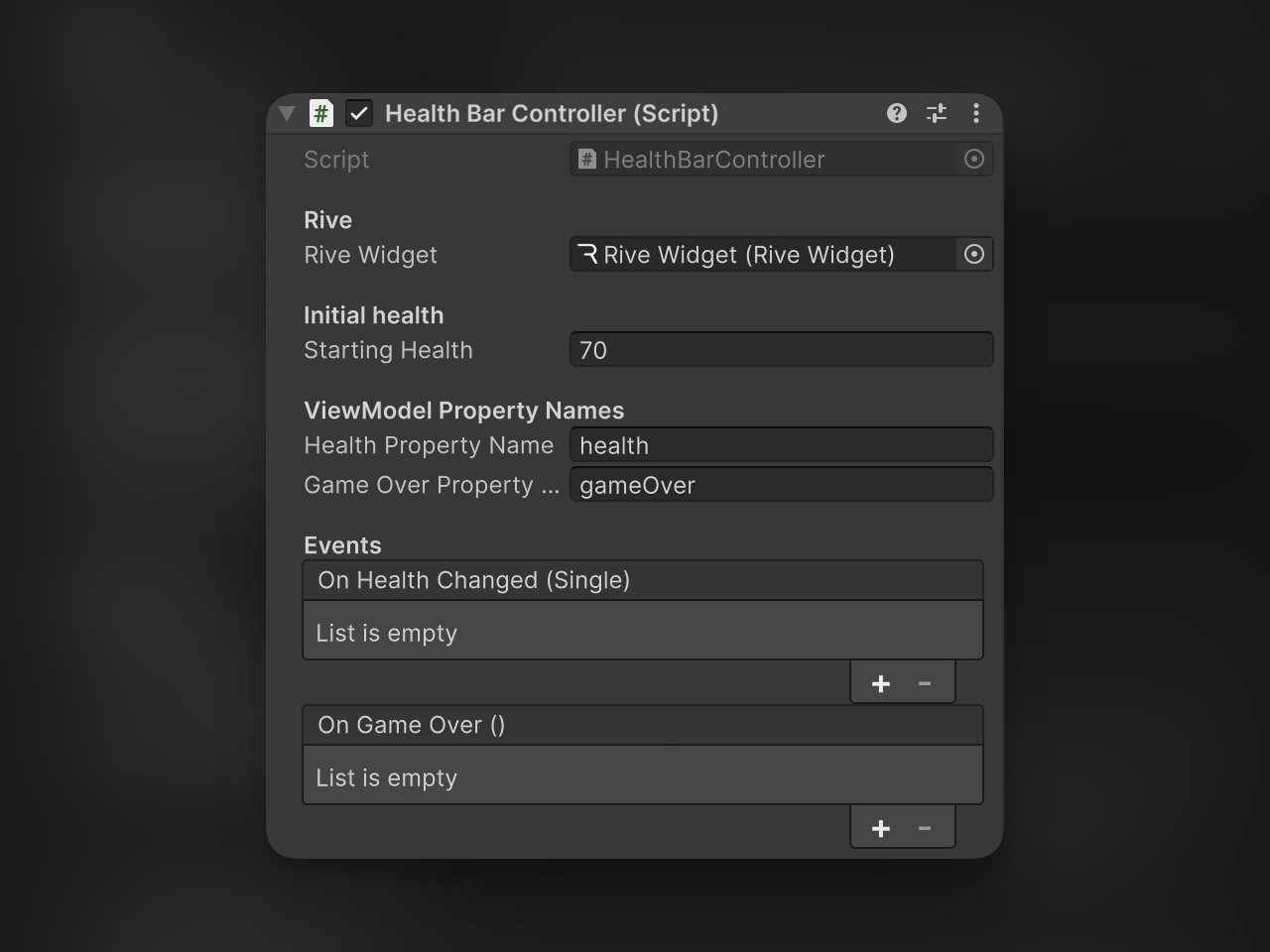
Attach HealthBarController to the Rive Widget Attach HealthBarController to any GameObject (typically the same object as your Rive Widget), then:
1
Assign the Rive Widget field to the one you created earlier.
2
Set Starting Health to the initial health value you want to display (for example, 70).
3
(Optional) Wire On Game Over to your own gameplay logic.

Optional: keyboard controls

If you want a quick way to test this in Play Mode, you can drive the controller with keyboard input. Create a script named HealthBarKeyboardControls.cs:
using UnityEngine;
using UnityEngine.InputSystem;

public class HealthBarKeyboardControls : MonoBehaviour
{
    [SerializeField] private HealthBarController m_healthBar;
    [SerializeField] private float m_damageAmount = 10f;
    [SerializeField] private float m_healAmount = 20f;

    private void Update()
    {
        var keyboard = Keyboard.current;
        if (keyboard == null)
            return;

        // Damage (left arrow key )
        if (keyboard.leftArrowKey.wasPressedThisFrame)
            m_healthBar.Damage(m_damageAmount);

        // Heal (right arrow key)
        if (keyboard.rightArrowKey.wasPressedThisFrame)
            m_healthBar.Heal(m_healAmount);
    }
}
Attach HealthBarKeyboardControls to any GameObject, assign your HealthBarController, then press:
  • (left arrow key) to take damage
  • (right arrow key) to heal
This uses Unity’s Input System package (com.unity.inputsystem). If your project is still using the legacy input manager, you’ll need to enable the Input System in Unity (Project Settings → Player → Active Input Handling).If the Event System in your scene shows a Replace with InputSystemUIInputModel button in the Inspector, click it to upgrade to the new Input System (otherwise pointer events won’t work with the Rive file).

6. Drive health from gameplay code

From your gameplay scripts you can treat the Rive file like a “rendered UI” for your data:
  • Call Damage() or Heal() based on gameplay events.
  • Or read Health if you need the current value.
The data flow isn’t just one-way. Your game scripts can also listen to triggers or changes to values from the Rive file. For example, your game manager script could listen to both health changes and the game over event:
public class GameManager : MonoBehaviour
{
    [SerializeField] private HealthBarController healthBar;

    private void Start()
    {
        // Listen to health value changes
        healthBar.OnHealthChanged.AddListener(HandleHealthChanged);
        
        // Listen to game over trigger
        healthBar.OnGameOver.AddListener(HandleGameOver);
    }

    private void HandleHealthChanged(float newHealth)
    {
        Debug.Log($"Health changed to: {newHealth}");
        // Your game logic...
    }

    private void HandleGameOver()
    {
        Debug.Log("Game Over!");
        // Your game logic...
    }
}
This approach separates your game logic from visual presentation. As long as you keep the data contract the same (the health number and gameOver trigger), you can change the health bar’s appearance in the Rive Editor as much as you want without updating or writing any additional code. Simply swap out the old .riv file with the new one.