

Home
The Home view shows your recent files, links to tutorial videos, and Marketplace examples.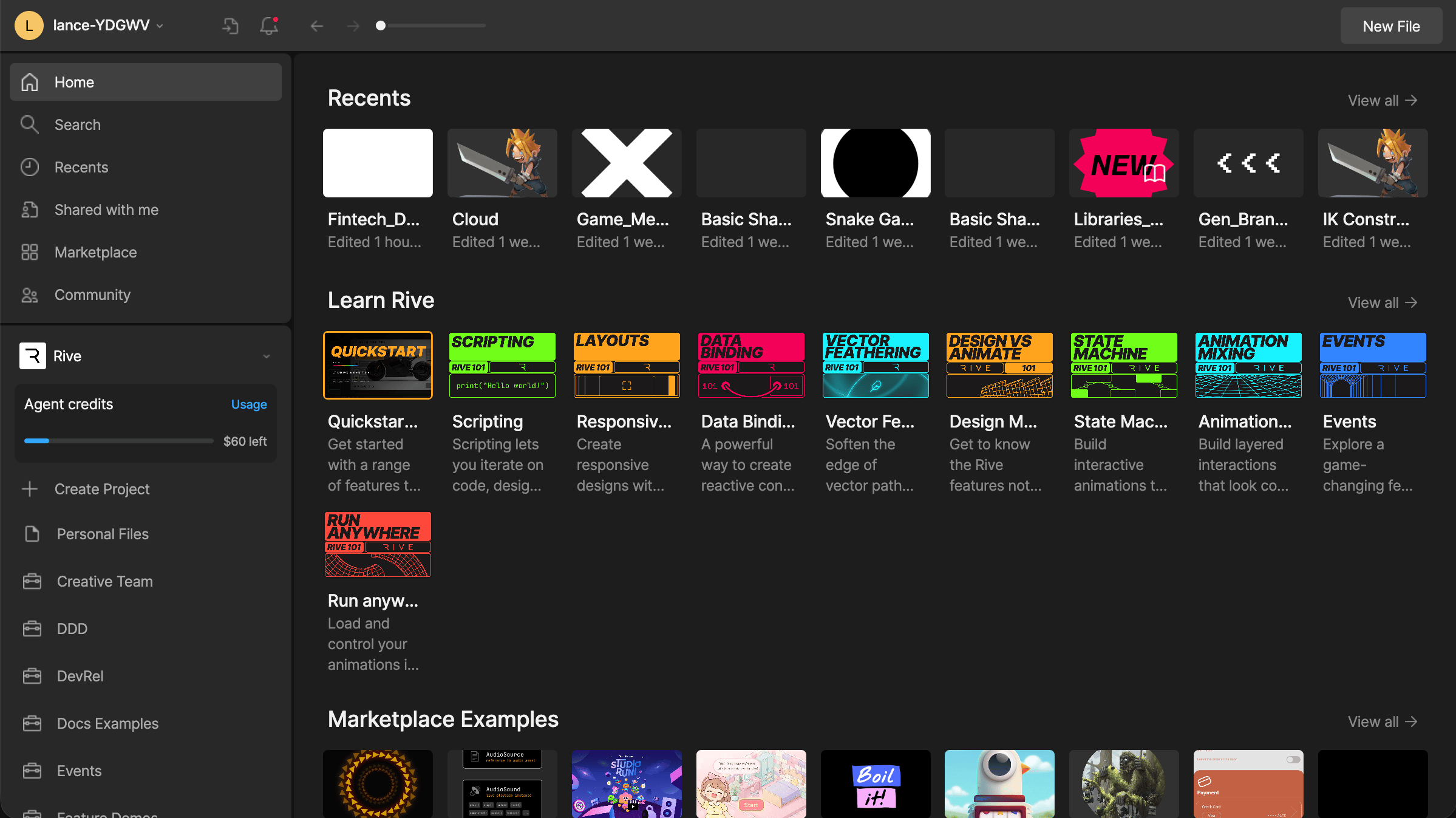
Managing files
Right-click anywhere within the File Browser to create a new file or folder. Right-click a file to open additional options, including:- Open, Copy, Cut, Duplicate, and Delete - common file actions
- Show File in Browser - open the file’s location in the File Browser
- Download - download the file as a
.riv - Download Backup - download a
.revbackup file - Download Revision - download a specific revision
Toolbar
The toolbar includes options for managing your account, changing display options, creating folders, and creating new files.Sidebar
Use the sidebar to search files, view recent files, access files shared with you, and navigate between workspaces and projects.Projects
Projects help you organize files within a workspace. Use projects to group related files, such as files for a client, feature, campaign, or product area. For example, you might have separate projects for personal work and freelance work.Projects and folders are available on Cadet, Voyager, and Enterprise plans. Learn more about our plans and pricing.
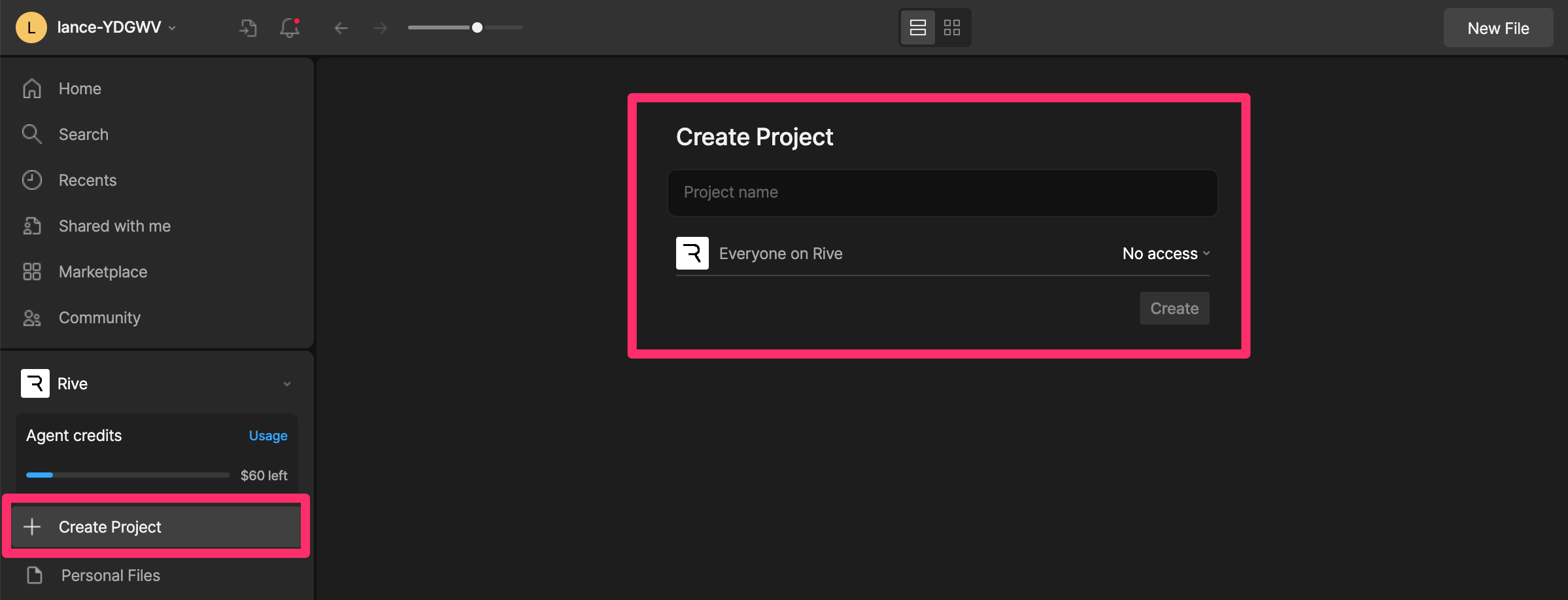
Create a new project
1
In the sidebar, click + Create Project.
2
Add a project name and choose who should have access.
Managing project members
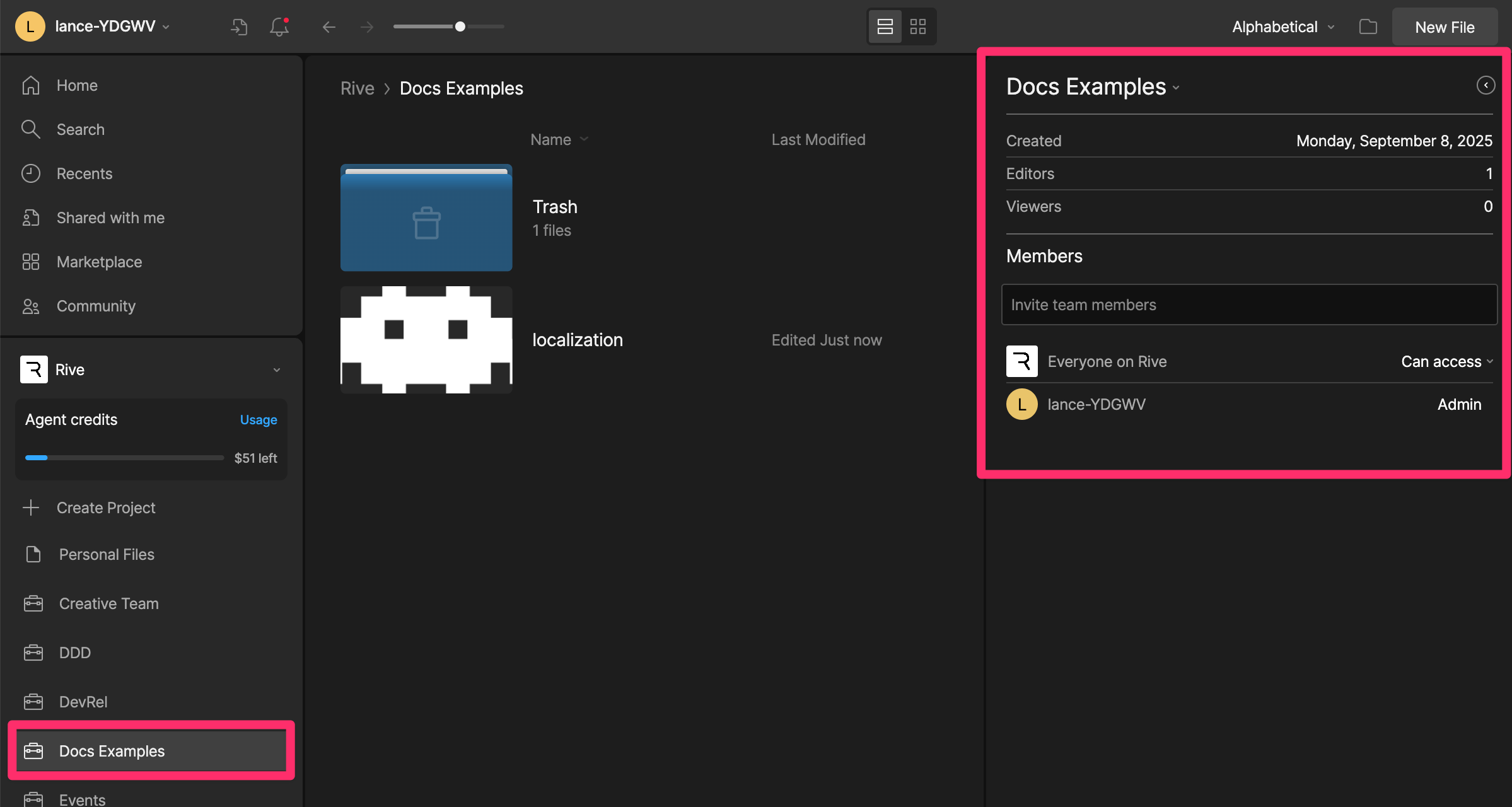
You can invite people to a specific project. This is useful when someone needs access to a set of files, but does not need access to the entire workspace.1
In the sidebar, select a project.
2
Expand the project details panel to invite, remove, or change permissions for individual members or groups.
Workspaces
Workspaces are separate spaces for files, members, and billing. You might have a personal workspace, a company workspace, or separate workspaces for different teams. See Workspaces Overview for more information.If you only want to organize files or share a specific set of files, create a project instead of a new workspace.