

- A shape decides how the vector looks. It holds the fills and strokes.
- One or more paths inside the shape decide its geometry.
Shapes
When you draw with a Shape tool, the Pen Tool, or the Pencil, Rive creates a shape with a path inside it. In the Hierarchy you see the shape, and its paths are nested under it. Select the shape to edit its fills and strokes in the Inspector. Moving, rotating, or scaling the shape transforms all of its paths together.
Paths
Expand a shape in the Hierarchy to see its paths. Select a path to move, rotate, or scale it on its own, without changing the rest of the shape.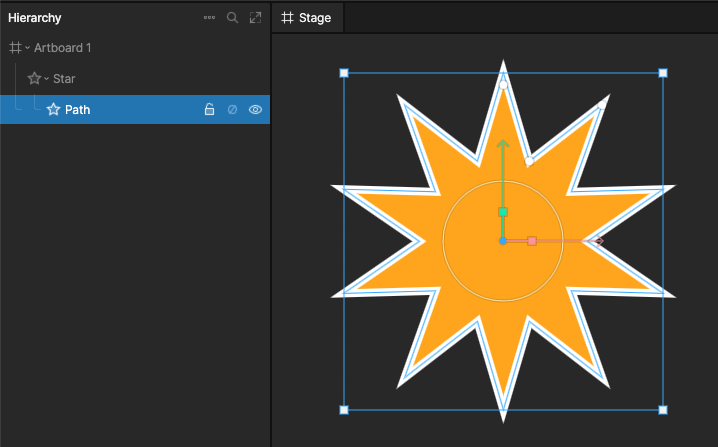
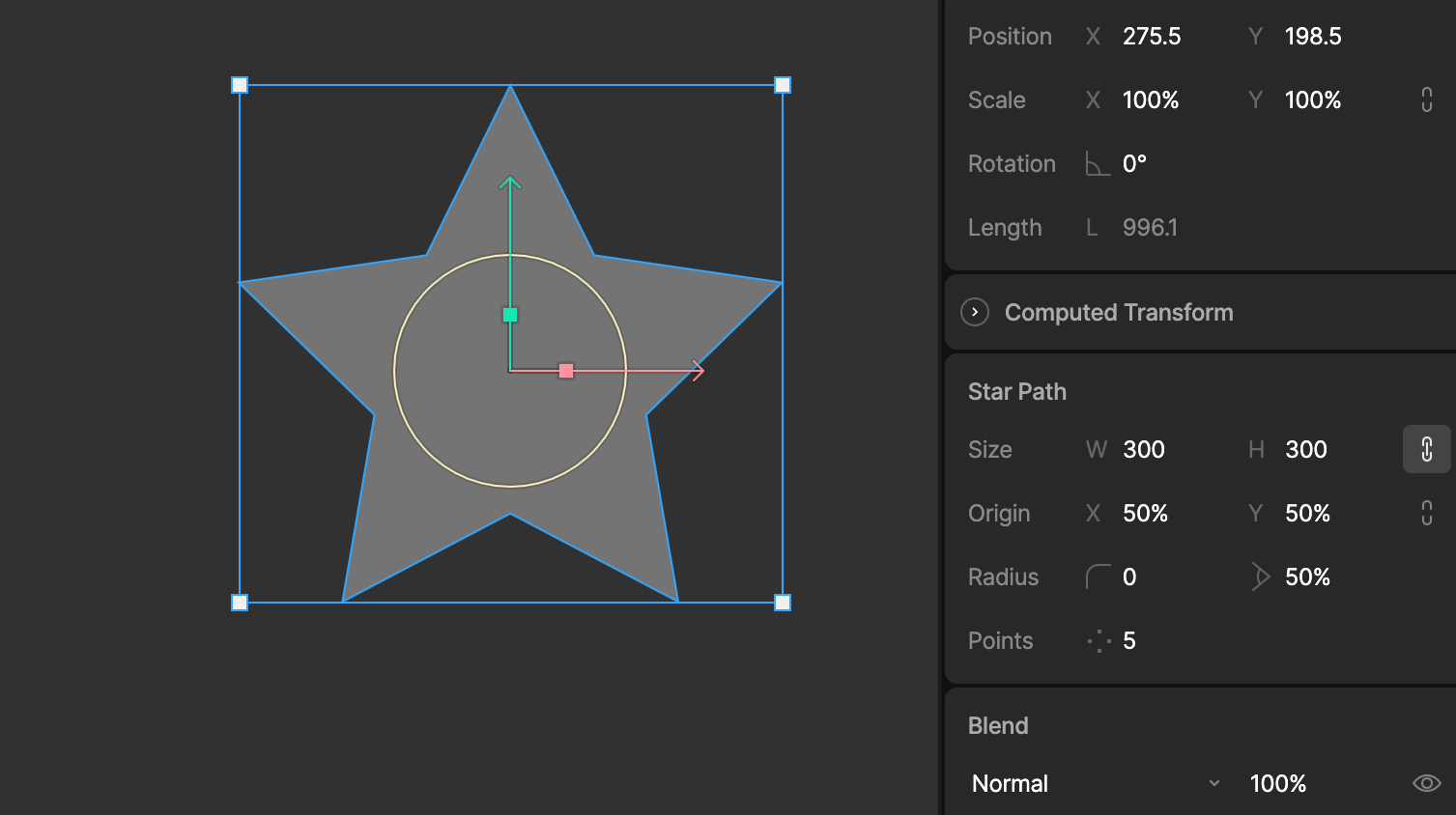
- Procedural paths come from the Shape tools, such as rectangles, ellipses, polygons, and stars. They keep properties like size, corner radius, and number of points, which you can change and animate in the Inspector.
- Custom paths are drawn vertex by vertex with the Pen Tool, or freehand with the Pencil. You shape them by editing their vertices.
Combining paths in a shape
A shape can hold any number of paths. To add a path to a shape, drag it onto the shape in the Hierarchy. The path takes on that shape’s fills and strokes.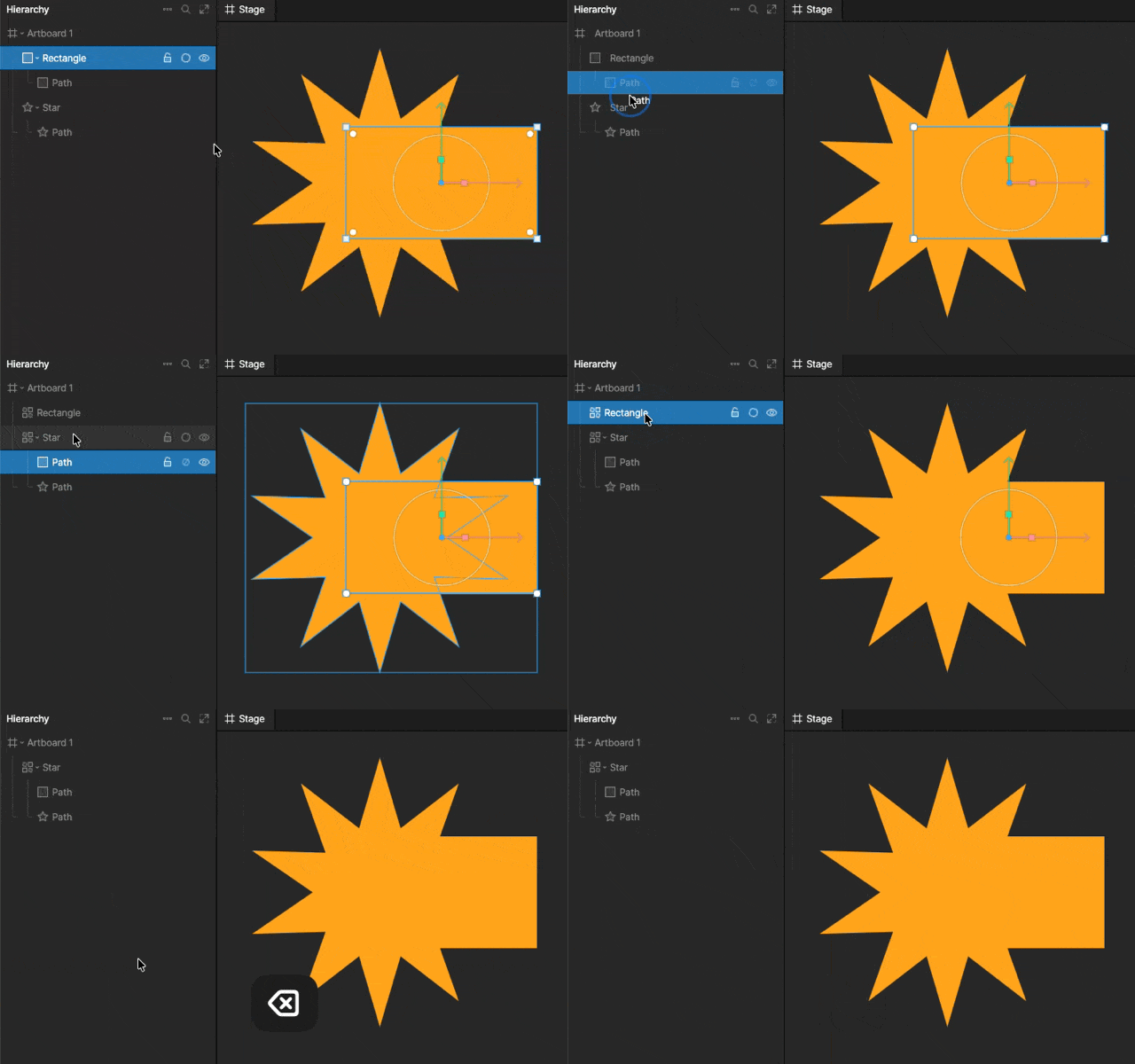
Moving between shapes and paths
- Press
Enterwith a shape selected to select its first path. - Press
Escwith a path selected to select its shape.
Enter with a path selected edits its vertices.