

- Open URL Event — Opens a URL at runtime
- Audio Event — Plays a sound
- General Event — Signals that something happened, with no built-in behavior. Use it to trigger a listener.
Using events to send information to runtime code is deprecated. Use Data Binding instead. See Events at Runtime for legacy projects.
Creating an event
1
Create an Event
Use the Events tool located in the Toolbar and click anywhere on the artboard.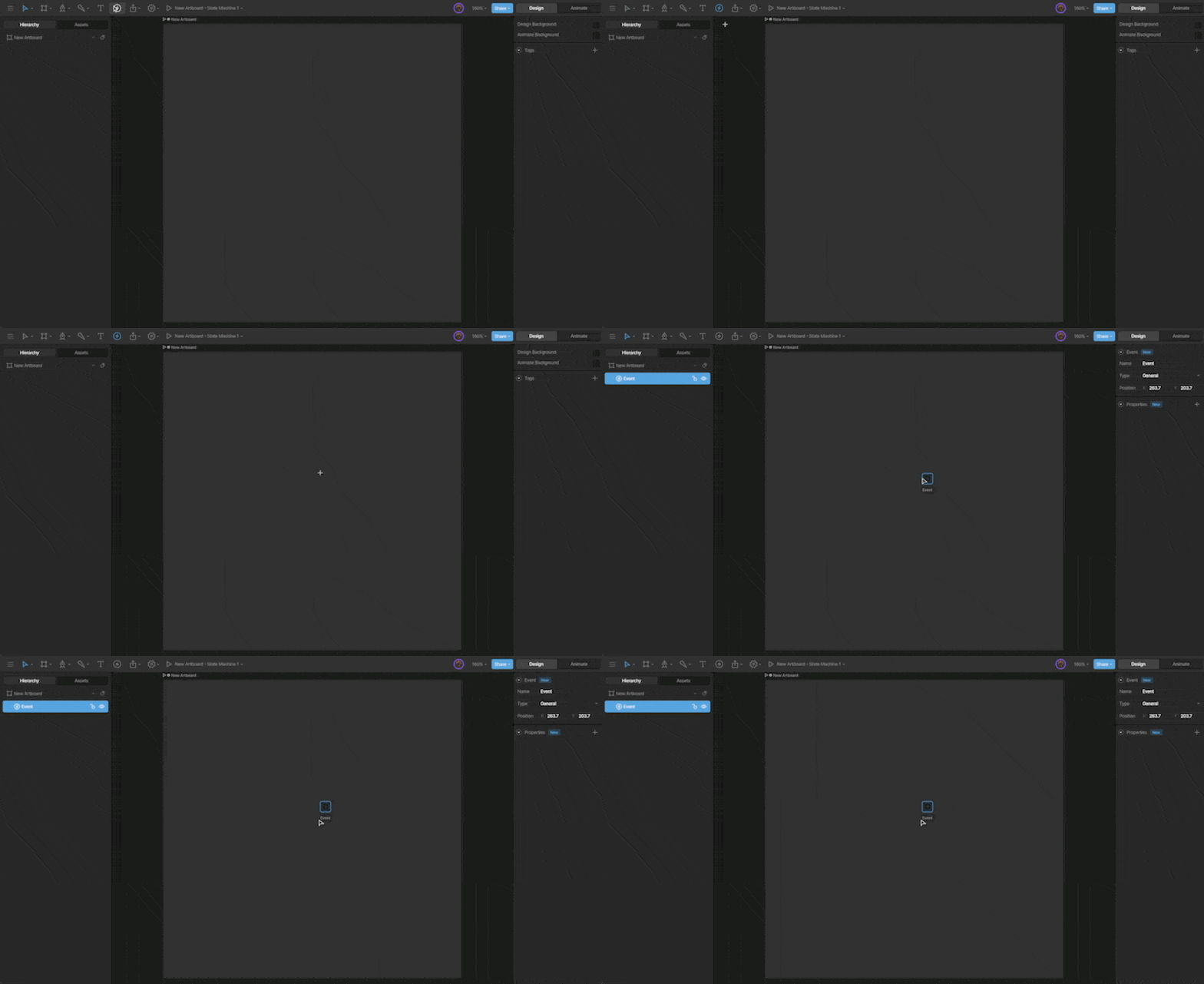
2
Name your Event
Give your event a name so it’s easy to identify and reference.You can rename it using the Name field, or by double-clicking the name directly on the artboard.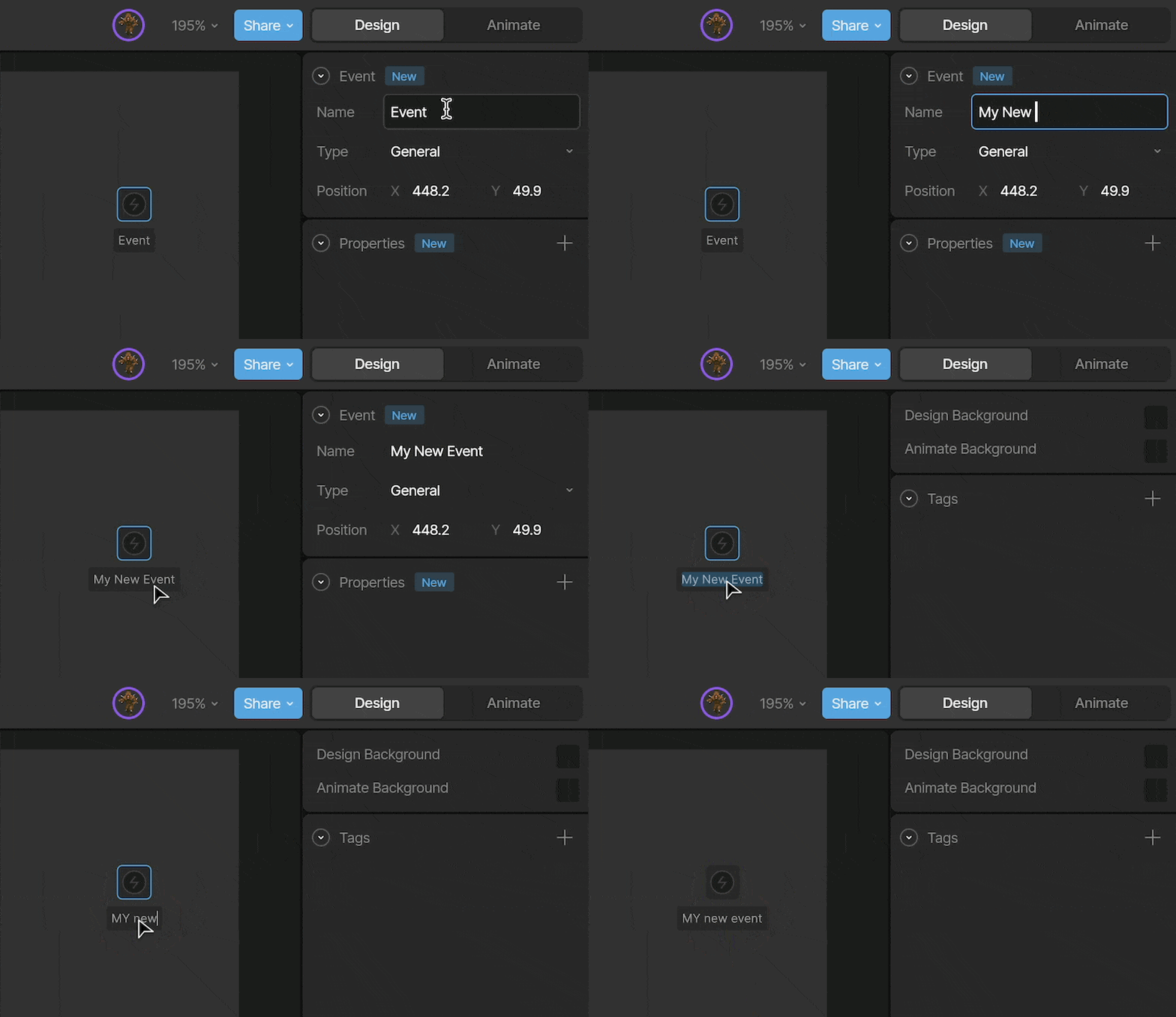
3
Select an Event type
The Type dropdown allows you to change the Event type between Audio, URL, and General.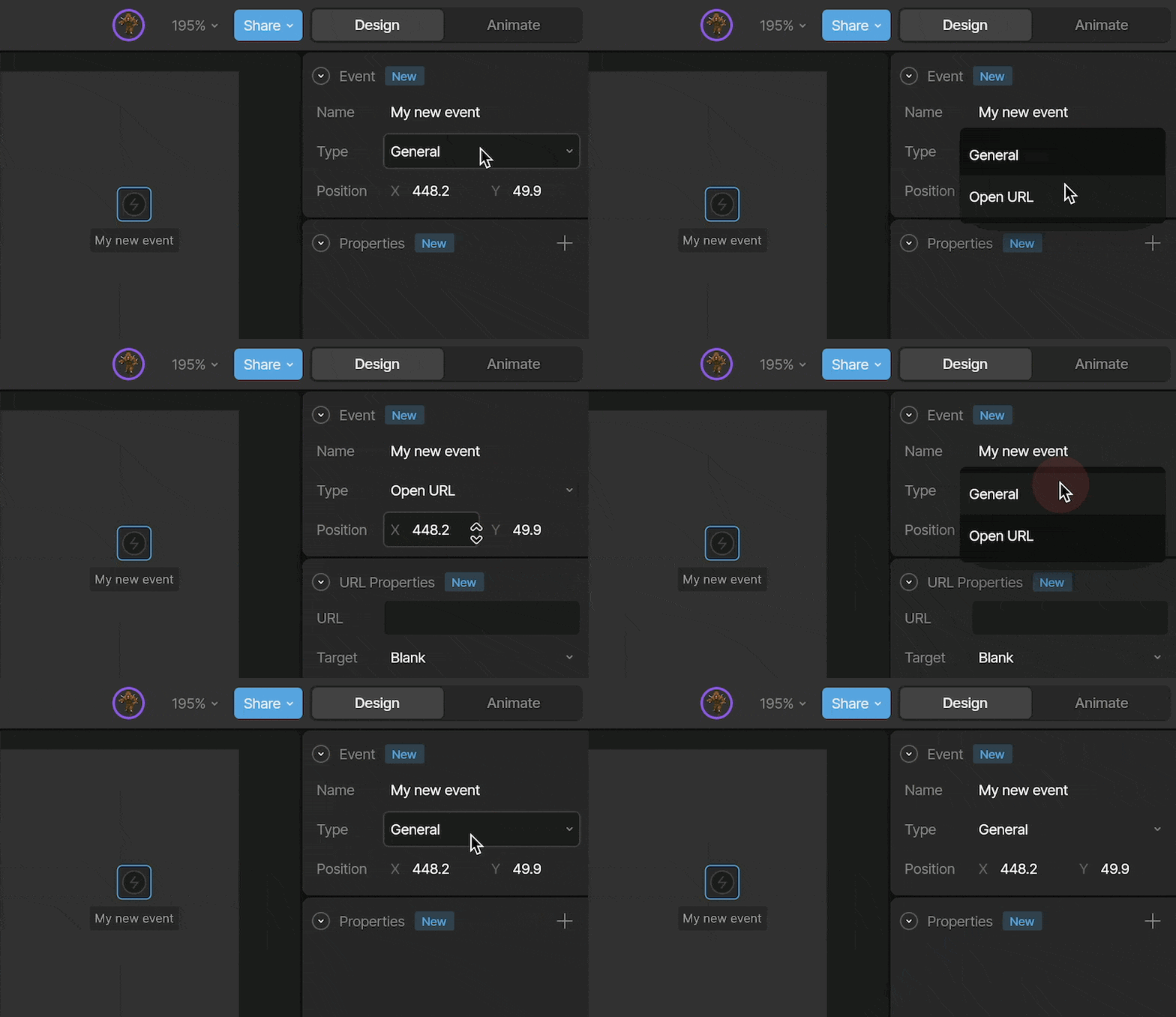
4
Set your Event Properties
Each Event type has its own set of properties.For more information on the specific event types, see Open URL Events and Audio Events. Custom properties on General Events are only used by runtime code, which is deprecated. See Events at Runtime.
Signaling an event
We can signal an Event in four ways: from a timeline, a listener, a state, or a transition.Timeline
Signaling an Event from the timeline lets you control the exact moment in an animation when the Event fires. First, select the timeline you want to add the Event to. Then use the Report Event button in the Inspector.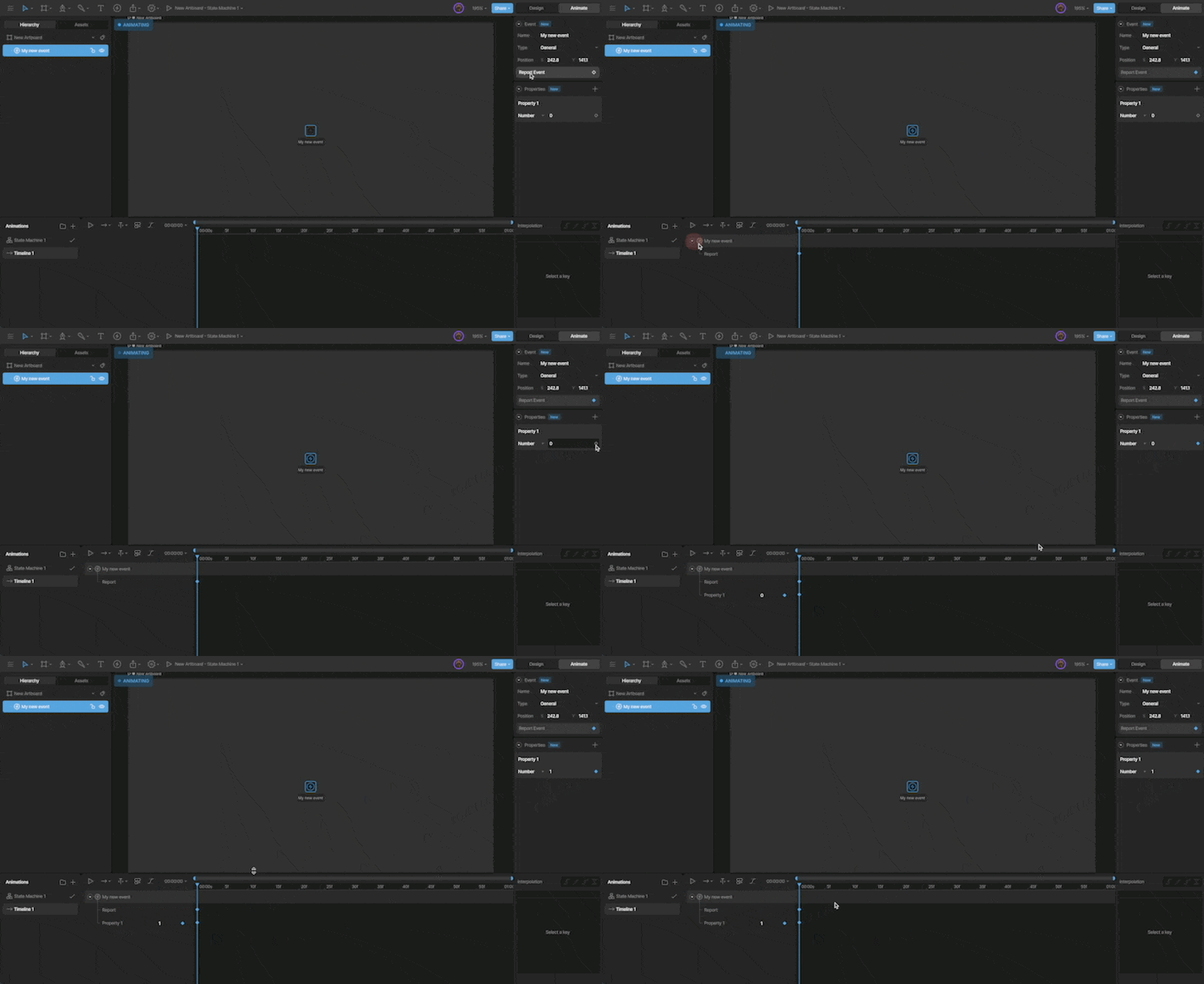
Transition & state
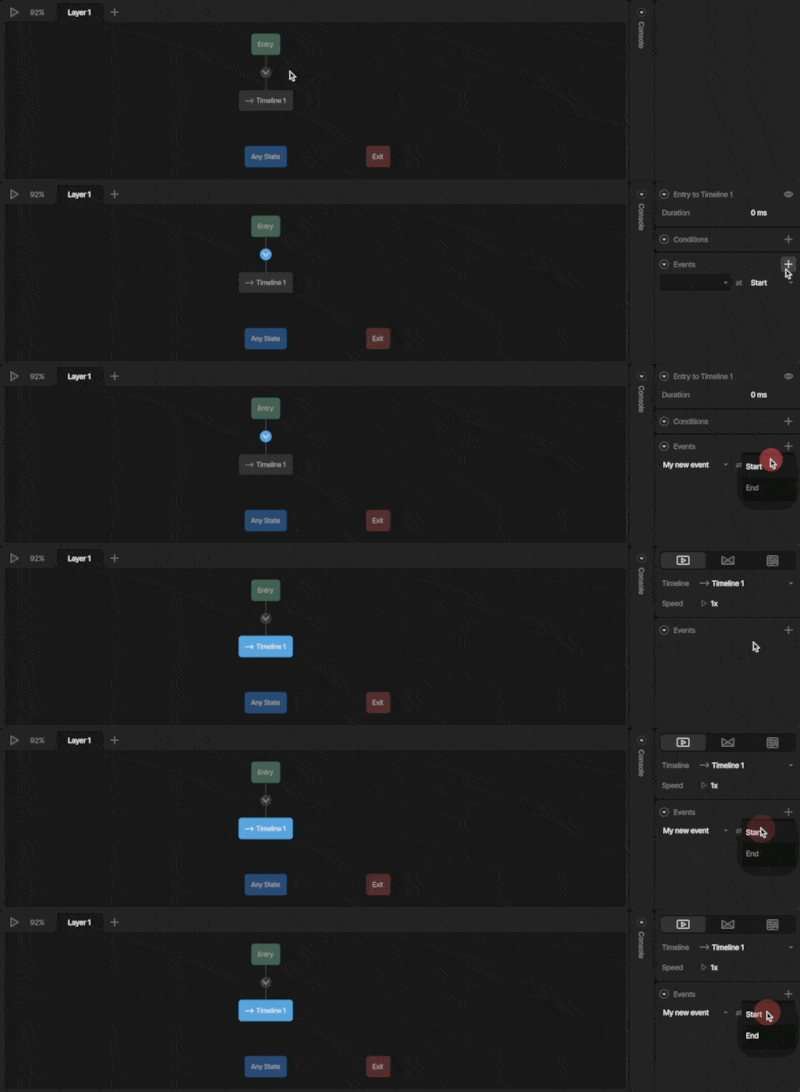
You can report an event on a Transition or a State. To report an event, select the desired State or Transition and use the+ button next to the Events section in the Inspector.
Listeners
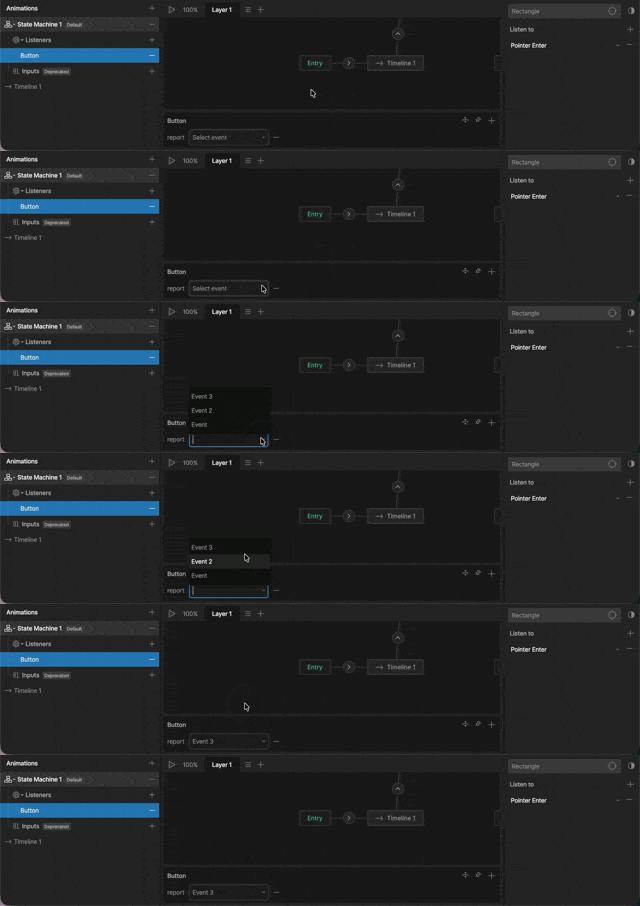
With your Listener selected, click the+ below the State Machine Graph, and select Report Event.
Listening for an event
A listener can respond when an event fires, then run actions such as changing a value or reporting another event.1
Create a listener in the State Machine and set its target to the artboard or nested component that contains the event.
2
Set Listen to to Rive Event, then select the event.
3
Add the actions you want to run when the event fires.