- Trim draws only part of the path. Animate it to make a line draw on, draw off, or travel along a path.
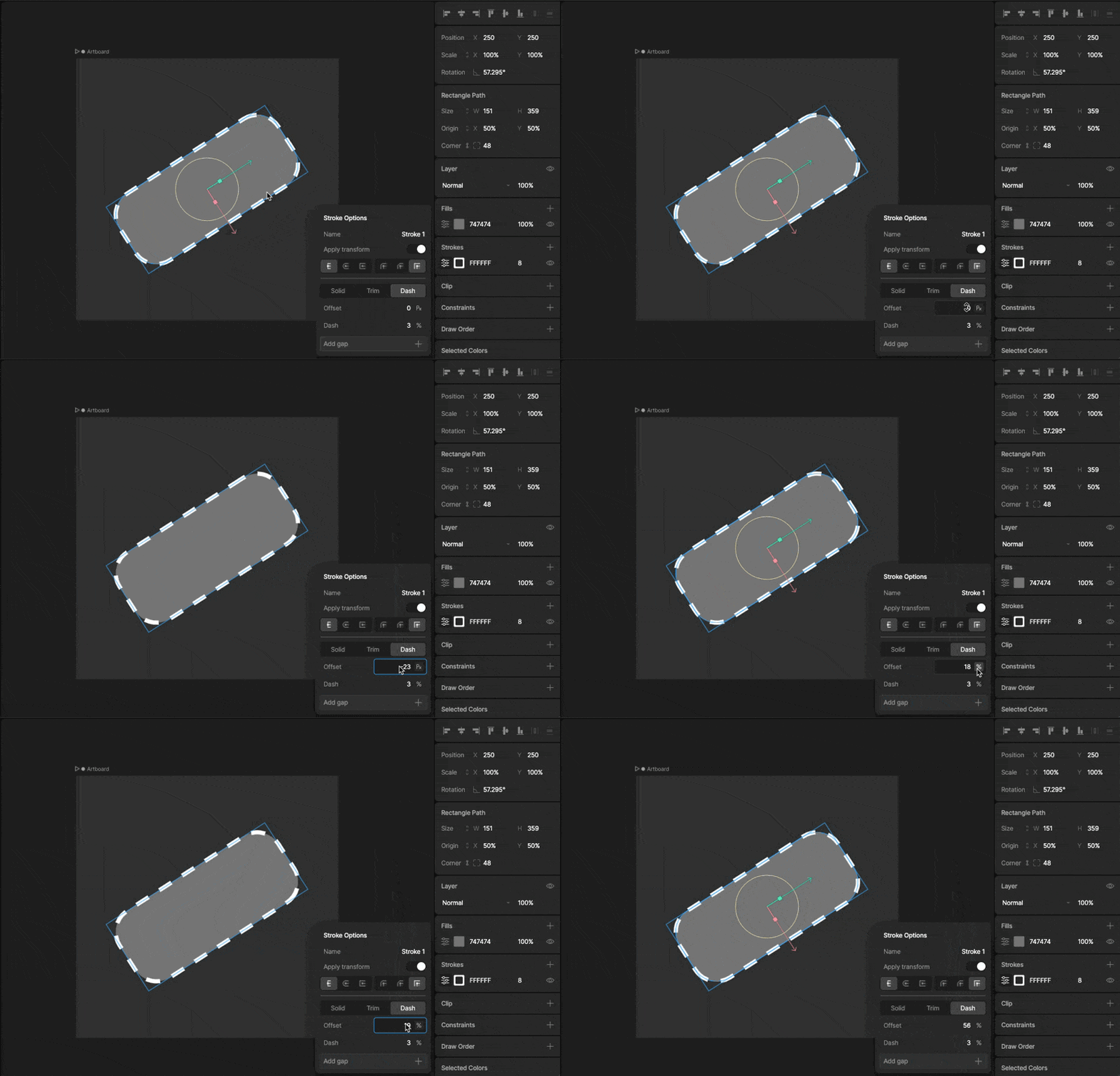
- Dash breaks the path into a repeating pattern of dashes and gaps. Animate its offset to make the dashes march along the path.
Adding a trim or dash
1
Select the shape, then click the options button on the stroke or fill in the Fills and Strokes section of the Inspector.
2
Open the Effects tab.
3
In Path Effects, click + and select Trim Effect or Dash Effect.
Trim
Start and end
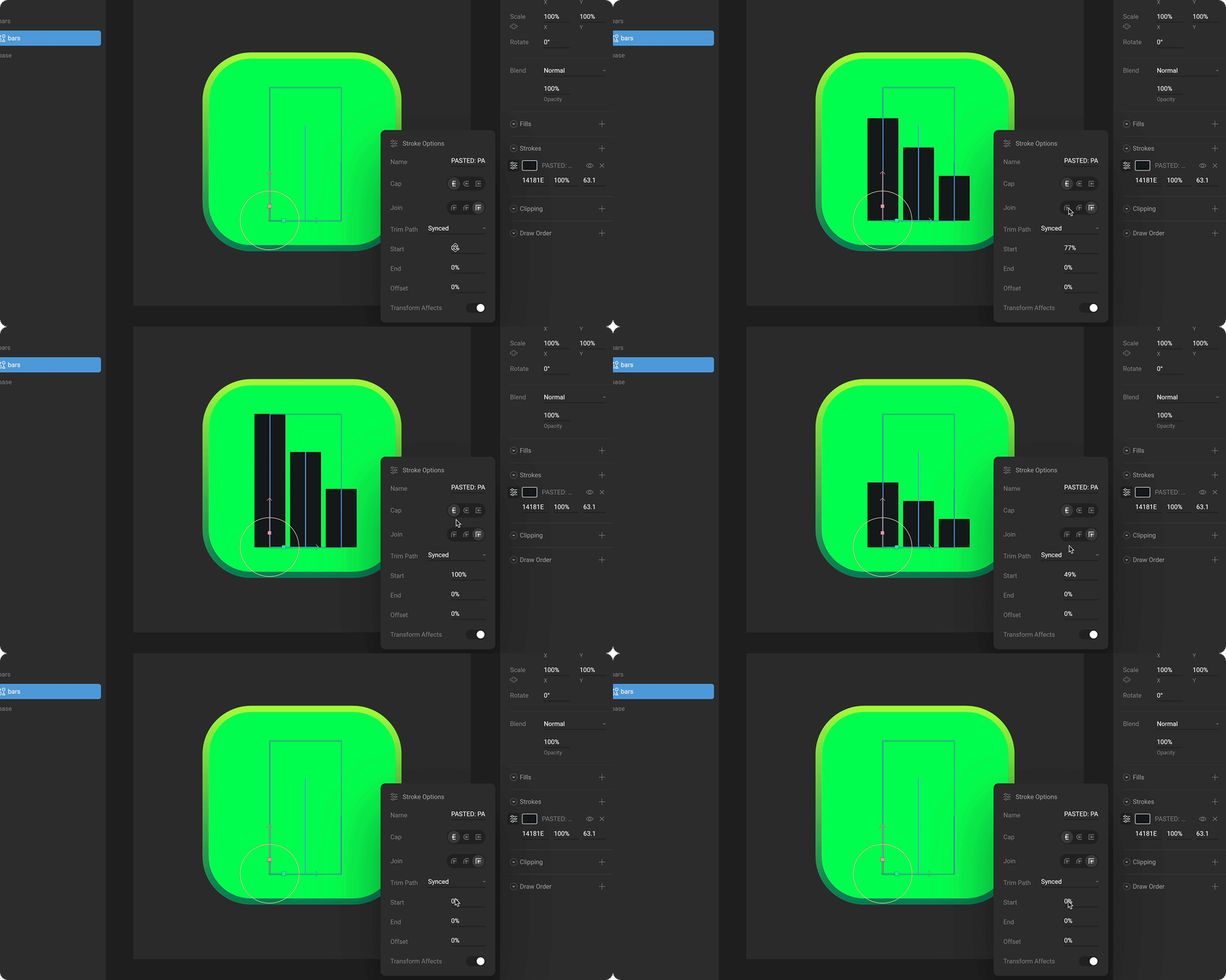
Start and End set which part of the path is drawn, as a percentage of the path’s length. Only the section between them is visible. Key them on a timeline to animate the trim, for example from an End of 0% to 100% to draw a line on.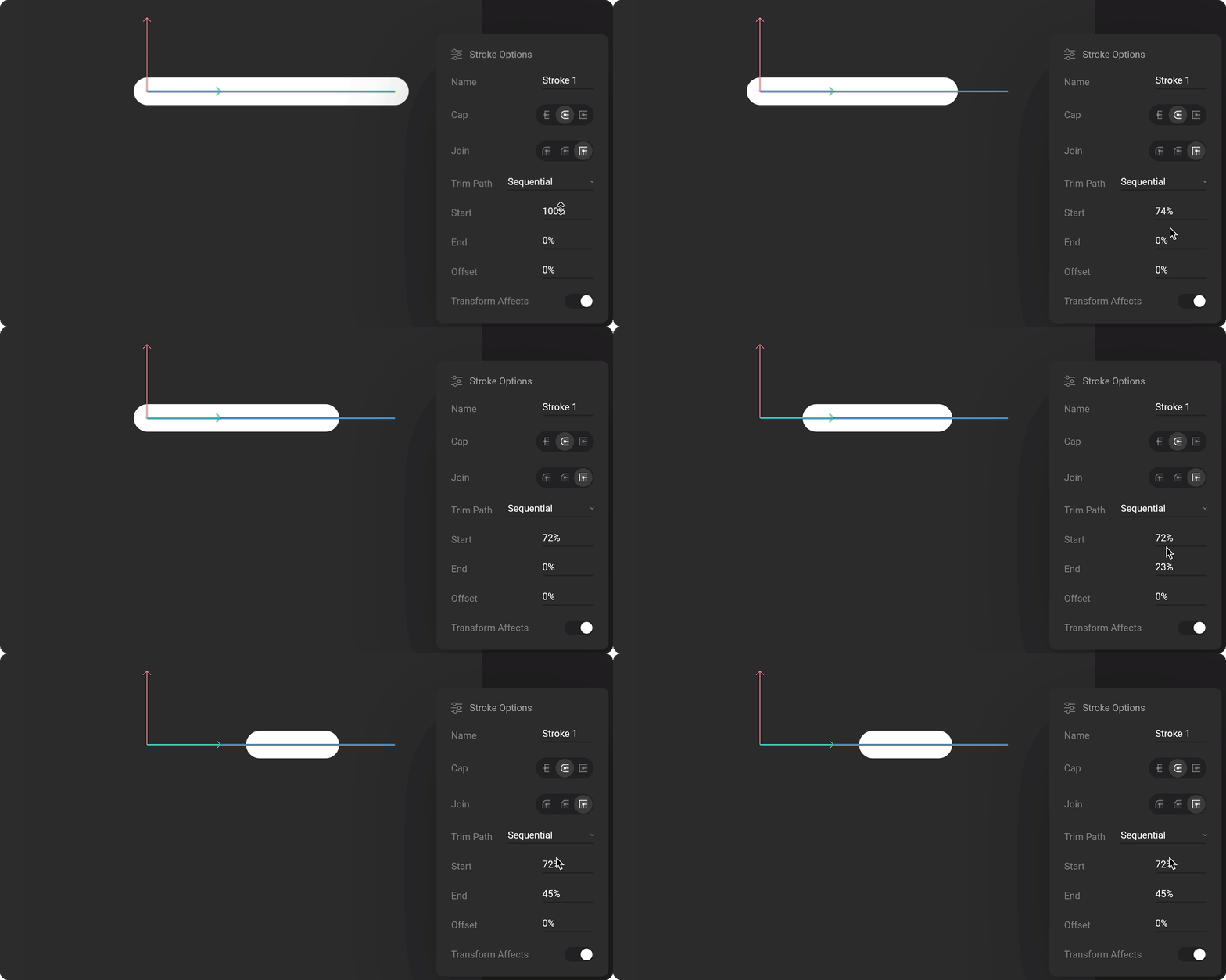
Offset
Offset moves the visible section along the path, keeping its length the same. Animate it to make a segment travel around a shape.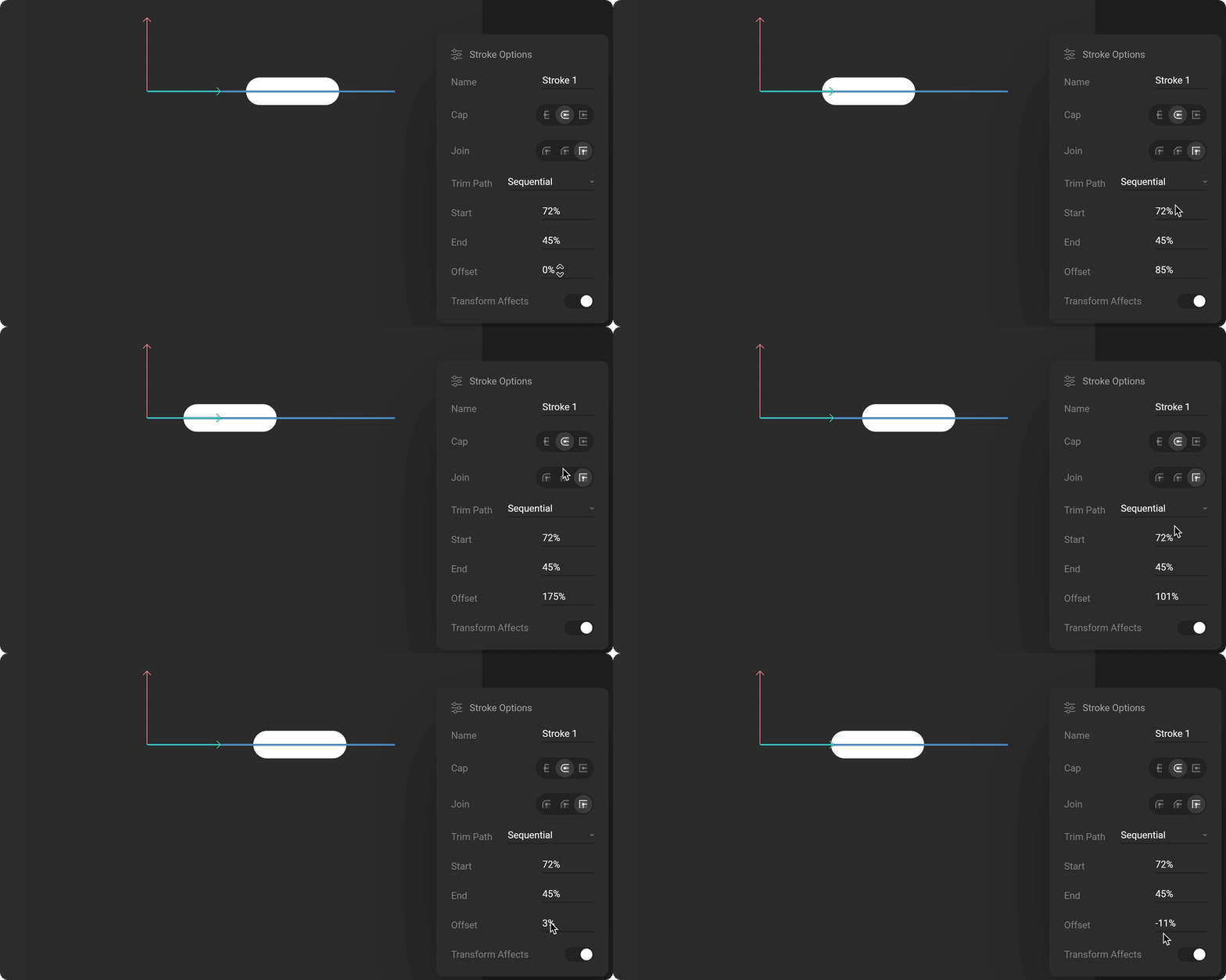
Sequential and Synced
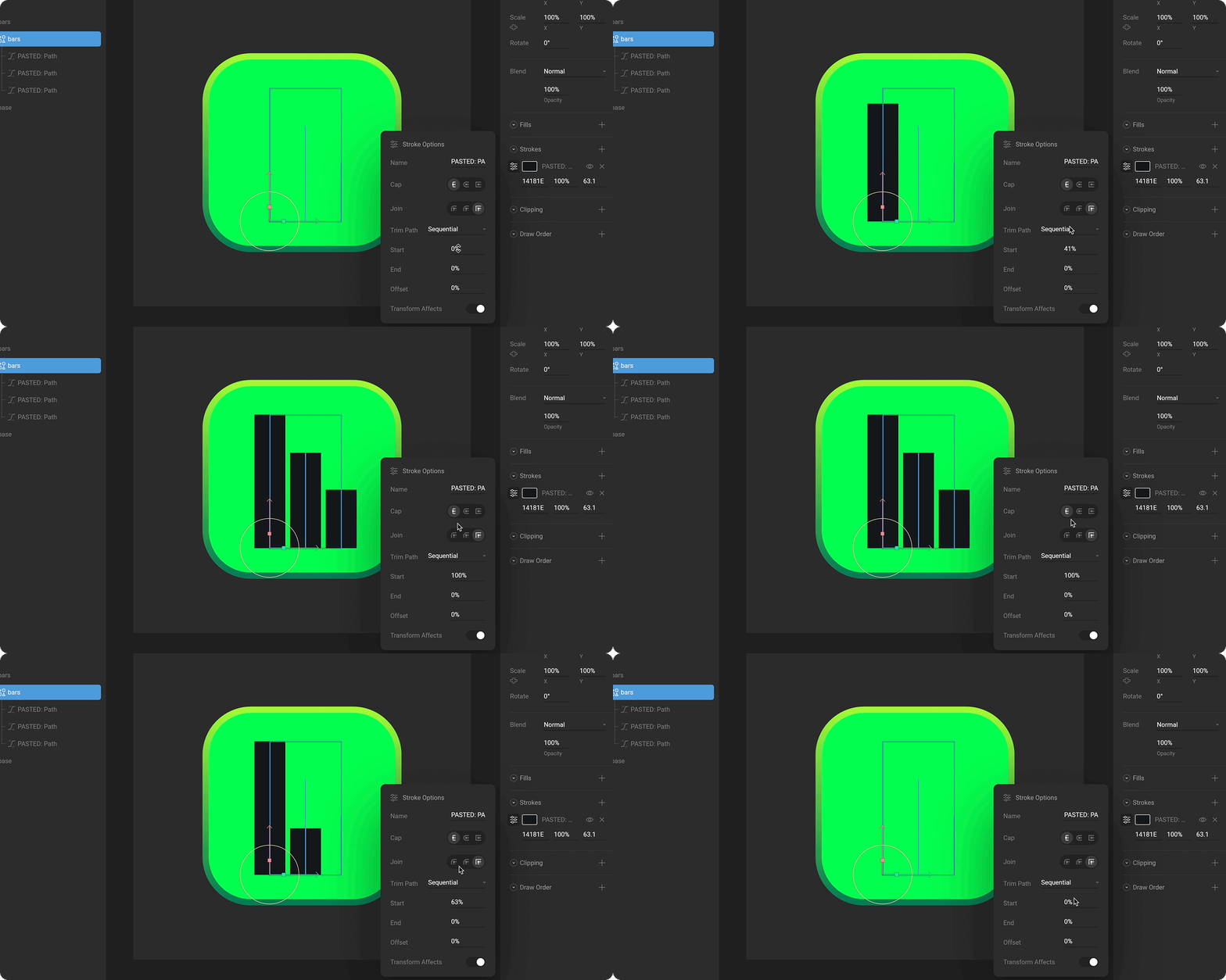
When a shape has more than one path, the trim’s mode decides how they’re trimmed:- Sequential treats the paths as one long path, trimming them one after another in their order under the shape.
- Synced trims every path at the same time, by the same percentage.
Dash
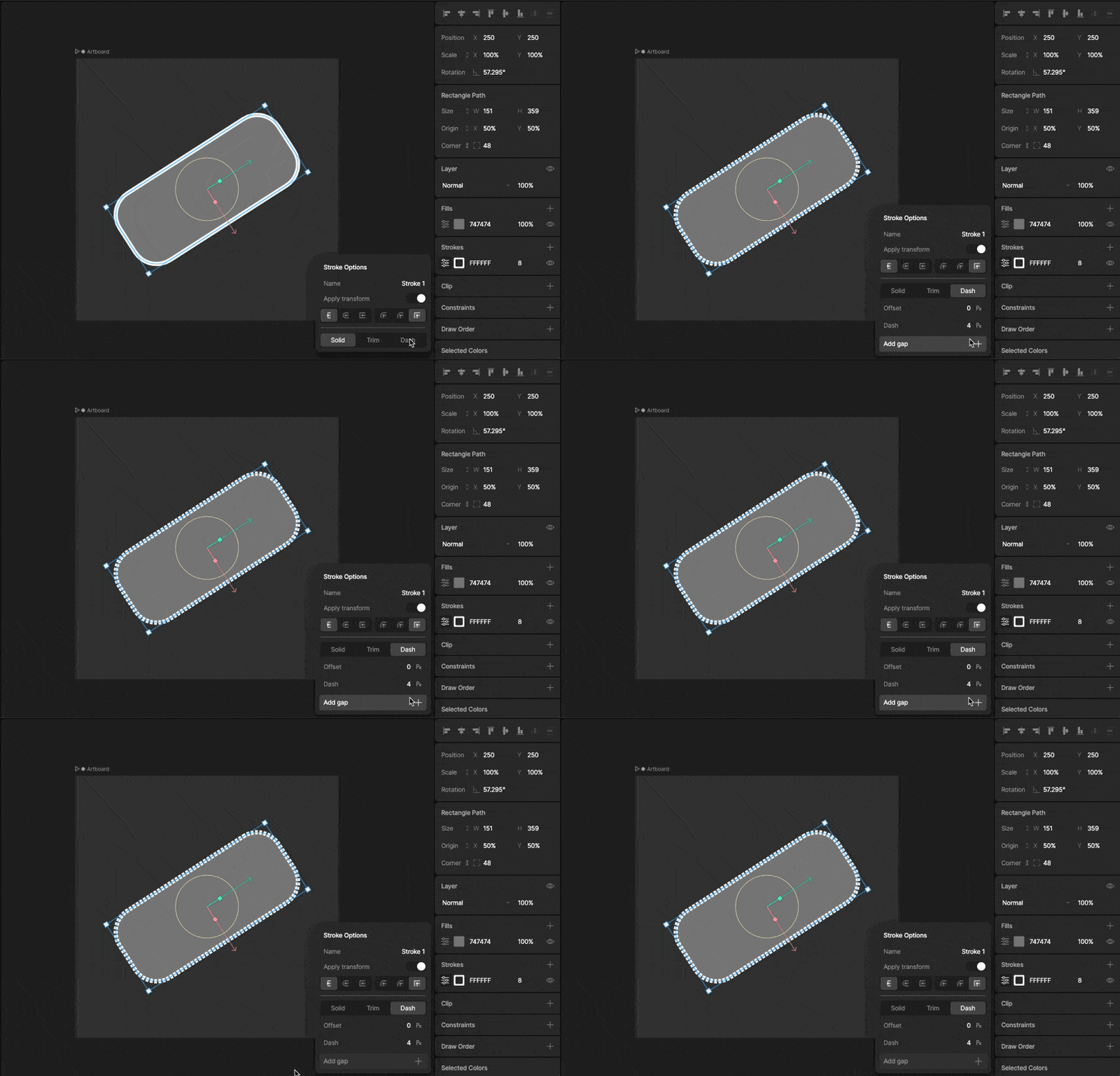
Dashes and gaps
A dash starts with one Dash length. Click Add gap to add a gap after it, then Add dash to add another dash, building up a pattern that repeats along the path. Each length can be in pixels or a percentage of the path’s length.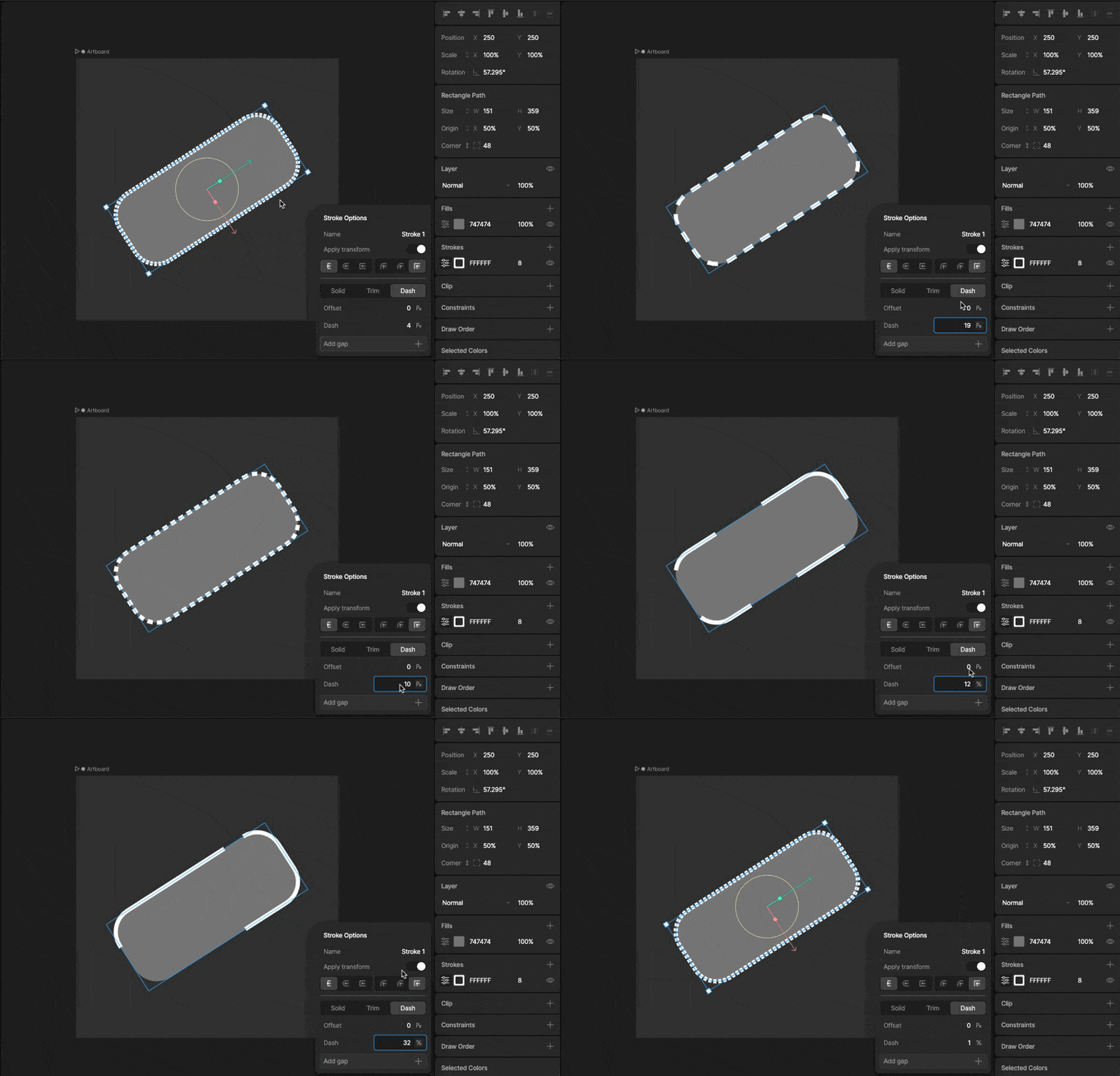
Offset
Offset moves the dash pattern along the path, in pixels or a percentage. Animate it to make the dashes travel along the path.