

Text
Information on designing and animating Text
Read/update Text Runs at runtime
If you intend to update a text run at runtime it’s important to manually enter a unique name for the run in the editor: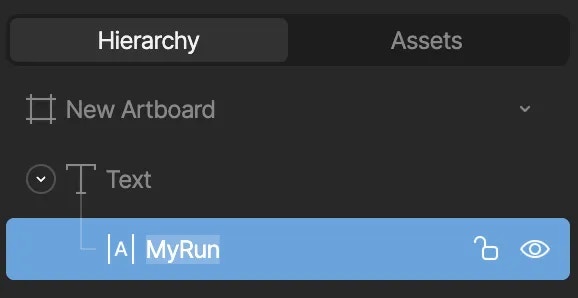
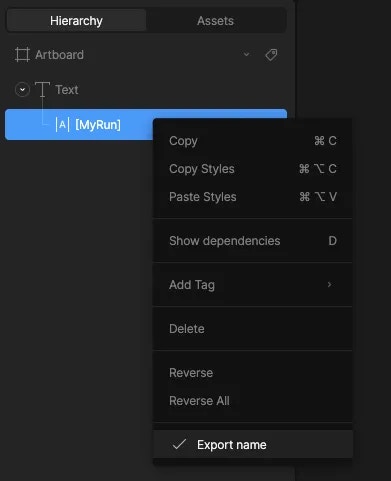
Text runs can also be updated on components at runtime, see Read/Update
Nested Text Runs at Runtime below.
Examples
High-level API usage
Reading Text To read a given text run text value at any given time, reference the.getTextRunValue() API on the Rive instance:
undefined if the text run could not be queried.
Setting Text
To set a given text run value at any given time, reference the .setTextRunValue() API on the Rive instance:
textValue, with a String value that you want to set the new text value for if the text run can be successfully queried on the active artboard.
Example usage
Low-level API usage
Get a reference to the RiveArtboard, find a text run by a given name, and get/update the text value property.
Read/update nested Text Runs at runtime
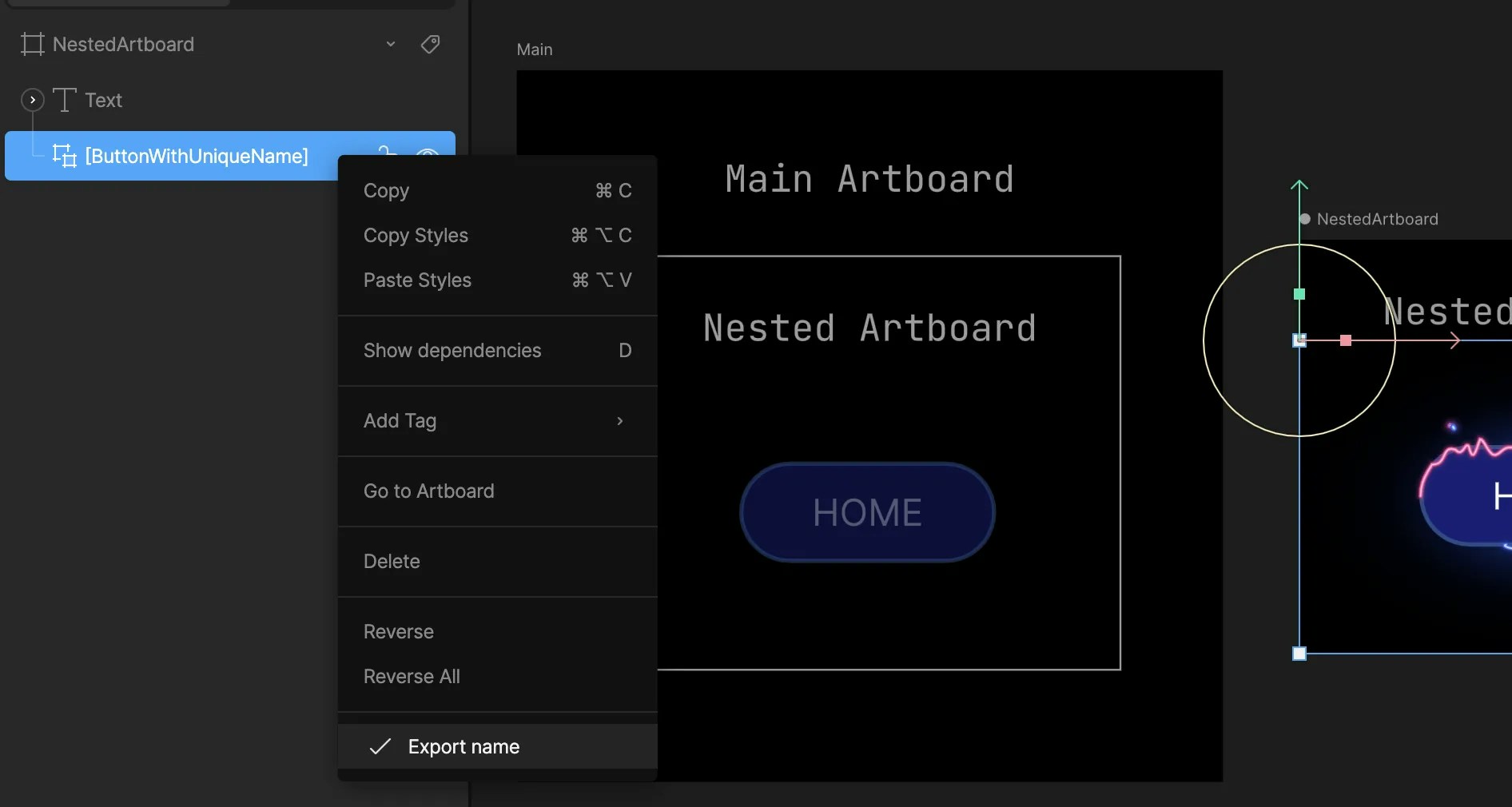
It’s possible to set nested text runs at runtime—text that is not on the main artboard but on a Component. To set a nested text run, you’ll need to take note of the path where the input exists at an artboard level. For example, to get/set the text run named button_text on the Button artboard, you need to provide the correct path.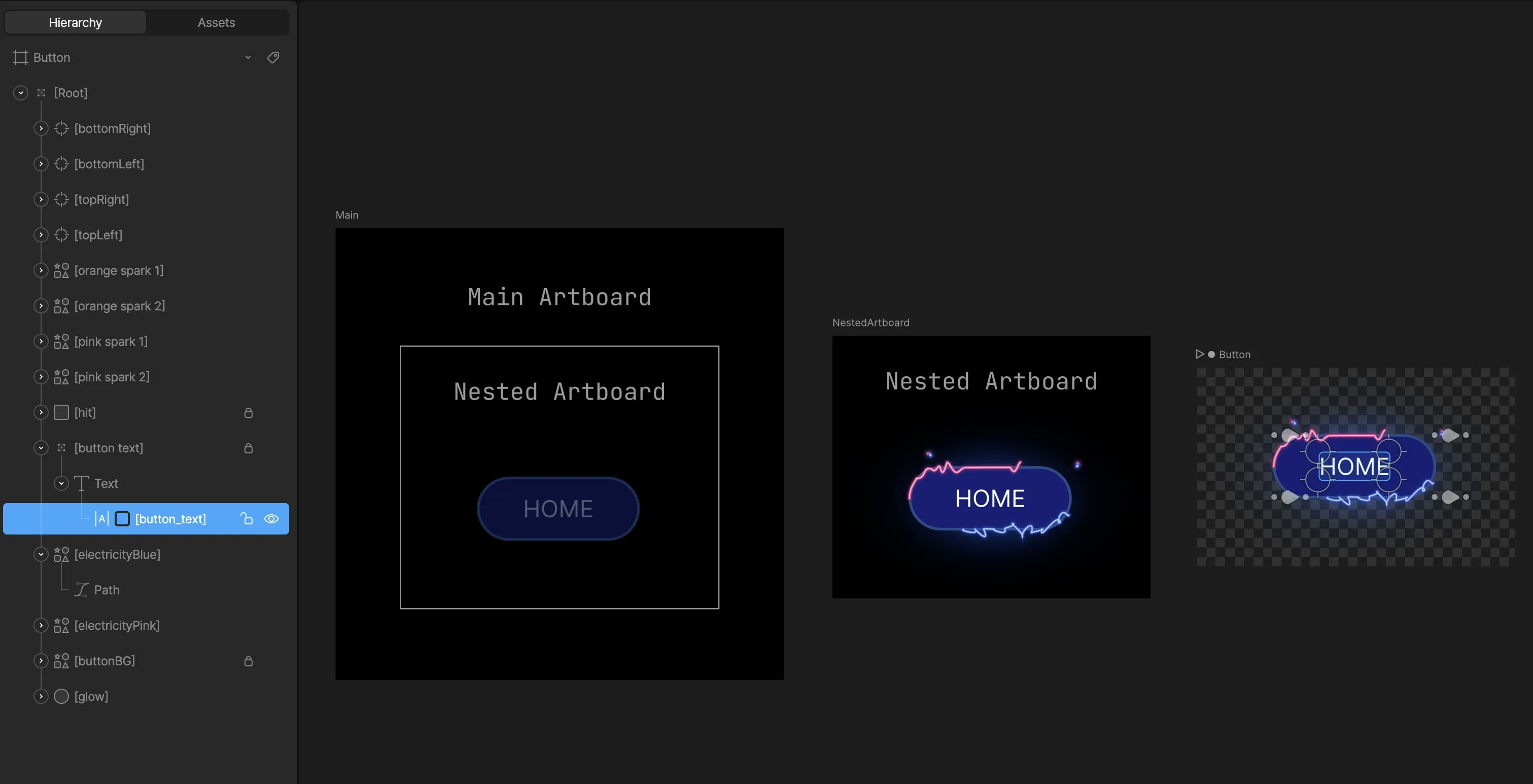
- Main -> NestedArtboard -> Button
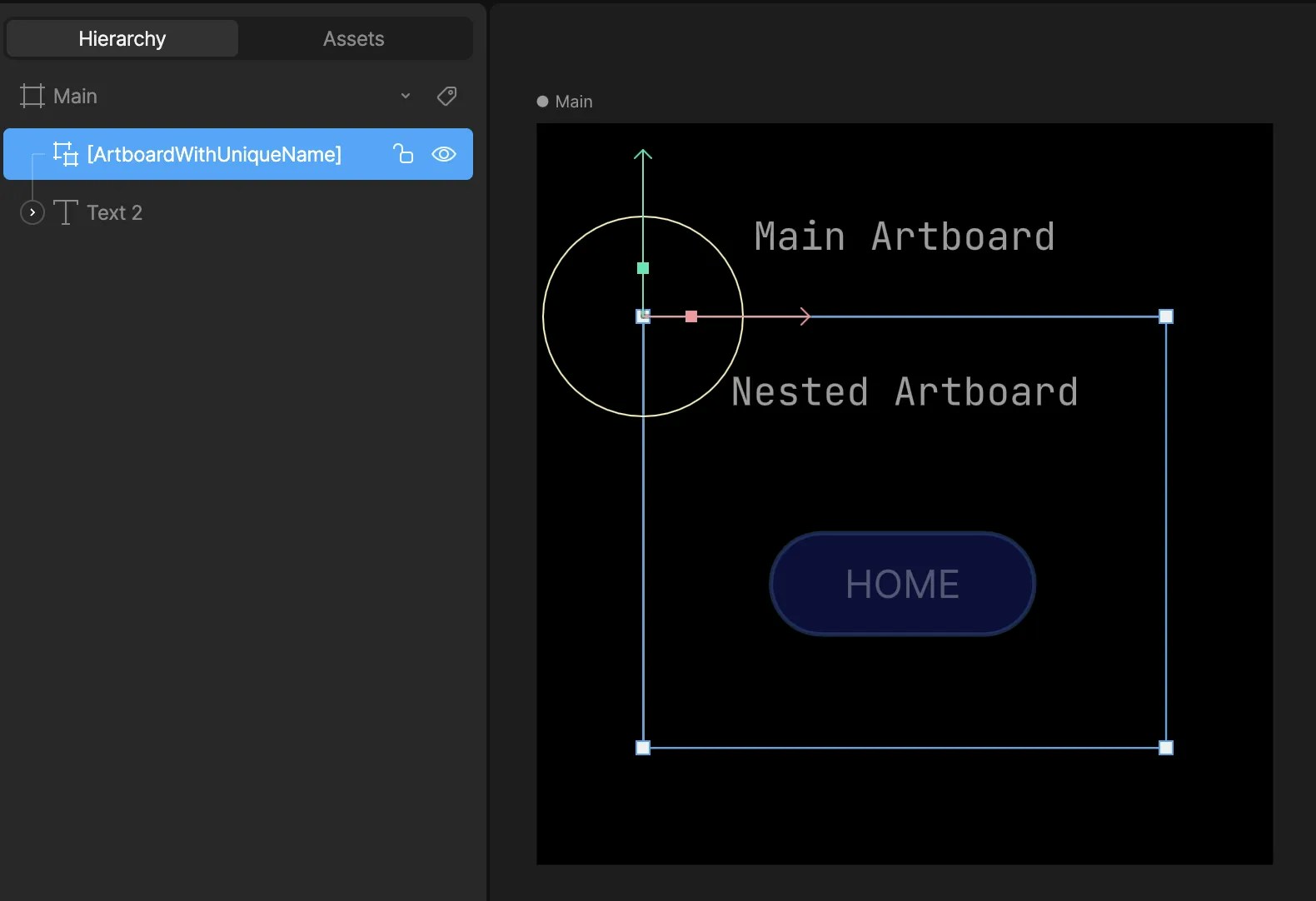
- ArtboardWithUniqueName -> ButtonWithUniqueName
ArtboardWithUniqueName/ButtonWithUniqueName
Be sure to mark the components and text runs as exported.
Examples
High-level API usage
Reading Text To read a given text run text value at a specific path, reference the.getTextRunValueAtPath() API on the Rive instance:
undefined if the text run could not be queried.
Setting Text
To set a given text run value at a specific path, reference the .setTextRunValueAtPath() API on the Rive instance:
textRunName, the new textValue, and the path where the run is located at a component instance level.
Example usage
Semantics for accessibility
Rive now supports screen readers through semantics. See the Semantics documentation for current guidance. The following code snippets provide guidance on how to add semantic labels to your Rive animations.Adding ARIA label
At a minimum - if it is important to convey the text value displayed in the Rive animation to all users, add anaria-label to the <canvas> element with the text value from the animation. Screen readers may read this label out immediately as it parses out the DOM contents. You’ll also want to add role="img" to the <canvas> element as well.
Adding ARIA Live Region
While ARIA labels are a direct method to manage a textual label for screen readers to read out as it parses web content, using an ARIA live region allows you a way to control when screen readers read out dynamic text content. Live regions are useful in cases where the text content in your Rive graphic becomes visible or changes on a particular state in a state machine, and you want screen readers to pick up on text changes. Another use case is when you only want screen readers to read your Rive text content when the<canvas> is scrolled into view.
Read more on ARIA live regions here.
Example: rating graphic
To try this example out, visit this CodeSandbox link
<canvas> element has an aria-describedby attribute whose value matches the id of the <p> below it, #rating-animation-live. This allows the <p> block content to describe the <canvas> element. And similar to using aria-label, we have to add the role="img" attribute to the canvas as well. The aria-live="assertive" attribute describes how to interrupt the screen reader’s flow of reading content based on when the content within this <p> changes.
Let’s take a look at what the JS might look like using the Rive Web (JS) runtime:
dynamicTextEl) with the string rating. Due to the live region having the property of aria-live="assertive", screen readers should read off the new dynamic text content.