

Interpolation types
- Hold doesn’t interpolate. It keeps the current value until the next key, then jumps to the new value instantly.
- Linear changes the value at a constant rate. It’s the default for new keys.
- Cubic follows a curve that you shape with two handles. The default curve changes slowly at the start and end and fastest in the middle. Cubic always moves between the values you keyed and never past them.
- Cubic Value is like Cubic, but you shape it with Bezier handles in the Graph Editor, and the curve can overshoot a key’s value before settling on it.
- Elastic overshoots the value and oscillates before settling on it, like a spring.
Setting the interpolation on keys
1
Select one or more keys on the timeline.
2
Choose an interpolation type at the top of the Interpolation panel, to the right of the timeline. The same options are in the Keyframe Interpolation section of the Inspector.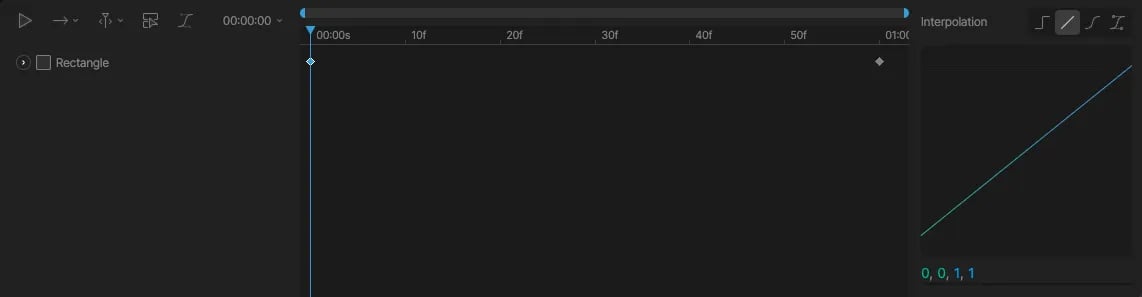
3
Adjust the curve or options for the type you chose. See below.
Cubic options
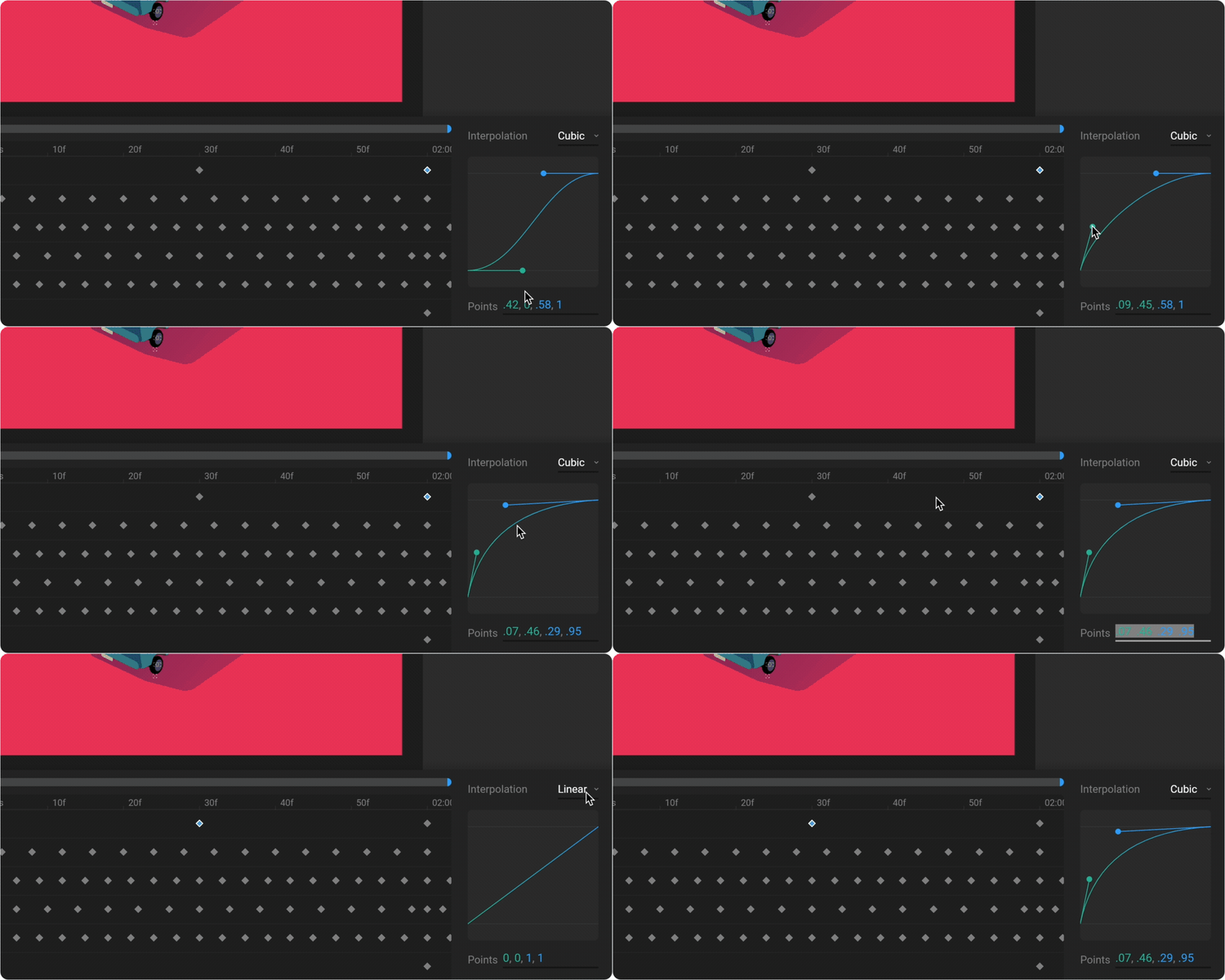
Drag the two handles on the graph to shape the curve. You can drag them as far as you want up or down; the graph zooms out to keep them in view. The field below the graph shows the curve as four numbers: the horizontal and vertical positions of the first handle, then the second, like a CSScubic-bezier() value. Type your own values, separated by commas or spaces, to match an easing from a brand’s motion guidelines or another tool. You can also copy them to reuse elsewhere.
Cubic Value options
Shape Cubic Value curves by dragging their handles in the Graph Editor. In the Interpolation panel, you can click Open graph editor, or turn on Apply auto bezier to set the handles automatically for a smooth curve through the surrounding keys. Auto bezier coefficient controls how strong that curve is.Elastic options
- Easing: Where the oscillation happens. Ease In oscillates at the start, Ease Out at the end, and Ease In Out at both.
- Amplitude: How far the value overshoots.
- Period: How quickly the oscillation settles.
Default interpolation
The default interpolation is the type that new keys use. It starts as Linear. To set it from a key:1
Select a key that uses the interpolation you want.
2
In the Interpolation panel, click Set as default.
1
Deselect everything. The Inspector shows Default Interpolation.
2
Choose the interpolation type and options you want new keys to use.