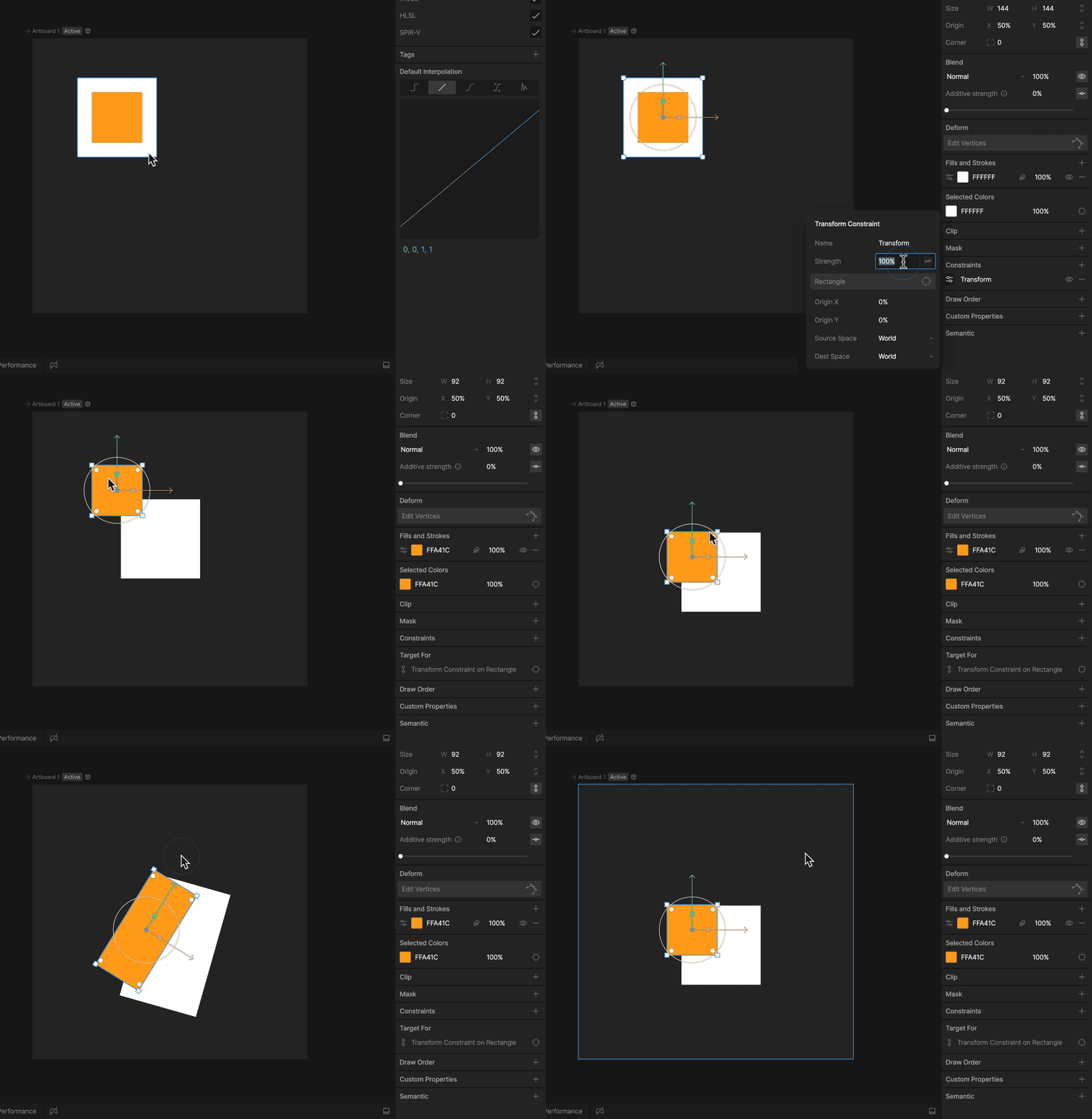
How to create a Transform Constraint
1
Add a Transform Constraint to an object
Use the Constraints section of the Inspector to add a Transform Constraint to an object.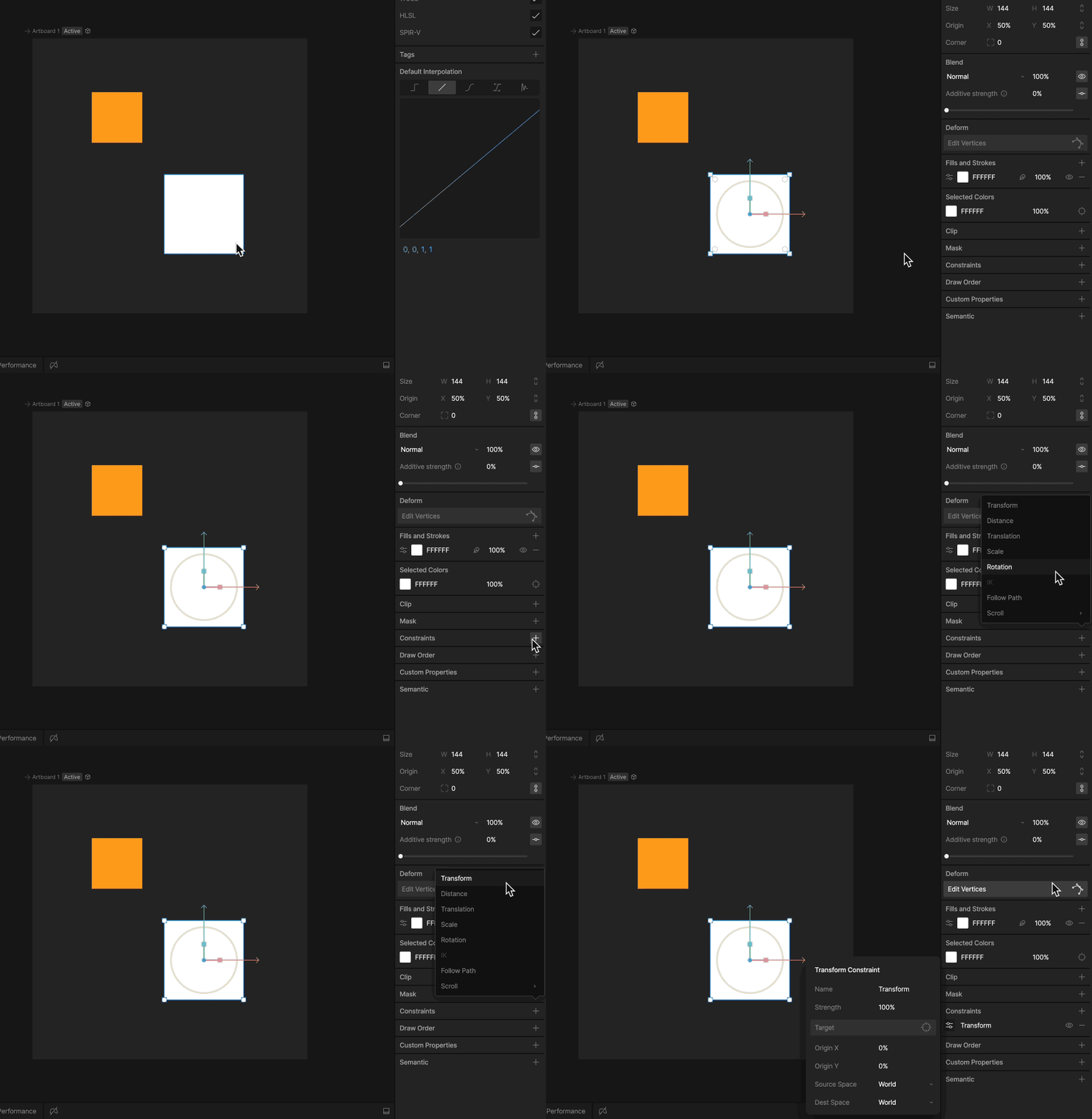
2
Choose a target
Use the new constraint’s fly-out menu to select a target for this constraint.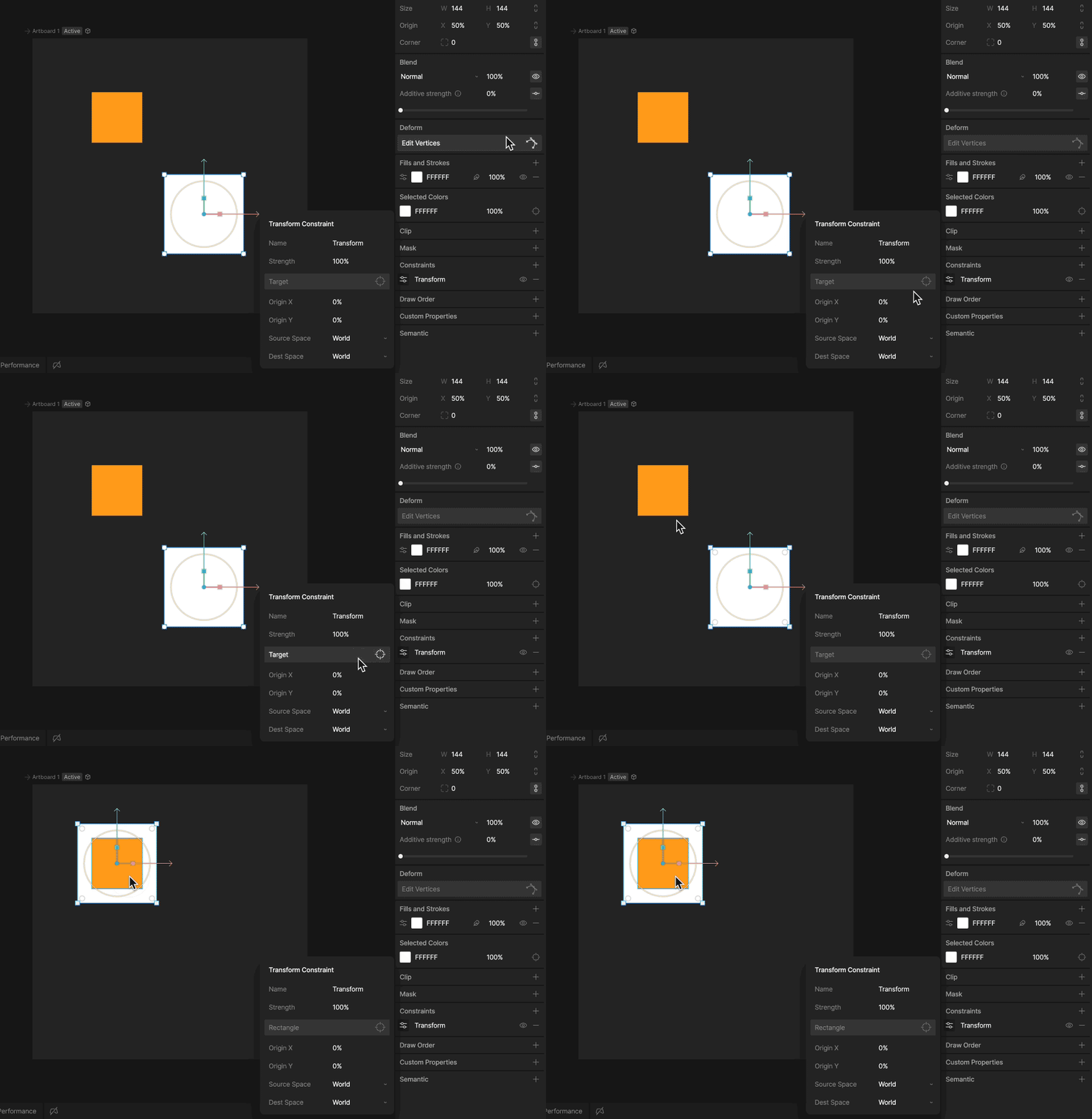
3
Test that the Transform Constraint is working
Manipulating the target object now causes the constrained object to copy Position, Rotation, and Scale properties.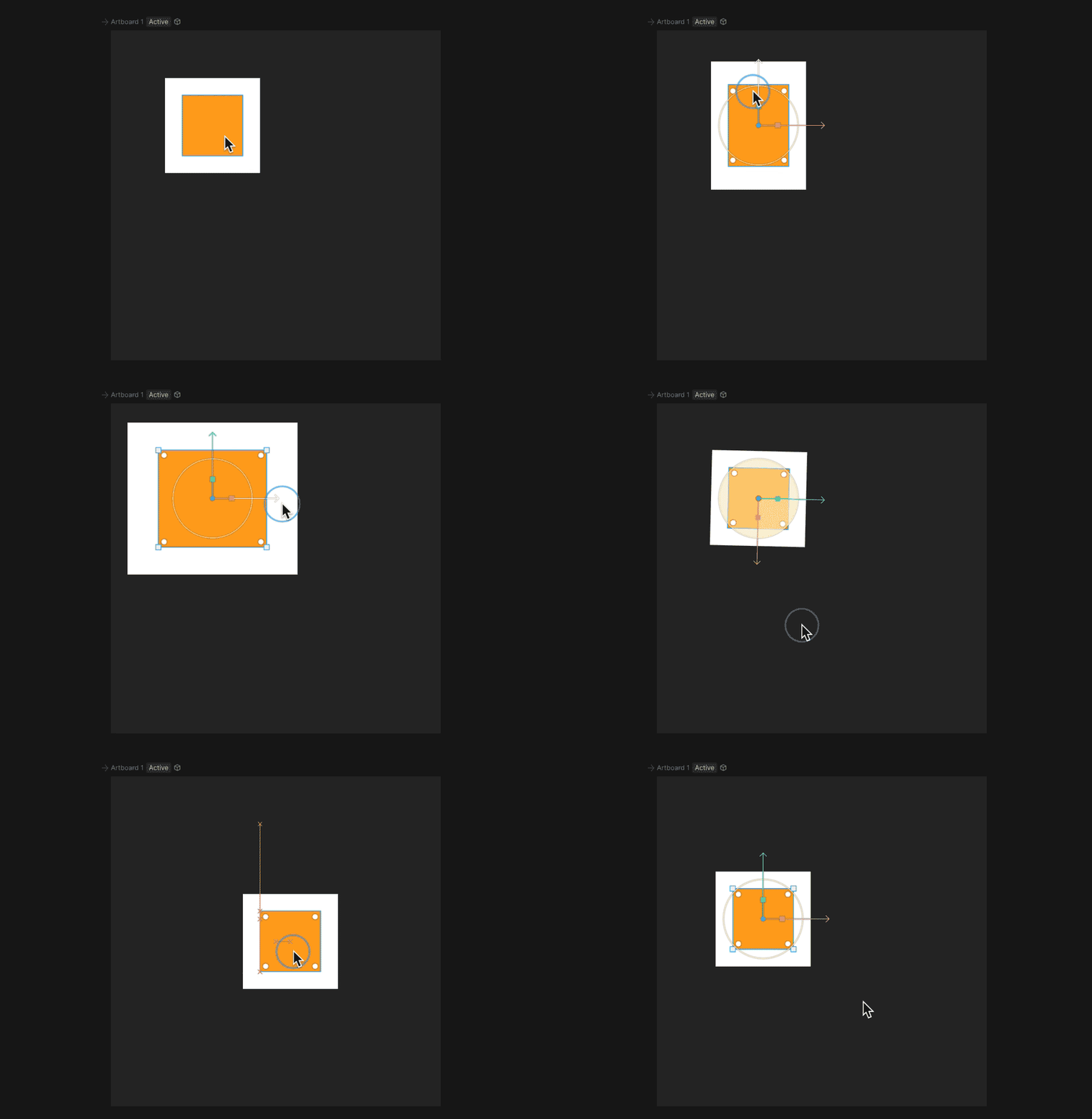
Strength
The Strength property determines how much the constrained object is affected. A Strength of 0% means the constraint won’t have any effect. A Strength of 50% means half the value from the target will be applied.