Text style properties
Each text style includes these properties:- Font and weight: The font family and the weight or style, such as Regular or Bold.
- Font Size: The size of the text.
- Letter Spacing: The space between characters.
- Line Height: The space between lines. Set it to Auto to use the font’s default.
- Fills and strokes: The paints applied to the text itself.
- Background Fill and Background Stroke: Paints drawn behind the text, with a Corner radius to round the background.
Font options
Some fonts include variable axes, such as weight, width, or slant, or OpenType features, such as ligatures and stylistic alternates. For these fonts, an options button appears on the text style in the Inspector. Click it to open Font Options:- Variables sets the font’s variable axes. For example, set weight to any value in the font’s range instead of choosing a fixed weight.
- Features turns the font’s OpenType features on or off.
Animating the font
In animate mode, picking a different font or style (like Bold) for a Text Style adds a key instead of changing the font in the design. On a variable font, the key also keeps the style it was set with. Exported files include every font used by a key.Creating text styles
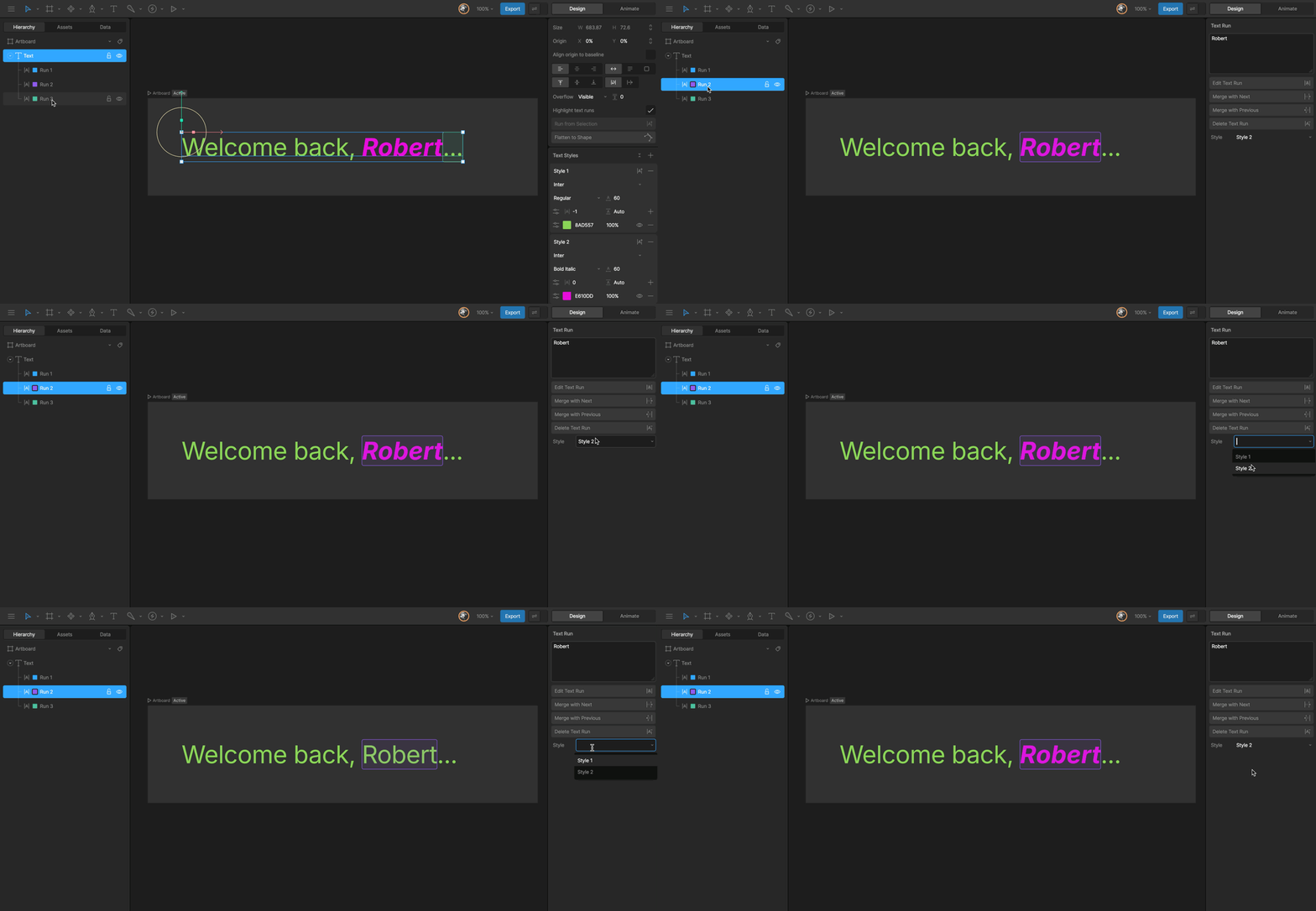
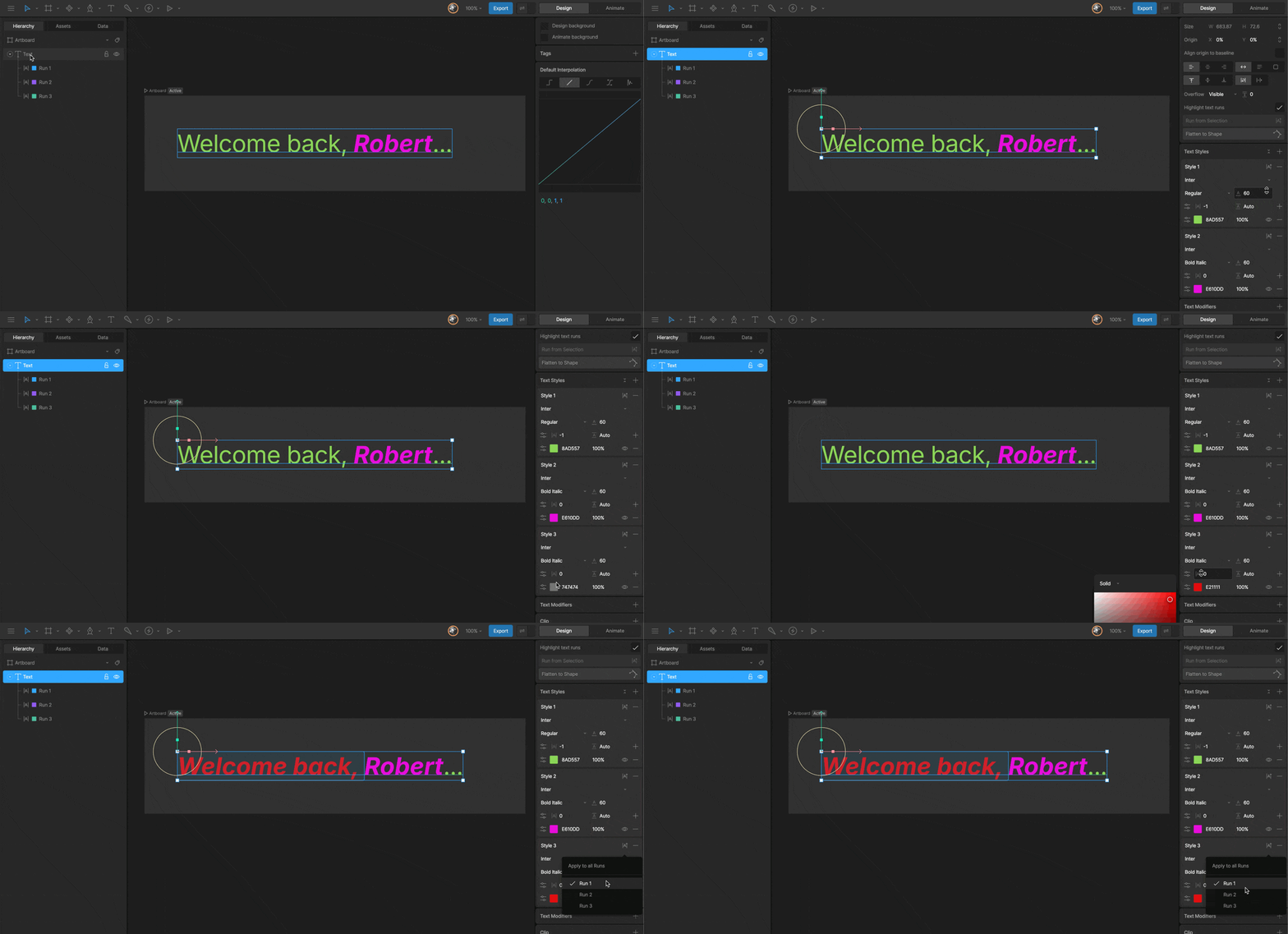
Each new Text object starts with one text style. To add another, select the Text object and click + in the Text Styles section of the Inspector.Applying a style to a text run
You can apply a text style to a run in either of two ways:- Select the text run in the Hierarchy, then choose a style from the Style dropdown in the Inspector.
- Click Apply to Runs next to the style in the Inspector, then select a run from the menu. Hover over each option to preview the result on the stage.