

A backup is a snapshot, so it doesn’t stay in sync with the original file. Depending on what you need, another option may suit you better:
- To share a file with someone, invite them to the file, or add them to the project that contains it. They’ll always see the latest version.
- To keep a file in source control, use the Rive CLI to convert it to Rive Markup Language (RML), a text format that diffs and merges like code and stays linked to the original file.
- To go back to an earlier version of a file, use Revision History.
.rev file: a complete copy of a Rive file that you can import back into the Editor and keep editing. Unlike a runtime export (.riv), which strips out everything your app doesn’t need, a backup keeps all of the Editor data.
Export a backup when you want to:
- Keep a local copy of a file on your computer.
- Send a file to Rive support with a support ticket.
Exporting from the File Browser
1
In the File Browser, find the file you want to back up.
2
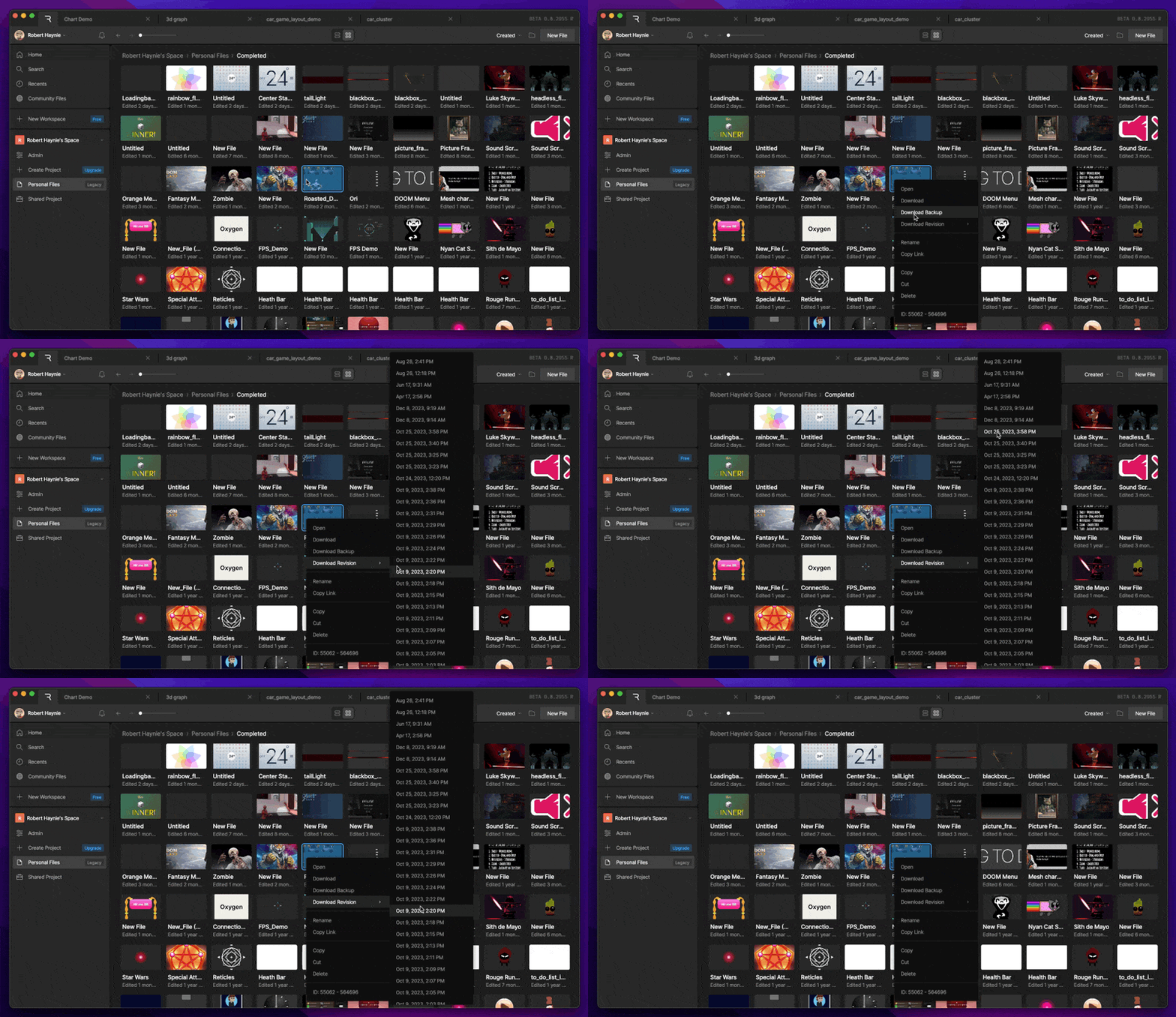
Right-click the file and select Download Backup to download the current version.To download an earlier version instead, open Download Revision and select a revision.
Exporting from an open file
1
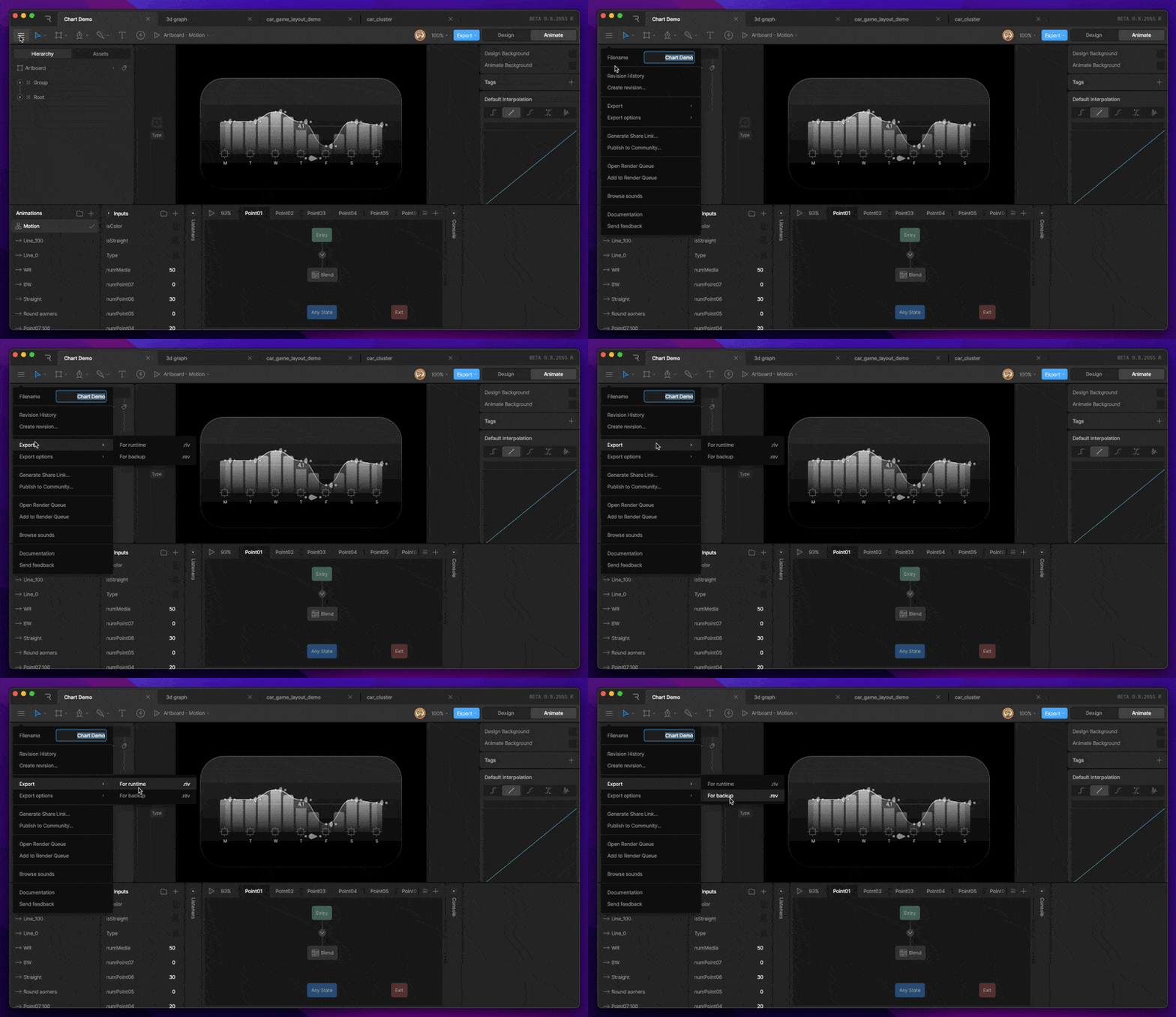
Open the Editor Menu.
2
Select Export > For Backup.
Importing a backup
1
Open the File Browser and go to the project or folder where you want the file.
2
Drag the
.rev file from your computer into the File Browser.