> ## Documentation Index
> Fetch the complete documentation index at: https://rive.app/docs/llms.txt
> Use this file to discover all available pages before exploring further.

# Script Inputs

export const Demos = ({examples, runtime, columns = 2, children, childrenIndex = 0, learnByExample = false}) => {
  const examplesData = {
    ikConstraint: {
      title: 'IK Constraints',
      description: 'Check out this example to see IK constraints in action.',
      image: "https://static.rive.app/docs/ik-constraint.gif",
      stateMachines: "State Machine 1",
      links: {
        editor: "https://rive.app/community/files/28080-53039-ik-constraint/"
      }
    },
    cachingARiveFile: {
      title: 'Caching a Rive File',
      description: 'Load the .riv into memory once, use it multiple times.',
      riv: 'https://static.rive.app/rivs/rives_animated_emojis.riv',
      stateMachines: "State Machine 1",
      artboard: "Emoji_package",
      links: {
        web: "https://codesandbox.io/p/sandbox/rive-js-caching-a-rive-file-g675my?file=%2Fsrc%2Findex.ts%3A9%2C1",
        react: "https://codesandbox.io/p/sandbox/rive-react-caching-a-rive-file-53gmdf?file=%2Fsrc%2FApp.tsx"
      },
      source: ["https://rive.app/marketplace/24644-46045-caching-a-rive-file-at-runtime/"]
    },
    dataBindingArtboards: {
      title: 'Data Binding Artboards',
      description: 'Swap an artboard with another artboard from the same .riv or one loaded at runtime.',
      image: '/images/runtimes/rive-data-bind-components.webp',
      links: {
        web: 'https://codesandbox.io/p/sandbox/rive-js-data-binding-artboards-jx3pf9?file=%2Fsrc%2Findex.mjs%3A5%2C19',
        react: 'https://codesandbox.io/p/sandbox/rive-react-data-binding-artboards-kmvzh8?file=%2Fsrc%2FApp.tsx',
        flutter: 'https://github.com/rive-app/rive-flutter/blob/master/example/lib/examples/databinding_artboards.dart',
        reactNative: 'https://github.com/rive-app/rive-nitro-react-native/blob/main/example/src/demos/DataBindingArtboardsExample.tsx',
        android: "https://github.com/rive-app/rive-android/blob/master/app/src/main/java/app/rive/runtime/example/ComposeArtboardBindingActivity.kt"
      },
      source: ["https://rive.app/marketplace/24641-46042-data-binding-artboards/", "https://rive.app/marketplace/24642-47536-data-binding-artboards/"]
    },
    dataBindingImages: {
      title: 'Data Binding Images',
      description: 'Replace images at runtime using data binding images with javascript.',
      image: '/images/runtimes/rive-db-images.webp',
      links: {
        web: 'https://codesandbox.io/p/sandbox/objective-cohen-sqwh9q?file=%2Fsrc%2Findex.ts',
        flutter: 'https://github.com/rive-app/rive-flutter/blob/master/example/lib/examples/databinding_images.dart',
        android: "https://github.com/rive-app/rive-android/blob/master/app/src/main/java/app/rive/runtime/example/ComposeImageBindingActivity.kt"
      },
      source: ["https://rive.app/marketplace/25472-47537-data-binding-images/"]
    },
    dataBindingLists: {
      title: 'Data Binding Lists',
      description: 'Add, remove, edit, and swap items in your data binding list.',
      image: '/images/runtimes/rive-db-lists.webp',
      links: {
        web: 'https://codesandbox.io/p/sandbox/suspicious-hertz-2lg4m8?file=%2Fsrc%2Findex.ts',
        react: 'https://codesandbox.io/p/sandbox/rive-react-data-binding-lists-4msh9z?file=%2Fsrc%2FApp.tsx',
        flutter: 'https://github.com/rive-app/rive-flutter/blob/master/example/lib/examples/databinding_lists.dart',
        android: "https://github.com/rive-app/rive-android/blob/master/app/src/main/java/app/rive/runtime/example/ComposeListActivity.kt"
      },
      source: ["https://rive.app/marketplace/25474-47539-data-binding-lists/"]
    },
    dataBindingQuickStart: {
      title: "Data Binding",
      description: "Get started with Data Binding at runtime.",
      image: "/images/runtimes/rewards.gif",
      links: {
        flutter: "https://github.com/rive-app/rive-flutter/blob/master/example/lib/examples/databinding.dart",
        reactNative: "https://github.com/rive-app/rive-react-native/blob/main/example/app/(examples)/DataBinding.tsx",
        unity: "https://github.com/rive-app/rive-unity-examples/blob/main/getting-started/Assets/RewardsController.cs",
        apple: "https://github.com/rive-app/rive-ios/blob/main/Example-iOS/Source/Examples/SwiftUI/RewardsView.swift",
        android: "https://github.com/rive-app/rive-android/blob/master/app/src/main/java/app/rive/runtime/example/ComposeDataBindingActivity.kt"
      },
      source: ["https://rive.app/marketplace/25475-47540-data-binding-demo/"]
    },
    dataBindingSolos: {
      title: "Data Binding Solos",
      description: "Control solos at runtime using strings, numbers, or enums.",
      image: '/images/runtimes/data-binding-solos.gif',
      links: {
        react: "https://codesandbox.io/p/sandbox/rive-react-controlling-solos-at-runtime-ctcnlx?file=%2Fsrc%2FApp.tsx"
      },
      source: ["https://rive.app/marketplace/24643-46044-data-binding-solos/"]
    },
    googleAppAds: {
      title: "Google App Ads",
      description: "How to make an interactive Google App with Rive.",
      image: "/images/runtimes/google-app-ads.png",
      links: {
        mobile: "https://github.com/rive-app/rive-use-cases/tree/main/rive-google-ads"
      }
    },
    layouts: {
      title: "Responsive Layouts",
      description: "Create responsive layouts that adapt to different screen sizes.",
      riv: "https://static.rive.app/rivs/layouts_demo.riv",
      stateMachines: "State Machine 1",
      artboard: "Demo",
      links: {
        web: "https://codesandbox.io/p/devbox/rive-responsive-layout-js-forked-m77nlw",
        react: "https://codesandbox.io/p/devbox/rive-responsive-layouts-react-forked-nmpv39?file=%2Fsrc%2FApp.tsx",
        flutter: "https://github.com/rive-app/rive-flutter/blob/master/example/lib/examples/responsive_layouts.dart",
        reactNative: "https://github.com/rive-app/rive-react-native/blob/main/example/app/(examples)/ResponsiveLayout.tsx",
        android: "https://github.com/rive-app/rive-android/blob/master/app/src/main/java/app/rive/runtime/example/ComposeLayoutActivity.kt"
      },
      source: ["https://rive.app/marketplace/24638-46038-layouts-demo/"]
    },
    fontsHostedCompressed: {
      title: 'Load a Compressed Font for Web',
      description: 'Dynamically load a font asset from a hosted location with compression.',
      image: '/images/runtimes/brotli-compressed-fonts.webp',
      links: {
        react: 'https://codesandbox.io/p/sandbox/prod-sound-6yc5xl?file=%2Fsrc%2FApp.tsx%3A19%2C1'
      },
      source: ["https://rive.app/marketplace/25473-47538-loading-compressed-fonts-web/"]
    },
    quickStart: {
      title: "Data Binding Quick Start",
      image: '/images/runtimes/quick-start.gif',
      description: 'Load and control your Rive (.riv) file.',
      links: {
        web: 'https://codesandbox.io/p/sandbox/rive-quick-start-js-xmwcm6?file=%2Fsrc%2Findex.ts',
        react: 'https://codesandbox.io/p/sandbox/rive-react-quick-start-4xy76h?file=%2Fsrc%2FApp.tsx%3A77%2C14',
        reactJs: 'https://codesandbox.io/p/devbox/rive-react-vanilla-js-quick-start-kz66t4?file=%2Fsrc%2FApp.tsx%3A53%2C7',
        reactNative: 'https://github.com/rive-app/rive-nitro-react-native/blob/main/example/src/demos/QuickStart.tsx',
        unity: '/game-runtimes/unity/tutorials/health-bar'
      },
      source: ["https://rive.app/marketplace/24637-46037-health-bar-data-binding-quick-start/"]
    },
    quickStartReact: {
      title: "Data Binding Quick Start",
      image: '/images/runtimes/quick-start.gif',
      description: 'Load and control your Rive (.riv) file.',
      links: {
        react: 'https://codesandbox.io/p/sandbox/rive-react-quick-start-4xy76h?file=%2Fsrc%2FApp.tsx%3A77%2C14',
        reactJs: 'https://codesandbox.io/p/devbox/rive-react-vanilla-js-quick-start-kz66t4?file=%2Fsrc%2FApp.tsx%3A53%2C7'
      },
      source: ["https://rive.app/marketplace/24637-46037-health-bar-data-binding-quick-start/"]
    },
    scriptingDrawingShapes: {
      title: "Drawing with Scripting",
      image: "https://static.rive.app/docs/drawing-demo.png",
      description: "Draw a squirkle, a star, and an animated wave with scripting.",
      links: {
        editor: "https://rive.app/community/files/25751-48087-drawing-shapes-with-scripting"
      }
    },
    scriptingMasonry: {
      title: "Masonry Layout",
      image: "https://static.rive.app/docs/masonry.png",
      description: "Create a masonry layout using a Layout script.",
      links: {
        editor: "https://rive.app/community/files/25826-masonry-layout/"
      }
    },
    scriptingParticleEmitter: {
      title: "Particle Emitter",
      riv: "https://static.rive.app/rivs/particle-demo.riv",
      artboard: "Demo",
      description: "A small, self contained particle system for Rive node and layout scripts.",
      links: {
        editor: "https://rive.app/community/files/28062-53012-particle-librar/"
      }
    },
    scriptingTippingConverter: {
      title: "Custom Converter",
      image: "https://static.rive.app/docs/tipping-scripting-converter.gif",
      description: "Calculate the bill total using the converter's input value added to data binding values.",
      links: {
        editor: "https://uat.rive.app/community/files/610-1126-custom-converter-with-scripting"
      }
    },
    scriptingUnitTesting: {
      title: "Unit Testing",
      image: "https://static.rive.app/docs/scripting-default-thumb.png",
      description: "This hands-on example demonstrates unit testing rgbToHex and hexToRgb color utilities.",
      links: {
        editor: "https://rive.app/community/files/25752-48088-test-script"
      }
    },
    scriptingSnakeGame: {
      title: "Snake - Complete Game",
      image: "https://static.rive.app/docs/snake-game.png",
      description: "Check out this complete game built entirely with Rive using scripting.",
      links: {
        editor: "https://rive.app/community/files/25748-48110-snake-game/"
      }
    },
    scriptingMultiTouch: {
      title: "Tracking Multi-touch",
      image: "https://static.rive.app/docs/scripting-default-thumb.png",
      description: "Keep track of every finger.",
      links: {
        editor: "https://rive.app/community/files/25754-48090-multi-touch-with-scripting"
      }
    },
    scriptingNestedPointers: {
      title: "Nested Pointer Events",
      image: "https://static.rive.app/docs/scripting-default-thumb.png",
      description: "Pass pointer events from the parent component to the instantiated children.",
      links: {
        editor: "https://rive.app/community/files/25750-48086-scripting-nested-pointer-events/"
      }
    },
    scriptingBoilPathEffect: {
      title: "Boiling Path Effect",
      image: "https://static.rive.app/docs/boiling-effect.gif",
      description: "Apply a boiling effect to any path using scripting.",
      links: {
        editor: "https://rive.app/community/files/25767-48113-scripting-path-effect-boil"
      }
    },
    scriptingTextPathEffect: {
      title: "Text Path Effect",
      image: "https://static.rive.app/docs/text-path-effect.gif",
      description: "Control a text path using scripting.",
      links: {
        editor: "https://rive.app/community/files/25823-text-path-effects/"
      }
    },
    scriptingDrawImages: {
      title: "Render an Image with Scripting",
      image: "https://static.rive.app/docs/render-image-with-scripting.jpg",
      description: "Draw an image, give it transforms, control its mesh, and add clipping all through scripting.",
      links: {
        editor: "https://rive.app/community/files/26406-draw-an-image-with-scripting"
      }
    },
    scriptingSlotMachine: {
      title: "Slot Machine - Complete Game",
      image: "https://static.rive.app/docs/slot-machine.png",
      description: "Build a complete casino game using scripting.",
      links: {
        editor: "https://rive.app/community/files/25759-slot-machine-game-with-scripting/"
      }
    },
    scriptingLists: {
      title: "Scripting Lists",
      image: "/images/runtimes/rive-db-lists.webp",
      description: "Add, remove, edit, and swap items in your data binding list using Rive scripting.",
      links: {
        editor: "https://rive.app/community/files/27098-51051-scripting-lists"
      }
    },
    scriptingPlinko: {
      title: "Plinko - Complete Game",
      image: "https://static.rive.app/docs/scripting-plinko-game.png",
      description: "Build a complete Plinko game using Layout, Node, and Path Effect scripts.",
      links: {
        editor: "https://rive.app/marketplace/25772-blinko-scripted-game/"
      }
    },
    constraints: {
      title: "Constraints",
      image: "https://static.rive.app/docs/constraints.gif",
      description: "Transform, Translate, Scale, and Rotation Constraints.",
      links: {
        editor: "https://rive.app/community/files/28081-53040-constraints/"
      }
    }
  };
  const runtimesInOrder = ['web', 'react', 'reactJs', 'reactNative', 'flutter', 'apple', 'android', 'unity', 'unreal', 'mobile', 'editor'];
  const runtimeTitles = {
    web: 'Web',
    reactJs: 'React (Imperative)',
    react: 'React',
    reactNative: "React Native",
    flutter: 'Flutter',
    apple: 'Apple',
    android: 'Android',
    unity: 'Unity',
    unreal: 'Unreal',
    mobile: 'Mobile',
    editor: 'Try in Rive'
  };
  const riveInstances = useRef([]);
  const initRives = () => {
    const rive = window.rive;
    examples.forEach(example => {
      const {riv, stateMachines = "State Machine 1", artboard} = examplesData[example];
      if (riv) {
        const canvasId = `rive-canvas-${example}`;
        const canvas = document.getElementById(canvasId);
        if (canvas) {
          const r = new rive.Rive({
            src: riv,
            stateMachines,
            canvas,
            artboard,
            autoBind: true,
            autoplay: true,
            Layout: new rive.Layout({
              fit: rive.Fit.Layout
            }),
            onLoad: () => {
              r.resizeDrawingSurfaceToCanvas();
              riveInstances.current.push(r);
            }
          });
        }
      }
    });
  };
  useEffect(() => {
    if (window.rive) {
      initRives();
      return;
    }
    const checkRive = () => {
      if (window.rive) {
        initRives();
        window.removeEventListener("rive-loaded", checkRive);
      }
    };
    const handleResize = () => {
      riveInstances.current.forEach(instance => {
        instance.resizeDrawingSurfaceToCanvas();
      });
    };
    window.addEventListener("rive-loaded", checkRive);
    window.addEventListener("resize", handleResize);
    return () => {
      window.removeEventListener("rive-loaded", checkRive);
      window.removeEventListener("resize", handleResize);
      riveInstances.current.forEach(instance => {
        instance.cleanup();
      });
    };
  }, []);
  const RuntimeLink = ({link, runtime}) => {
    if (!link) return null;
    if (runtime === 'editor') {
      link = `${link}?utm_source=docs&utm_medium=docs_demo_card`;
    }
    return <a href={link} target="_blank" className="cursor-pointer border border-neutral-600 hover:border-white rounded-[4px] text-14 py-1 px-5 mr-[10px] mb-[10px]">
        {runtimeTitles[runtime]}
      </a>;
  };
  const CardContainer = ({children: content}) => {
    return <div className="flex flex-col card block font-normal group relative my-2 ring-2 ring-transparent rounded-2xl bg-white dark:bg-background-dark border border-gray-950/10 dark:border-white/10 overflow-hidden w-full">
        {content}
      </div>;
  };
  const getSrc = imageSrc => {
    if (location.hostname === "localhost" && imageSrc.startsWith("/images/")) {
      return imageSrc;
    } else if (imageSrc.startsWith('https:')) {
      return imageSrc;
    }
    return `https://rive.app/docs${imageSrc}`;
  };
  return <div className={`
        card-group not-prose grid gap-x-4
        grid-cols-1
        ${columns >= 2 && "md:grid-cols-2"}
        ${columns >= 3 && "xl:grid-cols-3 xl:w-[67rem] xl:max-w-[calc(100vw-25rem)]"}
      `}>
      {examples.map((example, index) => {
    const {title, image, links, description, source, riv} = examplesData[example];
    const canvasId = `rive-canvas-${example}`;
    return <>
            {index === childrenIndex && children}
            <CardContainer key={canvasId}>
              <div className="w-full h-0 relative pb-[75%]">
                <div className="absolute inset-0">
                  {image && <img alt={title} className="w-full object-cover object-center" src={getSrc(image)} />}

                  {riv && !image && <canvas id={canvasId} style={{
      width: "100%",
      height: "100%"
    }} />}
                </div>
              </div>
              <div className="flex flex-grow flex-col px-6 py-5 relative" data-component-part="card-content-container">
                <div className="flex flex-col grow">
                  <h2 className="not-prose font-semibold text-base text-gray-800 dark:text-white" data-component-part="card-title">{learnByExample ? "Learn by Example" : title}</h2>

                  <div className="flex flex-col grow prose mt-1 font-normal text-sm leading-6 text-gray-600 dark:text-gray-400" data-component-part="card-content">
                    <div className="grow flex flex-col">
                      {description && !learnByExample && <p>{description}</p>}
                      {source && source.length > 0 && <p className="mt-3">
                            {source.map((item, index) => {
      if (source.length == 1) {
        return <>Open the <a href={item}>Rive file</a>.</>;
      }
      if (index == 0) {
        return <>Open <a href={item}>Rive file 1</a></>;
      }
      return <>, <a href={item}>file {index + 1}</a></>;
    })}
                          </p>}
                    </div>
                    {<div className="mt-6 flex flex-wrap">
                        {runtimesInOrder.map(currentRuntime => {
      if (runtime && currentRuntime !== runtime) return;
      return <RuntimeLink key={currentRuntime} runtime={currentRuntime} link={links[currentRuntime]} />;
    })}
                      </div>}
                  </div>
                </div>
              </div>
            </CardContainer>
          </>;
  })}
    </div>;
};

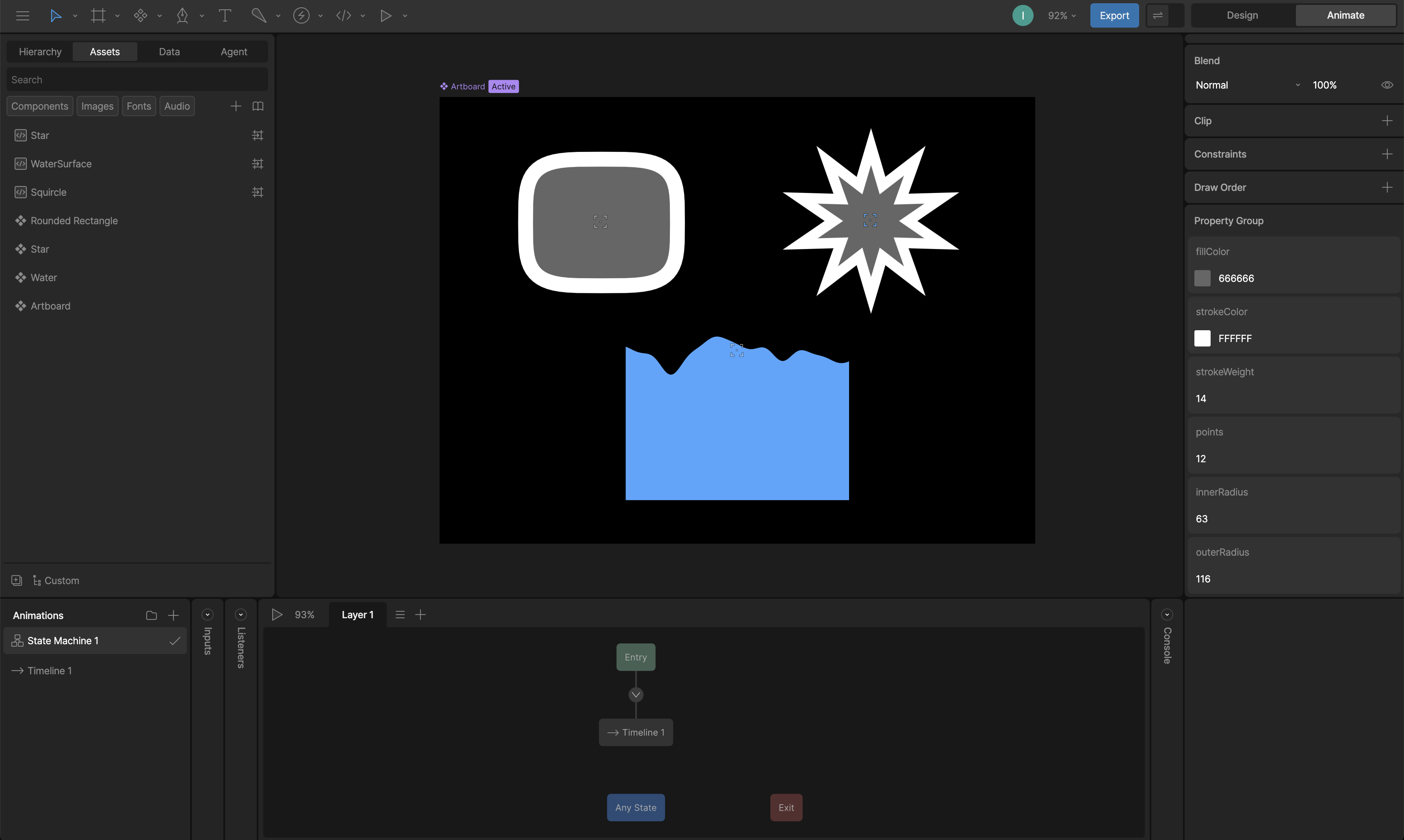
Scripted Inputs are the bridge between your scripts and the Rive editor, allowing you to customize and control script behavior through custom input fields.

By defining inputs in your scripts, you expose configurable properties — like numbers, colors, booleans, and artboard components — that appear directly in the Rive interface. This means you can write the logic once in a script, and then experiment freely with values, animate properties over time, bind data from external sources, and reuse the same script across multiple instances with different configurations. Inputs transform static scripts into flexible, designer-friendly tools that enable true collaboration and rapid iteration.

## Defining Inputs

To make new script inputs, add them to the type and set the defaults in the script's return function.

```lua theme={null}
-- Define the script's data and inputs.
-- These properties will be available in `self`
type MyNode = {
  myNumber: Input<number>,
  myColor: Input<Color>,
  -- This input expects a View Model named Points
  myViewModel: Input<Data.Points>,
  -- This input expects an Artboard with a View Model named Points
  myArtboard: Input<Artboard<Data.Points>>,
  -- This will be accessible via self, but not in the inputs panel
  myString: string,
}

function init(self: MyNode): boolean
  print("myString", self.myString)
  print("myNumber", self.myNumber)
  print("myColor", self.myColor)
  print("myViewModel value", self.myViewModel.someString.value)
  print("myViewModel value", self.myArtboard.data.someEnum.value)

  return true
end

return function(): Node<MyNode>
  return {
    init = init,
    draw = draw,
    myString = "Rive for president!"
    -- Sets default value when creating a new instance of the script
    -- This will be overridden by a value set in the script's inputs
    myNumber = 0,
    myColor = Color.rgba(255, 255, 0, 255), -- 0xFFFFFF00

    -- Use late() to mark this input as assigned at runtime
    myViewModel = late(),
    myArtboard = late()
  }
end

```

<Tip>
  Using inputs, instances of Artboards can be added to your scene at runtime. See [Instantiating Components](/scripting/protocols/node-scripts#instanting-components).
</Tip>

## Setting Input Values

To access the input properties in the right sidebar of the editor, select your [Node](/scripting/protocols/node-scripts) or [Layout script](/scripting/protocols/layout-scripts) in the Hierarchy Panel or the [Converter](/scripting/protocols/converter-scripts) in the Data Panel.

<img src="https://mintcdn.com/rive/PNFYxEcCteEOymSI/images/scripting/script-input.png?fit=max&auto=format&n=PNFYxEcCteEOymSI&q=85&s=5548f3af68288c5ac8f223ca4666dddf" alt="Node script input" width="3456" height="2068" data-path="images/scripting/script-input.png" />

<Demos
  examples={[
"scriptingDrawingShapes"
]}
/>

## Data Binding Inputs

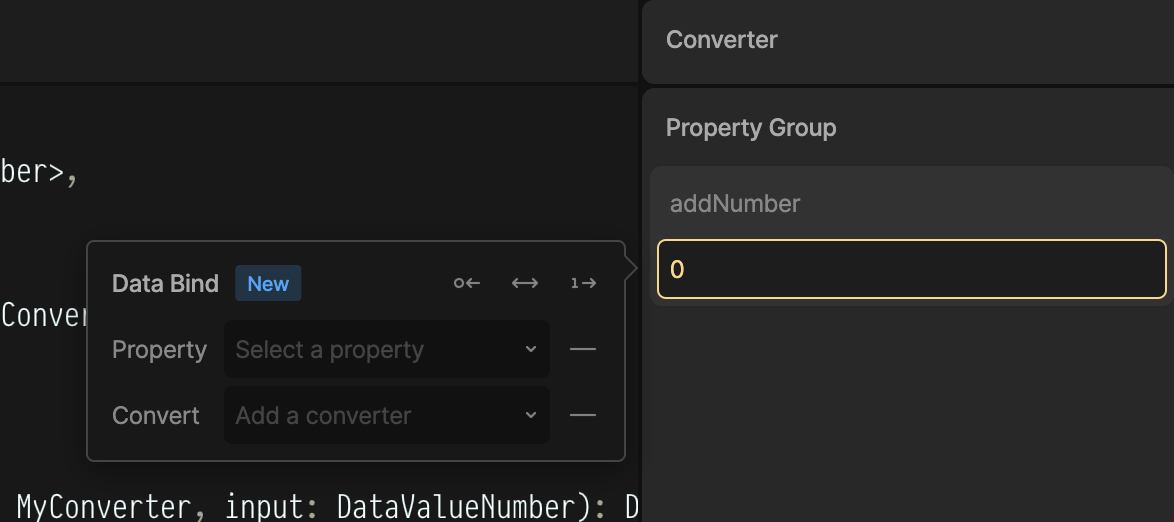
You can use [Data Binding](/editor/data-binding/overview) to control input values at runtime.

<Note>
  Inputs can control scripts, but scripts can't change the value of inputs.

  If you need to control a view model property from your script, access the [view models through context](/scripting/data-binding#context) or [View Model Inputs](#view-model-inputs).
</Note>

To data bind an input, right-click the input field in right sidebar, choose Data Bind, and select a
property.

<img src="https://mintcdn.com/rive/PNFYxEcCteEOymSI/images/scripting/converter-script-input-data-binding.png?fit=max&auto=format&n=PNFYxEcCteEOymSI&q=85&s=ee1704c499df1402a7302c8dd490817b" alt="Data bind a converter input" width="1174" height="522" data-path="images/scripting/converter-script-input-data-binding.png" />

## Listening for Changes to Inputs

The `update` function fires every time any input changes.

```lua theme={null}
function update(self: MyNode)
  print('An update changed')
end
```

You can also listen for changes to specific properties:

```lua theme={null}
function handleMyStringChanged()
  print('myString changed!')
end

function handleMyNumberChanged(myNumber: number)
  print('myNumber changed!', myNumber)
end

function init(self: MyNode): boolean
  -- handleMyStringChanged fires when self.myString changes
  local myString = self.myString
  myString:addListener(handleMyStringChanged)

  -- Pass a parameter to the handleMyStringChanged callback
  local myNumber = self.myNumber
  myNumber:addListener(myNumber.value, handleMyNumberChanged)

  return true
end
```

## View Model Inputs

View Model Inputs let your script read from and write to View Model properties. These properties can control any element in your Rive scene via (See [Data Binding](/editor/data-binding/overview)).
<Note>
  The easiest way to access view models in your scripts is [through context](/scripting/data-binding#context).
</Note>

### Setting Up Your View Model

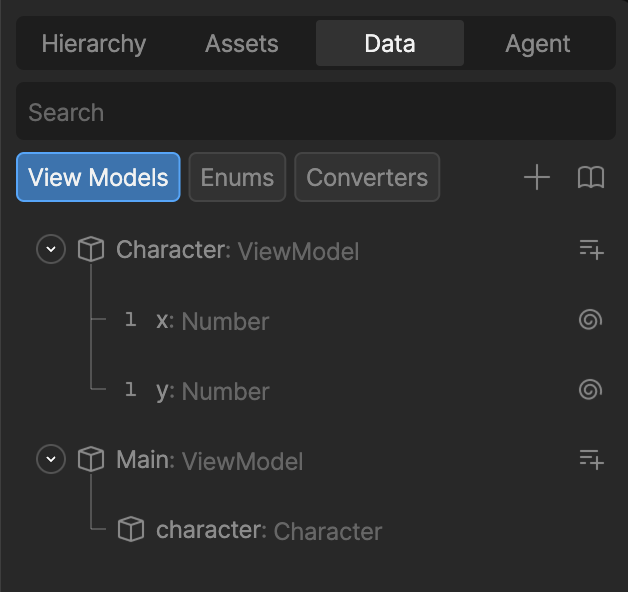
**In this example:**

* The `Main` view model has a property named `character`.
* The `character` property is itself a `Character` view model.
* The `Character` view model contains two number properties (x and y) that you want to control from your script.

<img src="https://mintcdn.com/rive/PNFYxEcCteEOymSI/images/scripting/nested-view-model.png?fit=max&auto=format&n=PNFYxEcCteEOymSI&q=85&s=17671e4d3da2c85e5b2f4ab9c78e6895" alt="Nested" width="628" height="592" data-path="images/scripting/nested-view-model.png" />

### Defining a View Model Input

Inside your script, declare a new input whose type matches the nested view model you want to reference (`Data.` + the name of your nested view model).

In this case, the Character view model type becomes `Data.Character`.

```lua theme={null}
type MyNode = {
  -- This input expects a view model instance of type Character
  character: Input<Data.Character>
}

return function(): Node<MyNode>
  return {
    init = init,
    advance = advance,
    draw = draw,
    -- Initialize with `late()` so the value
    -- can be provided by the editor at runtime.
    character = late(),
  }
end
```

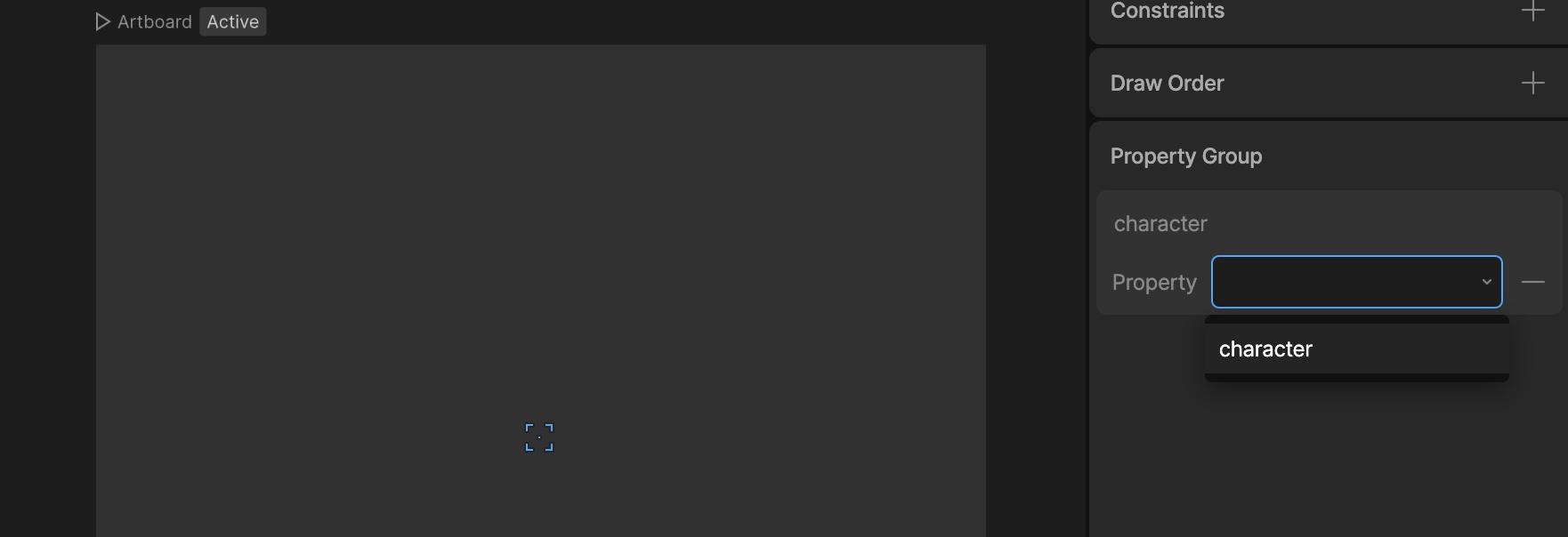
### Connecting the Input in the Editor

1. Select your script in the Scene panel (or the converter if you're using a [Converter](/scripting/protocols/converter-scripts) script)
2. In the right sidebar, look for the Property Group section
3. You’ll see a dropdown for your character input
4. Select your nested `character` property from the Main view model

<img src="https://mintcdn.com/rive/PNFYxEcCteEOymSI/images/scripting/select-vm-input.png?fit=max&auto=format&n=PNFYxEcCteEOymSI&q=85&s=c40f9b2ca94422c5933056656de24b43" alt="Nested" width="1762" height="604" data-path="images/scripting/select-vm-input.png" />

### Reading and Writing View Model Properties

Once connected, you can access the nested view model directly from your script:

```lua theme={null}
function moveCharacter(self: MyNode)
  print('Current x: ', self.character.x.value)
  self.character.x.value = 10
end
```

Because character is a view model instance, you can access all of its public properties:

```lua theme={null}
self.character.<propertyName>.value
```