> ## Documentation Index
> Fetch the complete documentation index at: https://rive.app/docs/llms.txt
> Use this file to discover all available pages before exploring further.
# Custom Painter
> Advance and paint a Rive artboard manually in Flutter.
You can manage advancing and drawing an artboard yourself by using a [CustomPainter](https://api.flutter.dev/flutter/rendering/CustomPainter-class.html). This will give you more control at a painting level, allowing you to:
* Draw multiple Rive artboards to the same [Flutter Canvas](https://api.flutter.dev/flutter/dart-ui/Canvas-class.html).
* Advance an artboard manually and control the elapsed time.
* Reuse the same artboard instance and redraw it multiple times.
* More complex clipping, transformation, or other painting/rendering can be applied to the canvas.
The [Flame game engine](https://docs.flame-engine.org/latest/) makes use of the techniques discussed below to render Rive animations. Some of the code in this example is taken from the [flame\_rive package](https://pub.dev/packages/flame_rive).
**Note that this is a low-level API, and under most circumstances, it is preferable to make use of the**`RiveAnimation` **or** `Rive` **widgets instead.**
### Example Code
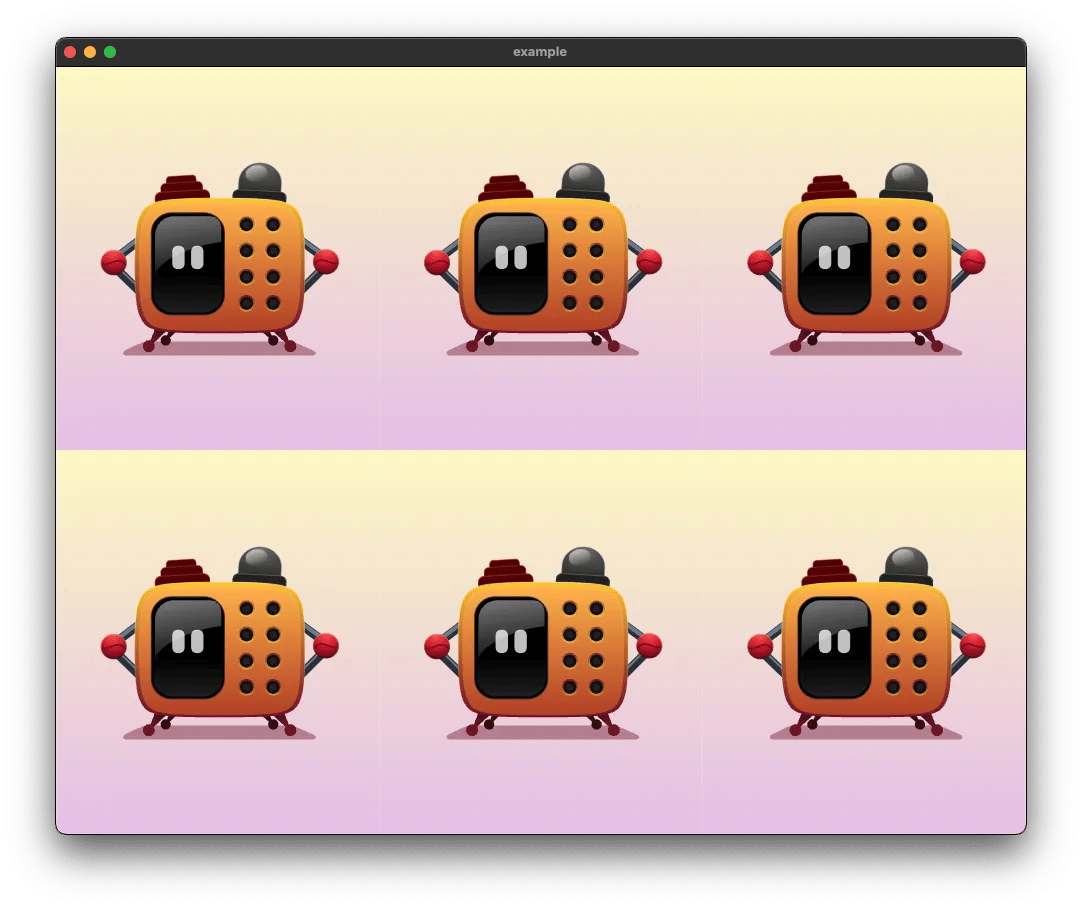
The following is a complete example demonstrating how to manually advance a single artboard and draw it multiple times in a grid to the same Flutter canvas.
See the [online IDE example](https://zapp.run/edit/rive-custom-painter-example-zao06inbp06) to run it directly.
 ```java theme={null}
import 'dart:math';
import 'package:flutter/material.dart';
import 'package:rive/math.dart';
import 'package:rive/rive.dart';
void main() {
runApp(const MyApp());
}
class MyApp extends StatelessWidget {
const MyApp({super.key});
@override
Widget build(BuildContext context) {
return const MaterialApp(
debugShowCheckedModeBanner: false,
home: MyRiveWidget(),
);
}
}
class MyRiveWidget extends StatefulWidget {
const MyRiveWidget({Key? key}) : super(key: key);
@override
State createState() => _MyRiveWidgetState();
}
class _MyRiveWidgetState extends State
with SingleTickerProviderStateMixin {
late final AnimationController _animationController =
AnimationController(vsync: this, duration: const Duration(seconds: 10));
RiveArtboardRenderer? _artboardRenderer;
Future _load() async {
// You need to manage adding the controller to the artboard yourself,
// unlike with the RiveAnimation widget that handles a lot of this logic
// for you by simply providing the state machine (or animation) name.
final file = await RiveFile.asset('assets/little_machine.riv');
final artboard = file.mainArtboard.instance();
final controller = StateMachineController.fromArtboard(
artboard,
'State Machine 1',
);
artboard.addController(controller!);
setState(
() => _artboardRenderer = RiveArtboardRenderer(
antialiasing: true,
fit: BoxFit.cover,
alignment: Alignment.center,
artboard: artboard,
),
);
}
@override
void initState() {
super.initState();
_animationController.repeat();
_load();
}
@override
void dispose() {
_animationController.dispose();
super.dispose();
}
@override
Widget build(BuildContext context) {
return Scaffold(
body: Center(
child: _artboardRenderer == null
? const SizedBox()
: CustomPaint(
painter: RiveCustomPainter(
_artboardRenderer!,
repaint: _animationController,
),
child: const SizedBox.expand(), // use all the size available
),
),
);
}
}
class RiveCustomPainter extends CustomPainter {
final RiveArtboardRenderer artboardRenderer;
RiveCustomPainter(this.artboardRenderer, {super.repaint}) {
_lastTickTime = DateTime.now();
_elapsedTime = Duration.zero;
}
late DateTime _lastTickTime;
late Duration _elapsedTime;
void _calculateElapsedTime() {
final currentTime = DateTime.now();
_elapsedTime = currentTime.difference(_lastTickTime);
_lastTickTime = currentTime;
}
@override
void paint(Canvas canvas, Size size) {
_calculateElapsedTime(); // Calculate elapsed time since last tick.
// Advance the artboard by the elapsed time.
artboardRenderer.advance(_elapsedTime.inMicroseconds / 1000000);
final width = size.width / 3;
final height = size.height / 2;
final artboardSize = Size(width, height);
// First row
canvas.save();
artboardRenderer.render(canvas, artboardSize);
canvas.restore();
canvas.save();
canvas.translate(width, 0);
artboardRenderer.render(canvas, artboardSize);
canvas.restore();
canvas.save();
canvas.translate(width * 2, 0);
artboardRenderer.render(canvas, artboardSize);
canvas.restore();
// Second row
canvas.save();
canvas.translate(0, height);
artboardRenderer.render(canvas, artboardSize);
canvas.restore();
canvas.save();
canvas.translate(width, height);
artboardRenderer.render(canvas, artboardSize);
canvas.restore();
canvas.save();
canvas.translate(width * 2, height);
artboardRenderer.render(canvas, artboardSize);
canvas.restore();
// Paint the full canvas size
// artboardRenderer.render(canvas, size);
}
@override
bool shouldRepaint(covariant CustomPainter oldDelegate) {
return true;
}
}
/// Keeps an `Artboard` instance and renders it to a `Canvas`.
///
/// This is a simplified version of the `RiveAnimation` widget and its
/// RenderObject
///
/// This accounts for the `fit` and `alignment` properties, similar to how
/// `RiveAnimation` works.
class RiveArtboardRenderer {
final Artboard artboard;
final bool antialiasing;
final BoxFit fit;
final Alignment alignment;
RiveArtboardRenderer({
required this.antialiasing,
required this.fit,
required this.alignment,
required this.artboard,
}) {
artboard.antialiasing = antialiasing;
}
void advance(double dt) {
artboard.advance(dt, nested: true);
}
late final aabb = AABB.fromValues(0, 0, artboard.width, artboard.height);
void render(Canvas canvas, Size size) {
_paint(canvas, aabb, size);
}
final _transform = Mat2D();
final _center = Mat2D();
void _paint(Canvas canvas, AABB bounds, Size size) {
const position = Offset.zero;
final contentWidth = bounds[2] - bounds[0];
final contentHeight = bounds[3] - bounds[1];
if (contentWidth == 0 || contentHeight == 0) {
return;
}
final x = -1 * bounds[0] -
contentWidth / 2.0 -
(alignment.x * contentWidth / 2.0);
final y = -1 * bounds[1] -
contentHeight / 2.0 -
(alignment.y * contentHeight / 2.0);
var scaleX = 1.0;
var scaleY = 1.0;
canvas.save();
canvas.clipRect(position & size);
switch (fit) {
case BoxFit.fill:
scaleX = size.width / contentWidth;
scaleY = size.height / contentHeight;
break;
case BoxFit.contain:
final minScale =
min(size.width / contentWidth, size.height / contentHeight);
scaleX = scaleY = minScale;
break;
case BoxFit.cover:
final maxScale =
max(size.width / contentWidth, size.height / contentHeight);
scaleX = scaleY = maxScale;
break;
case BoxFit.fitHeight:
final minScale = size.height / contentHeight;
scaleX = scaleY = minScale;
break;
case BoxFit.fitWidth:
final minScale = size.width / contentWidth;
scaleX = scaleY = minScale;
break;
case BoxFit.none:
scaleX = scaleY = 1.0;
break;
case BoxFit.scaleDown:
final minScale =
min(size.width / contentWidth, size.height / contentHeight);
scaleX = scaleY = minScale < 1.0 ? minScale : 1.0;
break;
}
Mat2D.setIdentity(_transform);
_transform[4] = size.width / 2.0 + (alignment.x * size.width / 2.0);
_transform[5] = size.height / 2.0 + (alignment.y * size.height / 2.0);
Mat2D.scale(_transform, _transform, Vec2D.fromValues(scaleX, scaleY));
Mat2D.setIdentity(_center);
_center[4] = x;
_center[5] = y;
Mat2D.multiply(_transform, _transform, _center);
canvas.translate(
size.width / 2.0 + (alignment.x * size.width / 2.0),
size.height / 2.0 + (alignment.y * size.height / 2.0),
);
canvas.scale(scaleX, scaleY);
canvas.translate(x, y);
artboard.draw(canvas);
canvas.restore();
}
}
```
The `RiveArtboardRenderer` class is taken from the Flame Rive package, and can be used as a starting point to understand how Rive uses [Alignment](https://api.flutter.dev/flutter/painting/Alignment-class.html) and [BoxFit](https://api.flutter.dev/flutter/painting/BoxFit.html) to layout an artboard to a canvas.
The important steps are:
1. Access an artboard from a `RiveFile` and attach any Rive animation controller (`StateMachineController`). The animation can be controlled as it normally would with the controller.
2. Create a Flutter `CustomPaint` widget to get access to a Flutter canvas.
3. Make use of an `AnimationController` (or Ticker/Listener) to force the `RiveCustomPainter` to repaint each frame.
4. Calculate the elapsed time between animation ticks.
5. Advance the artboard with `artboard.advance(dt, nested: true);` where `dt` is the elapsed time (delta time).
6. Draw the artboard to the canvas with `artboard.draw(canvas);`
The rest of the code is responsible for layout and sizing.
### Other Examples
In this example a single artboard is used, however, it's possible to draw multiple artboard instances (from the same or different Rive file) to the same canvas.
See [this editable example](https://zapp.run/edit/rive-multiple-artboards-painter-z8lk06zr8ll0?file=lib/main.dart) that showcases how to draw two different artboards (a unique artboard instance is created for each zombie) to the same canvas. Each artboard has a number input to switch between different skins:
Rive Flutter Custom Painter - Multiple Artboards:
```java theme={null}
import 'dart:math';
import 'package:flutter/material.dart';
import 'package:rive/math.dart';
import 'package:rive/rive.dart';
void main() {
runApp(const MyApp());
}
class MyApp extends StatelessWidget {
const MyApp({super.key});
@override
Widget build(BuildContext context) {
return const MaterialApp(
debugShowCheckedModeBanner: false,
home: MyRiveWidget(),
);
}
}
class MyRiveWidget extends StatefulWidget {
const MyRiveWidget({Key? key}) : super(key: key);
@override
State createState() => _MyRiveWidgetState();
}
class _MyRiveWidgetState extends State
with SingleTickerProviderStateMixin {
late final AnimationController _animationController =
AnimationController(vsync: this, duration: const Duration(seconds: 10));
RiveArtboardRenderer? _artboardRenderer;
Future _load() async {
// You need to manage adding the controller to the artboard yourself,
// unlike with the RiveAnimation widget that handles a lot of this logic
// for you by simply providing the state machine (or animation) name.
final file = await RiveFile.asset('assets/little_machine.riv');
final artboard = file.mainArtboard.instance();
final controller = StateMachineController.fromArtboard(
artboard,
'State Machine 1',
);
artboard.addController(controller!);
setState(
() => _artboardRenderer = RiveArtboardRenderer(
antialiasing: true,
fit: BoxFit.cover,
alignment: Alignment.center,
artboard: artboard,
),
);
}
@override
void initState() {
super.initState();
_animationController.repeat();
_load();
}
@override
void dispose() {
_animationController.dispose();
super.dispose();
}
@override
Widget build(BuildContext context) {
return Scaffold(
body: Center(
child: _artboardRenderer == null
? const SizedBox()
: CustomPaint(
painter: RiveCustomPainter(
_artboardRenderer!,
repaint: _animationController,
),
child: const SizedBox.expand(), // use all the size available
),
),
);
}
}
class RiveCustomPainter extends CustomPainter {
final RiveArtboardRenderer artboardRenderer;
RiveCustomPainter(this.artboardRenderer, {super.repaint}) {
_lastTickTime = DateTime.now();
_elapsedTime = Duration.zero;
}
late DateTime _lastTickTime;
late Duration _elapsedTime;
void _calculateElapsedTime() {
final currentTime = DateTime.now();
_elapsedTime = currentTime.difference(_lastTickTime);
_lastTickTime = currentTime;
}
@override
void paint(Canvas canvas, Size size) {
_calculateElapsedTime(); // Calculate elapsed time since last tick.
// Advance the artboard by the elapsed time.
artboardRenderer.advance(_elapsedTime.inMicroseconds / 1000000);
final width = size.width / 3;
final height = size.height / 2;
final artboardSize = Size(width, height);
// First row
canvas.save();
artboardRenderer.render(canvas, artboardSize);
canvas.restore();
canvas.save();
canvas.translate(width, 0);
artboardRenderer.render(canvas, artboardSize);
canvas.restore();
canvas.save();
canvas.translate(width * 2, 0);
artboardRenderer.render(canvas, artboardSize);
canvas.restore();
// Second row
canvas.save();
canvas.translate(0, height);
artboardRenderer.render(canvas, artboardSize);
canvas.restore();
canvas.save();
canvas.translate(width, height);
artboardRenderer.render(canvas, artboardSize);
canvas.restore();
canvas.save();
canvas.translate(width * 2, height);
artboardRenderer.render(canvas, artboardSize);
canvas.restore();
// Paint the full canvas size
// artboardRenderer.render(canvas, size);
}
@override
bool shouldRepaint(covariant CustomPainter oldDelegate) {
return true;
}
}
/// Keeps an `Artboard` instance and renders it to a `Canvas`.
///
/// This is a simplified version of the `RiveAnimation` widget and its
/// RenderObject
///
/// This accounts for the `fit` and `alignment` properties, similar to how
/// `RiveAnimation` works.
class RiveArtboardRenderer {
final Artboard artboard;
final bool antialiasing;
final BoxFit fit;
final Alignment alignment;
RiveArtboardRenderer({
required this.antialiasing,
required this.fit,
required this.alignment,
required this.artboard,
}) {
artboard.antialiasing = antialiasing;
}
void advance(double dt) {
artboard.advance(dt, nested: true);
}
late final aabb = AABB.fromValues(0, 0, artboard.width, artboard.height);
void render(Canvas canvas, Size size) {
_paint(canvas, aabb, size);
}
final _transform = Mat2D();
final _center = Mat2D();
void _paint(Canvas canvas, AABB bounds, Size size) {
const position = Offset.zero;
final contentWidth = bounds[2] - bounds[0];
final contentHeight = bounds[3] - bounds[1];
if (contentWidth == 0 || contentHeight == 0) {
return;
}
final x = -1 * bounds[0] -
contentWidth / 2.0 -
(alignment.x * contentWidth / 2.0);
final y = -1 * bounds[1] -
contentHeight / 2.0 -
(alignment.y * contentHeight / 2.0);
var scaleX = 1.0;
var scaleY = 1.0;
canvas.save();
canvas.clipRect(position & size);
switch (fit) {
case BoxFit.fill:
scaleX = size.width / contentWidth;
scaleY = size.height / contentHeight;
break;
case BoxFit.contain:
final minScale =
min(size.width / contentWidth, size.height / contentHeight);
scaleX = scaleY = minScale;
break;
case BoxFit.cover:
final maxScale =
max(size.width / contentWidth, size.height / contentHeight);
scaleX = scaleY = maxScale;
break;
case BoxFit.fitHeight:
final minScale = size.height / contentHeight;
scaleX = scaleY = minScale;
break;
case BoxFit.fitWidth:
final minScale = size.width / contentWidth;
scaleX = scaleY = minScale;
break;
case BoxFit.none:
scaleX = scaleY = 1.0;
break;
case BoxFit.scaleDown:
final minScale =
min(size.width / contentWidth, size.height / contentHeight);
scaleX = scaleY = minScale < 1.0 ? minScale : 1.0;
break;
}
Mat2D.setIdentity(_transform);
_transform[4] = size.width / 2.0 + (alignment.x * size.width / 2.0);
_transform[5] = size.height / 2.0 + (alignment.y * size.height / 2.0);
Mat2D.scale(_transform, _transform, Vec2D.fromValues(scaleX, scaleY));
Mat2D.setIdentity(_center);
_center[4] = x;
_center[5] = y;
Mat2D.multiply(_transform, _transform, _center);
canvas.translate(
size.width / 2.0 + (alignment.x * size.width / 2.0),
size.height / 2.0 + (alignment.y * size.height / 2.0),
);
canvas.scale(scaleX, scaleY);
canvas.translate(x, y);
artboard.draw(canvas);
canvas.restore();
}
}
```
The `RiveArtboardRenderer` class is taken from the Flame Rive package, and can be used as a starting point to understand how Rive uses [Alignment](https://api.flutter.dev/flutter/painting/Alignment-class.html) and [BoxFit](https://api.flutter.dev/flutter/painting/BoxFit.html) to layout an artboard to a canvas.
The important steps are:
1. Access an artboard from a `RiveFile` and attach any Rive animation controller (`StateMachineController`). The animation can be controlled as it normally would with the controller.
2. Create a Flutter `CustomPaint` widget to get access to a Flutter canvas.
3. Make use of an `AnimationController` (or Ticker/Listener) to force the `RiveCustomPainter` to repaint each frame.
4. Calculate the elapsed time between animation ticks.
5. Advance the artboard with `artboard.advance(dt, nested: true);` where `dt` is the elapsed time (delta time).
6. Draw the artboard to the canvas with `artboard.draw(canvas);`
The rest of the code is responsible for layout and sizing.
### Other Examples
In this example a single artboard is used, however, it's possible to draw multiple artboard instances (from the same or different Rive file) to the same canvas.
See [this editable example](https://zapp.run/edit/rive-multiple-artboards-painter-z8lk06zr8ll0?file=lib/main.dart) that showcases how to draw two different artboards (a unique artboard instance is created for each zombie) to the same canvas. Each artboard has a number input to switch between different skins:
Rive Flutter Custom Painter - Multiple Artboards:
 Note that `.instance()` is called on the artboard to create a unique instance that can be advanced on its own.