> ## Documentation Index
> Fetch the complete documentation index at: https://rive.app/docs/llms.txt
> Use this file to discover all available pages before exploring further.

# Apple

> Apple runtime for Rive. 

export const Apple = {
  currentRuntimeName: "New Runtime",
  legacyRuntimeName: "Legacy Runtime"
};

export const Demos = ({examples, runtime, columns = 2, children, childrenIndex = 0, learnByExample = false}) => {
  const examplesData = {
    ikConstraint: {
      title: 'IK Constraints',
      description: 'Check out this example to see IK constraints in action.',
      image: "https://static.rive.app/docs/ik-constraint.gif",
      stateMachines: "State Machine 1",
      links: {
        editor: "https://rive.app/community/files/28080-53039-ik-constraint/"
      }
    },
    cachingARiveFile: {
      title: 'Caching a Rive File',
      description: 'Load the .riv into memory once, use it multiple times.',
      riv: 'https://static.rive.app/rivs/rives_animated_emojis.riv',
      stateMachines: "State Machine 1",
      artboard: "Emoji_package",
      links: {
        web: "https://codesandbox.io/p/sandbox/rive-js-caching-a-rive-file-g675my?file=%2Fsrc%2Findex.ts%3A9%2C1",
        react: "https://codesandbox.io/p/sandbox/rive-react-caching-a-rive-file-53gmdf?file=%2Fsrc%2FApp.tsx"
      },
      source: ["https://rive.app/marketplace/24644-46045-caching-a-rive-file-at-runtime/"]
    },
    dataBindingArtboards: {
      title: 'Data Binding Artboards',
      description: 'Swap an artboard with another artboard from the same .riv or one loaded at runtime.',
      image: '/images/runtimes/rive-data-bind-components.webp',
      links: {
        web: 'https://codesandbox.io/p/sandbox/rive-js-data-binding-artboards-jx3pf9?file=%2Fsrc%2Findex.mjs%3A5%2C19',
        react: 'https://codesandbox.io/p/sandbox/rive-react-data-binding-artboards-kmvzh8?file=%2Fsrc%2FApp.tsx',
        flutter: 'https://github.com/rive-app/rive-flutter/blob/master/example/lib/examples/databinding_artboards.dart',
        reactNative: 'https://github.com/rive-app/rive-nitro-react-native/blob/main/example/src/demos/DataBindingArtboardsExample.tsx',
        android: "https://github.com/rive-app/rive-android/blob/master/app/src/main/java/app/rive/runtime/example/ComposeArtboardBindingActivity.kt"
      },
      source: ["https://rive.app/marketplace/24641-46042-data-binding-artboards/", "https://rive.app/marketplace/24642-47536-data-binding-artboards/"]
    },
    dataBindingImages: {
      title: 'Data Binding Images',
      description: 'Replace images at runtime using data binding images with javascript.',
      image: '/images/runtimes/rive-db-images.webp',
      links: {
        web: 'https://codesandbox.io/p/sandbox/objective-cohen-sqwh9q?file=%2Fsrc%2Findex.ts',
        flutter: 'https://github.com/rive-app/rive-flutter/blob/master/example/lib/examples/databinding_images.dart',
        android: "https://github.com/rive-app/rive-android/blob/master/app/src/main/java/app/rive/runtime/example/ComposeImageBindingActivity.kt"
      },
      source: ["https://rive.app/marketplace/25472-47537-data-binding-images/"]
    },
    dataBindingLists: {
      title: 'Data Binding Lists',
      description: 'Add, remove, edit, and swap items in your data binding list.',
      image: '/images/runtimes/rive-db-lists.webp',
      links: {
        web: 'https://codesandbox.io/p/sandbox/suspicious-hertz-2lg4m8?file=%2Fsrc%2Findex.ts',
        react: 'https://codesandbox.io/p/sandbox/rive-react-data-binding-lists-4msh9z?file=%2Fsrc%2FApp.tsx',
        flutter: 'https://github.com/rive-app/rive-flutter/blob/master/example/lib/examples/databinding_lists.dart',
        android: "https://github.com/rive-app/rive-android/blob/master/app/src/main/java/app/rive/runtime/example/ComposeListActivity.kt"
      },
      source: ["https://rive.app/marketplace/25474-47539-data-binding-lists/"]
    },
    dataBindingQuickStart: {
      title: "Data Binding",
      description: "Get started with Data Binding at runtime.",
      image: "/images/runtimes/rewards.gif",
      links: {
        flutter: "https://github.com/rive-app/rive-flutter/blob/master/example/lib/examples/databinding.dart",
        reactNative: "https://github.com/rive-app/rive-react-native/blob/main/example/app/(examples)/DataBinding.tsx",
        unity: "https://github.com/rive-app/rive-unity-examples/blob/main/getting-started/Assets/RewardsController.cs",
        apple: "https://github.com/rive-app/rive-ios/blob/main/Example-iOS/Source/Examples/SwiftUI/RewardsView.swift",
        android: "https://github.com/rive-app/rive-android/blob/master/app/src/main/java/app/rive/runtime/example/ComposeDataBindingActivity.kt"
      },
      source: ["https://rive.app/marketplace/25475-47540-data-binding-demo/"]
    },
    dataBindingSolos: {
      title: "Data Binding Solos",
      description: "Control solos at runtime using strings, numbers, or enums.",
      image: '/images/runtimes/data-binding-solos.gif',
      links: {
        react: "https://codesandbox.io/p/sandbox/rive-react-controlling-solos-at-runtime-ctcnlx?file=%2Fsrc%2FApp.tsx"
      },
      source: ["https://rive.app/marketplace/24643-46044-data-binding-solos/"]
    },
    googleAppAds: {
      title: "Google App Ads",
      description: "How to make an interactive Google App with Rive.",
      image: "/images/runtimes/google-app-ads.png",
      links: {
        mobile: "https://github.com/rive-app/rive-use-cases/tree/main/rive-google-ads"
      }
    },
    layouts: {
      title: "Responsive Layouts",
      description: "Create responsive layouts that adapt to different screen sizes.",
      riv: "https://static.rive.app/rivs/layouts_demo.riv",
      stateMachines: "State Machine 1",
      artboard: "Demo",
      links: {
        web: "https://codesandbox.io/p/devbox/rive-responsive-layout-js-forked-m77nlw",
        react: "https://codesandbox.io/p/devbox/rive-responsive-layouts-react-forked-nmpv39?file=%2Fsrc%2FApp.tsx",
        flutter: "https://github.com/rive-app/rive-flutter/blob/master/example/lib/examples/responsive_layouts.dart",
        reactNative: "https://github.com/rive-app/rive-react-native/blob/main/example/app/(examples)/ResponsiveLayout.tsx",
        android: "https://github.com/rive-app/rive-android/blob/master/app/src/main/java/app/rive/runtime/example/ComposeLayoutActivity.kt"
      },
      source: ["https://rive.app/marketplace/24638-46038-layouts-demo/"]
    },
    fontsHostedCompressed: {
      title: 'Load a Compressed Font for Web',
      description: 'Dynamically load a font asset from a hosted location with compression.',
      image: '/images/runtimes/brotli-compressed-fonts.webp',
      links: {
        react: 'https://codesandbox.io/p/sandbox/prod-sound-6yc5xl?file=%2Fsrc%2FApp.tsx%3A19%2C1'
      },
      source: ["https://rive.app/marketplace/25473-47538-loading-compressed-fonts-web/"]
    },
    quickStart: {
      title: "Data Binding Quick Start",
      image: '/images/runtimes/quick-start.gif',
      description: 'Load and control your Rive (.riv) file.',
      links: {
        web: 'https://codesandbox.io/p/sandbox/rive-quick-start-js-xmwcm6?file=%2Fsrc%2Findex.ts',
        react: 'https://codesandbox.io/p/sandbox/rive-react-quick-start-4xy76h?file=%2Fsrc%2FApp.tsx%3A77%2C14',
        reactJs: 'https://codesandbox.io/p/devbox/rive-react-vanilla-js-quick-start-kz66t4?file=%2Fsrc%2FApp.tsx%3A53%2C7',
        reactNative: 'https://github.com/rive-app/rive-nitro-react-native/blob/main/example/src/demos/QuickStart.tsx',
        unity: '/game-runtimes/unity/tutorials/health-bar'
      },
      source: ["https://rive.app/marketplace/24637-46037-health-bar-data-binding-quick-start/"]
    },
    quickStartReact: {
      title: "Data Binding Quick Start",
      image: '/images/runtimes/quick-start.gif',
      description: 'Load and control your Rive (.riv) file.',
      links: {
        react: 'https://codesandbox.io/p/sandbox/rive-react-quick-start-4xy76h?file=%2Fsrc%2FApp.tsx%3A77%2C14',
        reactJs: 'https://codesandbox.io/p/devbox/rive-react-vanilla-js-quick-start-kz66t4?file=%2Fsrc%2FApp.tsx%3A53%2C7'
      },
      source: ["https://rive.app/marketplace/24637-46037-health-bar-data-binding-quick-start/"]
    },
    scriptingDrawingShapes: {
      title: "Drawing with Scripting",
      image: "https://static.rive.app/docs/drawing-demo.png",
      description: "Draw a squirkle, a star, and an animated wave with scripting.",
      links: {
        editor: "https://rive.app/community/files/25751-48087-drawing-shapes-with-scripting"
      }
    },
    scriptingMasonry: {
      title: "Masonry Layout",
      image: "https://static.rive.app/docs/masonry.png",
      description: "Create a masonry layout using a Layout script.",
      links: {
        editor: "https://rive.app/community/files/25826-masonry-layout/"
      }
    },
    scriptingParticleEmitter: {
      title: "Particle Emitter",
      riv: "https://static.rive.app/rivs/particle-demo.riv",
      artboard: "Demo",
      description: "A small, self contained particle system for Rive node and layout scripts.",
      links: {
        editor: "https://rive.app/community/files/28062-53012-particle-librar/"
      }
    },
    scriptingTippingConverter: {
      title: "Custom Converter",
      image: "https://static.rive.app/docs/tipping-scripting-converter.gif",
      description: "Calculate the bill total using the converter's input value added to data binding values.",
      links: {
        editor: "https://uat.rive.app/community/files/610-1126-custom-converter-with-scripting"
      }
    },
    scriptingUnitTesting: {
      title: "Unit Testing",
      image: "https://static.rive.app/docs/scripting-default-thumb.png",
      description: "This hands-on example demonstrates unit testing rgbToHex and hexToRgb color utilities.",
      links: {
        editor: "https://rive.app/community/files/25752-48088-test-script"
      }
    },
    scriptingSnakeGame: {
      title: "Snake - Complete Game",
      image: "https://static.rive.app/docs/snake-game.png",
      description: "Check out this complete game built entirely with Rive using scripting.",
      links: {
        editor: "https://rive.app/community/files/25748-48110-snake-game/"
      }
    },
    scriptingMultiTouch: {
      title: "Tracking Multi-touch",
      image: "https://static.rive.app/docs/scripting-default-thumb.png",
      description: "Keep track of every finger.",
      links: {
        editor: "https://rive.app/community/files/25754-48090-multi-touch-with-scripting"
      }
    },
    scriptingNestedPointers: {
      title: "Nested Pointer Events",
      image: "https://static.rive.app/docs/scripting-default-thumb.png",
      description: "Pass pointer events from the parent component to the instantiated children.",
      links: {
        editor: "https://rive.app/community/files/25750-48086-scripting-nested-pointer-events/"
      }
    },
    scriptingBoilPathEffect: {
      title: "Boiling Path Effect",
      image: "https://static.rive.app/docs/boiling-effect.gif",
      description: "Apply a boiling effect to any path using scripting.",
      links: {
        editor: "https://rive.app/community/files/25767-48113-scripting-path-effect-boil"
      }
    },
    scriptingTextPathEffect: {
      title: "Text Path Effect",
      image: "https://static.rive.app/docs/text-path-effect.gif",
      description: "Control a text path using scripting.",
      links: {
        editor: "https://rive.app/community/files/25823-text-path-effects/"
      }
    },
    scriptingDrawImages: {
      title: "Render an Image with Scripting",
      image: "https://static.rive.app/docs/render-image-with-scripting.jpg",
      description: "Draw an image, give it transforms, control its mesh, and add clipping all through scripting.",
      links: {
        editor: "https://rive.app/community/files/26406-draw-an-image-with-scripting"
      }
    },
    scriptingSlotMachine: {
      title: "Slot Machine - Complete Game",
      image: "https://static.rive.app/docs/slot-machine.png",
      description: "Build a complete casino game using scripting.",
      links: {
        editor: "https://rive.app/community/files/25759-slot-machine-game-with-scripting/"
      }
    },
    scriptingLists: {
      title: "Scripting Lists",
      image: "/images/runtimes/rive-db-lists.webp",
      description: "Add, remove, edit, and swap items in your data binding list using Rive scripting.",
      links: {
        editor: "https://rive.app/community/files/27098-51051-scripting-lists"
      }
    },
    scriptingPlinko: {
      title: "Plinko - Complete Game",
      image: "https://static.rive.app/docs/scripting-plinko-game.png",
      description: "Build a complete Plinko game using Layout, Node, and Path Effect scripts.",
      links: {
        editor: "https://rive.app/marketplace/25772-blinko-scripted-game/"
      }
    },
    constraints: {
      title: "Constraints",
      image: "https://static.rive.app/docs/constraints.gif",
      description: "Transform, Translate, Scale, and Rotation Constraints.",
      links: {
        editor: "https://rive.app/community/files/28081-53040-constraints/"
      }
    }
  };
  const runtimesInOrder = ['web', 'react', 'reactJs', 'reactNative', 'flutter', 'apple', 'android', 'unity', 'unreal', 'mobile', 'editor'];
  const runtimeTitles = {
    web: 'Web',
    reactJs: 'React (Imperative)',
    react: 'React',
    reactNative: "React Native",
    flutter: 'Flutter',
    apple: 'Apple',
    android: 'Android',
    unity: 'Unity',
    unreal: 'Unreal',
    mobile: 'Mobile',
    editor: 'Try in Rive'
  };
  const riveInstances = useRef([]);
  const initRives = () => {
    const rive = window.rive;
    examples.forEach(example => {
      const {riv, stateMachines = "State Machine 1", artboard} = examplesData[example];
      if (riv) {
        const canvasId = `rive-canvas-${example}`;
        const canvas = document.getElementById(canvasId);
        if (canvas) {
          const r = new rive.Rive({
            src: riv,
            stateMachines,
            canvas,
            artboard,
            autoBind: true,
            autoplay: true,
            Layout: new rive.Layout({
              fit: rive.Fit.Layout
            }),
            onLoad: () => {
              r.resizeDrawingSurfaceToCanvas();
              riveInstances.current.push(r);
            }
          });
        }
      }
    });
  };
  useEffect(() => {
    if (window.rive) {
      initRives();
      return;
    }
    const checkRive = () => {
      if (window.rive) {
        initRives();
        window.removeEventListener("rive-loaded", checkRive);
      }
    };
    const handleResize = () => {
      riveInstances.current.forEach(instance => {
        instance.resizeDrawingSurfaceToCanvas();
      });
    };
    window.addEventListener("rive-loaded", checkRive);
    window.addEventListener("resize", handleResize);
    return () => {
      window.removeEventListener("rive-loaded", checkRive);
      window.removeEventListener("resize", handleResize);
      riveInstances.current.forEach(instance => {
        instance.cleanup();
      });
    };
  }, []);
  const RuntimeLink = ({link, runtime}) => {
    if (!link) return null;
    if (runtime === 'editor') {
      link = `${link}?utm_source=docs&utm_medium=docs_demo_card`;
    }
    return <a href={link} target="_blank" className="cursor-pointer border border-neutral-600 hover:border-white rounded-[4px] text-14 py-1 px-5 mr-[10px] mb-[10px]">
        {runtimeTitles[runtime]}
      </a>;
  };
  const CardContainer = ({children: content}) => {
    return <div className="flex flex-col card block font-normal group relative my-2 ring-2 ring-transparent rounded-2xl bg-white dark:bg-background-dark border border-gray-950/10 dark:border-white/10 overflow-hidden w-full">
        {content}
      </div>;
  };
  const getSrc = imageSrc => {
    if (location.hostname === "localhost" && imageSrc.startsWith("/images/")) {
      return imageSrc;
    } else if (imageSrc.startsWith('https:')) {
      return imageSrc;
    }
    return `https://rive.app/docs${imageSrc}`;
  };
  return <div className={`
        card-group not-prose grid gap-x-4
        grid-cols-1
        ${columns >= 2 && "md:grid-cols-2"}
        ${columns >= 3 && "xl:grid-cols-3 xl:w-[67rem] xl:max-w-[calc(100vw-25rem)]"}
      `}>
      {examples.map((example, index) => {
    const {title, image, links, description, source, riv} = examplesData[example];
    const canvasId = `rive-canvas-${example}`;
    return <>
            {index === childrenIndex && children}
            <CardContainer key={canvasId}>
              <div className="w-full h-0 relative pb-[75%]">
                <div className="absolute inset-0">
                  {image && <img alt={title} className="w-full object-cover object-center" src={getSrc(image)} />}

                  {riv && !image && <canvas id={canvasId} style={{
      width: "100%",
      height: "100%"
    }} />}
                </div>
              </div>
              <div className="flex flex-grow flex-col px-6 py-5 relative" data-component-part="card-content-container">
                <div className="flex flex-col grow">
                  <h2 className="not-prose font-semibold text-base text-gray-800 dark:text-white" data-component-part="card-title">{learnByExample ? "Learn by Example" : title}</h2>

                  <div className="flex flex-col grow prose mt-1 font-normal text-sm leading-6 text-gray-600 dark:text-gray-400" data-component-part="card-content">
                    <div className="grow flex flex-col">
                      {description && !learnByExample && <p>{description}</p>}
                      {source && source.length > 0 && <p className="mt-3">
                            {source.map((item, index) => {
      if (source.length == 1) {
        return <>Open the <a href={item}>Rive file</a>.</>;
      }
      if (index == 0) {
        return <>Open <a href={item}>Rive file 1</a></>;
      }
      return <>, <a href={item}>file {index + 1}</a></>;
    })}
                          </p>}
                    </div>
                    {<div className="mt-6 flex flex-wrap">
                        {runtimesInOrder.map(currentRuntime => {
      if (runtime && currentRuntime !== runtime) return;
      return <RuntimeLink key={currentRuntime} runtime={currentRuntime} link={links[currentRuntime]} />;
    })}
                      </div>}
                  </div>
                </div>
              </div>
            </CardContainer>
          </>;
  })}
    </div>;
};

<Warning>
  Note that certain Rive features may not be supported yet for a particular runtime, or may require using the Rive Renderer.

  For more details, refer to the [feature support](/feature-support/) and [choosing a renderer](/runtimes/choose-a-renderer/) pages.
</Warning>

<Demos examples={['dataBindingQuickStart']} runtime="apple" />

## Overview

This guide documents how to get started using the Apple runtime library. Rive runtime libraries are open-source. The source is available in its [GitHub repository](https://github.com/rive-app/rive-ios).

This library contains an API for Apple apps to easily integrate their Rive assets for both UIKit/AppKit and SwiftUI. The runtime can be installed via Cocoapods or Swift Package Manager.

The Apple runtime currently supports iOS 14.0+, visionOS 1.0+, tvOS 16.0+, macOS 13.1+, and Mac Catalyst 14.0+

The new Apple runtime is designed as a Swift-first API leveraging Swift Concurrency, with improved multi-threading support for Rive.

The entry point is the `Rive` type, which is a container for the configuration of a Rive view. This includes the file, artboard, state machine, fit, and background color.

Adding a Rive view is done by creating a `RiveUIView` with a `Rive` object, and then adding it to the view hierarchy. In SwiftUI, this is as easy as calling `.view()` on a `RiveUIView` object.

It is important to note that while multi-threading is supported, the calls from Rive objects must still be made on the main thread. This is enforced at compile time by marking functions and types as `@MainActor`.

Most APIs are marked as `throws`, with `Error` types available for the different Rive primitives.

## Getting Started

Follow the steps below for a quick start on integrating Rive into your Apple app.

<Tabs>
  <Tab title={Apple.currentRuntimeName}>
    <Steps>
      <Step title="Install the Runtime">
        With CocoaPods going into [maintenance mode](https://blog.cocoapods.org/CocoaPods-Support-Plans/), we recommend using Swift Package Manager.

        To install via Xcode, you can follow Apple's instructions for [adding a package dependency to your app](https://developer.apple.com/documentation/xcode/adding-package-dependencies-to-your-app), with the Apple runtime's GitHub URL: [https://github.com/rive-app/rive-ios](https://github.com/rive-app/rive-ios).

        Alternatively, you can add the dependency manually by adding the following to your `Package.swift` file:

        ```swift theme={null}
        dependencies: [
            .package(url: "https://github.com/rive-app/rive-ios", from: "6.13.0")
        ]
        ```

        Then add the dependency to your target:

        ```swift theme={null}
        targets: [
            .target(
                name: "MyApp",
                dependencies: [
                    .product(name: "RiveRuntime", package: "rive-ios")
                ]
            )
        ]
        ```
      </Step>

      <Step title="Import Rive">
        The new Apple runtime is available in the same Swift package and CocoaPods pod as the legacy runtime. Both runtime APIs are available in the same package, so you can import the runtime using the same import statement.

        ```swift theme={null}
        import RiveRuntime
        ```
      </Step>

      <Step title="Create a Worker">
        A `Worker` is what handles concurrency in the Rive runtime. This type handles starting a background thread for processing, in addition to handling global (out-of-band) assets.

        A `Worker` must be alive for the duration of Rive usage. A `File` creates a strong reference to a `Worker`, so a `Worker` will at least be alive for the duration of use of a `File`, unless a reference to a `Worker` is kept outside of a file.

        ```swift theme={null}
        // In an async context
        let worker = try await Worker()
        ```

        For more information on threading, see [Threading](#threading).
      </Step>

      <Step title="Load a File">
        Once you have created a `Worker`, you can move onto creating a `File`. Each `File` object takes a source and a worker.

        <Note>
          The `File` initializer is marked `@MainActor`.
        </Note>

        <CodeGroup>
          ```swift Local File theme={null}
          let worker = try await Worker()
          let file = try await File(source: .local("my_file", Bundle.main), worker: worker)
          ```

          ```swift Remote URL theme={null}
          let worker = try await Worker()
          let url: URL = URL(string: "https://example.com/my_file.riv")!
          let file = try await File(source: .url(url), worker: worker)
          ```

          ```swift Data theme={null}
          let worker = try await Worker()
          let data: Data = ...
          let file = try await File(source: .data(data), worker: worker)
          ```
        </CodeGroup>
      </Step>

      <Step title="Add a View">
        Once you have created a `File`, you can move onto creating a `Rive` object. This object defines the configuration of a view. The most basic implementation is created with just a file; Rive will handle loading the default artboard and state machine for rendering. Additionally, if the artboard contains a default view model instance, it will be bound to the state machine automatically.

        Once you have created a `Rive` object, you can initialize your view. In UIKit, this is done by creating a `RiveUIView` and adding it to the view hierarchy. In SwiftUI, this is done by using the `RiveUIViewRepresentable` and AsyncRiveUIViewRepresentable\` types.

        <CodeGroup>
          ```swift UIKit theme={null}
          let riveView = RiveUIView({
              let worker = try await Worker()
              let file = try await File(source: .local("my_file", Bundle.main), worker: worker)
              return try await Rive(file: file)
          })
          view.addSubview(riveView)
          ```

          ```swift SwiftUI theme={null}
          var body: some View {
              // After having created a `Rive` object, you can initialize your view.
              RiveUIViewRepresentable(rive)
          }
          ```

          ```swift SwiftUI (Async) theme={null}
          var body: some View {
              // After having created a `Rive` object, you can initialize your view.
              AsyncRiveUIViewRepresentable {
                  let worker = try await Worker()
                  let file = try await File(source: .local("my_file", Bundle.main), worker: worker)
                  return try await Rive(file: file)
              }
          }
          ```
        </CodeGroup>

        The above example uses the default artboard and state machine for the file, binding the default view model instance to the state machine if available. This is the default behavior when initializing a `Rive` object without specifying an artboard or state machine.

        Alternatively, you can also specify which artboard and state machine to use. Documentation and examples for manually selecting which artboard to use is available in the [Artboards](/runtimes/apple/artboards#choosing-an-artboard) documentation. Documentation and examples for manually selecting which state machine to use is available in the [State Machines](/runtimes/apple/state-machines#getting-a-state-machine) documentation.
      </Step>

      <Step title="Data Binding">
        [Data Binding](/runtimes/apple/data-binding) is a feature that allows you to dynamically update your Rive graphics from code. This includes things such as strings, numbers, booleans, and more.

        By default, creating a `Rive` object will automatically data bind to the default view model instance for its artboard. However, there are three options for data binding:

        <CodeGroup>
          ```swift Auto Bind theme={null}
          let file = try await File(...)
          // Automaically find the (editor) default view model instance to bind to the Rive object's artboard.
          // Below, the default artboard and state machine will be used, and the default view model instance will be bound to the state machine.
          // This is the default value, if you do not pass in a dataBind argument.
          let rive = try await Rive(file: file, dataBind: .auto)

          // You can then access the bound view model instance via the `viewModelInstance` property.
          let viewModelInstance = rive.viewModelInstance
          ```

          ```swift Bind Instance theme={null}
          let file = try await File(...)
          let viewModelInstance = try await file.createViewModelInstance(...)
          // Bind the supplied view model instance to the Rive object's artboard.
          // Below, the default artboard and state machine will be used, and the supplied view model instance will be bound to the state machine.
          let rive = try await Rive(file: file, dataBind: .instance(viewModelInstance))
          ```

          ```swift None theme={null}
          let file = try await File(...)
          let artboard = try await file.createArtboard()
          let stateMachine = try await artboard.createStateMachine()
          let viewModelInstance = try await file.createViewModelInstance(...)
          // If you have manually bound a view model instance to a state machine, you can opt-out of data binding.
          stateMachine.bindViewModelInstance(viewModelInstance)
          let rive = try await Rive(file: file, dataBind: .none)
          ```
        </CodeGroup>

        Once data binding is set up, you can update and listen to data binding properties at runtime.

        <CodeGroup>
          ```swift Set Values theme={null}
          let rive = try await Rive(...)
          let viewModelInstance = rive.viewModelInstance
          let stringProperty = StringProperty(path: "path/to/string")
          viewModelInstance.setValue(of: stringProperty, to: "Hello, Rive")
          ```

          ```swift Get Values theme={null}
          let rive = try await Rive(...)
          let viewModelInstance = rive.viewModelInstance
          let stringProperty = StringProperty(path: "path/to/string")

          // Get the current value of the property
          let value = try await viewModelInstance.value(of: stringProperty)

          // Get a stream of values for the property, which emits a new value whenever the property changes.
          let valueStream = viewModelInstance.valueStream(of: stringProperty)
          do {
              for try await value in valueStream {
                  print(value)
              }
          } catch let error as ViewModelInstanceError {
              print(error)
          } catch {
              print(error)
          }
          ```
        </CodeGroup>
      </Step>

      <Step title="Examples">
        For basic usage, see the [Marty](https://github.com/rive-app/rive-ios/blob/main/Example-iOS/Source/Examples/Concurrency/MartyView.swift) example in our Example app.

        For a more complete example, see the [Quick Start](https://github.com/rive-app/rive-ios/blob/main/Example-iOS/Source/Examples/Concurrency/QuickStartView.swift) example in our Example app, which demonstrates how to use data binding.

        For examples on how to pause and resume animations, as well as set frame rate, see the [Player](https://github.com/rive-app/rive-ios/blob/main/Example-iOS/Source/Examples/Concurrency/PlayerView.swift) example in our Example app.
      </Step>
    </Steps>
  </Tab>

  <Tab title={Apple.legacyRuntimeName}>
    <Steps>
      <Step title="Install the Runtime">
        **Swift Package Manager**

        To install via Swift Package Manager, in the package finder in Xcode, search for `rive-ios` or the full Github path: `https://github.com/rive-app/rive-ios`

        **Cocoapods**

        Add the following to your Podspec file:

        ```bash theme={null}
        pod 'RiveRuntime'
        ```
      </Step>

      <Step title="Import Rive">
        Add the following to the top of your file where you utilize the Rive runtime:

        ```swift theme={null}
        import RiveRuntime
        ```
      </Step>

      <Step title="Usage">
        The primary object you'll use is a `RiveViewModel`. It is responsible for creating and interacting with Rive assets.

        <Tabs>
          <Tab title="SwiftUI">
            <CodeGroup>
              ```swift Local File theme={null}
              struct AnimationView: View {
                  var body: some View {
                      RiveViewModel(fileName: "cool_rive_animation").view()
                  }
              }
              ```

              ```swift Remote URL theme={null}
              struct AnimationView: View {
                  var body: some View {
                      RiveViewModel(
                          webURL: "https://cdn.rive.app/animations/off_road_car_v7.riv"
                      ).view()
                  }
              }
              ```
            </CodeGroup>
          </Tab>

          <Tab title="UIKit">
            You can add Rive to a view controller purely with code by making the `RiveViewModel`, telling it to create a fresh `RiveView` and then adding it to the view hierarchy.

            Alternatively, you can add Rive to a controller using Storyboards by making a `RiveViewModel`, and setting its view to be the `RiveView` you made in the Storyboard.

            <CodeGroup>
              ```swift Programmatic theme={null}
              class AnimationViewController: UIViewController {
              var simpleVM = RiveViewModel(fileName: "cool_rive_animation")

              override func viewWillAppear(_ animated: Bool) {
                  let riveView = simpleVM.createRiveView()
                  view.addSubview(riveView)
                  riveView.frame = view.bounds
              }
              ```

              ```swift Storyboard theme={null}
              class AnimationViewController: UIViewController {
                  @IBOutlet weak var riveView: RiveView!
                  var simpleVM = RiveViewModel(fileName: "cool_rive_animation")

                  override public func viewDidLoad() {
                      simpleVM.setView(riveView)
                  }
              }
              ```
            </CodeGroup>
          </Tab>
        </Tabs>
      </Step>
    </Steps>
  </Tab>
</Tabs>

## Playing / Pausing

<Tabs>
  <Tab title={Apple.currentRuntimeName}>
    <CodeGroup>
      ```swift UIKit theme={null}
      let rive = try await Rive(...)
      let riveView = RiveUIView(rive: rive)
      riveView.isPaused = true // or false to resume
      ```

      ```swift SwiftUI theme={null}
      @State var isPaused = false
      var body: some View {
          RiveUIViewRepresentable(rive)
          .paused(isPaused)
      }
      ```

      ```swift SwiftUI (Async) theme={null}
      @State var isPaused = false
      var body: some View {
          AsyncRiveUIViewRepresentable {
              let worker = try await Worker()
              let file = try await File(source: ..., worker: worker)
              let rive = try await Rive(file: file)
              return rive
          }
          .paused(isPaused)
      }
      ```
    </CodeGroup>
  </Tab>

  <Tab title={Apple.legacyRuntimeName}>
    ```swift theme={null}
    let viewModel = RiveViewModel(fileName: "...")
    viewModel.pause() // or play() to resume
    ```
  </Tab>
</Tabs>

## Frame Rate

<Tabs>
  <Tab title={Apple.currentRuntimeName}>
    <CodeGroup>
      ```swift UIKit theme={null}
      let rive = try await Rive(...)
      let riveView = RiveUIView(rive: rive)
       // Set a fixed frame rate
      riveView.frameRate = .fps(30)
       // Set a range of frame rates (Note: on < iOS 15 / macOS 14, this is the same as using .fps)
      riveView.frameRate = .range(minimum: 30, maximum: 60)
       // Revert to the default frame rate
      riveView.frameRate = .default
      ```

      ```swift SwiftUI theme={null}
      var body: some View {
          RiveUIViewRepresentable(rive)
          .frameRate(.fps(30))
          // or
          .frameRate(.range(minimum: 30, maximum: 60))
          // or
          .frameRate(.default)
      }
      ```

      ```swift SwiftUI (Async) theme={null}
      var body: some View {
          AsyncRiveUIViewRepresentable {
              let worker = try await Worker()
              let file = try await File(source: ..., worker: worker)
              let rive = try await Rive(file: file)
              return rive
          }
          .frameRate(.fps(30))
          // or
          .frameRate(.range(minimum: 30, maximum: 60))
          // or
          .frameRate(.default)
      }
      ```
    </CodeGroup>
  </Tab>

  <Tab title={Apple.legacyRuntimeName}>
    ```swift theme={null}
    let viewModel = RiveViewModel(fileName: "...")
    viewModel.setPreferredFramesPerSecond(preferredFramesPerSecond: 30)
    // or, on iOS >= 15 / macOS >= 14
    viewModel.setPreferredFrameRateRange(preferredFrameRateRange: CAFrameRateRange(minimum: 30, maximum: 60))
    ```
  </Tab>
</Tabs>

## Threading

<Tabs>
  <Tab title={Apple.currentRuntimeName}>
    The new runtime supports multi-threading through the introduction of `Worker` objects.

    ```swift theme={null}
    // In an async context
    let worker = try await Worker()
    let file = try await File(source: ..., worker: worker)
    ```

    The `Worker` object is responsible for creating and managing the background thread for the Rive instance.

    Each worker shares out-of-band assets, such as images, fonts, and audio. This means that each `File` initialized with the same worker will share the same out-of-band assets.

    One worker roughly equates to one background thread. If you are rendering multiple heavy Rive graphics, you can create one `Worker` per file to have each processed on its own background thread.

    The number of `Worker` objects is limited by system availability; specifically, a `Worker` is backed by a `DispatchQueue`, which handles the creation and reuse of threads.

    It is important to note that while multi-threading is supported, Rive object API calls must still be made on the main actor. This is enforced at compile time with functions and types marked as `@MainActor`.

    ### Shared Workers

    For cases where you want to share resources between multiple `File` objects (i.e out-of-band / referenced assets), you can use a shared `Worker` object. An example implementation is shown below.

    ```swift theme={null}
    actor WorkerProvider {
        static let shared = WorkerProvider()

        @MainActor
        private var cachedWorker: Worker?

        @MainActor
        func worker() async throws -> Worker {
            if let cachedWorker {
                return cachedWorker
            }

            let worker = try await Worker()
            cachedWorker = worker
            return worker
        }
    }
    ```

    Then, when creating a `Rive` object, you can use the shared worker provider to get a worker.

    ```swift theme={null}
    let worker = try await WorkerProvider.shared.worker()
    let file = try await File(source: ..., worker: worker)
    let rive = try await Rive(file: file)
    ```
  </Tab>

  <Tab title={Apple.legacyRuntimeName} borderBottom>
    The legacy runtime is currently single-threaded on the main thread. This means that all Rive calls must be made on the main thread. It is recommended that if you are on a background thread, you should dispatch to the main queue before making any Rive calls.
  </Tab>
</Tabs>

## Logging

<Tabs>
  <Tab title={Apple.currentRuntimeName}>
    The new runtime does not yet include logging, but will be added in the near future.
  </Tab>

  <Tab title={Apple.legacyRuntimeName}>
    Enabling logging is as simple as setting `RiveLogger.isEnabled` to `true`.

    ```swift theme={null}
    RiveLogger.isEnabled = true
    ```

    For more details on logging levels, categories, and verbose logs, see the [Logging](/runtimes/logging) page.

    See subsequent runtime pages to learn how to control animation playback, state machines, and more.
  </Tab>
</Tabs>

## Example App

You can run our Apple example app from the Rive GitHub repository.

```bash theme={null}
git clone https://github.com/rive-app/rive-ios
```

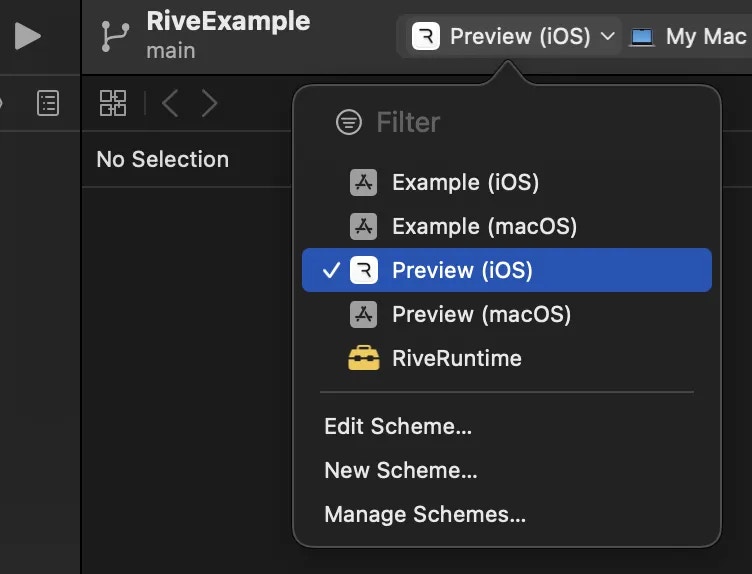
Open the `Example-iOS` app in Xcode and be sure to select the `Preview (iOS)` or `Preview (macOS)` [scheme](https://developer.apple.com/documentation/xcode/customizing-the-build-schemes-for-a-project). The other schemes are for development purposes and require additional configuration, see[ ](https://github.com/rive-app/rive-ios/blob/main/CONTRIBUTING.md)[CONTRIBUTING.MD](https://github.com/rive-app/rive-ios/blob/main/CONTRIBUTING.md).

<img src="https://mintcdn.com/rive/QEBBdwwFJOiq_hKR/images/runtimes/apple/f4e4f632-f24d-47ed-b19c-0c961da458e8.webp?fit=max&auto=format&n=QEBBdwwFJOiq_hKR&q=85&s=831969136a4931f7b93cdaf5524e7d4b" alt="Image" width="752" height="574" data-path="images/runtimes/apple/f4e4f632-f24d-47ed-b19c-0c961da458e8.webp" />

## Resources

GitHub: [https://github.com/rive-app/rive-ios](https://github.com/rive-app/rive-ios)

Examples:

* [https://github.com/rive-app/rive-ios/tree/main/Example-iOS](https://github.com/rive-app/rive-ios/tree/main/Example-iOS)
* [https://github.com/rive-app/rive-ios/tree/main/Demo-App](https://github.com/rive-app/rive-ios/tree/main/Demo-App)
* Free course from Meng To: [https://designcode.io/swiftui-rive](https://designcode.io/swiftui-rive)