> ## Documentation Index
> Fetch the complete documentation index at: https://rive.app/docs/llms.txt
> Use this file to discover all available pages before exploring further.
# Getting Started
> Install the Rive Unreal plugin, run your first Artboard via URiveActorComponent, and display it in UMG.
This guide walks you through installing the Rive Unreal plugin, importing a `.riv` file, and displaying it in UMG.
**Prerequisites**
* Unreal Engine 5.6 or above.
* A C++ toolchain. The Rive plugin is a C++ plugin, so it's compiled as part
of your project regardless of how you install it:
* **Windows**: Visual Studio 2022 with the **Game development with C++**
workload (it includes the Windows SDK and .NET components Unreal needs).
* **macOS**: Xcode with the command-line tools (`xcode-select --install`).
## 1) Install the Plugin
Open the Epic Games Launcher or Unreal Editor.
Open Fab.
Search for Rive or go directly to:\
[https://www.fab.com/listings/3a2968c1-4a1d-427c-934e-92e4d8578b77](https://www.fab.com/listings/3a2968c1-4a1d-427c-934e-92e4d8578b77)
Add the plugin to your engine or project.
Restart Unreal Engine if prompted.
Clone the repository:
```bash theme={null}
git clone https://github.com/rive-app/rive-unreal.git
```
Copy the `Rive` plugin folder into your project's `Plugins/` directory.
## 2) Build the Project
The Rive plugin is C++, so your project must be compiled before the editor
can load it.
Right-click your `.uproject` file and choose **Generate Visual Studio
project files**.
Open the generated `.sln` in Visual Studio 2022.
Set the configuration to **Development Editor** / **Win64** and build.
Right-click your `.uproject` file and choose **Generate Xcode
project**.
Open the generated project in Xcode and build the editor target.
Alternatively, double-click the `.uproject` directly — if the plugin modules
aren't built, Unreal offers to rebuild them; click **Yes**.
## 3) Enable the Plugin
1. Open Edit → Plugins.
2. Locate Rive under Runtime.
3. Enable the plugin.
4. Restart the editor if required.
## 4) Import a Rive File
1. Open the Content Browser.
2. Drag and drop a `.riv` file into your project.
Unreal creates a **Rive File** asset. You can inspect this asset by double-clicking it.
A **Rive File** is an Unreal asset. It does not render directly.
The Unreal runtime does not yet support referenced assets. Be sure to embed all assets in the `.riv` file.
## 5) Create a Widget
1. Right-click on the **Rive file** asset and select **Create Rive Widget** from the context menu.
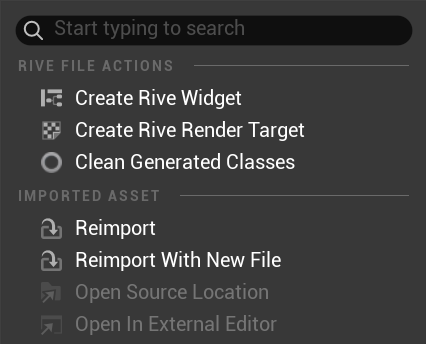 You can inspect the created widget by double-clicking it.
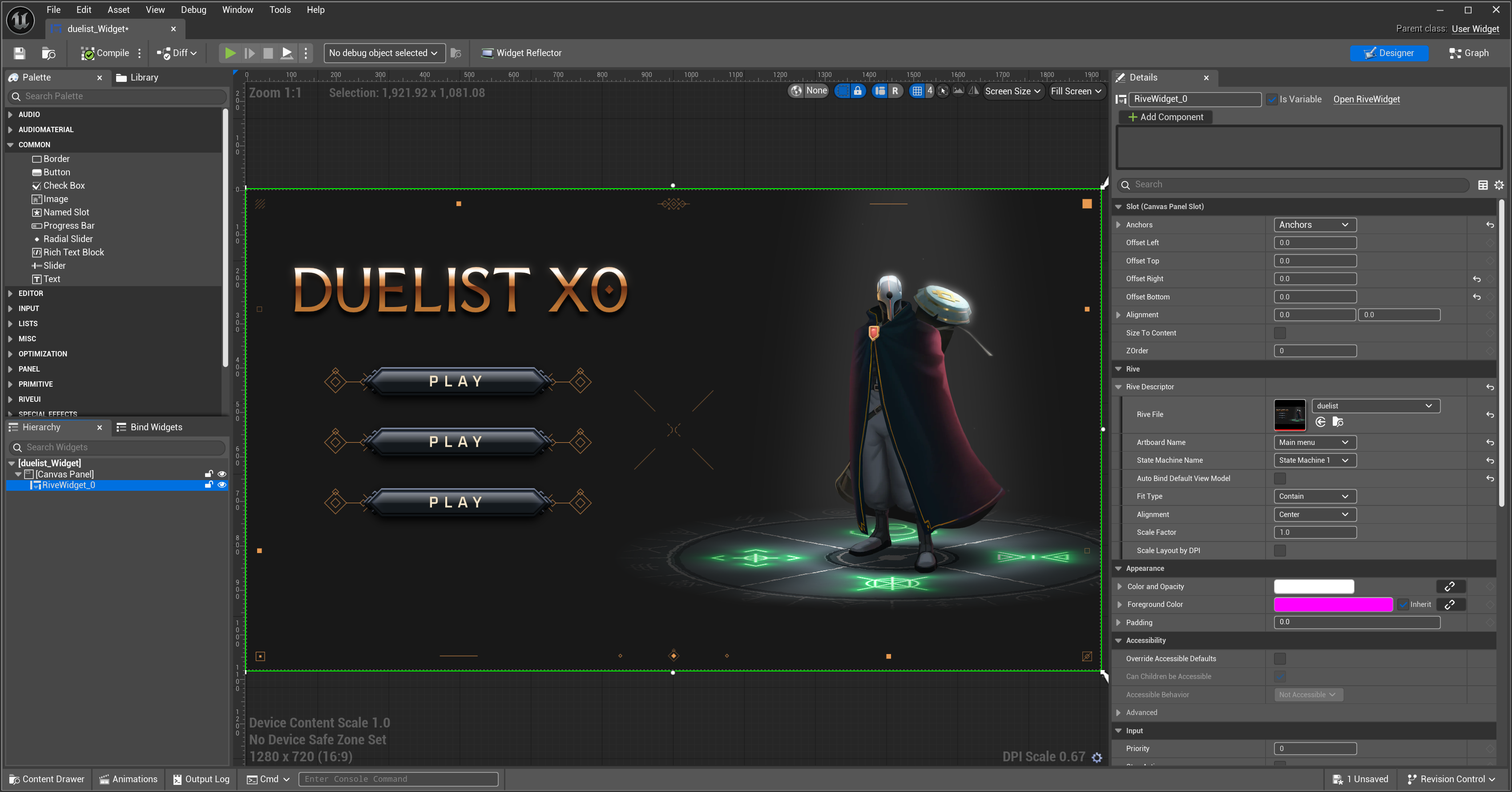 ## 6) Create a Blueprint
1. You can now use the widget in a blueprint just as you would any other widget.
## 6) Create a Blueprint
1. You can now use the widget in a blueprint just as you would any other widget.
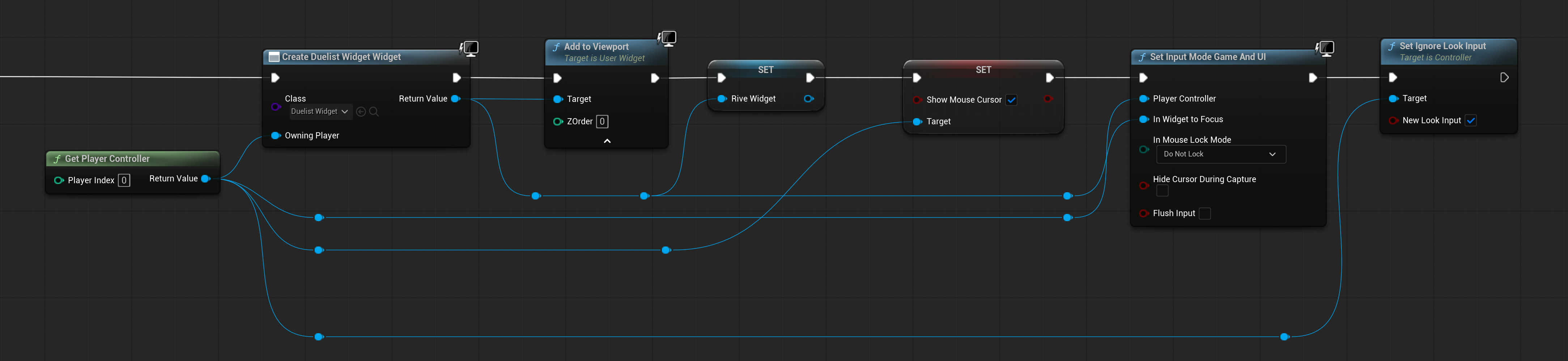 ## 7) Bind a ViewModel
If the Rive File is not using **autobinding**, you must assign a viewmodel. This can be done in blueprints using the **Make View Model** node.
## 7) Bind a ViewModel
If the Rive File is not using **autobinding**, you must assign a viewmodel. This can be done in blueprints using the **Make View Model** node.
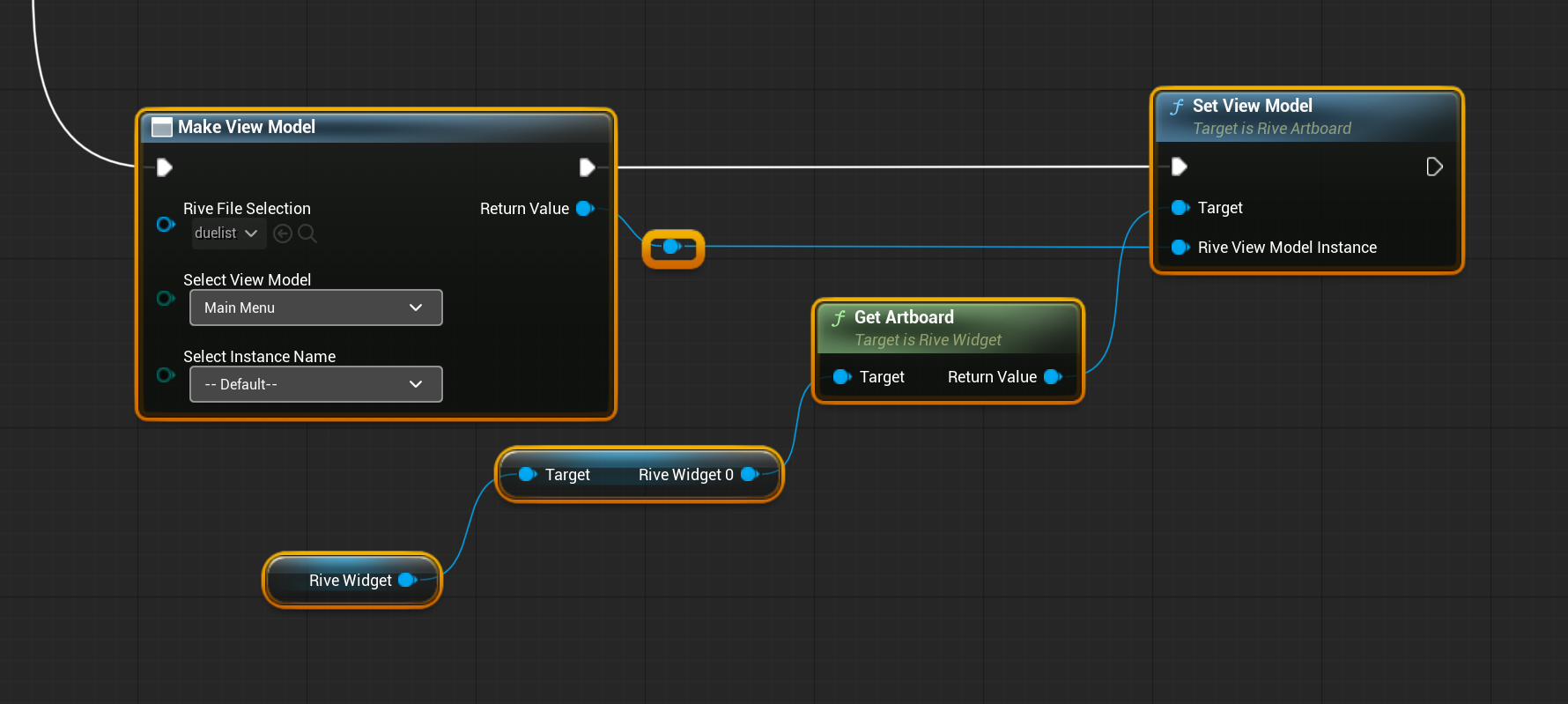 Your **Rive File** is now setup for use in your application. The next page will show you how to observe changes in the ViewModel.