> ## Documentation Index
> Fetch the complete documentation index at: https://rive.app/docs/llms.txt
> Use this file to discover all available pages before exploring further.

# Transitions

export const Demos = ({examples, runtime, columns = 2, children, childrenIndex = 0, learnByExample = false}) => {
  const examplesData = {
    accessibilityReducedMotion: {
      title: 'Reduced Motion Example',
      description: 'Strategies for respecting a user\'s reduced motion preferences.',
      riv: 'https://static.rive.app/rivs/accessibility_reduced_motion.riv',
      stateMachines: "State Machine 1",
      links: {
        editor: "https://rive.app/community/files/28077-53052-accessibility-reduced-motion"
      }
    },
    randomizeExit: {
      title: 'Randomize Exit',
      description: 'Randomize Exit lets a state choose from its outgoing transition paths at random.',
      riv: 'https://static.rive.app/rivs/randomize_exit.riv',
      stateMachines: "State Machine 1",
      links: {
        editor: "https://rive.app/community/files/28147-53157-randomize-exit/"
      }
    },
    ikConstraint: {
      title: 'IK Constraints',
      description: 'Check out this example to see IK constraints in action.',
      image: "https://static.rive.app/docs/ik-constraint.gif",
      stateMachines: "State Machine 1",
      links: {
        editor: "https://rive.app/community/files/28080-53039-ik-constraint/"
      }
    },
    accessibilityReducedMotion: {
      title: 'Reduced Motion Example',
      description: 'Strategies for respecting a user\'s reduced motion preferences.',
      riv: 'https://static.rive.app/rivs/accessibility_reduced_motion.riv',
      stateMachines: "State Machine 1",
      links: {
        editor: "https://rive.app/community/files/28077-53052-accessibility-reduced-motion"
      }
    },
    cachingARiveFile: {
      title: 'Caching a Rive File',
      description: 'Load the .riv into memory once, use it multiple times.',
      riv: 'https://static.rive.app/rivs/rives_animated_emojis.riv',
      stateMachines: "State Machine 1",
      artboard: "Emoji_package",
      links: {
        web: "https://codesandbox.io/p/sandbox/rive-js-caching-a-rive-file-g675my?file=%2Fsrc%2Findex.ts%3A9%2C1",
        react: "https://codesandbox.io/p/sandbox/rive-react-caching-a-rive-file-53gmdf?file=%2Fsrc%2FApp.tsx"
      },
      source: ["https://rive.app/marketplace/24644-46045-caching-a-rive-file-at-runtime/"]
    },
    dataBindingArtboards: {
      title: 'Data Binding Artboards',
      description: 'Swap an artboard with another artboard from the same .riv or one loaded at runtime.',
      image: '/images/runtimes/rive-data-bind-components.webp',
      links: {
        web: 'https://codesandbox.io/p/sandbox/rive-js-data-binding-artboards-jx3pf9?file=%2Fsrc%2Findex.mjs%3A5%2C19',
        react: 'https://codesandbox.io/p/sandbox/rive-react-data-binding-artboards-kmvzh8?file=%2Fsrc%2FApp.tsx',
        flutter: 'https://github.com/rive-app/rive-flutter/blob/master/example/lib/examples/databinding_artboards.dart',
        reactNative: 'https://github.com/rive-app/rive-nitro-react-native/blob/main/example/src/demos/DataBindingArtboardsExample.tsx',
        android: "https://github.com/rive-app/rive-android/blob/master/app/src/main/java/app/rive/runtime/example/ComposeArtboardBindingActivity.kt"
      },
      source: ["https://rive.app/marketplace/24641-46042-data-binding-artboards/", "https://rive.app/marketplace/24642-47536-data-binding-artboards/"]
    },
    dataBindingImages: {
      title: 'Data Binding Images',
      description: 'Replace images at runtime using data binding images with javascript.',
      image: '/images/runtimes/rive-db-images.webp',
      links: {
        web: 'https://codesandbox.io/p/sandbox/objective-cohen-sqwh9q?file=%2Fsrc%2Findex.ts',
        flutter: 'https://github.com/rive-app/rive-flutter/blob/master/example/lib/examples/databinding_images.dart',
        android: "https://github.com/rive-app/rive-android/blob/master/app/src/main/java/app/rive/runtime/example/ComposeImageBindingActivity.kt"
      },
      source: ["https://rive.app/marketplace/25472-47537-data-binding-images/"]
    },
    dataBindingLists: {
      title: 'Data Binding Lists',
      description: 'Add, remove, edit, and swap items in your data binding list.',
      image: '/images/runtimes/rive-db-lists.webp',
      links: {
        web: 'https://codesandbox.io/p/sandbox/suspicious-hertz-2lg4m8?file=%2Fsrc%2Findex.ts',
        react: 'https://codesandbox.io/p/sandbox/rive-react-data-binding-lists-4msh9z?file=%2Fsrc%2FApp.tsx',
        flutter: 'https://github.com/rive-app/rive-flutter/blob/master/example/lib/examples/databinding_lists.dart',
        android: "https://github.com/rive-app/rive-android/blob/master/app/src/main/java/app/rive/runtime/example/ComposeListActivity.kt"
      },
      source: ["https://rive.app/marketplace/25474-47539-data-binding-lists/"]
    },
    dataBindingQuickStart: {
      title: "Data Binding",
      description: "Get started with Data Binding at runtime.",
      image: "/images/runtimes/rewards.gif",
      links: {
        flutter: "https://github.com/rive-app/rive-flutter/blob/master/example/lib/examples/databinding.dart",
        reactNative: "https://github.com/rive-app/rive-react-native/blob/main/example/app/(examples)/DataBinding.tsx",
        unity: "https://github.com/rive-app/rive-unity-examples/blob/main/getting-started/Assets/RewardsController.cs",
        apple: "https://github.com/rive-app/rive-ios/blob/main/Example-iOS/Source/Examples/SwiftUI/RewardsView.swift",
        android: "https://github.com/rive-app/rive-android/blob/master/app/src/main/java/app/rive/runtime/example/ComposeDataBindingActivity.kt"
      },
      source: ["https://rive.app/marketplace/25475-47540-data-binding-demo/"]
    },
    dataBindingSolos: {
      title: "Data Binding Solos",
      description: "Control solos at runtime using strings, numbers, or enums.",
      image: '/images/runtimes/data-binding-solos.gif',
      links: {
        react: "https://codesandbox.io/p/sandbox/rive-react-controlling-solos-at-runtime-ctcnlx?file=%2Fsrc%2FApp.tsx"
      },
      source: ["https://rive.app/marketplace/24643-46044-data-binding-solos/"]
    },
    googleAppAds: {
      title: "Google App Ads",
      description: "How to make an interactive Google App with Rive.",
      image: "/images/runtimes/google-app-ads.png",
      links: {
        mobile: "https://github.com/rive-app/rive-use-cases/tree/main/rive-google-ads"
      }
    },
    layouts: {
      title: "Responsive Layouts",
      description: "Create responsive layouts that adapt to different screen sizes.",
      riv: "https://static.rive.app/rivs/layouts_demo.riv",
      stateMachines: "State Machine 1",
      artboard: "Demo",
      links: {
        web: "https://codesandbox.io/p/devbox/rive-responsive-layout-js-forked-m77nlw",
        react: "https://codesandbox.io/p/devbox/rive-responsive-layouts-react-forked-nmpv39?file=%2Fsrc%2FApp.tsx",
        flutter: "https://github.com/rive-app/rive-flutter/blob/master/example/lib/examples/responsive_layouts.dart",
        reactNative: "https://github.com/rive-app/rive-react-native/blob/main/example/app/(examples)/ResponsiveLayout.tsx",
        android: "https://github.com/rive-app/rive-android/blob/master/app/src/main/java/app/rive/runtime/example/ComposeLayoutActivity.kt"
      },
      source: ["https://rive.app/marketplace/24638-46038-layouts-demo/"]
    },
    fontsHostedCompressed: {
      title: 'Load a Compressed Font for Web',
      description: 'Dynamically load a font asset from a hosted location with compression.',
      image: '/images/runtimes/brotli-compressed-fonts.webp',
      links: {
        react: 'https://codesandbox.io/p/sandbox/prod-sound-6yc5xl?file=%2Fsrc%2FApp.tsx%3A19%2C1'
      },
      source: ["https://rive.app/marketplace/25473-47538-loading-compressed-fonts-web/"]
    },
    quickStart: {
      title: "Data Binding Quick Start",
      image: '/images/runtimes/quick-start.gif',
      description: 'Load and control your Rive (.riv) file.',
      links: {
        web: 'https://codesandbox.io/p/sandbox/rive-quick-start-js-xmwcm6?file=%2Fsrc%2Findex.ts',
        react: 'https://codesandbox.io/p/sandbox/rive-react-quick-start-4xy76h?file=%2Fsrc%2FApp.tsx%3A77%2C14',
        reactJs: 'https://codesandbox.io/p/devbox/rive-react-vanilla-js-quick-start-kz66t4?file=%2Fsrc%2FApp.tsx%3A53%2C7',
        reactNative: 'https://github.com/rive-app/rive-nitro-react-native/blob/main/example/src/demos/QuickStart.tsx',
        unity: '/game-runtimes/unity/tutorials/health-bar'
      },
      source: ["https://rive.app/marketplace/24637-46037-health-bar-data-binding-quick-start/"]
    },
    quickStartReact: {
      title: "Data Binding Quick Start",
      image: '/images/runtimes/quick-start.gif',
      description: 'Load and control your Rive (.riv) file.',
      links: {
        react: 'https://codesandbox.io/p/sandbox/rive-react-quick-start-4xy76h?file=%2Fsrc%2FApp.tsx%3A77%2C14',
        reactJs: 'https://codesandbox.io/p/devbox/rive-react-vanilla-js-quick-start-kz66t4?file=%2Fsrc%2FApp.tsx%3A53%2C7'
      },
      source: ["https://rive.app/marketplace/24637-46037-health-bar-data-binding-quick-start/"]
    },
    scriptingDrawingShapes: {
      title: "Drawing with Scripting",
      image: "https://static.rive.app/docs/drawing-demo.png",
      description: "Draw a squirkle, a star, and an animated wave with scripting.",
      links: {
        editor: "https://rive.app/community/files/25751-48087-drawing-shapes-with-scripting"
      }
    },
    scriptingMasonry: {
      title: "Masonry Layout",
      image: "https://static.rive.app/docs/masonry.png",
      description: "Create a masonry layout using a Layout script.",
      links: {
        editor: "https://rive.app/community/files/25826-masonry-layout/"
      }
    },
    scriptingParticleEmitter: {
      title: "Particle Emitter",
      riv: "https://static.rive.app/rivs/particle-demo.riv",
      artboard: "Demo",
      description: "A small, self contained particle system for Rive node and layout scripts.",
      links: {
        editor: "https://rive.app/community/files/28062-53012-particle-librar/"
      }
    },
    scriptingTippingConverter: {
      title: "Custom Converter",
      image: "https://static.rive.app/docs/tipping-scripting-converter.gif",
      description: "Calculate the bill total using the converter's input value added to data binding values.",
      links: {
        editor: "https://uat.rive.app/community/files/610-1126-custom-converter-with-scripting"
      }
    },
    scriptingUnitTesting: {
      title: "Unit Testing",
      image: "https://static.rive.app/docs/scripting-default-thumb.png",
      description: "This hands-on example demonstrates unit testing rgbToHex and hexToRgb color utilities.",
      links: {
        editor: "https://rive.app/community/files/25752-48088-test-script"
      }
    },
    scriptingSnakeGame: {
      title: "Snake - Complete Game",
      image: "https://static.rive.app/docs/snake-game.png",
      description: "Check out this complete game built entirely with Rive using scripting.",
      links: {
        editor: "https://rive.app/community/files/25748-48110-snake-game/"
      }
    },
    scriptingMultiTouch: {
      title: "Tracking Multi-touch",
      image: "https://static.rive.app/docs/scripting-default-thumb.png",
      description: "Keep track of every finger.",
      links: {
        editor: "https://rive.app/community/files/25754-48090-multi-touch-with-scripting"
      }
    },
    scriptingNestedPointers: {
      title: "Nested Pointer Events",
      image: "https://static.rive.app/docs/scripting-default-thumb.png",
      description: "Pass pointer events from the parent component to the instantiated children.",
      links: {
        editor: "https://rive.app/community/files/25750-48086-scripting-nested-pointer-events/"
      }
    },
    scriptingBoilPathEffect: {
      title: "Boiling Path Effect",
      image: "https://static.rive.app/docs/boiling-effect.gif",
      description: "Apply a boiling effect to any path using scripting.",
      links: {
        editor: "https://rive.app/community/files/25767-48113-scripting-path-effect-boil"
      }
    },
    scriptingTextPathEffect: {
      title: "Text Path Effect",
      image: "https://static.rive.app/docs/text-path-effect.gif",
      description: "Control a text path using scripting.",
      links: {
        editor: "https://rive.app/community/files/25823-text-path-effects/"
      }
    },
    scriptingDrawImages: {
      title: "Render an Image with Scripting",
      image: "https://static.rive.app/docs/render-image-with-scripting.jpg",
      description: "Draw an image, give it transforms, control its mesh, and add clipping all through scripting.",
      links: {
        editor: "https://rive.app/community/files/26406-draw-an-image-with-scripting"
      }
    },
    scriptingSlotMachine: {
      title: "Slot Machine - Complete Game",
      image: "https://static.rive.app/docs/slot-machine.png",
      description: "Build a complete casino game using scripting.",
      links: {
        editor: "https://rive.app/community/files/25759-slot-machine-game-with-scripting/"
      }
    },
    scriptingLists: {
      title: "Scripting Lists",
      image: "/images/runtimes/rive-db-lists.webp",
      description: "Add, remove, edit, and swap items in your data binding list using Rive scripting.",
      links: {
        editor: "https://rive.app/community/files/27098-51051-scripting-lists"
      }
    },
    scriptingPlinko: {
      title: "Plinko - Complete Game",
      image: "https://static.rive.app/docs/scripting-plinko-game.png",
      description: "Build a complete Plinko game using Layout, Node, and Path Effect scripts.",
      links: {
        editor: "https://rive.app/marketplace/25772-blinko-scripted-game/"
      }
    },
    constraints: {
      title: "Constraints",
      image: "https://static.rive.app/docs/constraints.gif",
      description: "Transform, Translate, Scale, and Rotation Constraints.",
      links: {
        editor: "https://rive.app/community/files/28081-53040-constraints/"
      }
    }
  };
  const runtimesInOrder = ['web', 'react', 'reactJs', 'reactNative', 'flutter', 'apple', 'android', 'unity', 'unreal', 'mobile', 'editor'];
  const runtimeTitles = {
    web: 'Web',
    reactJs: 'React (Imperative)',
    react: 'React',
    reactNative: "React Native",
    flutter: 'Flutter',
    apple: 'Apple',
    android: 'Android',
    unity: 'Unity',
    unreal: 'Unreal',
    mobile: 'Mobile',
    editor: 'Try in Rive'
  };
  const riveInstances = useRef([]);
  const initRives = () => {
    const rive = window.rive;
    examples.forEach(example => {
      const {riv, stateMachines = "State Machine 1", artboard} = examplesData[example];
      if (riv) {
        const canvasId = `rive-canvas-${example}`;
        const canvas = document.getElementById(canvasId);
        if (canvas) {
          const r = new rive.Rive({
            src: riv,
            stateMachines,
            canvas,
            artboard,
            autoBind: true,
            autoplay: true,
            Layout: new rive.Layout({
              fit: rive.Fit.Layout
            }),
            onLoad: () => {
              r.resizeDrawingSurfaceToCanvas();
              riveInstances.current.push(r);
            }
          });
        }
      }
    });
  };
  useEffect(() => {
    if (window.rive) {
      initRives();
      return;
    }
    const checkRive = () => {
      if (window.rive) {
        initRives();
        window.removeEventListener("rive-loaded", checkRive);
      }
    };
    const handleResize = () => {
      riveInstances.current.forEach(instance => {
        instance.resizeDrawingSurfaceToCanvas();
      });
    };
    window.addEventListener("rive-loaded", checkRive);
    window.addEventListener("resize", handleResize);
    return () => {
      window.removeEventListener("rive-loaded", checkRive);
      window.removeEventListener("resize", handleResize);
      riveInstances.current.forEach(instance => {
        instance.cleanup();
      });
    };
  }, []);
  const RuntimeLink = ({link, runtime}) => {
    if (!link) return null;
    if (runtime === 'editor') {
      link = `${link}?utm_source=docs&utm_medium=docs_demo_card`;
    }
    return <a href={link} target="_blank" className="cursor-pointer border border-neutral-600 hover:border-white rounded-[4px] text-14 py-1 px-5 mr-[10px] mb-[10px]">
        {runtimeTitles[runtime]}
      </a>;
  };
  const CardContainer = ({children: content}) => {
    return <div className="flex flex-col card block font-normal group relative my-2 ring-2 ring-transparent rounded-2xl bg-white dark:bg-background-dark border border-gray-950/10 dark:border-white/10 overflow-hidden w-full">
        {content}
      </div>;
  };
  const getSrc = imageSrc => {
    if (location.hostname === "localhost" && imageSrc.startsWith("/images/")) {
      return imageSrc;
    } else if (imageSrc.startsWith('https:')) {
      return imageSrc;
    }
    return `https://rive.app/docs${imageSrc}`;
  };
  return <div className={`
        card-group not-prose grid gap-x-4
        grid-cols-1
        ${columns >= 2 && "md:grid-cols-2"}
        ${columns >= 3 && "xl:grid-cols-3 xl:w-[67rem] xl:max-w-[calc(100vw-25rem)]"}
      `}>
      {examples.map((example, index) => {
    const {title, image, links, description, source, riv} = examplesData[example];
    const canvasId = `rive-canvas-${example}`;
    return <>
            {index === childrenIndex && children}
            <CardContainer key={canvasId}>
              <div className="w-full h-0 relative pb-[75%]">
                <div className="absolute inset-0">
                  {image && <img alt={title} className="w-full object-cover object-center" src={getSrc(image)} />}

                  {riv && !image && <canvas id={canvasId} style={{
      width: "100%",
      height: "100%"
    }} />}
                </div>
              </div>
              <div className="flex flex-grow flex-col px-6 py-5 relative" data-component-part="card-content-container">
                <div className="flex flex-col grow">
                  <h2 className="not-prose font-semibold text-base text-gray-800 dark:text-white" data-component-part="card-title">{learnByExample ? "Learn by Example" : title}</h2>

                  <div className="flex flex-col grow prose mt-1 font-normal text-sm leading-6 text-gray-600 dark:text-gray-400" data-component-part="card-content">
                    <div className="grow flex flex-col">
                      {description && !learnByExample && <p>{description}</p>}
                      {source && source.length > 0 && <p className="mt-3">
                            {source.map((item, index) => {
      if (source.length == 1) {
        return <>Open the <a href={item}>Rive file</a>.</>;
      }
      if (index == 0) {
        return <>Open <a href={item}>Rive file 1</a></>;
      }
      return <>, <a href={item}>file {index + 1}</a></>;
    })}
                          </p>}
                    </div>
                    {<div className="mt-6 flex flex-wrap">
                        {runtimesInOrder.map(currentRuntime => {
      if (runtime && currentRuntime !== runtime) return;
      return <RuntimeLink key={currentRuntime} runtime={currentRuntime} link={links[currentRuntime]} />;
    })}
                      </div>}
                  </div>
                </div>
              </div>
            </CardContainer>
          </>;
  })}
    </div>;
};

export const Marketplace = ({href, children}) => {
  const hrefWithTracking = `${href}?utm_source=docs&utm_medium=docs_link_card&utm_campaign=docs_to_marketplace_links`;
  return <Card title="Learn by remixing" icon="external-link" href={hrefWithTracking} arrow="true" horizontal>
      {children ? children : "Open this file on Marketplace, then click Remix to experiment in the Rive Editor."}

    </Card>;
};

export const VideoEmbed = ({src}) => {
  return <div style={{
    width: "100%",
    height: "100%",
    overflow: "hidden"
  }}>

      <video src={src} autoPlay loop muted playsInline style={{
    width: "100%",
    height: "100%",
    borderRadius: 0,
    margin: 0,
    display: "block",
    objectFit: "cover",
    backgroundColor: "transparent"
  }} />
    </div>;
};

export const YouTube = ({id, timestamp}) => {
  const videoSrc = timestamp ? `https://www.youtube.com/embed/${id}?start=${timestamp}` : `https://www.youtube.com/embed/${id}`;
  return <iframe width="100%" height="400" src={videoSrc} title="YouTube video player" frameBorder="0" allow="accelerometer; autoplay; clipboard-write; encrypted-media; gyroscope; picture-in-picture; web-share" referrerPolicy="strict-origin-when-cross-origin" allowFullScreen />;
};

Transitions define how and when a State Machine moves from one state to another. A transition is made up of four parts:

<CardGroup cols={2}>
  <Card title="Path">
    The direction the transition travels.

    **Example**: A character might have one path from **Idle** to **Walk**, and another from **Walk** back to **Idle**.
  </Card>

  <Card title="Conditions">
    When the transition occurs.

    **Example**: A character might transition to **Walk** when a button is pressed, then back to **Idle** when the button is released.
  </Card>

  <Card title="Properties">
    How the transition behaves.

    **Example**: You might set the transition duration to `0.2` seconds so the change between states feels smoother.
  </Card>

  <Card title="Actions">
    Extra behavior to perform when the transition occurs.

    **Example**: A transition might fire an event, set a property value, or align a target.
  </Card>
</CardGroup>

<YouTube id="C4KNgrrqt7k" />

## Transition Path

A transition path determines how the State Machine moves from one state to another.

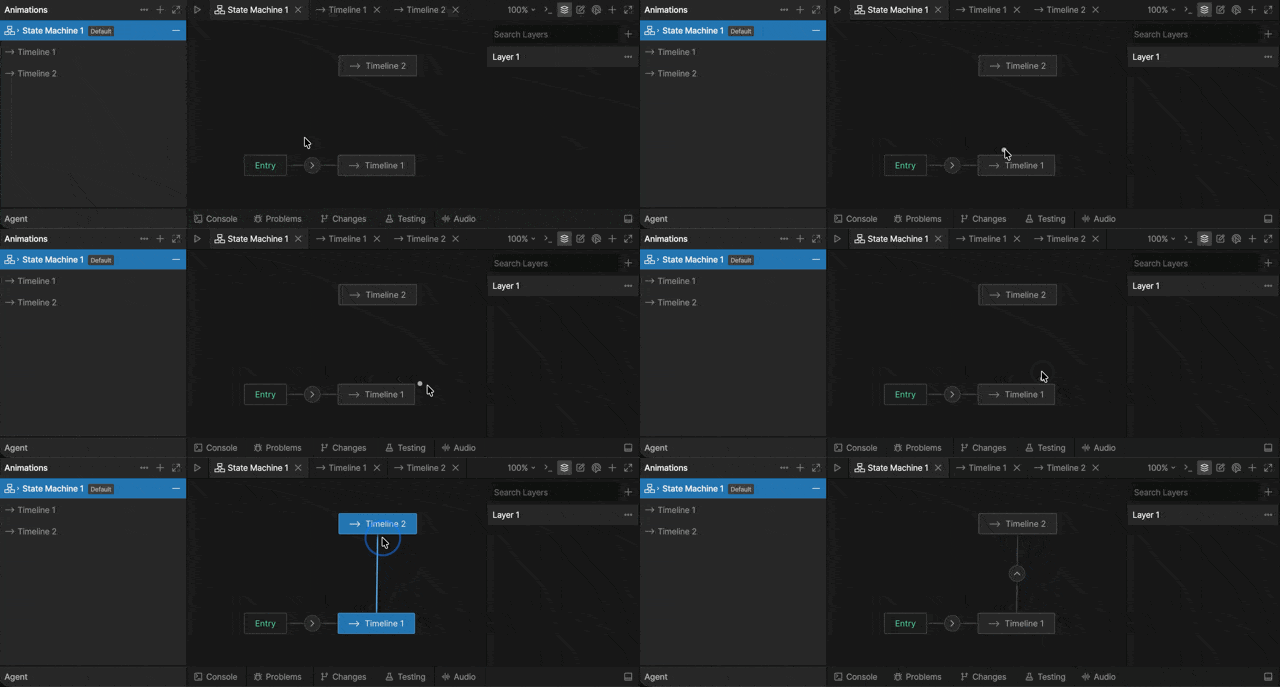
To create a transition path, move your cursor near the state you want to leave until the circle appears. Click and drag from the circle to the state you want to transition to.

<img src="https://mintcdn.com/rive/eGi2QSd8r2HxXsio/images/editor/state-machine/transitions/create-transition.gif?s=64b102fcbad73166ba37e41be22781d1" alt="Creating a transition" width="640" height="229" data-path="images/editor/state-machine/transitions/create-transition.gif" />

Once you connect two states, the transition path shows a circle with an arrow icon indicating the transition direction. In this example, the State Machine can move from Timeline 1 to Timeline 2, but not from Timeline 2 back to Timeline 1.

To allow the State Machine to move back to Timeline 1, create another transition path starting from Timeline 2.
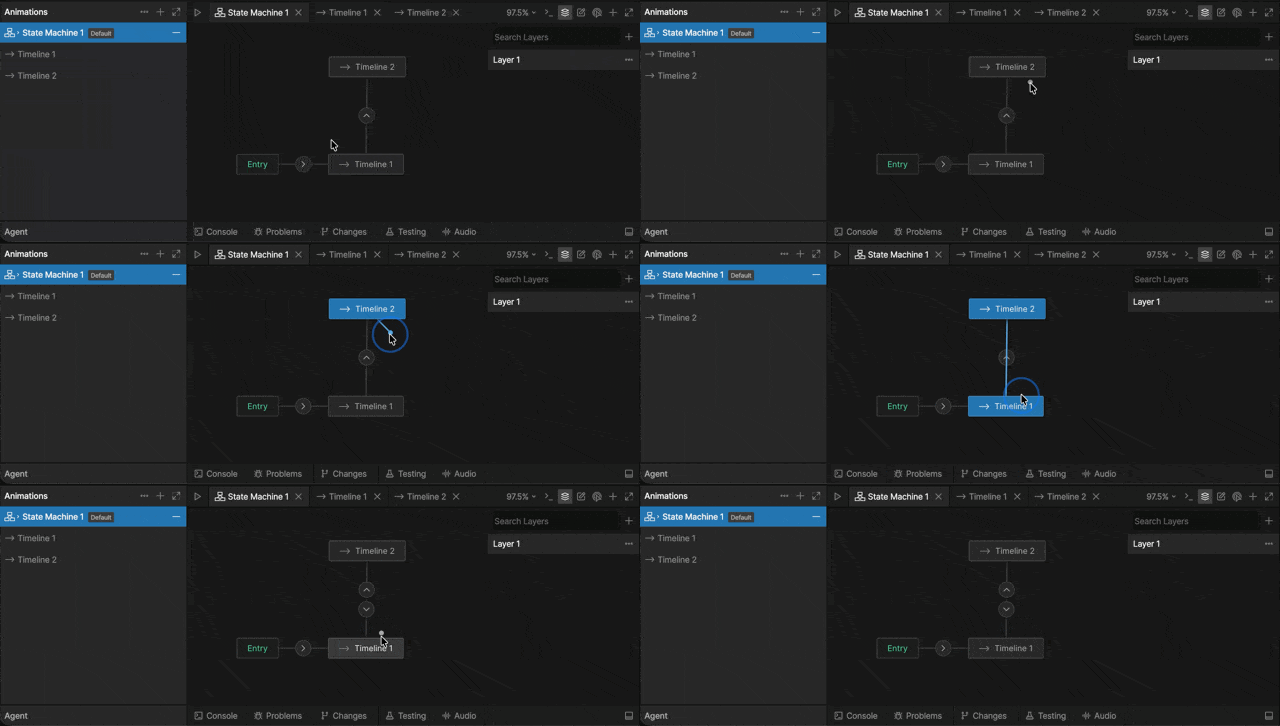
<img src="https://mintcdn.com/rive/eGi2QSd8r2HxXsio/images/editor/state-machine/transitions/create-reverse-transition.gif?s=4007b1268b26571a09e749d5738677bc" alt="Creating a reverse transition" width="640" height="242" data-path="images/editor/state-machine/transitions/create-reverse-transition.gif" />

You can create multiple transitions between the same two states. Each transition can have different [conditions](#transition-conditions), allowing you to create “or” logic.
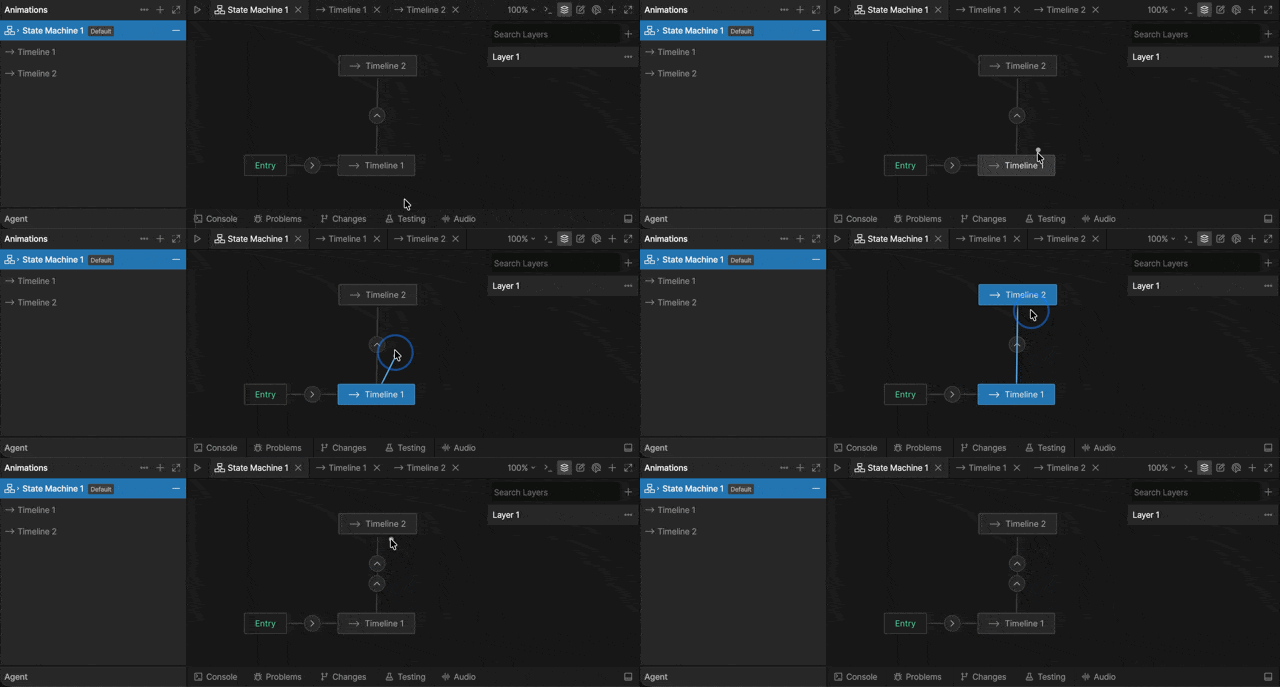
<img src="https://mintcdn.com/rive/eGi2QSd8r2HxXsio/images/editor/state-machine/transitions/transition-or.gif?s=e35b47defb0cc546aee5368a451f3c40" alt="Creating an &#x22;or&#x22; transition" width="640" height="229" data-path="images/editor/state-machine/transitions/transition-or.gif" />

## Transition Conditions

Conditions determine when a transition can occur.
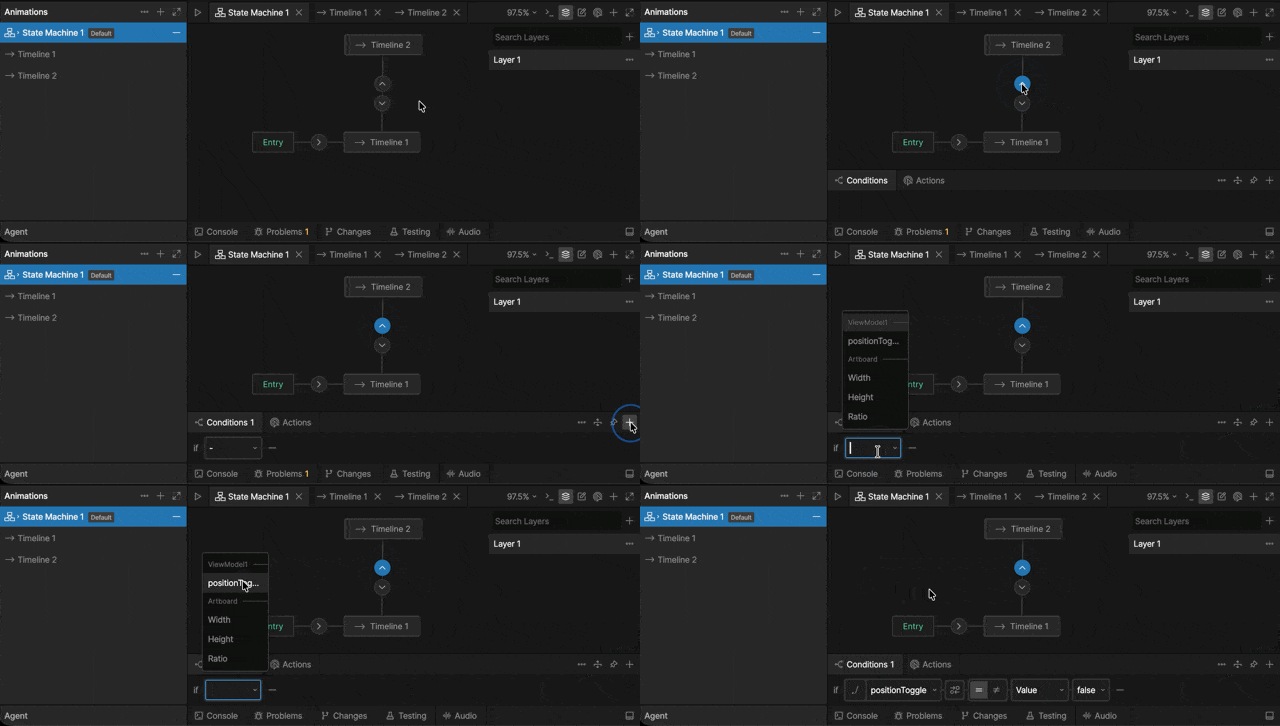
<Note>
  Without conditions, transitions fire as soon as they are reached. This can cause a State Machine to rapidly move between states or skip directly to a single animation.
</Note>

<YouTube id="30HJo_DaLDk" />

### Adding a Condition

To add a condition to a transition, select the transition, then click the plus button next to **Conditions**.

A condition has three parts:

* **Source value** - the value or event the condition watches
* **Operator** - how the source value is compared
* **Comparison value** - the value the source value is compared against

For example, a character might transition from **Idle** to **Walk** when `isWalking` is `true`.

In this condition, `isWalking` is the **source value**, **equals** is the **operator**, and `true` is the **comparison value**.

<img src="https://mintcdn.com/rive/eGi2QSd8r2HxXsio/images/editor/state-machine/transitions/add-condition.gif?s=f920b5c661f3616ba6f09e29a8ad149d" alt="Add a transition condition" width="640" height="242" data-path="images/editor/state-machine/transitions/add-condition.gif" />

#### The Source Value

Conditions can be driven by many different sources, including:

* View Model properties
* Events
* Built-in properties such as artboard width, height, and ratio

<img src="https://mintcdn.com/rive/eGi2QSd8r2HxXsio/images/editor/state-machine/transitions/source-value.png?fit=max&auto=format&n=eGi2QSd8r2HxXsio&q=85&s=0ce22f8b11ade43d8ca3398602d5409e" alt="Source value" width="1298" height="198" data-path="images/editor/state-machine/transitions/source-value.png" />

#### The Operator

Conditions can use comparisons such as equals, does not equal, greater than, greater than or equal to, less than, and less than or equal to. The available comparisons depend on the type of value being compared.

<img src="https://mintcdn.com/rive/eGi2QSd8r2HxXsio/images/editor/state-machine/transitions/comparisons.png?fit=max&auto=format&n=eGi2QSd8r2HxXsio&q=85&s=6c278a3e543027bedb6d69160e66c178" alt="Operators" width="1298" height="199" data-path="images/editor/state-machine/transitions/comparisons.png" />

#### Comparison Value

The comparison value is the value the source value is compared against.

<img src="https://mintcdn.com/rive/eGi2QSd8r2HxXsio/images/editor/state-machine/transitions/comparison-value.png?fit=max&auto=format&n=eGi2QSd8r2HxXsio&q=85&s=c19679ae5343d20ff41fecbae9970c94" alt="Comparison value" width="1298" height="198" data-path="images/editor/state-machine/transitions/comparison-value.png" />

You can enter a fixed comparison value, such as `true`, `100`, or `"mobile"`. You can also data bind the comparison value to another property, allowing the transition to compare against dynamic data.

For example, a transition might occur when `speed` is greater than a data-bound `walkThreshold` value.

### Adding Multiple Conditions

You can add multiple conditions to a single transition. All conditions must be met before the transition occurs.

<img src="https://mintcdn.com/rive/eGi2QSd8r2HxXsio/images/editor/state-machine/transitions/or-condition.png?fit=max&auto=format&n=eGi2QSd8r2HxXsio&q=85&s=2d0ffa15b5c4564d2a0e575984a82459" alt="Adding multiple conditions" width="1308" height="226" data-path="images/editor/state-machine/transitions/or-condition.png" />

## Transition Properties

Once you’ve added a transition, selecting the direction indicator will allow you to configure the transition. There are three different sections to the transition panel, the transition properties, conditions, and interpolation.
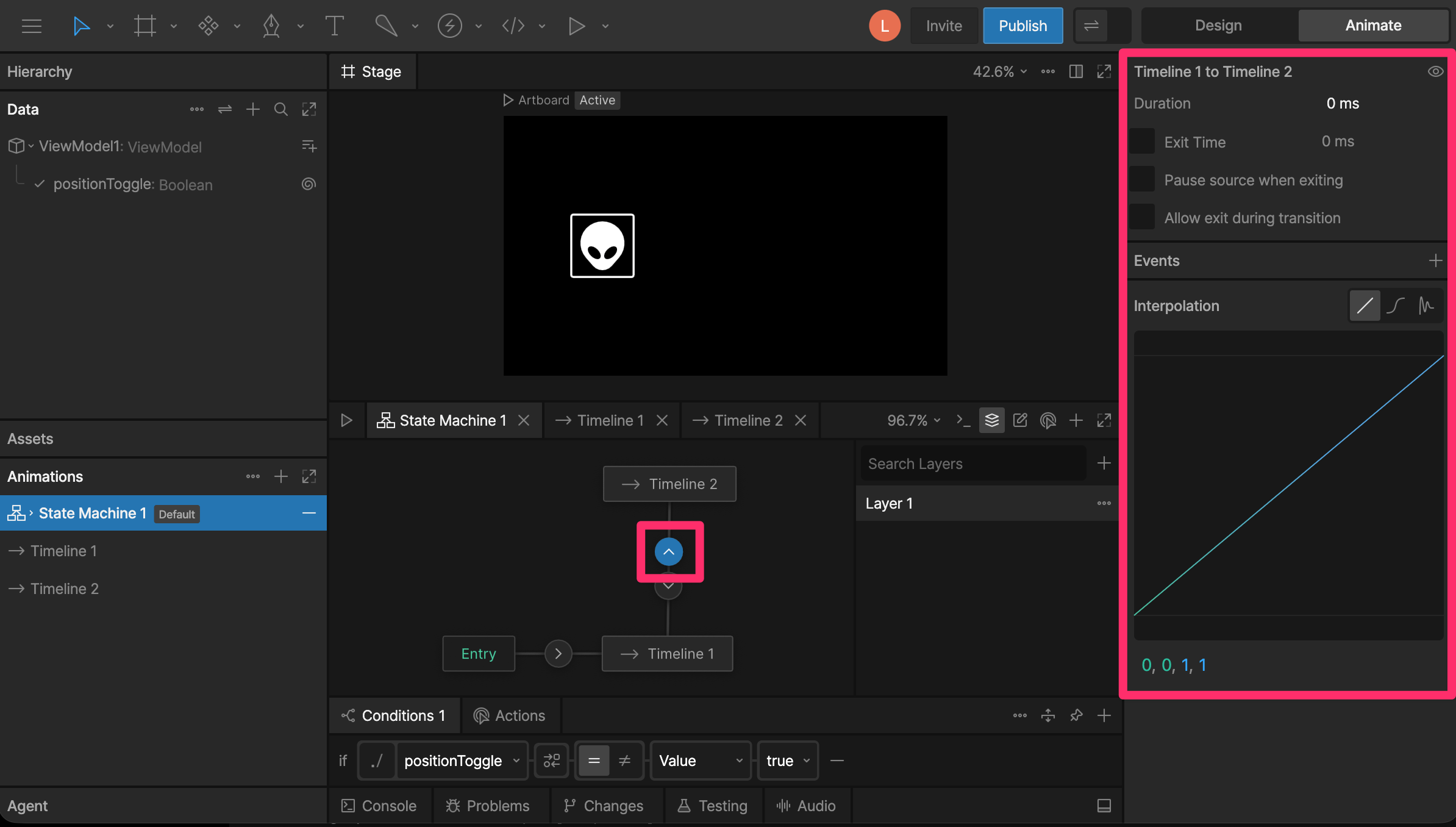
<Note>
  Selecting multiple transitions allows you to update multiple properties at once.
</Note>

<img src="https://mintcdn.com/rive/eGi2QSd8r2HxXsio/images/editor/state-machine/transitions/transition-properties.png?fit=max&auto=format&n=eGi2QSd8r2HxXsio&q=85&s=5d0b1176207f2ec97dc5a5a59136e073" alt="Transition properties" width="2388" height="1356" data-path="images/editor/state-machine/transitions/transition-properties.png" />

### Duration

The duration property describes how long it takes for a transition to occur.

The duration is set to zero by default, meaning the transition happens immediately. So, when we transition between these two animations, it appears as though the object snaps from one side of the artboard to the other.
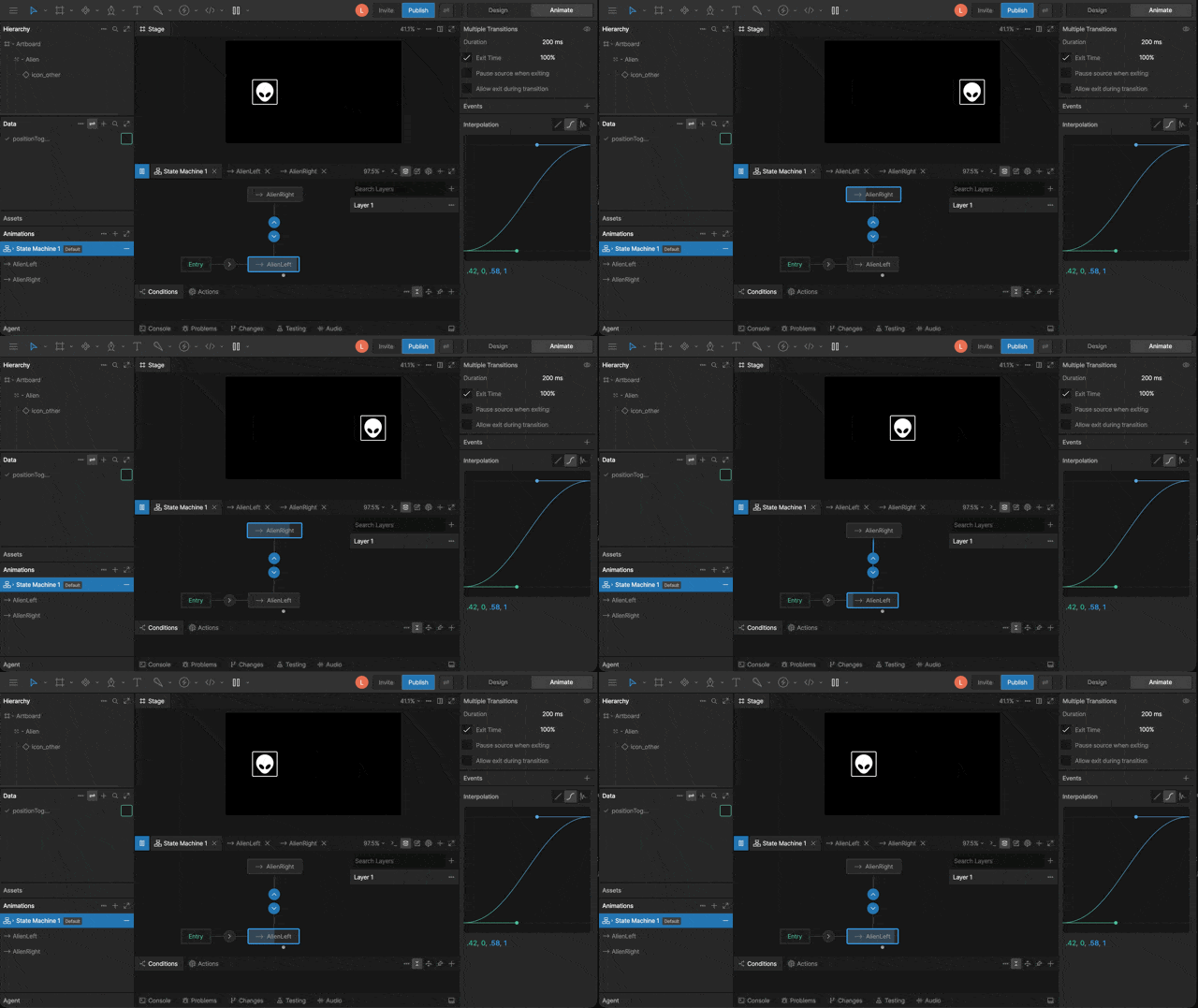
<VideoEmbed src="https://static.rive.app/video/transition-duration.mp4" />

<Marketplace href="https://rive.app/community/files/28136-53135-transitions-demos" />

### Exit Time

Exit Time tells the state machine how much of the state must play before transitioning.

By default, Exit Time is unchecked. To enable Exit Time, use the checkbox. Once the setting is enabled, you can use either a time value or percent.

For example, if you want the state machine to play the entire animation before transitioning, you can either enter the duration of the animation, or use 100%.

<img src="https://mintcdn.com/rive/eGi2QSd8r2HxXsio/images/editor/state-machine/transitions/exit-time-100.gif?s=f7fbfe1db6a194a8deb1c8f8af88012b" alt="Exit time 100%" width="640" height="359" data-path="images/editor/state-machine/transitions/exit-time-100.gif" />

### Pause Source When Exiting

**Pause Source When Exiting** pauses the animation in the state you are leaving while the transition plays.

In this example, the up-and-down motion pauses as soon as the transition begins.
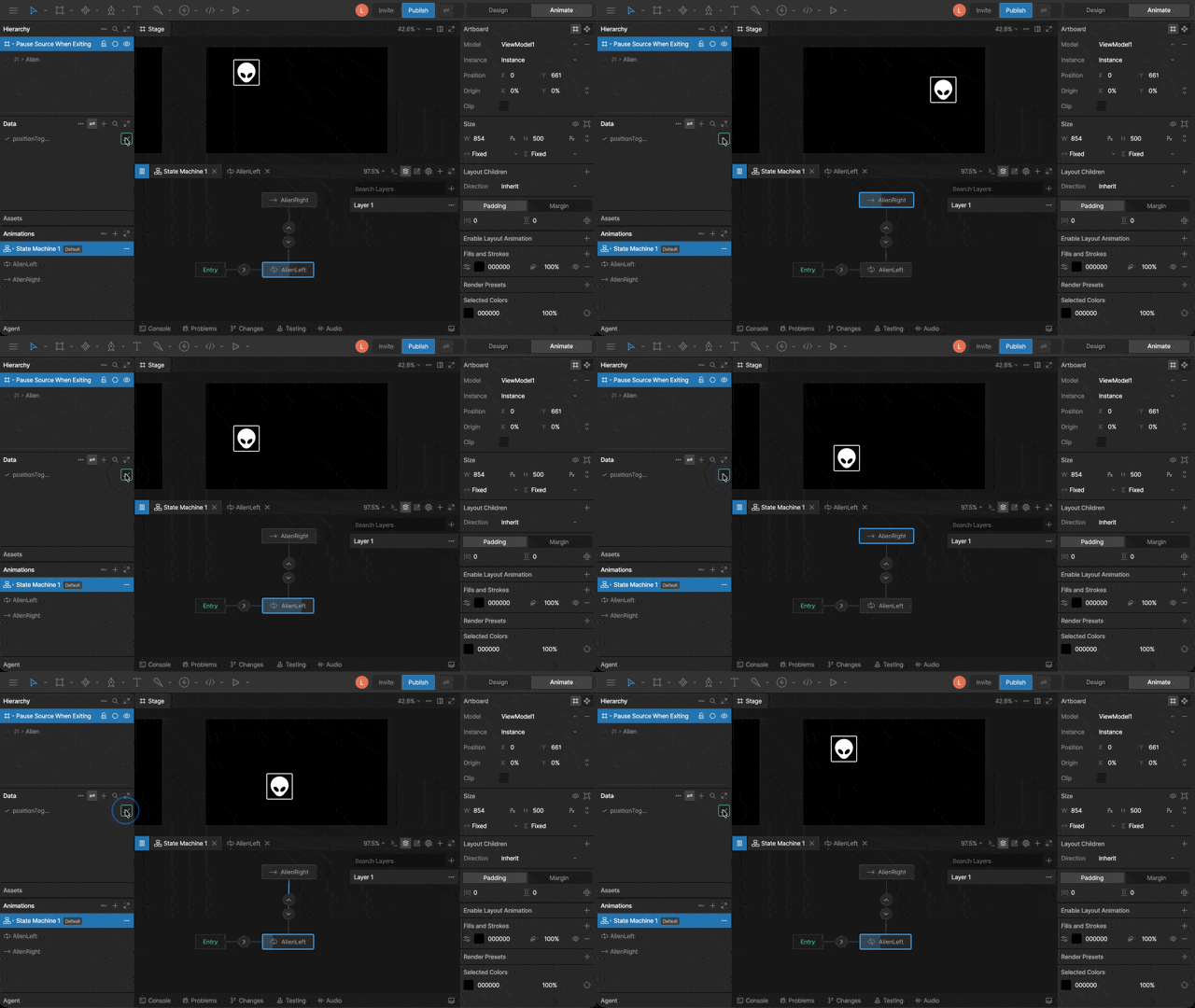
<img src="https://mintcdn.com/rive/eGi2QSd8r2HxXsio/images/editor/state-machine/transitions/pause-source-when-exiting.gif?s=9c9e3d30849a5498524b83e27af1b0ca" alt="Pause when exiting" width="640" height="360" data-path="images/editor/state-machine/transitions/pause-source-when-exiting.gif" />

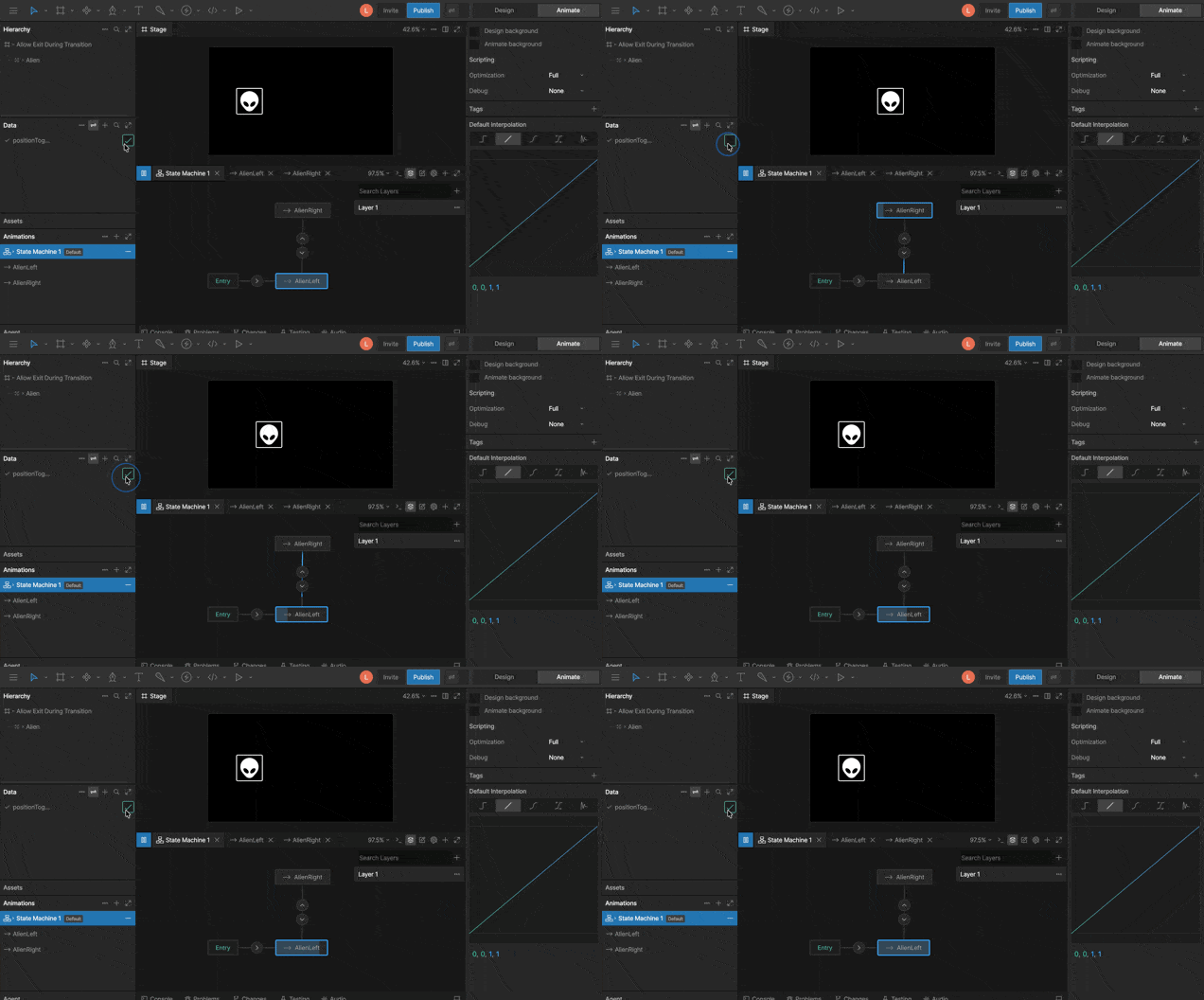
### Allow Exit During Transition

**Allow exit during transition** controls whether the State Machine can leave a transition before that transition finishes.

For example, if a button is transitioning from **Idle** to **Hover** and the user moves their cursor away, **Allow exit during transition** lets it transition back to Idle immediately.
<img src="https://mintcdn.com/rive/eGi2QSd8r2HxXsio/images/editor/state-machine/transitions/allow-exit-during-transition.gif?s=75c77de944ba8ea1d558ae532be1691c" alt="Allow exit during transition" width="636" height="352" data-path="images/editor/state-machine/transitions/allow-exit-during-transition.gif" />

### Interpolation

You can add interpolation to your transition at the bottom of the Transitions Panel. By default, the interpolation is set to linear, but you can use the cubic and other interpolations.

If you are unfamiliar with the basics of Interpolation, see [Interpolation (Easing)](/editor/animate-mode/interpolation-easing).

## Actions

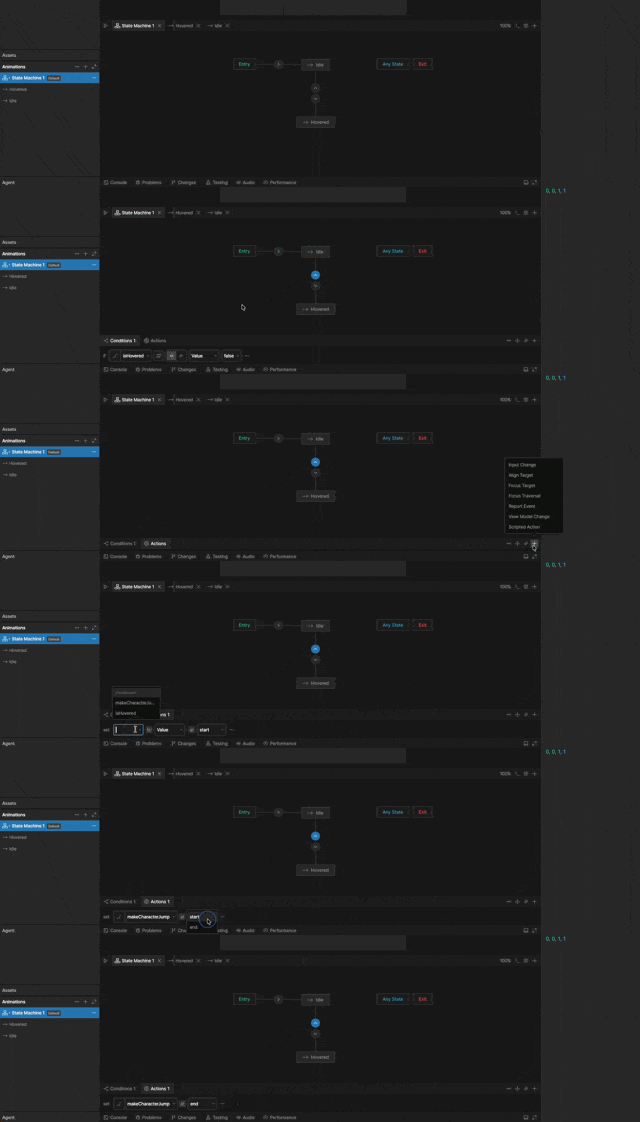
Transitions can also perform actions when the transition occurs.

Unlike conditions, which determine whether a transition can happen, actions perform an operation when the transition is triggered.

Actions can be used to:

* Set property values
* Report events
* Align targets
* Control focus
* Fire a scripted action
<Note>
  Actions can also be fired at the start or end of a state.

  See [State Actions](/editor/state-machine/states#actions).
</Note>

<YouTube id="4Uuu0MkBawE" />

### Creating an Action

<img src="https://mintcdn.com/rive/hgtDuQKKVCQlJ56m/images/editor/state-machine/transitions/transition-action.gif?s=f9cceaf4f7ea7fffbaf8218f1d319f80" alt="Creating a transition action" width="640" height="187" data-path="images/editor/state-machine/transitions/transition-action.gif" />

<Steps>
  <Step title="Add an action">
    With a transition selected, go to the Actions tab, click the `+` button, and select an action type.
  </Step>

  <Step title="Configure the action">
    Configure the action based on the action type.
  </Step>
</Steps>

#### Action Timing

Each action can run at either:

* **Start** — Runs when the transition begins
* **End** — Runs after the transition completes

## Randomize Exit

**Randomize Exit** lets a state choose from its outgoing transition paths at random.

<Demos examples={["randomizeExit"]} learnByExample />

To use it, select the origin state and enable **Randomize Exit**. The state lists each path leaving it and lets you assign a weight to each path.

The higher the weight, the more likely that path is to be chosen. For example, if **Timeline 1** has a weight of `3` and **Timeline 2** has a weight of `1`, the State Machine has a 75% chance of transitioning to **Timeline 1** and a 25% chance of transitioning to **Timeline 2**.

## Disabling a Transition

You can temporarily disable a transition without deleting it. Disabling is useful when you want to isolate part of a state machine for testing, or temporarily remove a path without losing its configuration.

There are two ways to toggle a transition's enabled state:

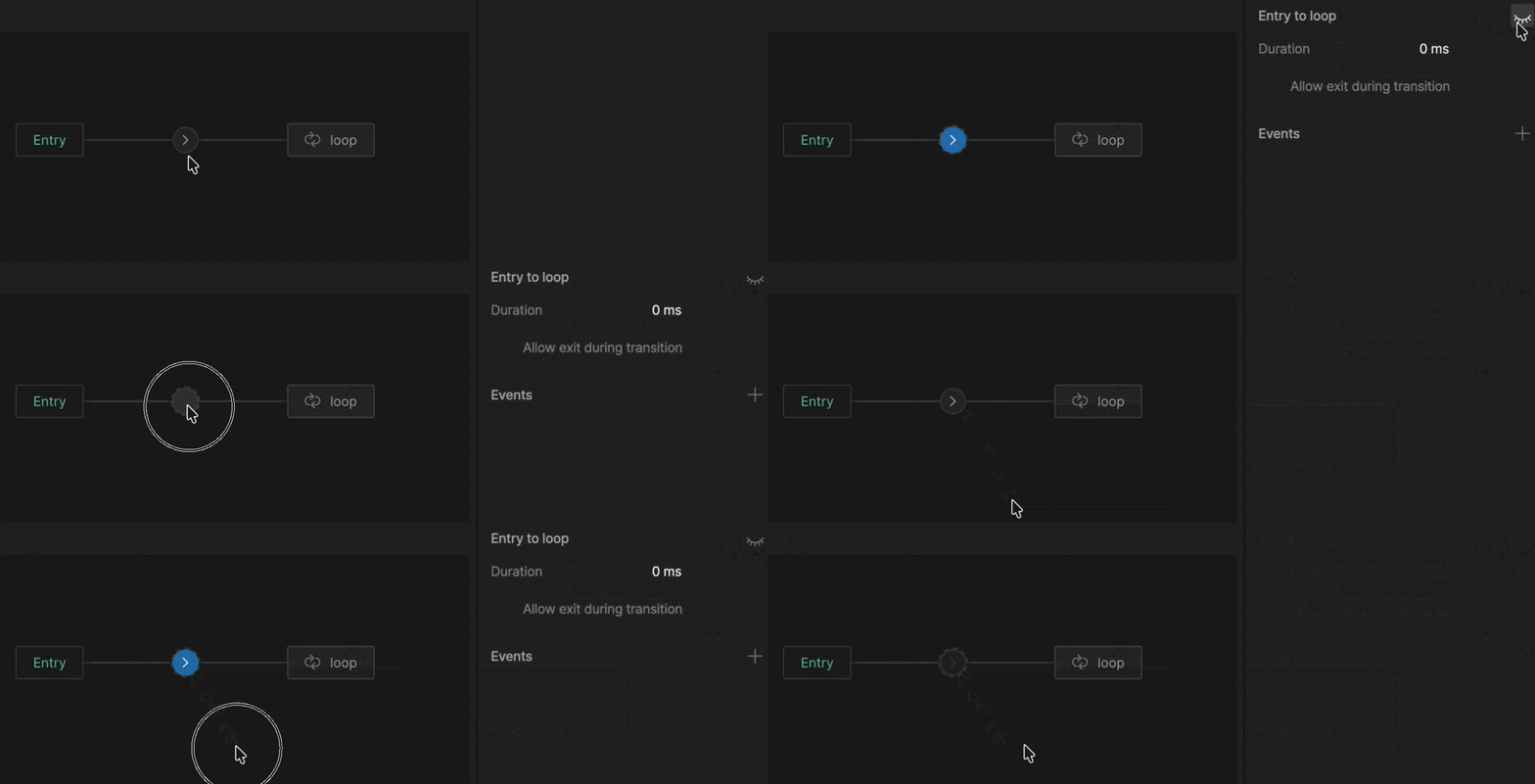
* **From the transition panel:** select the transition and click the enable/disable icon in the panel.
* **From the canvas:** right-click the transition and choose **Disable transition** (or **Enable transition** if it's already disabled).

<img src="https://mintcdn.com/rive/SeU7WPw4QsNLOnTy/images/editor/state-machine/state-machine-transition-disable.gif?s=f600c82fd4139a8d6fefd9e7ad51c813" alt="Disable transition from the right-click menu" width="1200" height="409" data-path="images/editor/state-machine/state-machine-transition-disable.gif" />