> ## Documentation Index
> Fetch the complete documentation index at: https://rive.app/docs/llms.txt
> Use this file to discover all available pages before exploring further.
# Parameters
> Layout parameters can broadly be grouped into one of two categories — those that affect the parent layout, and those that affect the child layouts.
export const YouTube = ({id, timestamp}) => {
const videoSrc = timestamp ? `https://www.youtube.com/embed/${id}?start=${timestamp}` : `https://www.youtube.com/embed/${id}`;
return ;
};
In Rive, it's important to remember that layout parameters generally only affect other layout containers. This can often result in the nesting of layouts for desired results, but unlocks opportunities to blend with Rive's more freeform canvas in creative ways.
***
## Absolute vs Relative
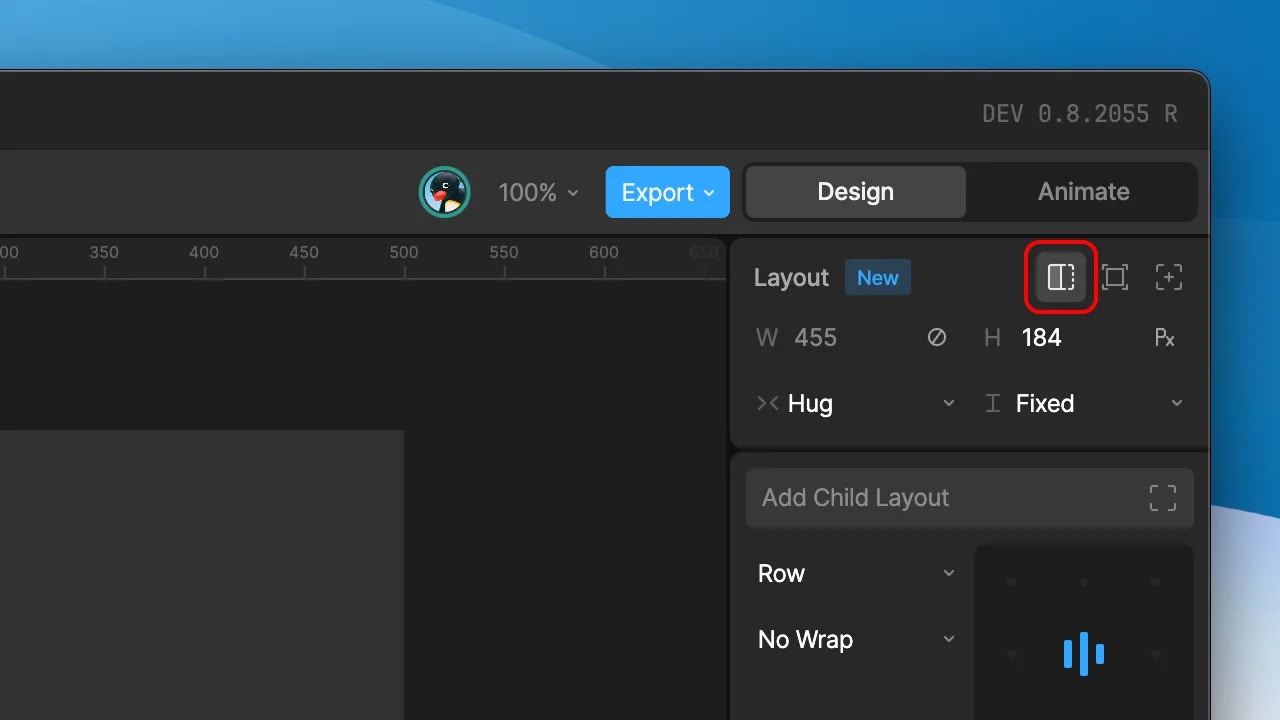
To control the flow of child Layouts in a Row or Column requires the Layout children to be Relative, i.e. not have their Absolute position option enabled. Use the icon in the top right of the Layout inspector to toggle between an Absolute and Relative Layout.
* **Absolute:** An Absolute Layout positions itself within an artboard or parent Layout container. It can have 2 or more of it’s edges pinned to the container.
* **Relative:** A Relative Layout has it’s position defined by the parent artboard or Layout. Changing the flex properties on the parent will determine the child layout behaviour.
## Scale Types
A layout’s width and height can make use of 3 different scale behaviours:
* **Fixed:** A fixed width or height for the Layout. The defined value can be either a point or percentage value. Use the unit toggle within the fields to toggle between value types.
* **Hug:** The width and/or height of the Layout shrinks to fit its children. For example, you may want a Layout to hug a text object; resizing itself based on the length of the text inside.
* **Fill:** The width and/or height of the Layout expands to fill the available space within the parent Layout or artboard. The fill option switches the width/height fields to be represented in `fr` (fill ratio) units and reveals a base size field. The fill ratio values make it possible to control the fill behaviour between a number of children with the fill scale behaviour. For example, you may want the children to fill the available space equally, or perhaps have one child scale at a greater factor than the rest.
Options to set the scale type are below the width and height fields in the inspector.
Hug and Fill options will only surface when applicable. For example, a Layout without any children won’t surface the option to hug, while only a Layout with another Layout as its parent can be set to Fill.
## Size constraints
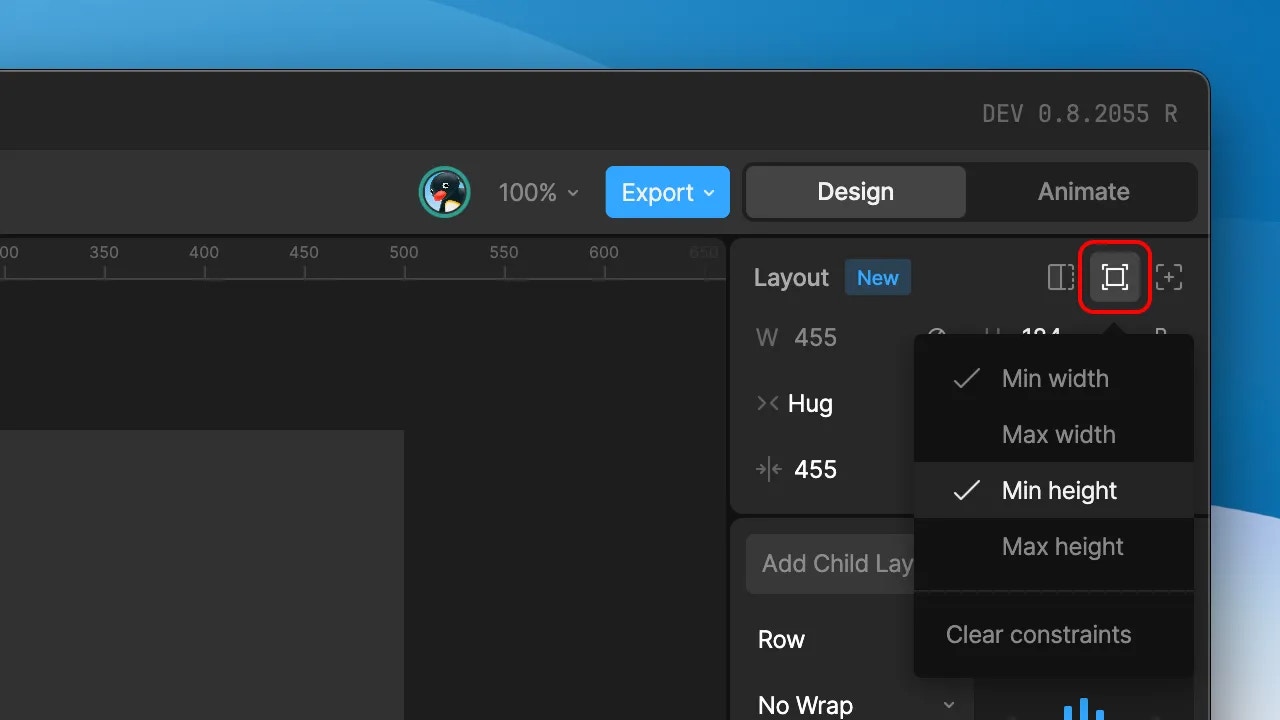
Use the icon above the absolute toggle to add minimum and/or maximum width and height values. As with the width and height values themselves, these can be defined as either points or percentages.
## Clip
The clip toggle hides any child elements within the layout that extend beyond the bounds of the Layout.
## Position (Absolute Layouts only)
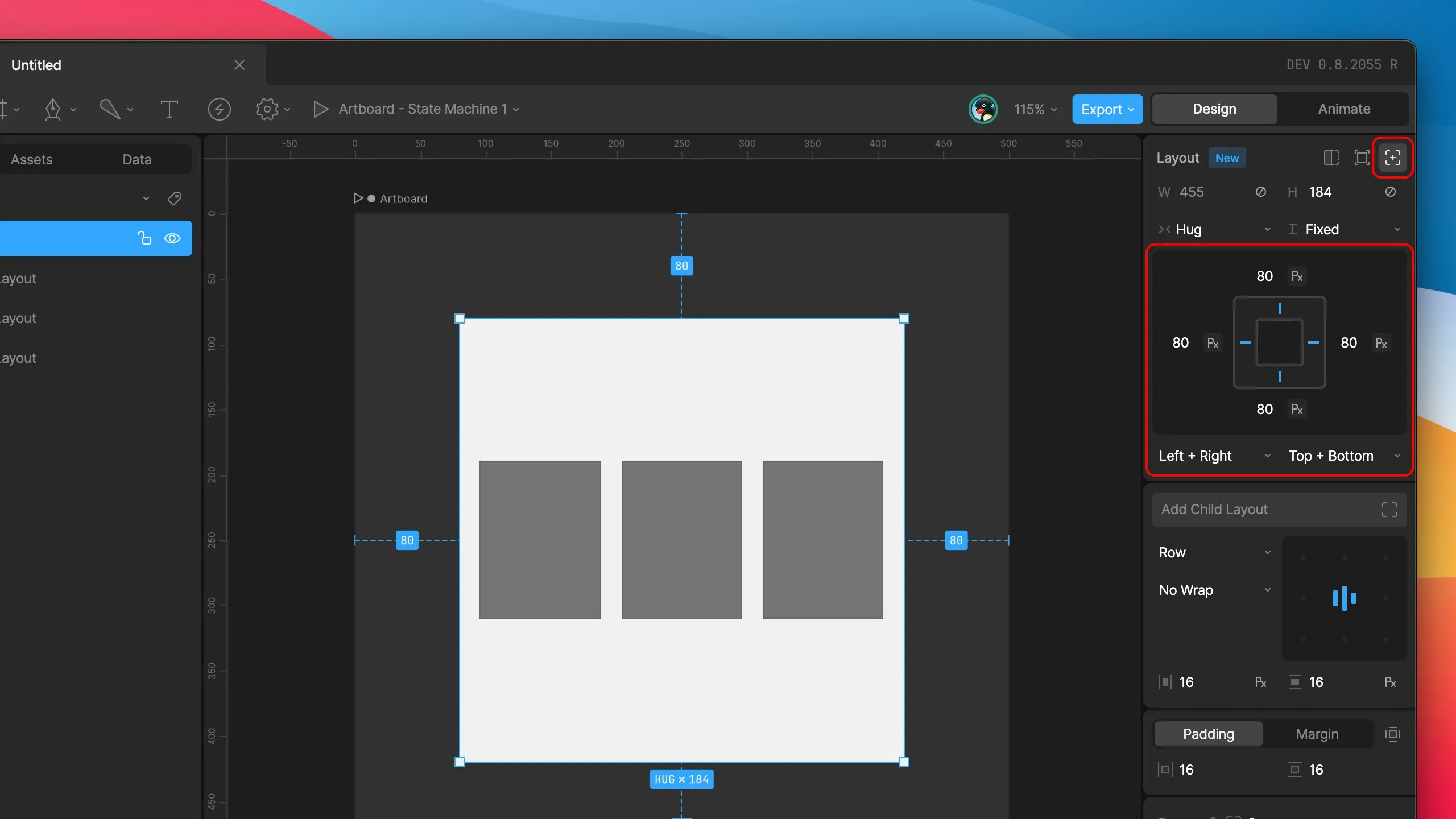
Absolute Layouts provide additional options to set their position within the artboard or parent Layout. The position is defined by at least 2 pinned edges — one horizontal and one vertical, however additional edges can also be enabled.
Set the desired edges to pin by selecting the markers within the inspector graphic, or via the fields below. You can hold `shift` while selecting a marker to add a second edge along the same axis. The distance values from a chosen edge can be provided as points or percentages by selecting the chosen unit type within the field.
## Padding and Margin
Padding ONLY affects Layout children. For example if you want to have a button with a label, the text should be wrapped in a Layout and that Layout should be the child of another Layout that applies the padding.Margin affects the Layout to which the margin is applied relative to its parent Layout.
Padding and margin can be applied symmetrically along an axis, or to individual edges. Use the edge toggle to reveal fields for each edge plus options to use point or percent values.
* **Padding:** Inner space between the Layout bounds and any relative Layout children.
* **Margin:** Outer space between the Layout bounds and a relative parent Layout.
***
## Layout Children
A layout’s flex parameters are only applied to other layouts contained within it. In order to generate rows, columns, and grids of content that reflow, content items must themselves be wrapped in an additional layout container.
## Row/Column
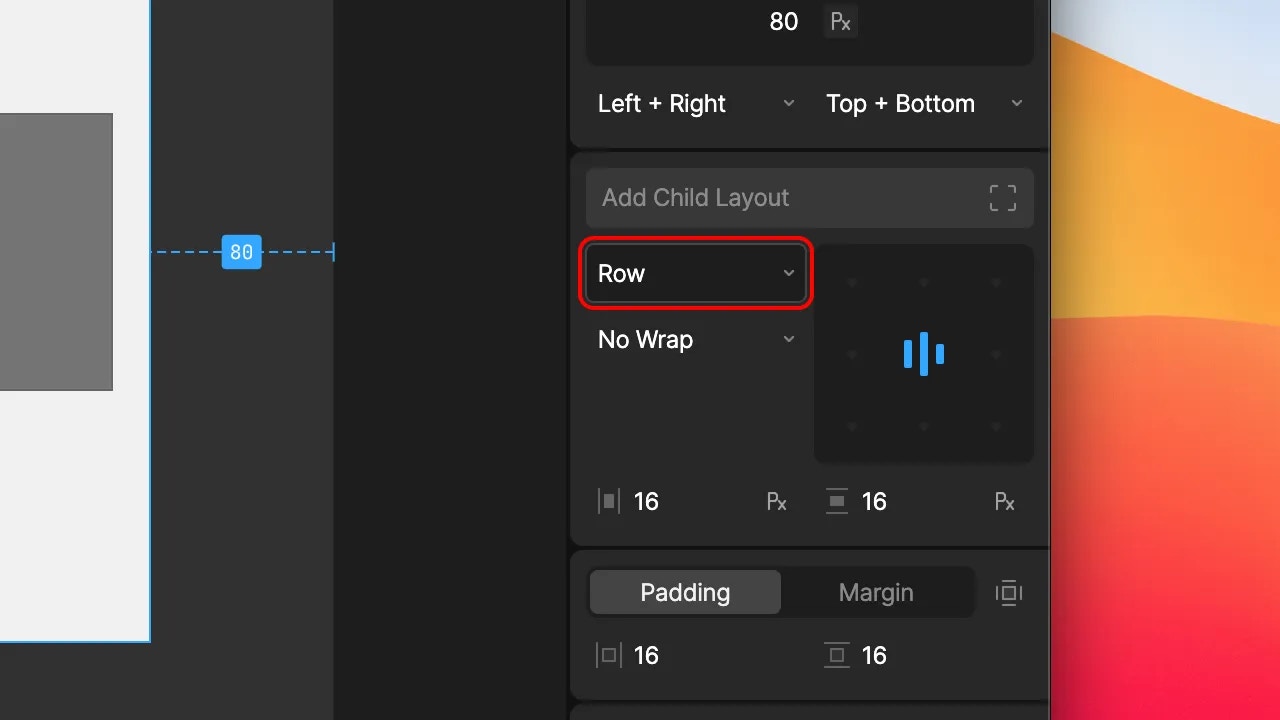
* **Row:** Lay out children along the horizontal axis.
* **Column:** Layout children along the vertical axis.
* **Row Reverse:** Lay out children horizontally, in reverse order.
* **Column Reverse:** Lay out children vertically, in reverse order.
## Wrap
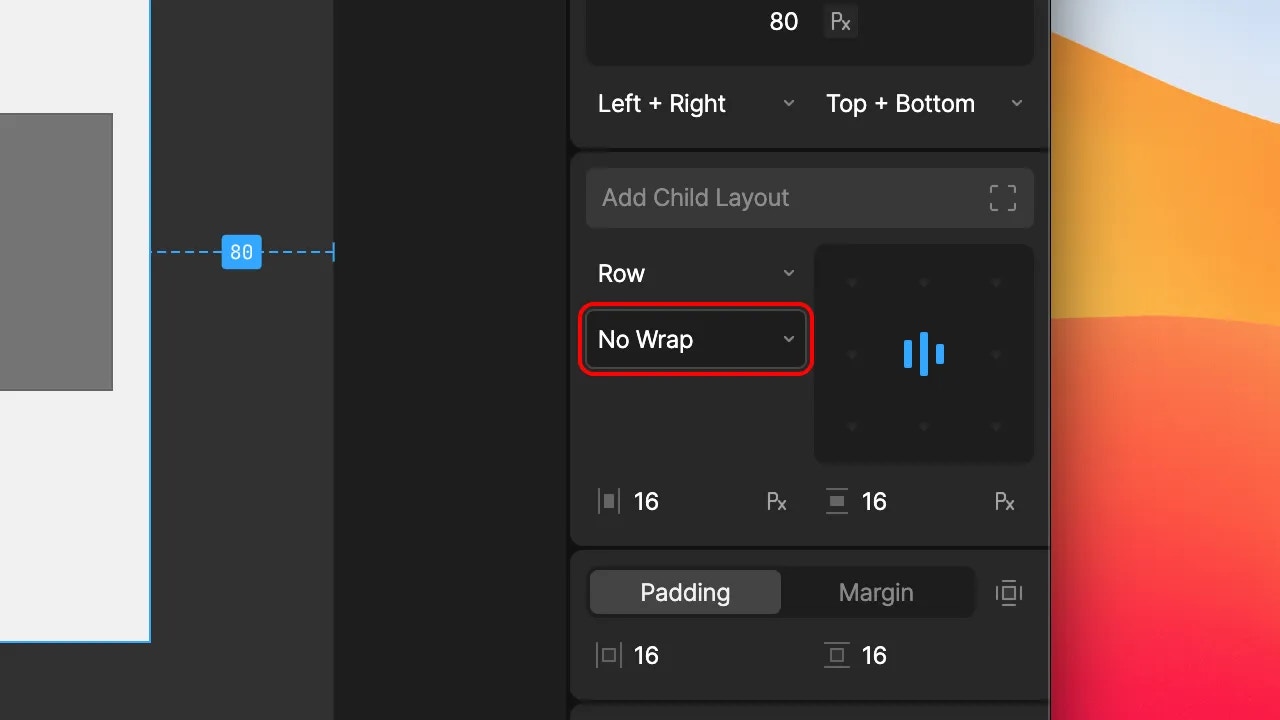
* **No Wrap:** When the content reaches the bounds of the layout, continue to extend beyond it.
* **Wrap:** When the content reached the bounds of the layout, place the next item on below or alongside the currently row/column.
* **Wrap Reverse:** Same as wrap, but display the content in reverse order.
## Alignment
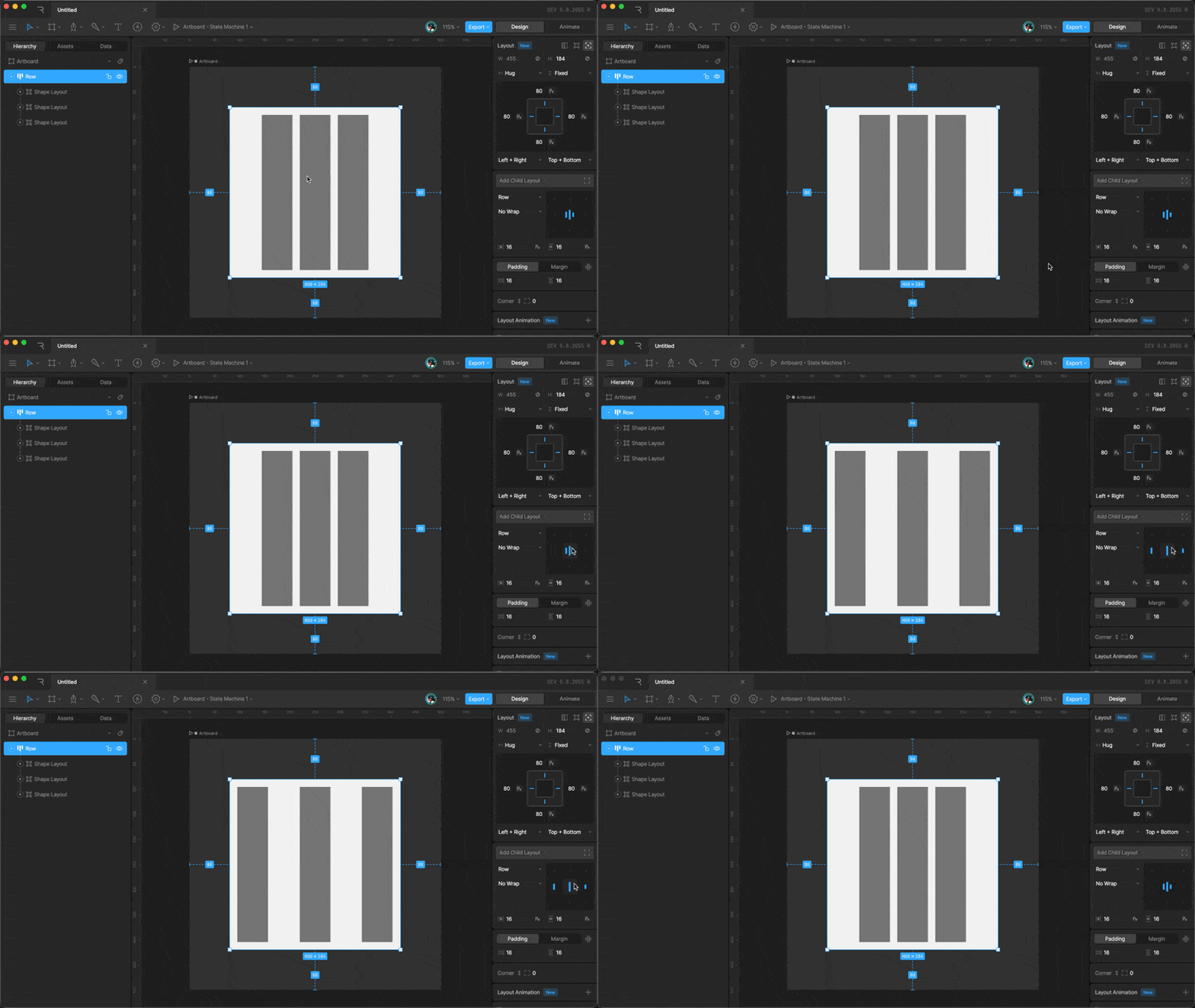
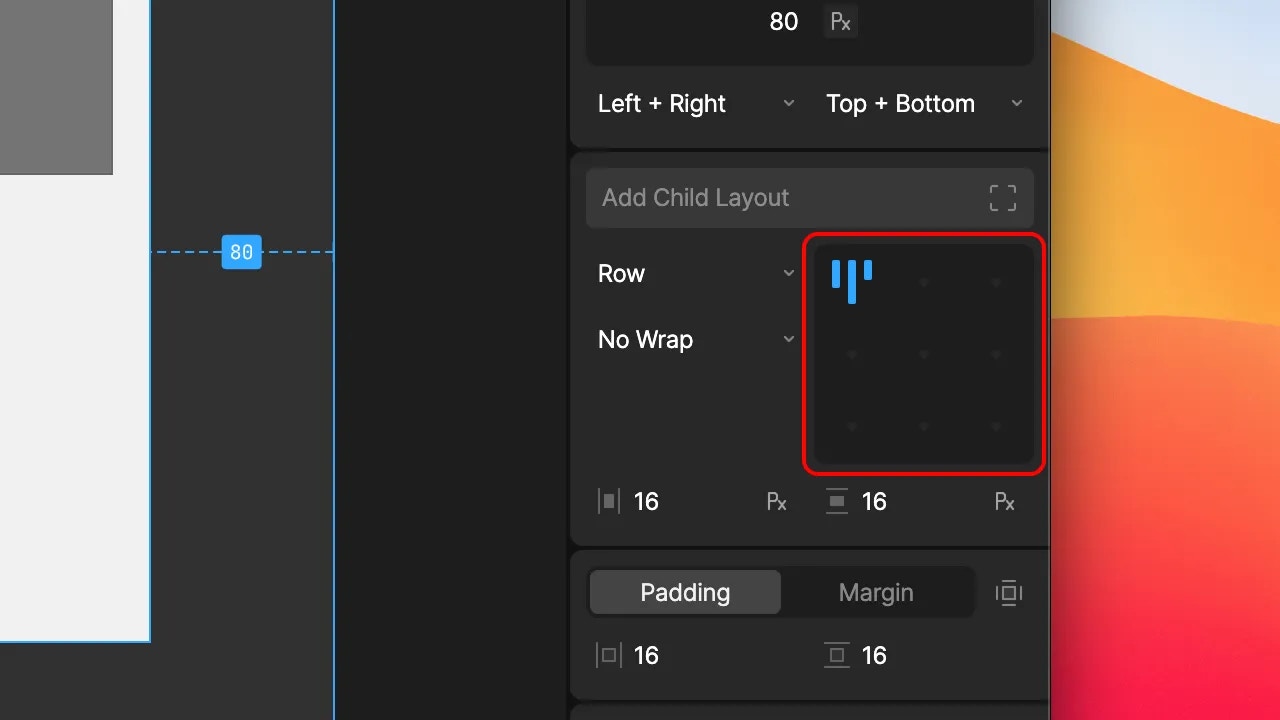
Select the desired point on the inspector widget to align content within a layout container.
## Justify
Click on the current alignment position to expand the content to fill the available space. Selecting the one of the active tiles again collapses the content back down.
## Gap
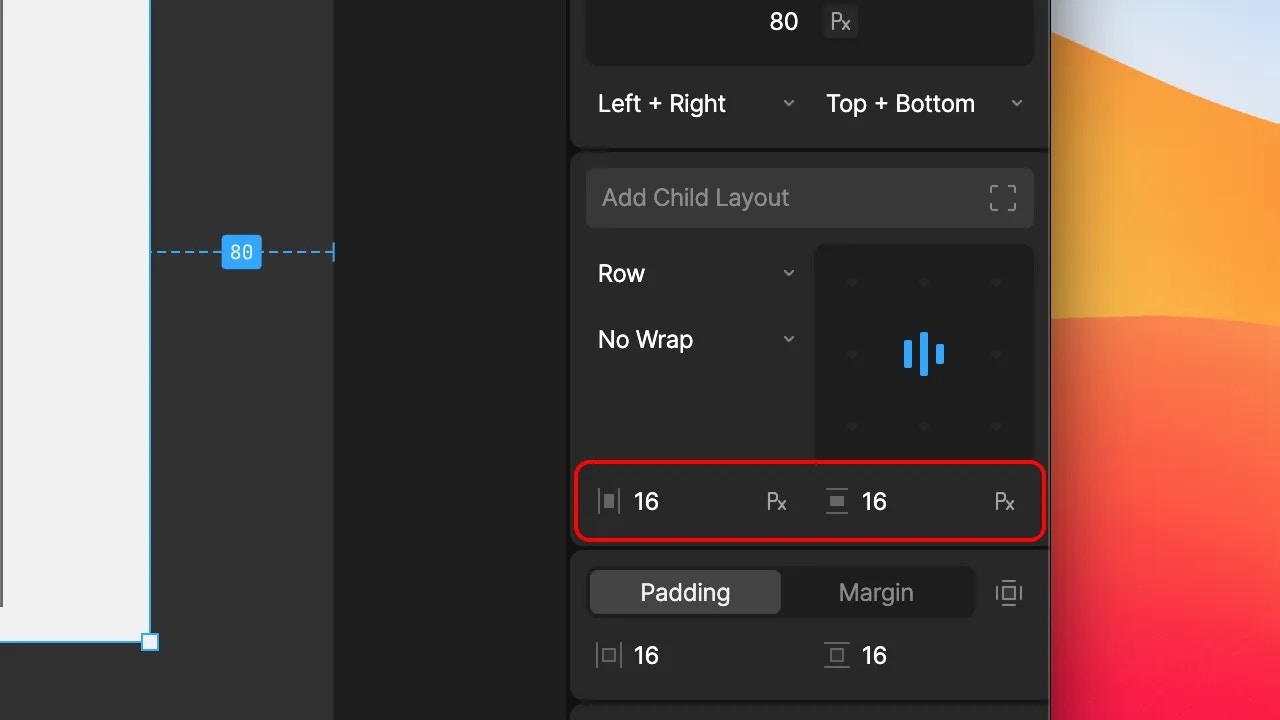
Spacing between content (gaps) can be set both horizontally and vertically, and as either points or percentages of the container width/height.
## Left-to-Right/Right-to-Left
Determines the horizontal direction for this Layout and will also be cascaded down to its child Layouts (when its child Layouts are set to Inherit). This will change the direction of Row based Layouts as well as Text alignment within any Layouts. This is useful when there is a requirement to support Right-to-Left languages.
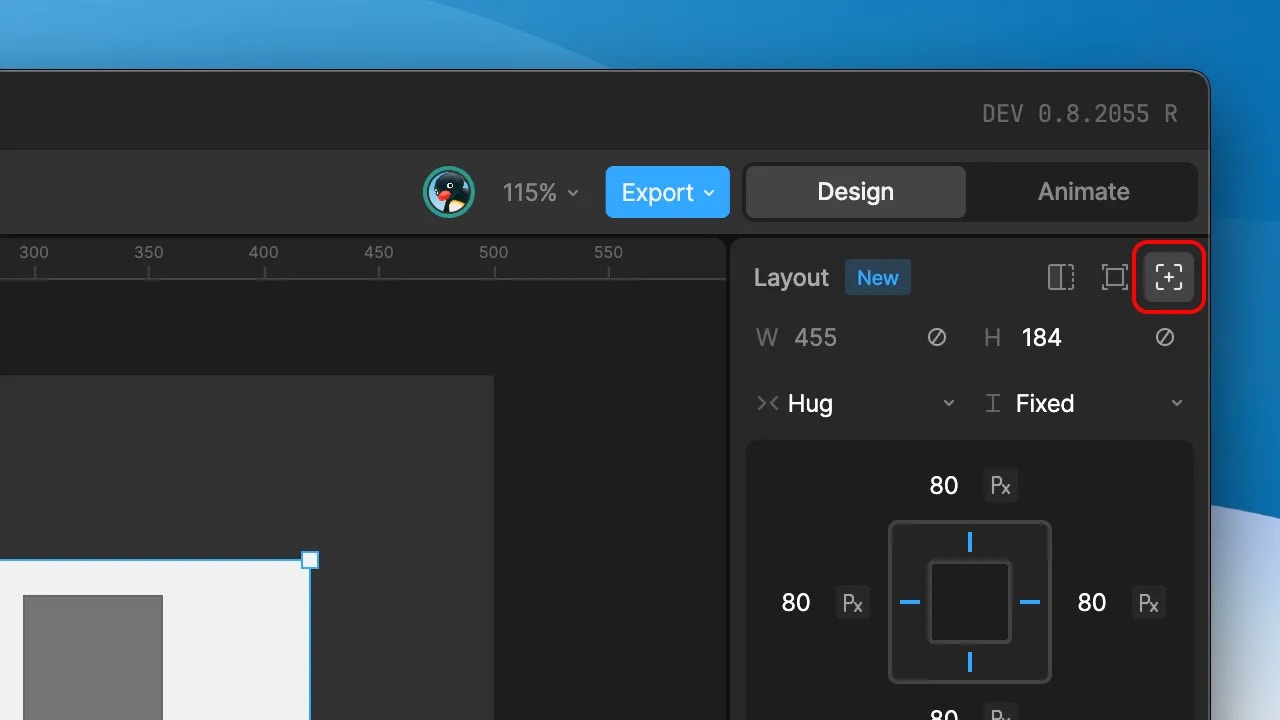 * **Absolute:** An Absolute Layout positions itself within an artboard or parent Layout container. It can have 2 or more of it’s edges pinned to the container.
* **Relative:** A Relative Layout has it’s position defined by the parent artboard or Layout. Changing the flex properties on the parent will determine the child layout behaviour.
## Scale Types
A layout’s width and height can make use of 3 different scale behaviours:
* **Fixed:** A fixed width or height for the Layout. The defined value can be either a point or percentage value. Use the unit toggle within the fields to toggle between value types.
* **Hug:** The width and/or height of the Layout shrinks to fit its children. For example, you may want a Layout to hug a text object; resizing itself based on the length of the text inside.
* **Fill:** The width and/or height of the Layout expands to fill the available space within the parent Layout or artboard. The fill option switches the width/height fields to be represented in `fr` (fill ratio) units and reveals a base size field. The fill ratio values make it possible to control the fill behaviour between a number of children with the fill scale behaviour. For example, you may want the children to fill the available space equally, or perhaps have one child scale at a greater factor than the rest.
Options to set the scale type are below the width and height fields in the inspector.
* **Absolute:** An Absolute Layout positions itself within an artboard or parent Layout container. It can have 2 or more of it’s edges pinned to the container.
* **Relative:** A Relative Layout has it’s position defined by the parent artboard or Layout. Changing the flex properties on the parent will determine the child layout behaviour.
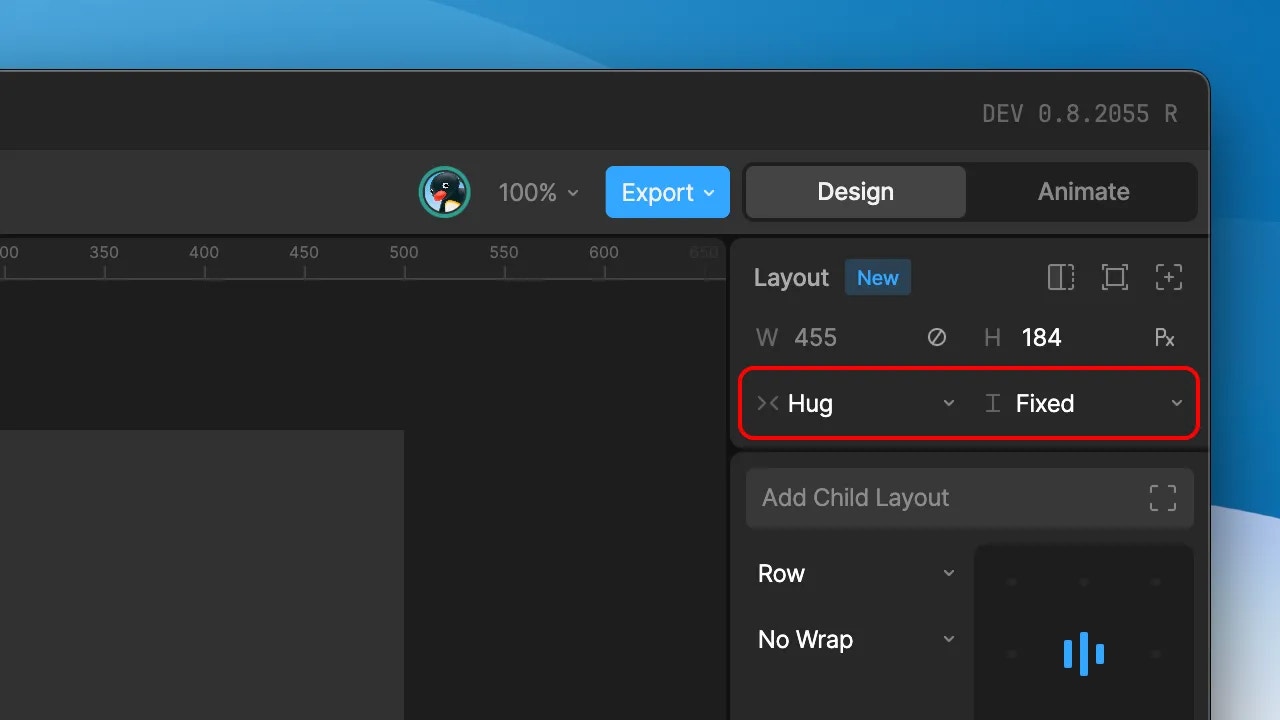
## Scale Types
A layout’s width and height can make use of 3 different scale behaviours:
* **Fixed:** A fixed width or height for the Layout. The defined value can be either a point or percentage value. Use the unit toggle within the fields to toggle between value types.
* **Hug:** The width and/or height of the Layout shrinks to fit its children. For example, you may want a Layout to hug a text object; resizing itself based on the length of the text inside.
* **Fill:** The width and/or height of the Layout expands to fill the available space within the parent Layout or artboard. The fill option switches the width/height fields to be represented in `fr` (fill ratio) units and reveals a base size field. The fill ratio values make it possible to control the fill behaviour between a number of children with the fill scale behaviour. For example, you may want the children to fill the available space equally, or perhaps have one child scale at a greater factor than the rest.
Options to set the scale type are below the width and height fields in the inspector.
 ## Clip
The clip toggle hides any child elements within the layout that extend beyond the bounds of the Layout.
## Clip
The clip toggle hides any child elements within the layout that extend beyond the bounds of the Layout.
 ## Position (Absolute Layouts only)
Absolute Layouts provide additional options to set their position within the artboard or parent Layout. The position is defined by at least 2 pinned edges — one horizontal and one vertical, however additional edges can also be enabled.
Set the desired edges to pin by selecting the markers within the inspector graphic, or via the fields below. You can hold `shift` while selecting a marker to add a second edge along the same axis. The distance values from a chosen edge can be provided as points or percentages by selecting the chosen unit type within the field.
## Position (Absolute Layouts only)
Absolute Layouts provide additional options to set their position within the artboard or parent Layout. The position is defined by at least 2 pinned edges — one horizontal and one vertical, however additional edges can also be enabled.
Set the desired edges to pin by selecting the markers within the inspector graphic, or via the fields below. You can hold `shift` while selecting a marker to add a second edge along the same axis. The distance values from a chosen edge can be provided as points or percentages by selecting the chosen unit type within the field.
 ## Padding and Margin
 ## Wrap
* **No Wrap:** When the content reaches the bounds of the layout, continue to extend beyond it.
* **Wrap:** When the content reached the bounds of the layout, place the next item on below or alongside the currently row/column.
* **Wrap Reverse:** Same as wrap, but display the content in reverse order.
## Wrap
* **No Wrap:** When the content reaches the bounds of the layout, continue to extend beyond it.
* **Wrap:** When the content reached the bounds of the layout, place the next item on below or alongside the currently row/column.
* **Wrap Reverse:** Same as wrap, but display the content in reverse order.
 ## Alignment
Select the desired point on the inspector widget to align content within a layout container.
## Alignment
Select the desired point on the inspector widget to align content within a layout container.
 ## Justify
Click on the current alignment position to expand the content to fill the available space. Selecting the one of the active tiles again collapses the content back down.

## Gap
Spacing between content (gaps) can be set both horizontally and vertically, and as either points or percentages of the container width/height.
## Justify
Click on the current alignment position to expand the content to fill the available space. Selecting the one of the active tiles again collapses the content back down.

## Gap
Spacing between content (gaps) can be set both horizontally and vertically, and as either points or percentages of the container width/height.
 ## Left-to-Right/Right-to-Left