> ## Documentation Index
> Fetch the complete documentation index at: https://rive.app/docs/llms.txt
> Use this file to discover all available pages before exploring further.
# Hierarchy
> The Hierarchy shows you all of the objects, assets, and view models in your file. This view changes based on the artboard, component, or tab you have selected.
export const YouTube = ({id, timestamp}) => {
const videoSrc = timestamp ? `https://www.youtube.com/embed/${id}?start=${timestamp}` : `https://www.youtube.com/embed/${id}`;
return ;
};
# Switching Views
To switch between the different panels, click on the desired panel.
 # Hierarchy
The Hierarchy is a tree view, which shows both the parent-child relationships between objects on the stage as well as the order in which they are rendered. Learn about the Hierarchy by either watching the video or reading more below.
Parent-child relationships are a core concept in Rive, which allows you to create complex layered animations with minimal effort. [Groups](/editor/fundamentals/groups) and [Bones](/editor/manipulating-shapes/bones) can have children in Rive.
Each row in the Hierarchy represents an item on the stage. A circle button with an arrow appears next to items that have children nested underneath them. This button allows you to expand and collapse the list of children.
## **Parent-child relationships**
Any type of object can be a parent or a child of another type of object. When an object is a child of another object, it inherits all the transformations of its parent. For example, changing a parent objects scale will affect the child object. These transformations take place from the parents origin, not the local origin.
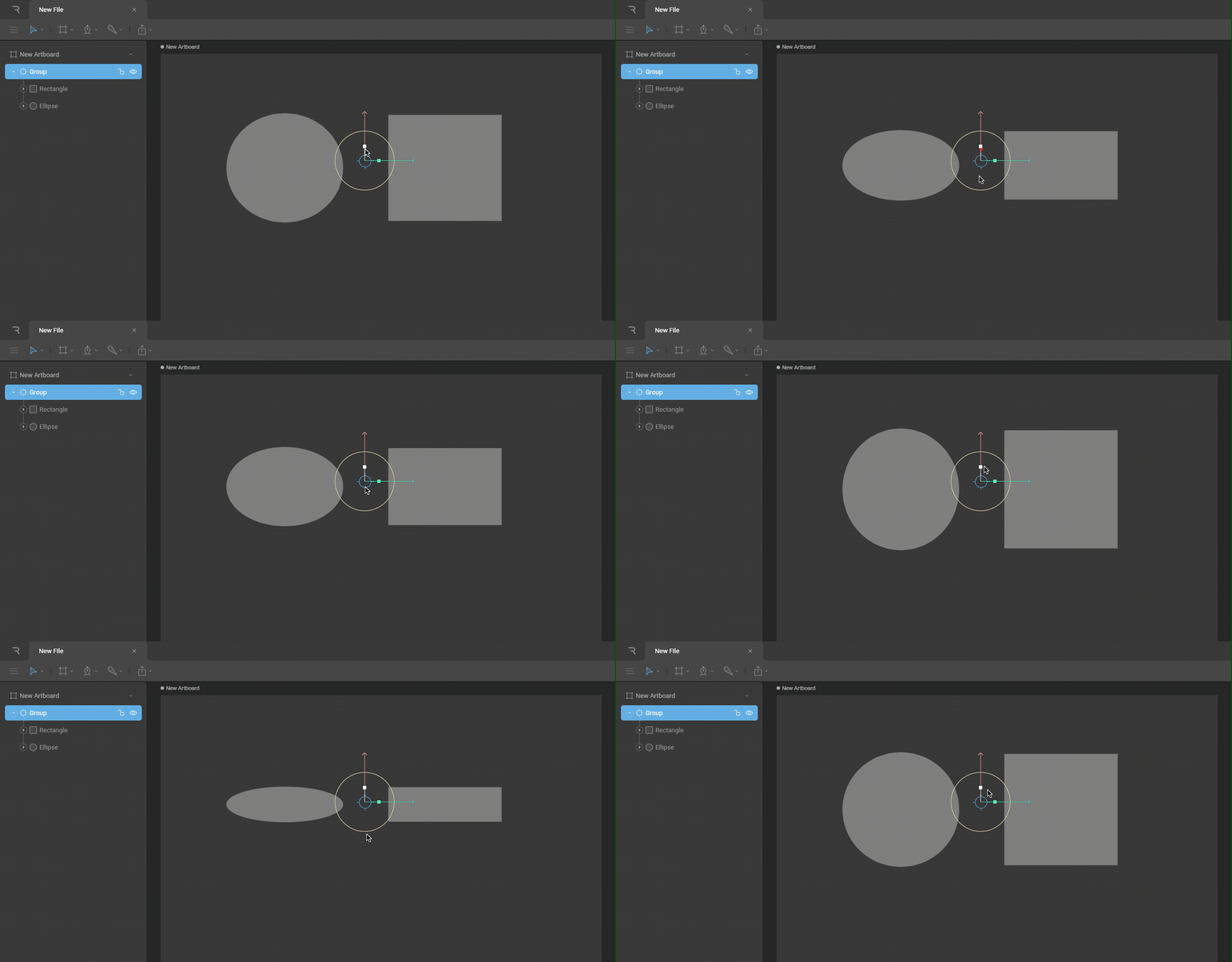
The depth of these parent/child relationships is infinite, so you can keep stacking (or nesting) items to create grandchildren, great-grandchildren, and so on.
### **Change parent-child relationships**
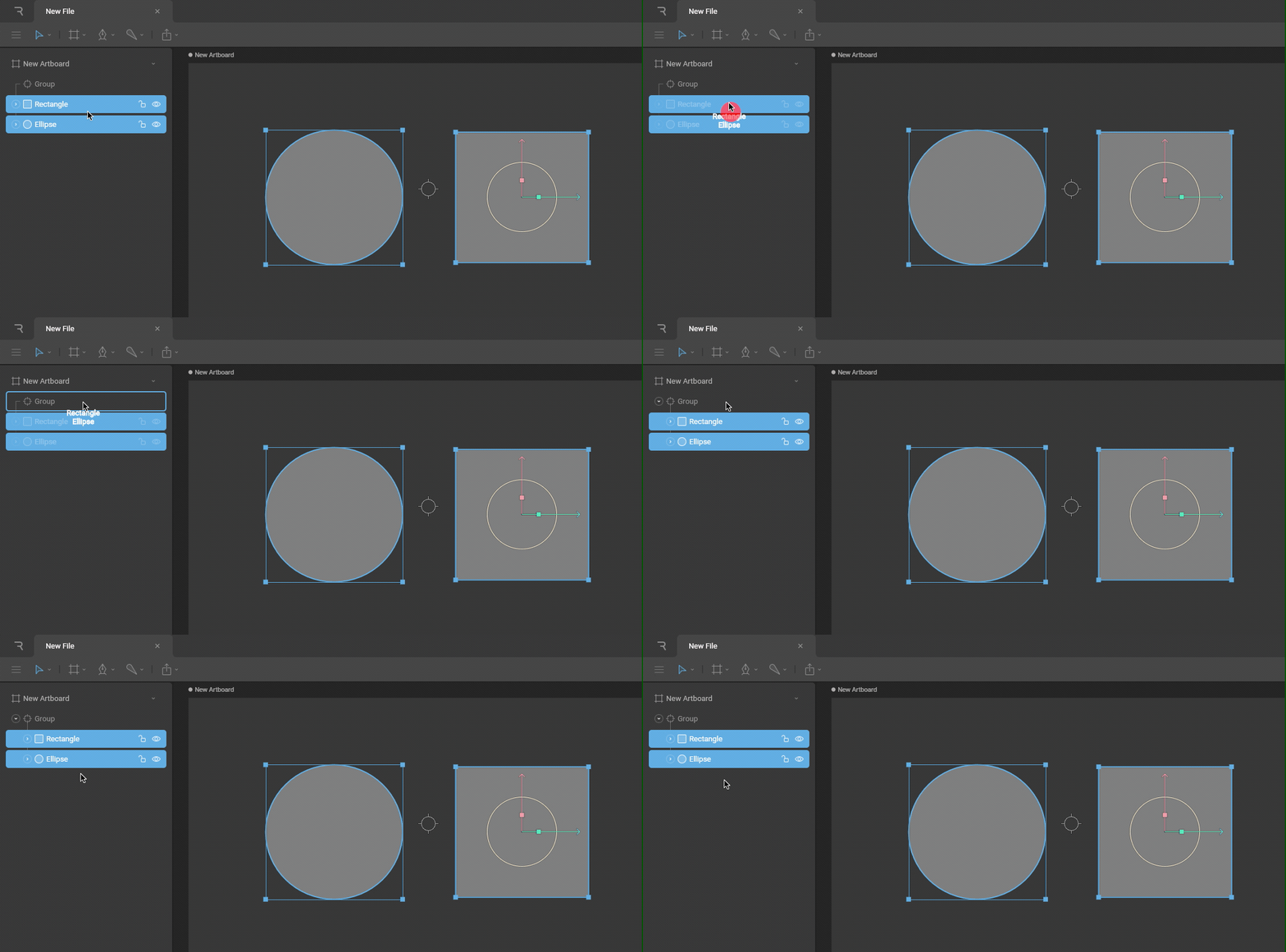
To change the relationship between objects, drag and drop the object onto or out of another.
## **Draw Order**
In addition to displaying the relationships between objects, the Hierarchy shows you the Draw Order of a file, with the objects at the top being rendered in front and the objects at the bottom being rendered at the back.
### **Change Draw Order**
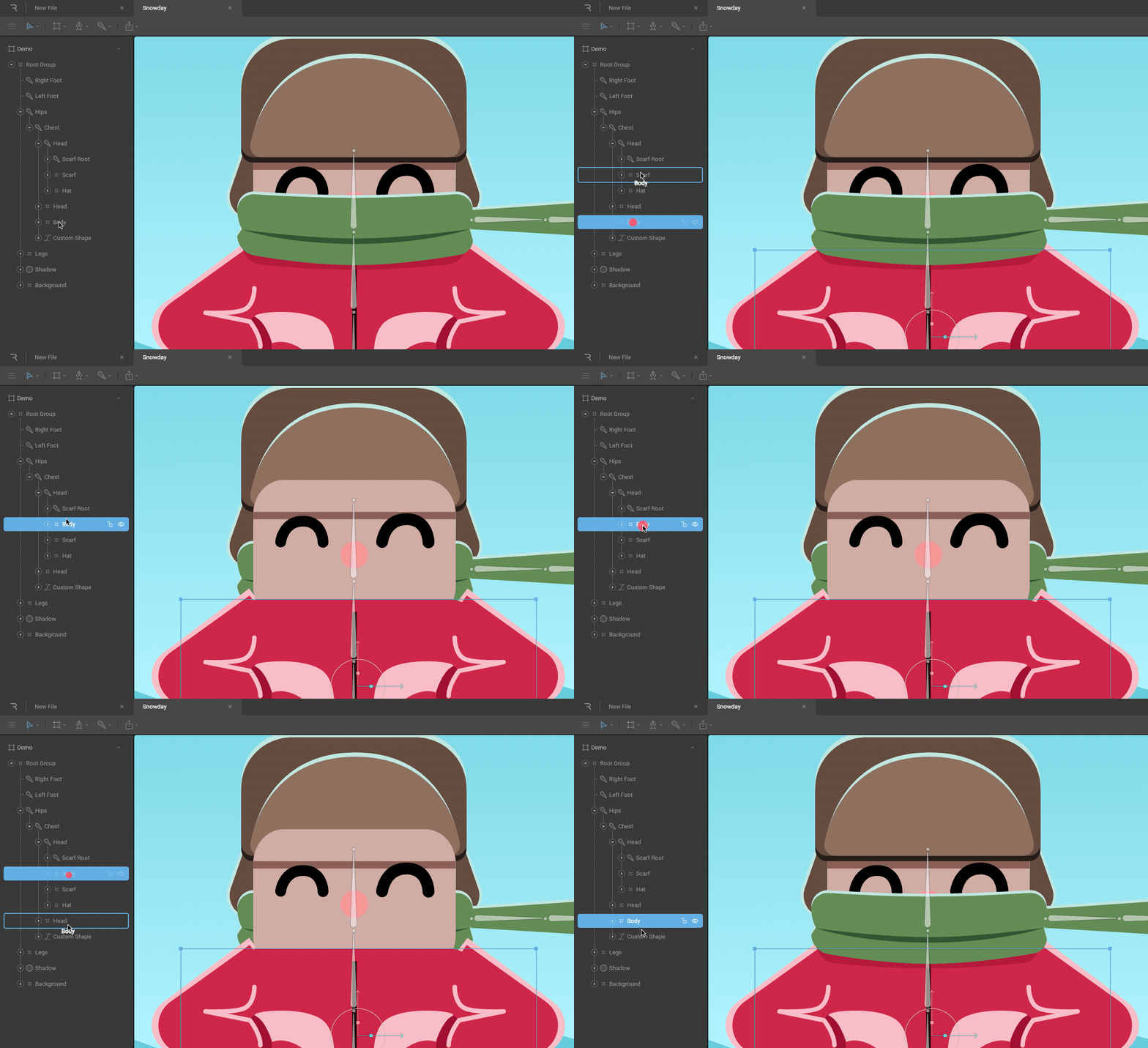
To change the Draw Order of objects on the stage, drag and drop the shape, or group of shapes above or below another in the list. Note that draw order also affects how objects are placed and treated in a layout. Read more about that [here](/editor/layouts/layouts-overview).
The Draw Order can be animated, but the process is a bit more in-depth. Read about it on the [Animating Draw Order](/editor/animate-mode/animating-draw-order) page.
## **Right Click Menu**
Right clicking any object in the hierarchy will bring up a menu with different options for each object. In the menu you'll find the ability to copy and paste both objects and styles, delete objects, wrap objects in [layouts](/editor/layouts/layouts-overview) and [solos](/editor/manipulating-shapes/solos), show the dependency graph, add a [tag](/editor/tagging), reverse the draw order, and [export a name](/editor/exporting/exporting-names).
# Hierarchy
The Hierarchy is a tree view, which shows both the parent-child relationships between objects on the stage as well as the order in which they are rendered. Learn about the Hierarchy by either watching the video or reading more below.
Parent-child relationships are a core concept in Rive, which allows you to create complex layered animations with minimal effort. [Groups](/editor/fundamentals/groups) and [Bones](/editor/manipulating-shapes/bones) can have children in Rive.
Each row in the Hierarchy represents an item on the stage. A circle button with an arrow appears next to items that have children nested underneath them. This button allows you to expand and collapse the list of children.
## **Parent-child relationships**
Any type of object can be a parent or a child of another type of object. When an object is a child of another object, it inherits all the transformations of its parent. For example, changing a parent objects scale will affect the child object. These transformations take place from the parents origin, not the local origin.

The depth of these parent/child relationships is infinite, so you can keep stacking (or nesting) items to create grandchildren, great-grandchildren, and so on.
### **Change parent-child relationships**
To change the relationship between objects, drag and drop the object onto or out of another.

## **Draw Order**
In addition to displaying the relationships between objects, the Hierarchy shows you the Draw Order of a file, with the objects at the top being rendered in front and the objects at the bottom being rendered at the back.
### **Change Draw Order**

To change the Draw Order of objects on the stage, drag and drop the shape, or group of shapes above or below another in the list. Note that draw order also affects how objects are placed and treated in a layout. Read more about that [here](/editor/layouts/layouts-overview).
The Draw Order can be animated, but the process is a bit more in-depth. Read about it on the [Animating Draw Order](/editor/animate-mode/animating-draw-order) page.
## **Right Click Menu**
Right clicking any object in the hierarchy will bring up a menu with different options for each object. In the menu you'll find the ability to copy and paste both objects and styles, delete objects, wrap objects in [layouts](/editor/layouts/layouts-overview) and [solos](/editor/manipulating-shapes/solos), show the dependency graph, add a [tag](/editor/tagging), reverse the draw order, and [export a name](/editor/exporting/exporting-names).
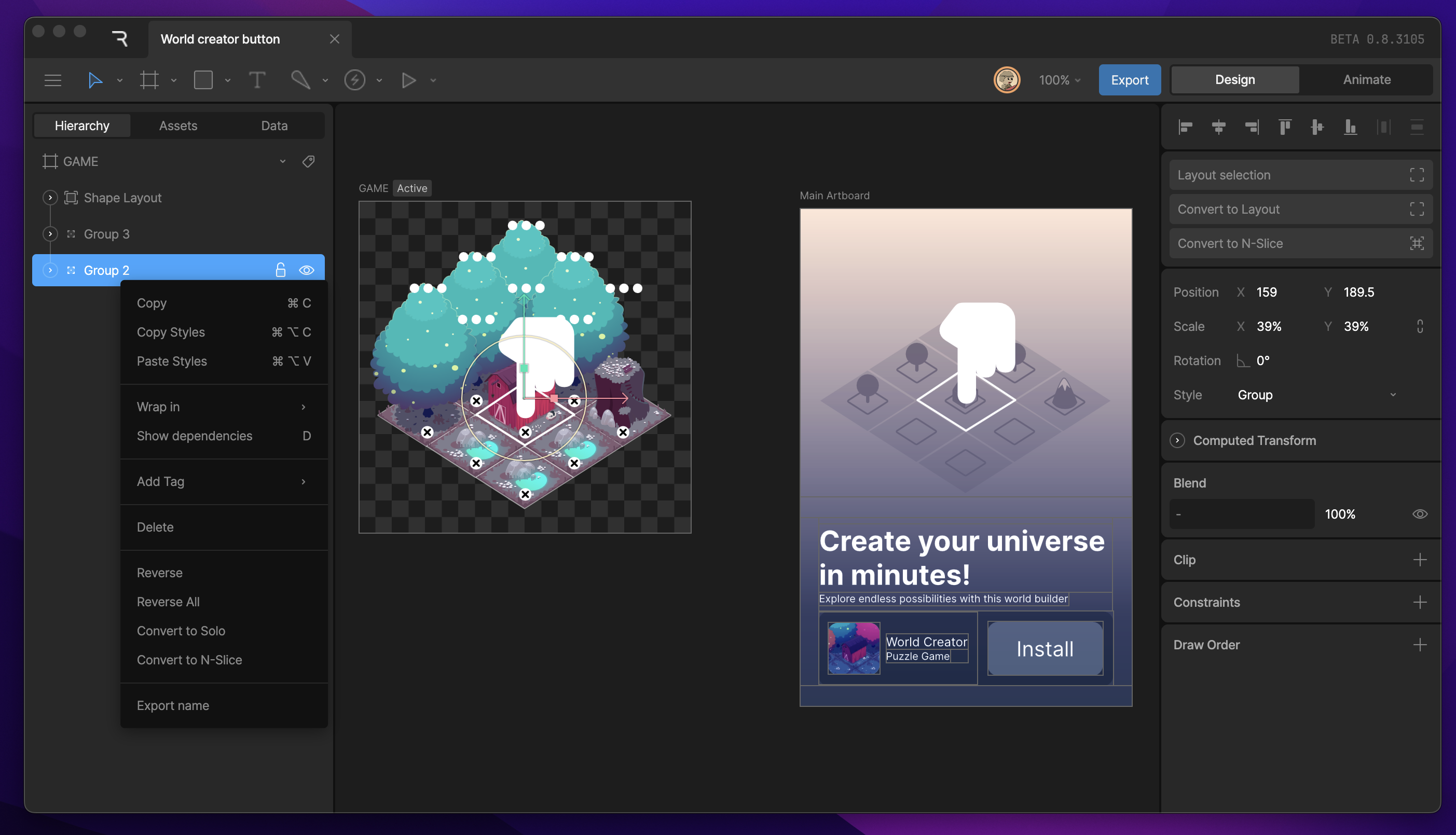 Many of these options have shortcuts which can either be found next to the option, or in the shortcut menu.
# Assets Panel
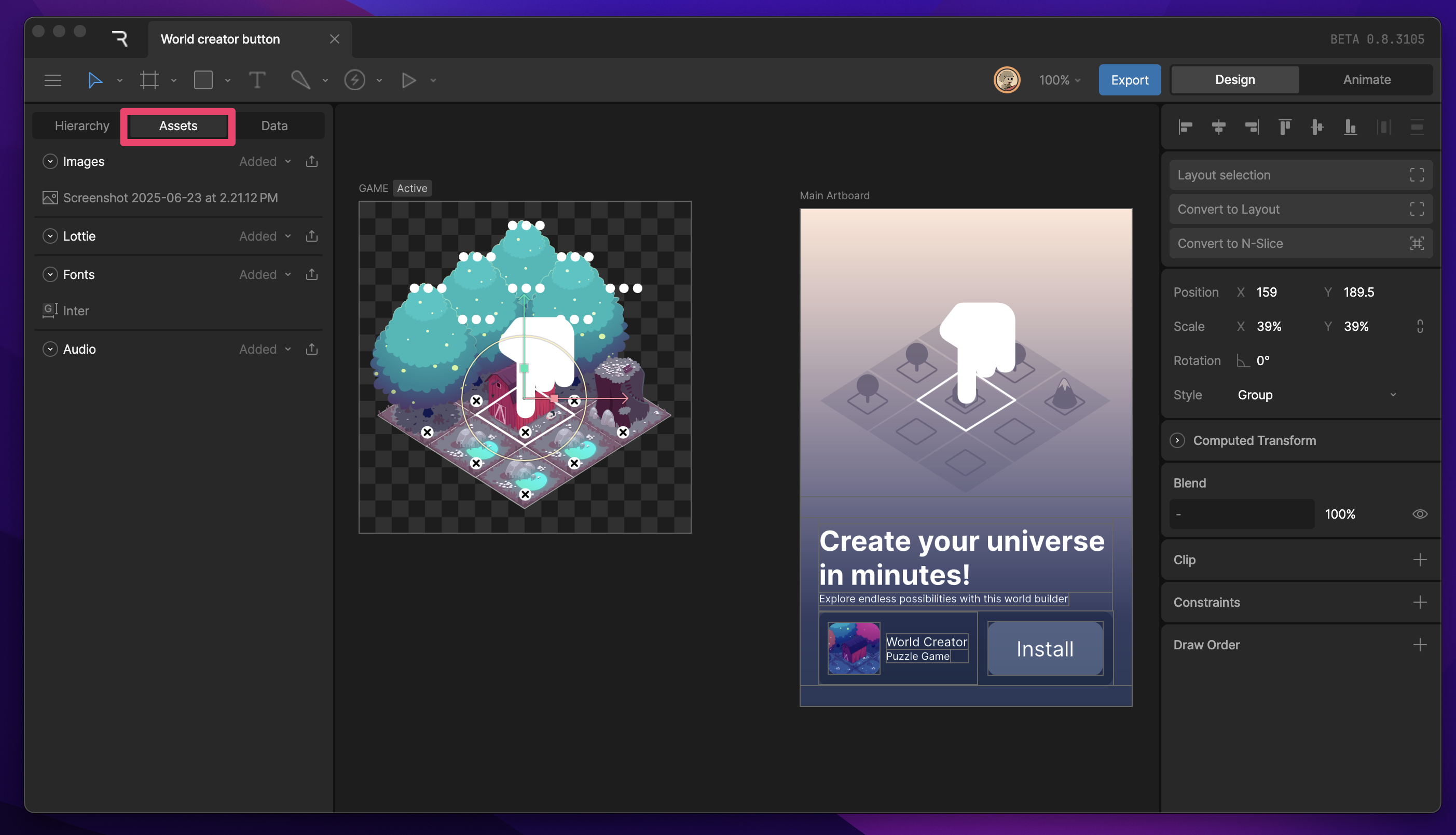
The assets panel is a list view of your Images, Lottie files, Audio, and Custom fonts. This panel allows you to add, remove, replace, and modify all assets added in the file. Read more about importing and modifying assets below.
Many of these options have shortcuts which can either be found next to the option, or in the shortcut menu.
# Assets Panel
The assets panel is a list view of your Images, Lottie files, Audio, and Custom fonts. This panel allows you to add, remove, replace, and modify all assets added in the file. Read more about importing and modifying assets below.
 # Data Panel
The Data Panel is where all View Models, Enums, and [Converters](/editor/data-binding/converters) for a file are created, organized, and viewed. The panel is broken into three separate spaces; View Models, Enums, and Converters. Read more about Data Binding [here](/editor/data-binding/overview).
# Data Panel
The Data Panel is where all View Models, Enums, and [Converters](/editor/data-binding/converters) for a file are created, organized, and viewed. The panel is broken into three separate spaces; View Models, Enums, and Converters. Read more about Data Binding [here](/editor/data-binding/overview).
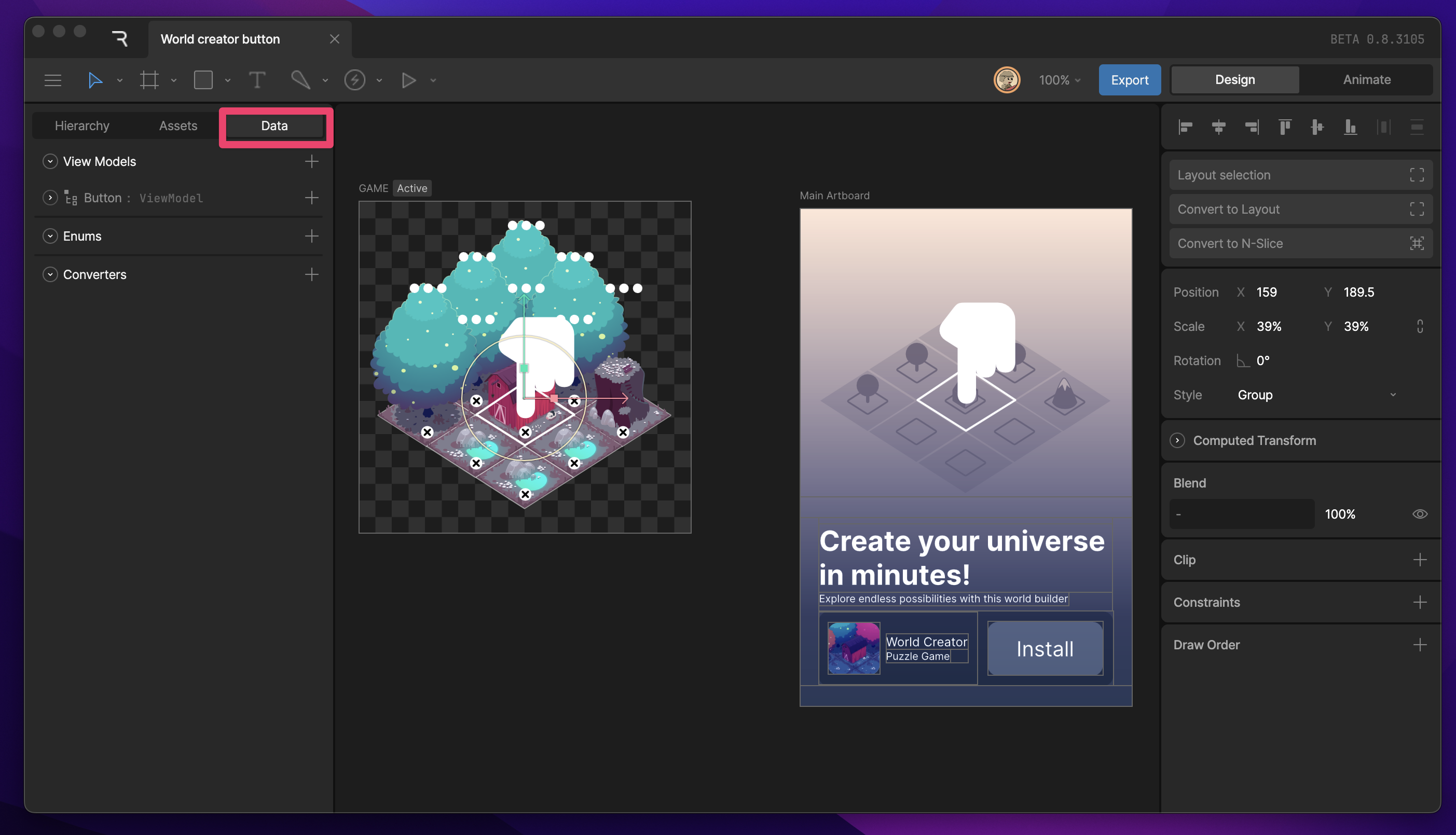 The plus button on the right of each section allows you to add a new View Model, Enum, or Converter.
If any section has elements associated with it, the list can be expanded or collapsed using the arrow icon on the left.
The plus button on the right of each section allows you to add a new View Model, Enum, or Converter.
If any section has elements associated with it, the list can be expanded or collapsed using the arrow icon on the left.