> ## Documentation Index
> Fetch the complete documentation index at: https://rive.app/docs/llms.txt
> Use this file to discover all available pages before exploring further.
# File Browser
> Create, organize, and manage files, projects, and workspaces.
export const YouTube = ({id, timestamp}) => {
const videoSrc = timestamp ? `https://www.youtube.com/embed/${id}?start=${timestamp}` : `https://www.youtube.com/embed/${id}`;
return ;
};
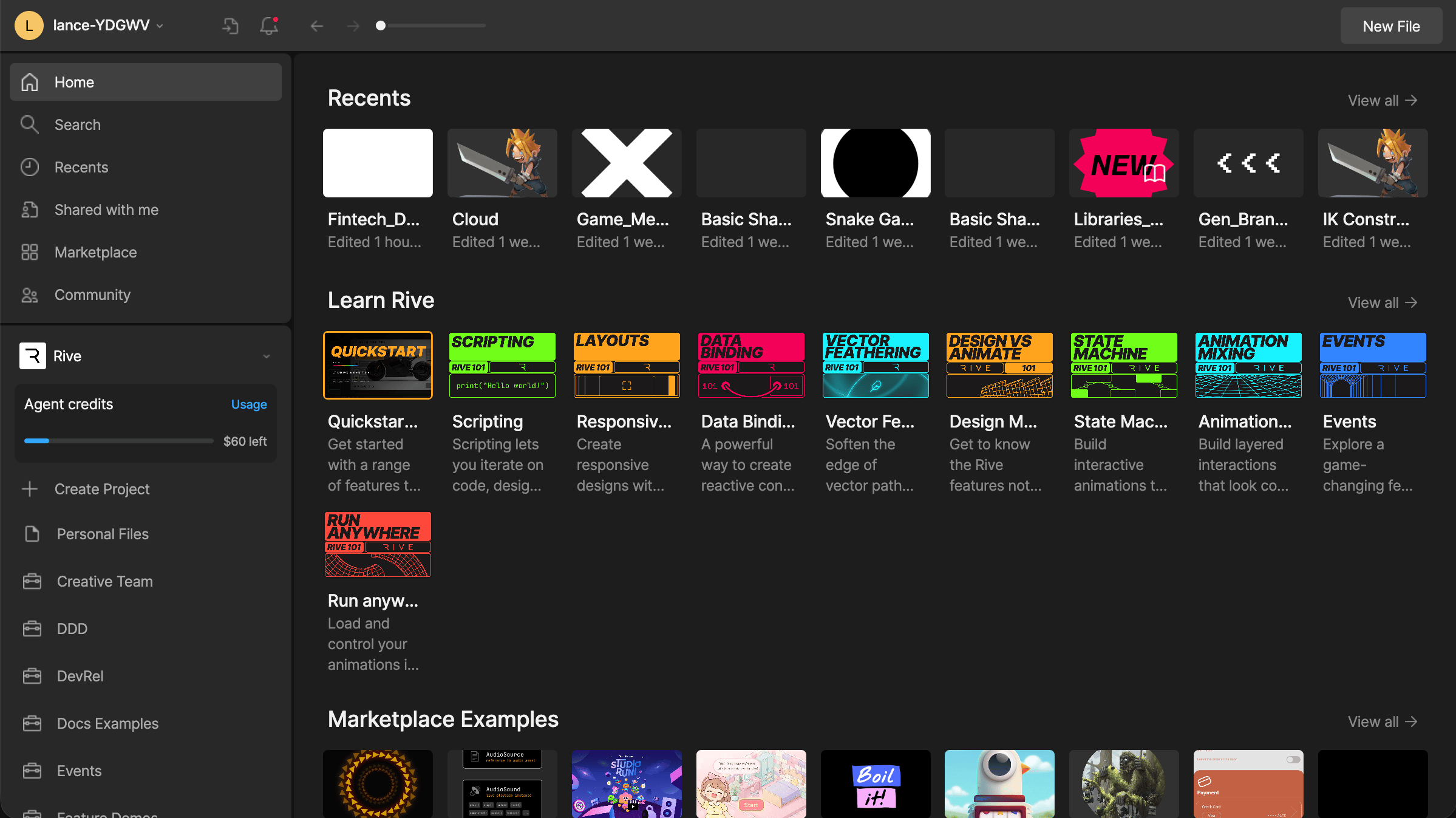
The File Browser is where you create, open, organize, and manage your Rive files. You can also browse recent files, open Marketplace examples, switch between workspaces, and manage projects.
## Home
The Home view shows your recent files, links to tutorial videos, and Marketplace examples.
 ## Managing Files
Right-click anywhere within the File Browser to create a new file or folder.
Right-click a file to open additional options, including:
* **Open**, **Copy**, **Cut**, **Duplicate**, and **Delete** - common file actions
* **Show File in Browser** - open the file’s location in the File Browser
* **Download** - download the file as a `.riv`
* **Download Backup** - download a `.rev` backup file
* **Download Revision** - download a specific revision
## Toolbar
The toolbar includes options for managing your account, changing display options, creating folders, and creating new files.
## Sidebar
Use the sidebar to search files, view recent files, access files shared with you, and navigate between workspaces and projects.
### Projects
Projects help you organize files within a workspace.
Use projects to group related files, such as files for a client, feature, campaign, or product area. For example, you might have separate projects for personal work and freelance work.
Projects and folders are available on Cadet, Voyager, and Enterprise plans. [Learn more about our plans and pricing](https://rive.app/pricing?utm_source=docs\&utm_medium=content).
#### Create a New Project
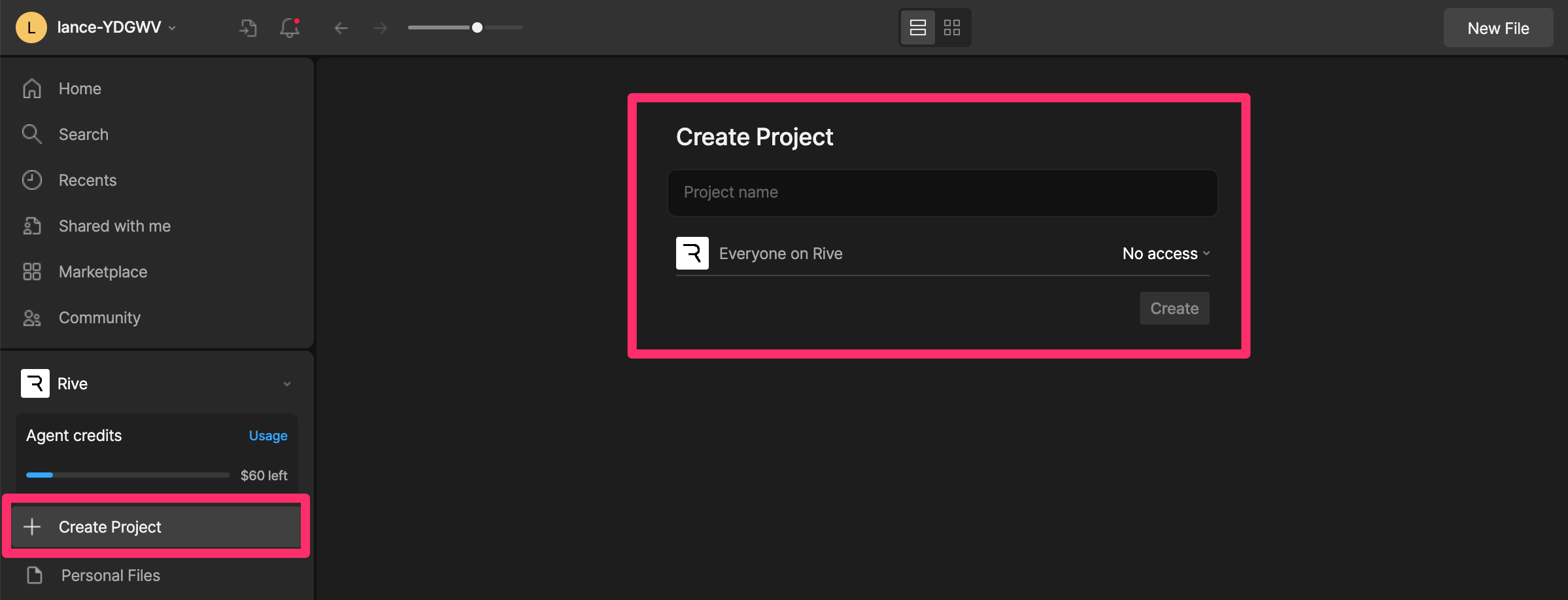
In the sidebar, click **+ Create Project**.
Add a project name and choose who should have access.
## Managing Files
Right-click anywhere within the File Browser to create a new file or folder.
Right-click a file to open additional options, including:
* **Open**, **Copy**, **Cut**, **Duplicate**, and **Delete** - common file actions
* **Show File in Browser** - open the file’s location in the File Browser
* **Download** - download the file as a `.riv`
* **Download Backup** - download a `.rev` backup file
* **Download Revision** - download a specific revision
## Toolbar
The toolbar includes options for managing your account, changing display options, creating folders, and creating new files.
## Sidebar
Use the sidebar to search files, view recent files, access files shared with you, and navigate between workspaces and projects.
### Projects
Projects help you organize files within a workspace.
Use projects to group related files, such as files for a client, feature, campaign, or product area. For example, you might have separate projects for personal work and freelance work.
Projects and folders are available on Cadet, Voyager, and Enterprise plans. [Learn more about our plans and pricing](https://rive.app/pricing?utm_source=docs\&utm_medium=content).
#### Create a New Project
In the sidebar, click **+ Create Project**.
Add a project name and choose who should have access.
 #### Managing Project Members
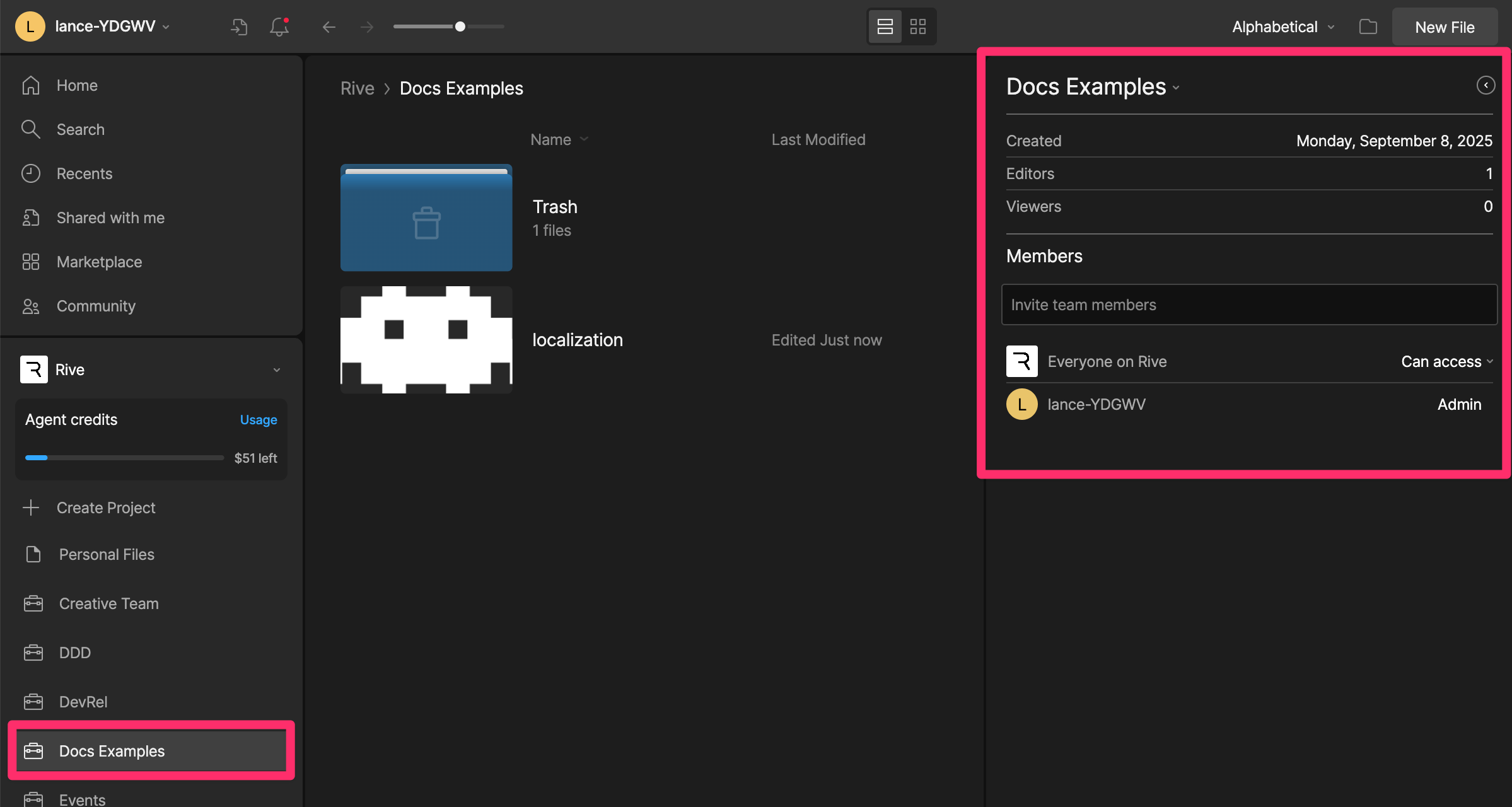
You can invite people to a specific project. This is useful when someone needs access to a set of files, but does not need access to the entire workspace.
In the sidebar, select a project.
Expand the project details panel to invite, remove, or change permissions for individual members or groups.
#### Managing Project Members
You can invite people to a specific project. This is useful when someone needs access to a set of files, but does not need access to the entire workspace.
In the sidebar, select a project.
Expand the project details panel to invite, remove, or change permissions for individual members or groups.
 ### Workspaces
Workspaces are separate spaces for files, members, and billing. You might have a personal workspace, a company workspace, or separate workspaces for different teams.
See [Workspaces Overview](/docs/account-admin/workspaces/workspaces-overview) for more information.
If you only want to organize files or share a specific set of files, create a project instead of a new workspace.
### Workspaces
Workspaces are separate spaces for files, members, and billing. You might have a personal workspace, a company workspace, or separate workspaces for different teams.
See [Workspaces Overview](/docs/account-admin/workspaces/workspaces-overview) for more information.
If you only want to organize files or share a specific set of files, create a project instead of a new workspace.