> ## Documentation Index
> Fetch the complete documentation index at: https://rive.app/docs/llms.txt
> Use this file to discover all available pages before exploring further.
# Revision History
> Rive saves your files automatically as you work. Even if multiple people are working on the same file at the same time, Rive tracks all changes and stores them in the Revision History.
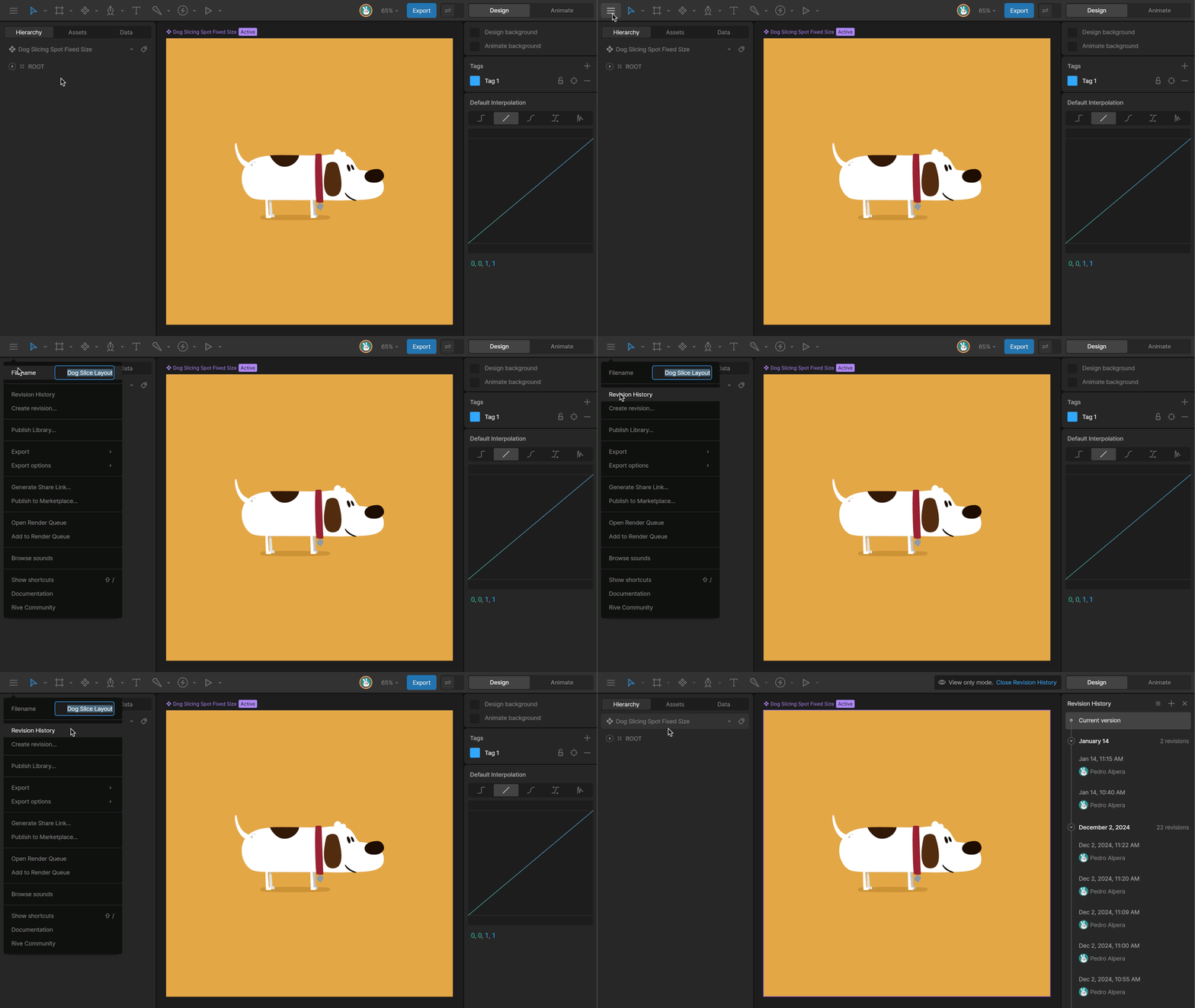
## View a file's history
The Revision History can be accessed from the [Editor Menu](/editor/interface-overview/toolbar).
 ## Restore a revision
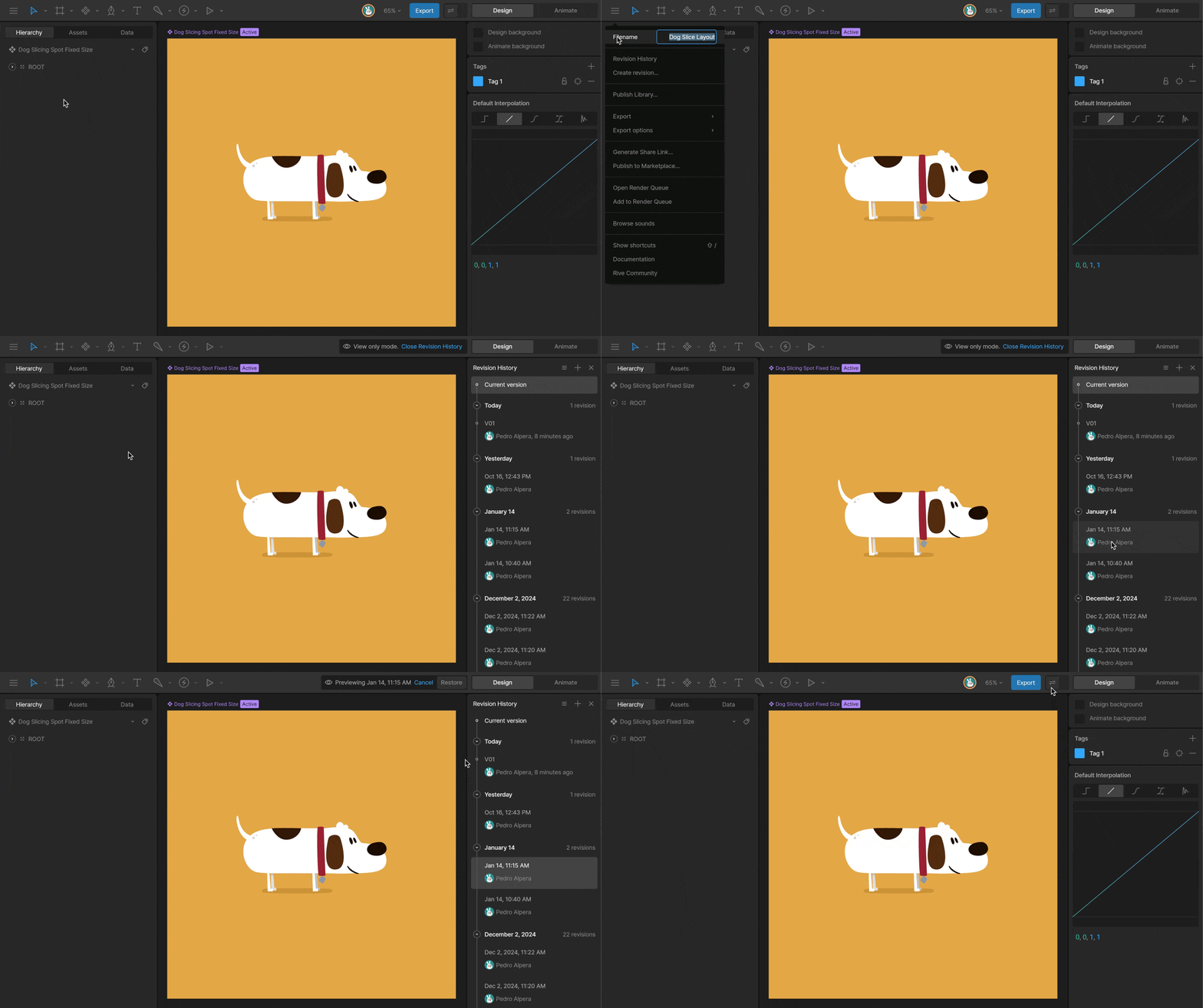
Select a revision to preview it and press the Edit Current Revision button. This copies the selected revision and creates a new entry at the top of the list. This guarantees that even restoring revisions is non-destructive, and you can always go back to the previous version of the file.
## Restore a revision
Select a revision to preview it and press the Edit Current Revision button. This copies the selected revision and creates a new entry at the top of the list. This guarantees that even restoring revisions is non-destructive, and you can always go back to the previous version of the file.
 ## Save a Revision
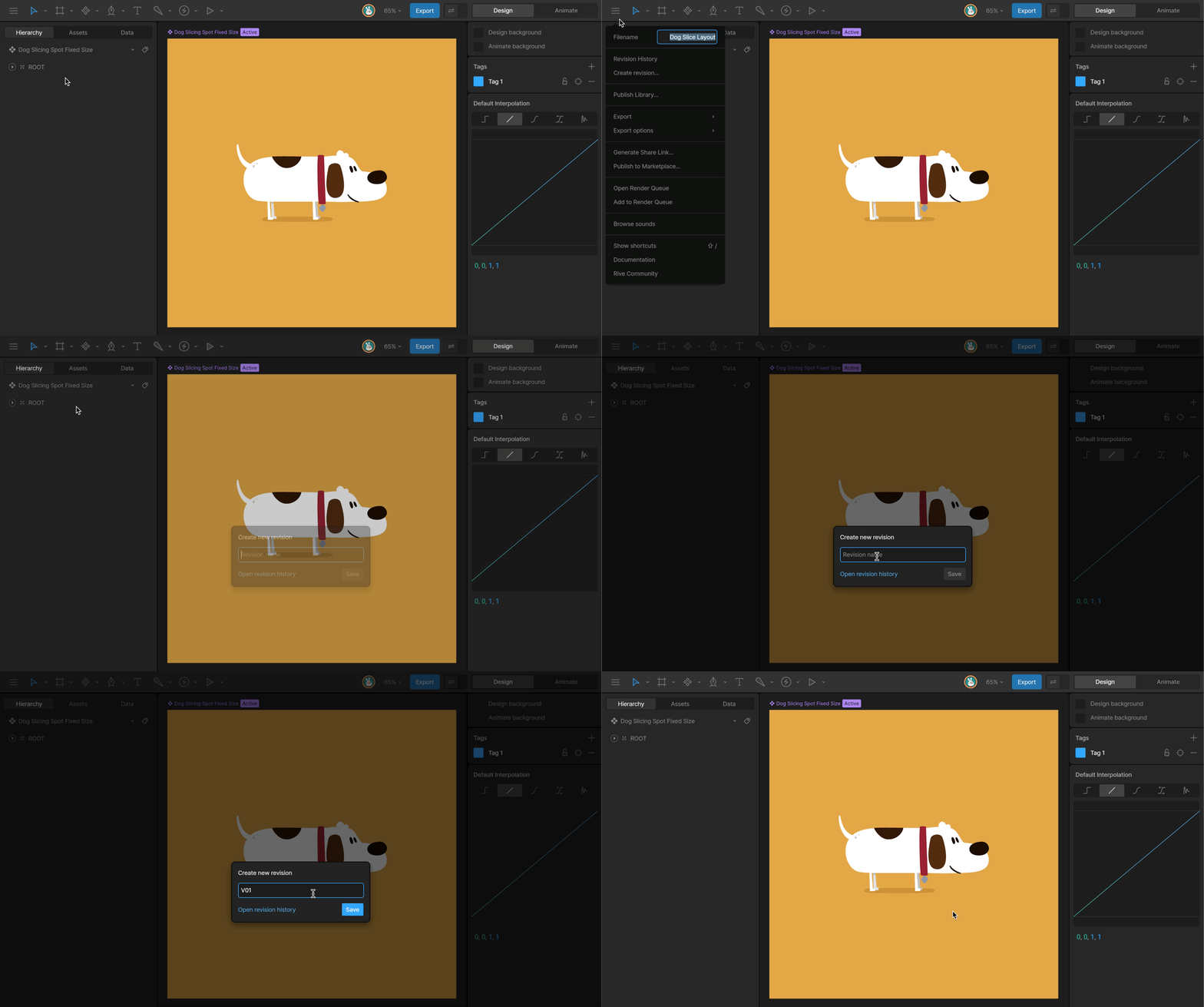
From the Editor Menu, select the Create a Revision button. You'll then be prompted to name the revision.
Once the revision is created, you can restore that revision using the steps above.
## Save a Revision
From the Editor Menu, select the Create a Revision button. You'll then be prompted to name the revision.
Once the revision is created, you can restore that revision using the steps above.