> ## Documentation Index
> Fetch the complete documentation index at: https://rive.app/docs/llms.txt
> Use this file to discover all available pages before exploring further.
# Shape Tools
> Create editable shapes with adjustable properties.
export const YouTube = ({id, timestamp}) => {
const videoSrc = timestamp ? `https://www.youtube.com/embed/${id}?start=${timestamp}` : `https://www.youtube.com/embed/${id}`;
return ;
};
Shape tools let you create common shapes, such as rectangles, ellipses, polygons, and stars. These shapes keep editable properties, such as width, height, corner radius, and number of points, until you convert them to custom paths.
## Creating a Procedural Shape
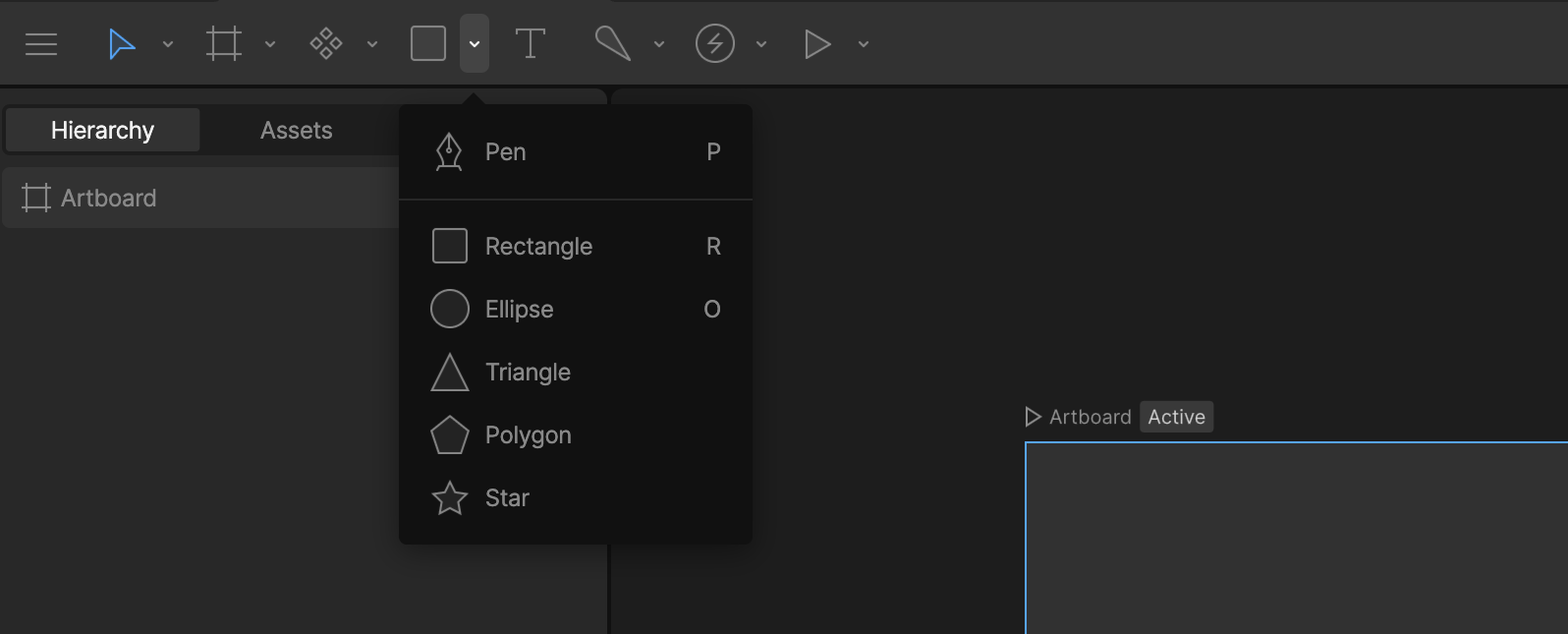 Procedural shape tools are available from the **Create Tools** menu.
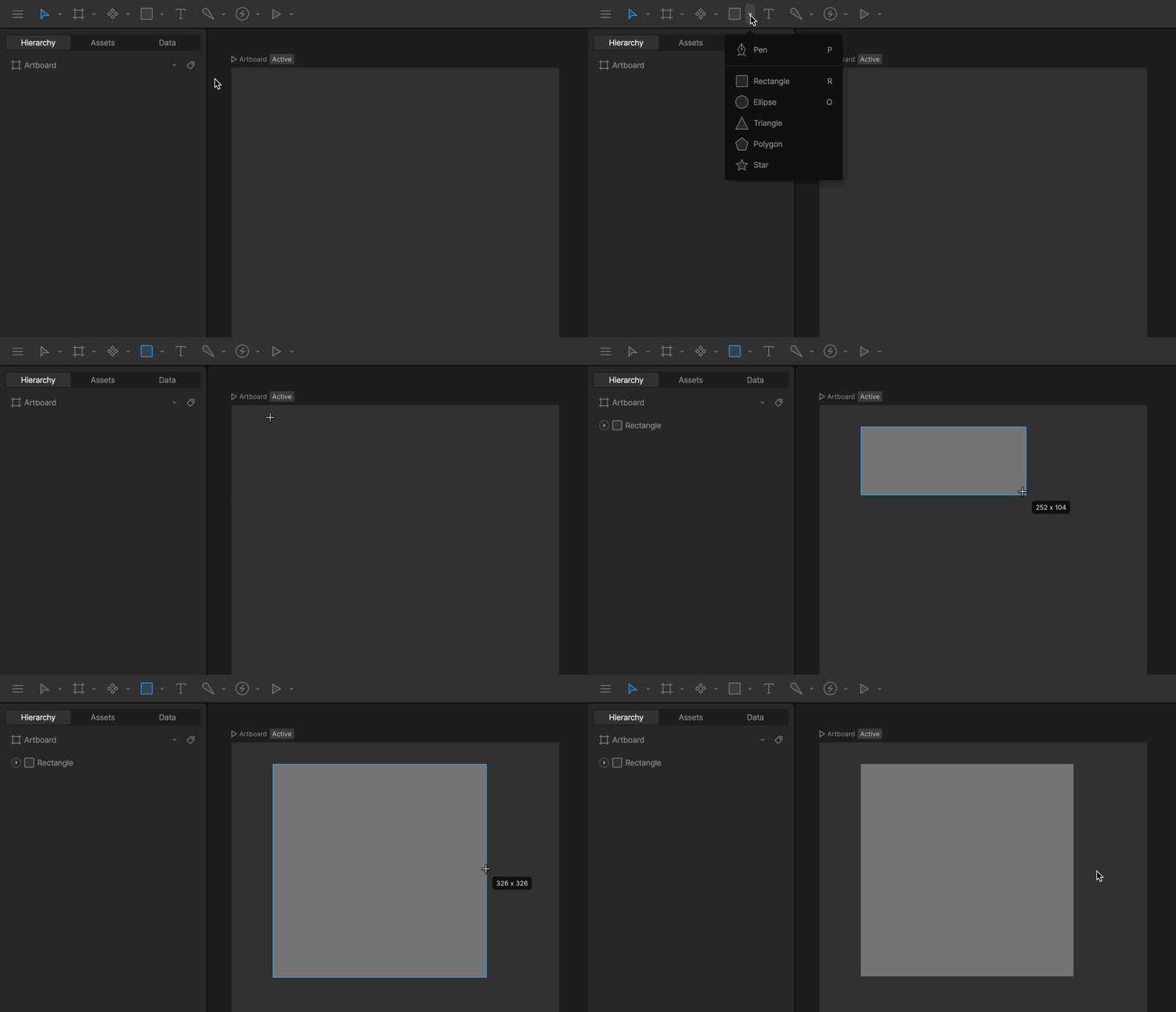
Open the **Create Tools** menu and select a shape tool.
Click and drag inside an artboard to draw the shape.
Hold `Shift` while dragging to constrain the shape's proportions.
Procedural shape tools are available from the **Create Tools** menu.
Open the **Create Tools** menu and select a shape tool.
Click and drag inside an artboard to draw the shape.
Hold `Shift` while dragging to constrain the shape's proportions.
 See [Freeze and Origin](/editor/fundamentals/freeze-and-origin) to learn how to change the center point of a shape.
## Shape Properties
You can update a shape's properties in the inspector. Available properties depend on the selected shape type.
* **Size**: the width and height of the shape
* **Origin**: the [origin](/editor/fundamentals/freeze-and-origin) point of the shape
* **Corner**: the corner radius for rectangles
* **Radius**: the radius value for polygons and stars
* **Points**: the number of points on polygons and stars
## Converting a Shape to a Custom Path
To edit individual vertices, convert the shape to a custom path.
See [Freeze and Origin](/editor/fundamentals/freeze-and-origin) to learn how to change the center point of a shape.
## Shape Properties
You can update a shape's properties in the inspector. Available properties depend on the selected shape type.
* **Size**: the width and height of the shape
* **Origin**: the [origin](/editor/fundamentals/freeze-and-origin) point of the shape
* **Corner**: the corner radius for rectangles
* **Radius**: the radius value for polygons and stars
* **Points**: the number of points on polygons and stars
## Converting a Shape to a Custom Path
To edit individual vertices, convert the shape to a custom path.
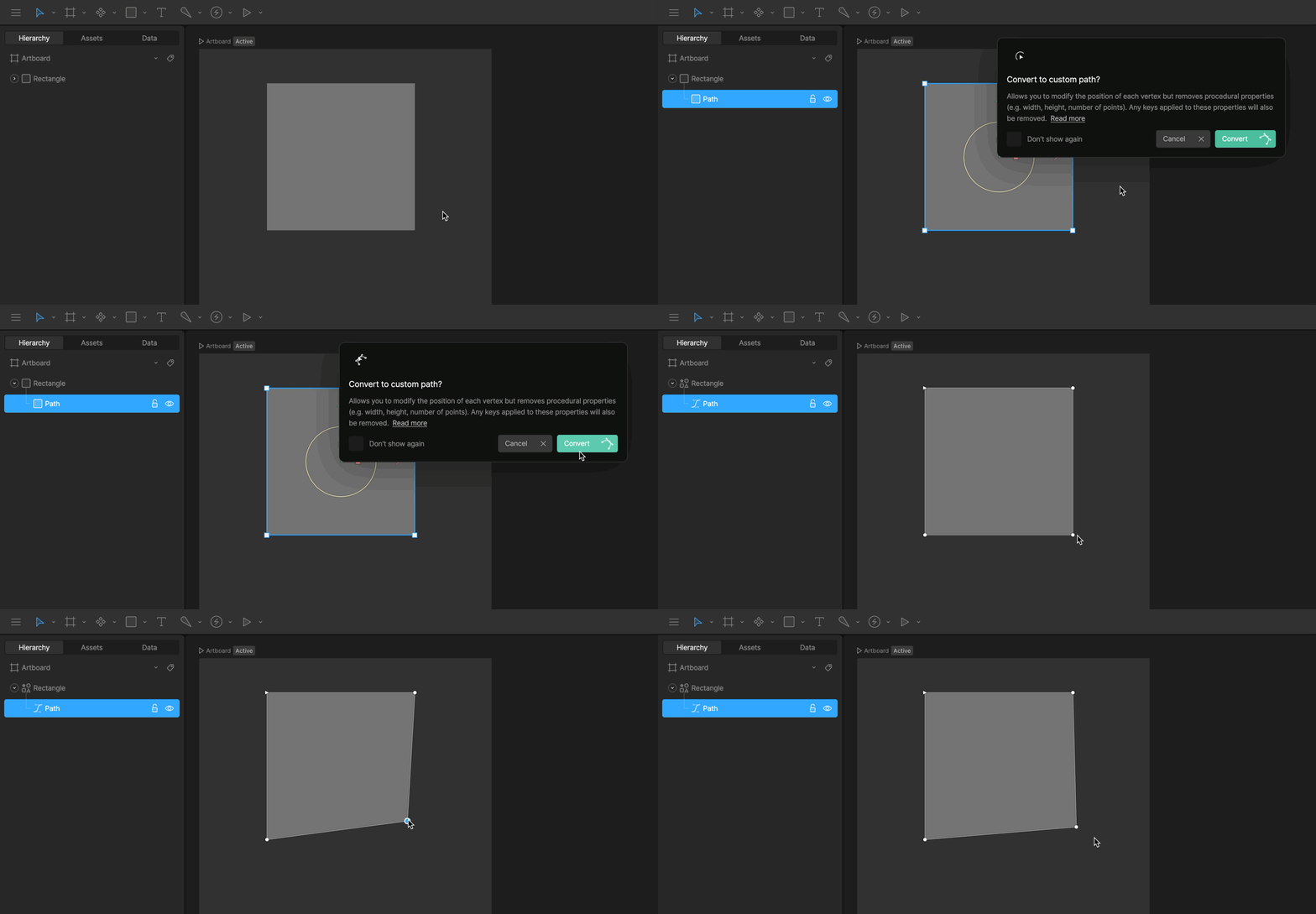 Press `Enter` to convert the selected procedural path to a custom path. After conversion, you can edit each vertex directly.
Converting a procedural path to a custom path removes its procedural properties, such as width, height, corner radius, and number of points. Any animations applied to those properties are also removed.
To edit a custom path, see [Edit Vertices](/editor/fundamentals/edit-vertices).
Press `Enter` to convert the selected procedural path to a custom path. After conversion, you can edit each vertex directly.
Converting a procedural path to a custom path removes its procedural properties, such as width, height, corner radius, and number of points. Any animations applied to those properties are also removed.
To edit a custom path, see [Edit Vertices](/editor/fundamentals/edit-vertices).