> ## Documentation Index
> Fetch the complete documentation index at: https://rive.app/docs/llms.txt
> Use this file to discover all available pages before exploring further.
# Fill and Stroke
> The Fill and Stroke section of the Inspector allows you to add and modify the Fill and Stroke properties of the currently selected object. You can create as many fills or strokes as you'd like.
export const YouTube = ({id, timestamp}) => {
const videoSrc = timestamp ? `https://www.youtube.com/embed/${id}?start=${timestamp}` : `https://www.youtube.com/embed/${id}`;
return ;
};
# Fill
### **Create a new Fill**
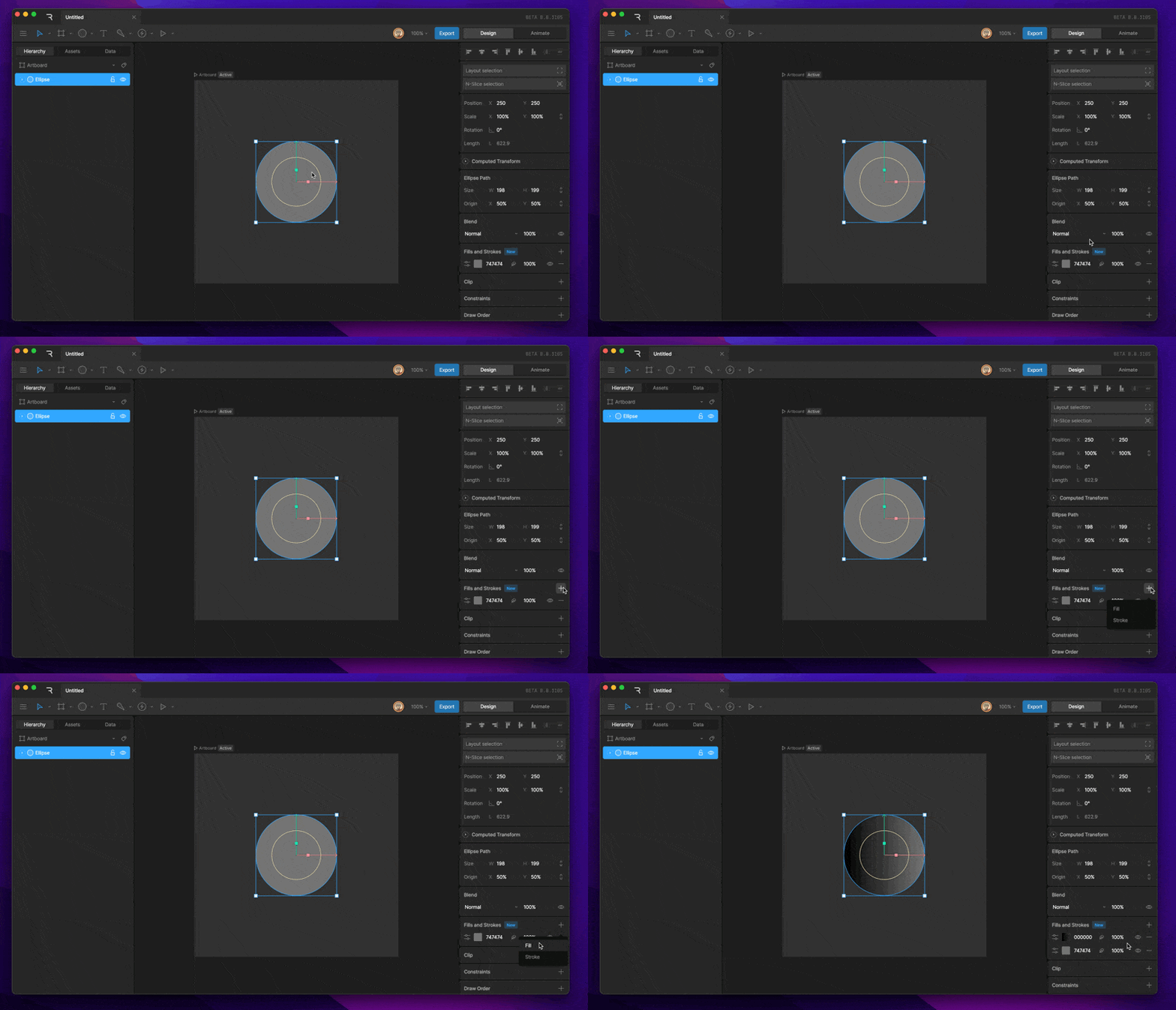
To create a fill, select a shape, then use the plus button under the Fill and Stroke section of the Inspector. Be sure to select Fill from the new menu. You'll be able to tell that a layer is a fill by looking at the color box on the left side.
 ### **Changing Fill color**
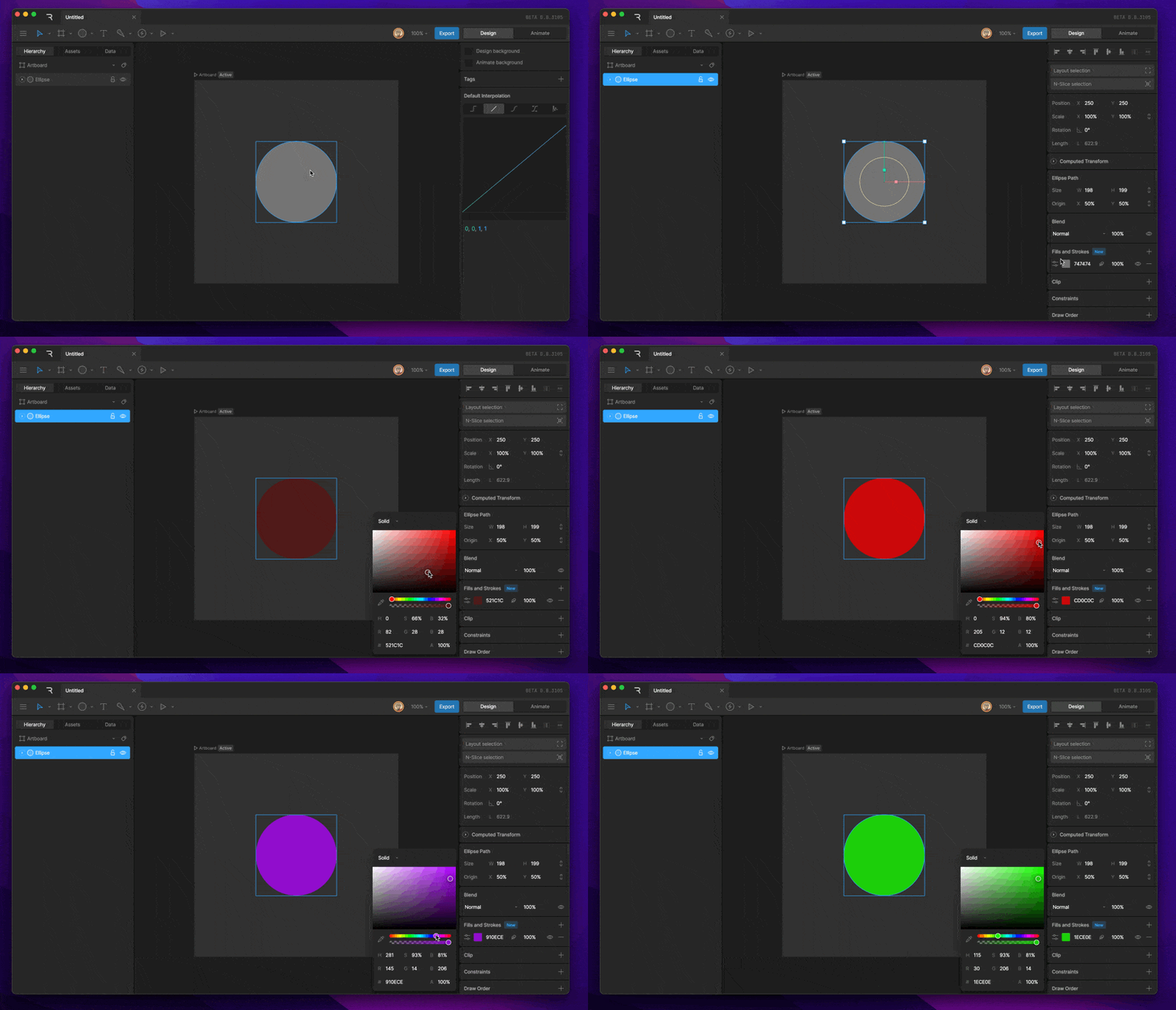
To change the color of a Fill, select the color box on the left side of the Fill layer. This will open the Color Picker. From there, you can use the various sliders to choose which color you'd like for the Fill.
### **Changing Fill color**
To change the color of a Fill, select the color box on the left side of the Fill layer. This will open the Color Picker. From there, you can use the various sliders to choose which color you'd like for the Fill.
 ### **Changing Fill Type**
When a new shape is created, by default the shape will have a solid fill. When a new fill is added, by default the fill type is set to linear. We often need to change the fill type between the different types. This can be done by selecting the color box.
### **Changing Fill Type**
When a new shape is created, by default the shape will have a solid fill. When a new fill is added, by default the fill type is set to linear. We often need to change the fill type between the different types. This can be done by selecting the color box.
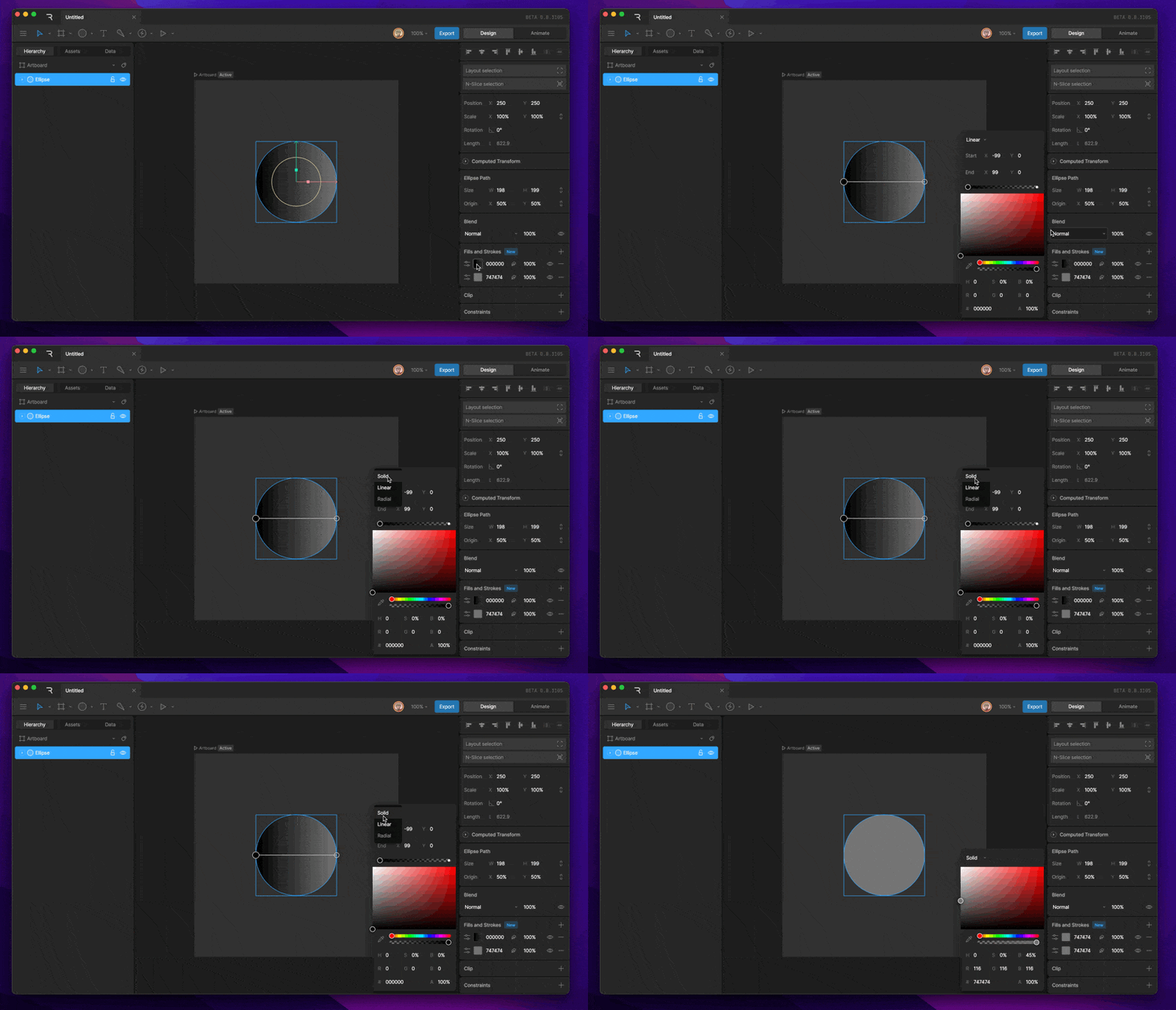 Once the Fill has been opened, you'll find the Fill Selector dropdown in the top of the option box.
The different fills that can be selected are:
* **Solid**
* **Linear Gradient**
* **Radial Gradient**
### **Changing Fill color (Gradient)**
To change the color of a Fill, select the color box on the left side of the Fill layer. This will open the Color Picker.
Once the Fill has been opened, you'll find the Fill Selector dropdown in the top of the option box.
The different fills that can be selected are:
* **Solid**
* **Linear Gradient**
* **Radial Gradient**
### **Changing Fill color (Gradient)**
To change the color of a Fill, select the color box on the left side of the Fill layer. This will open the Color Picker.
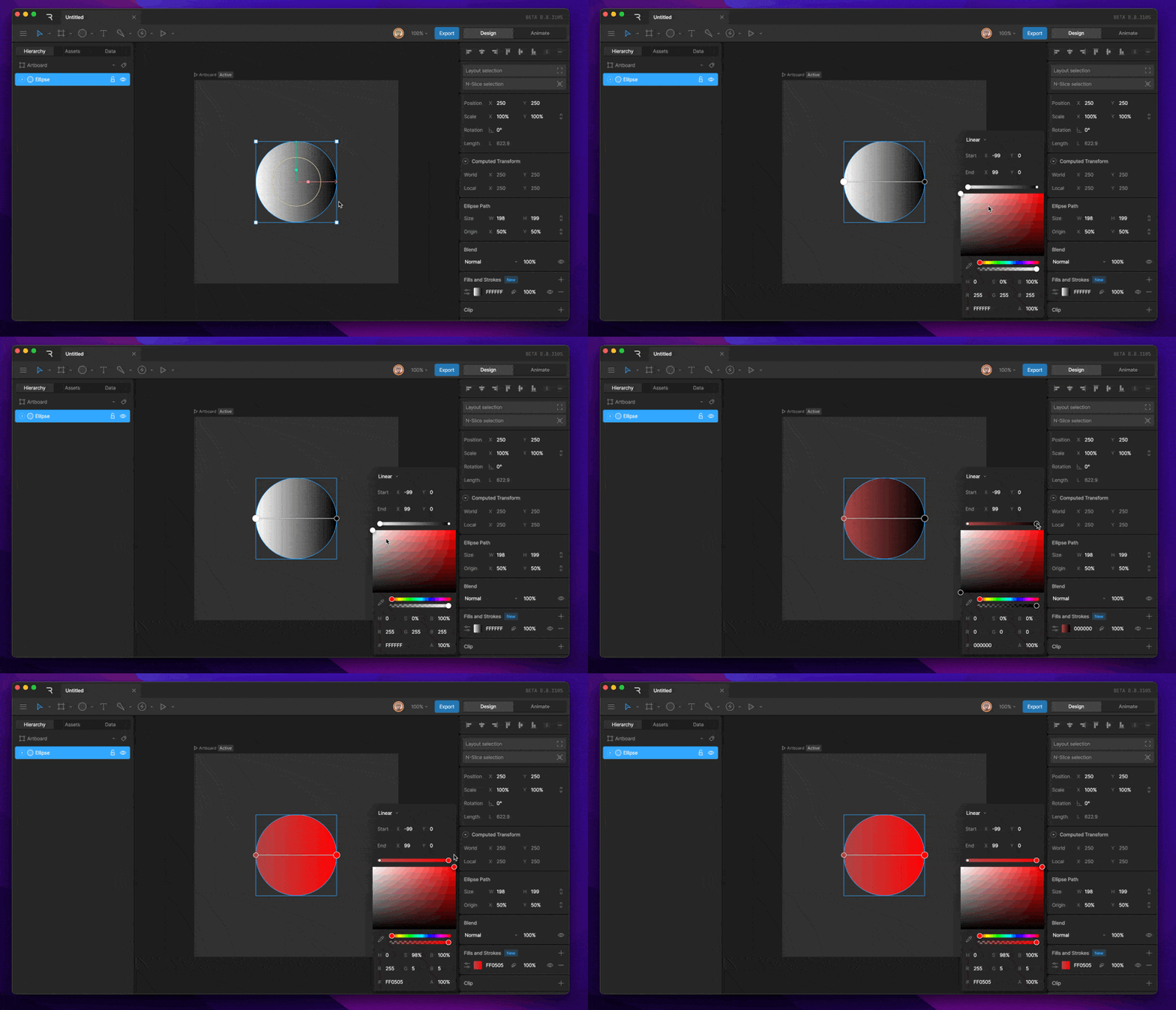 When a gradient is selected, you'll notice a new bar appear above the color picker. This represents the color of the gradient at different points.
By default, a gradient has two points.
### **Changing the color of a stopper**
To change the color of a particular color stopper, start by selecting the stopper you'd like to change.
Next, use the various sliders to choose which color that stopper should be.
### **Adding and removing stoppers**
To add a new color stopper, click any space along the long that isn't currently occupied by another stopper. This will generate an additional color stopper.
When a gradient is selected, you'll notice a new bar appear above the color picker. This represents the color of the gradient at different points.
By default, a gradient has two points.
### **Changing the color of a stopper**
To change the color of a particular color stopper, start by selecting the stopper you'd like to change.
Next, use the various sliders to choose which color that stopper should be.
### **Adding and removing stoppers**
To add a new color stopper, click any space along the long that isn't currently occupied by another stopper. This will generate an additional color stopper.
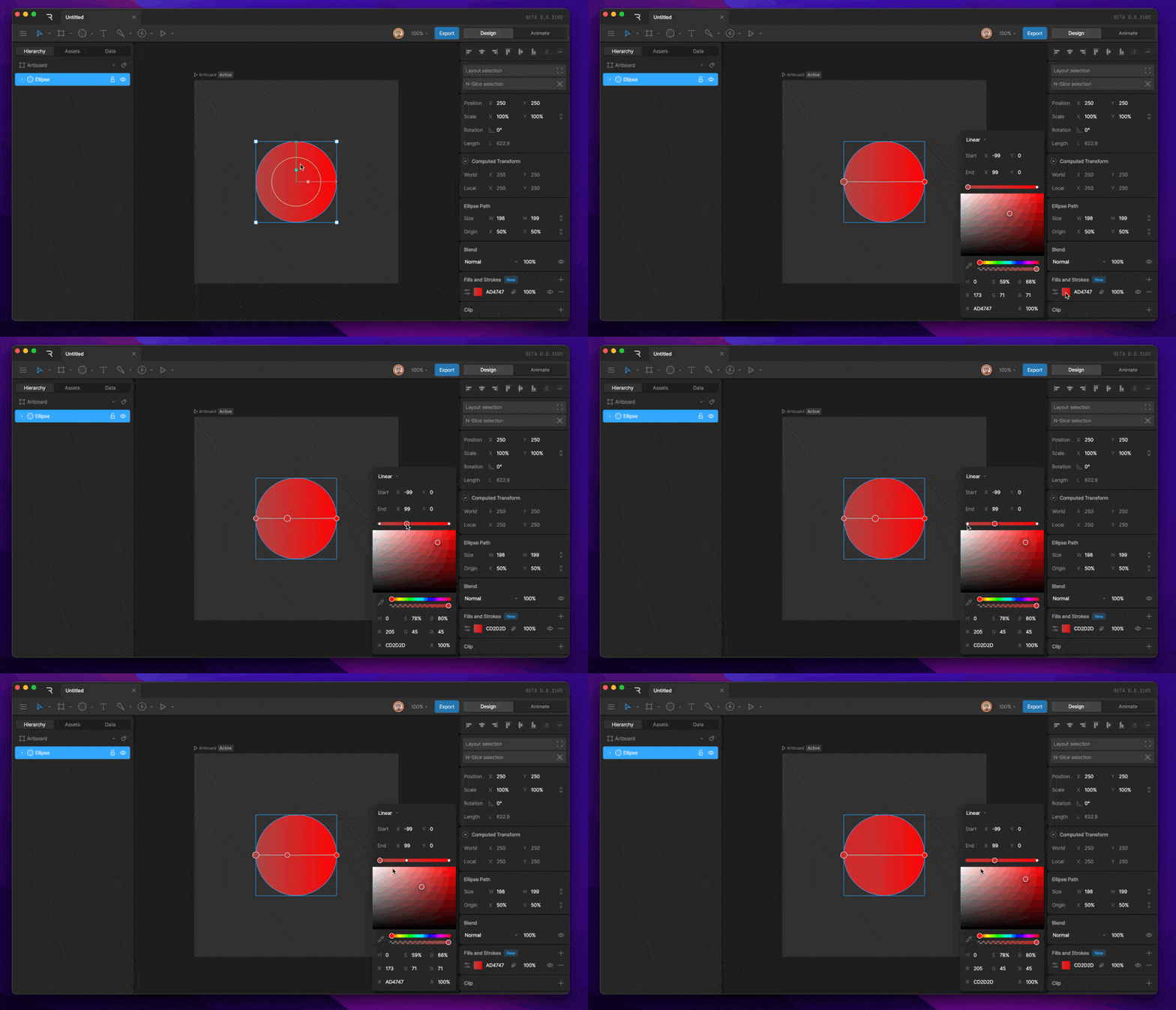 To delete a color stopper, select the stopper you'd like to delete, then hit the Delete or Backspace key.
### **Change Fill Order**
The order of fills determines their render order, with fills on top rendered in front and fills at the bottom rendered in back.
To delete a color stopper, select the stopper you'd like to delete, then hit the Delete or Backspace key.
### **Change Fill Order**
The order of fills determines their render order, with fills on top rendered in front and fills at the bottom rendered in back.
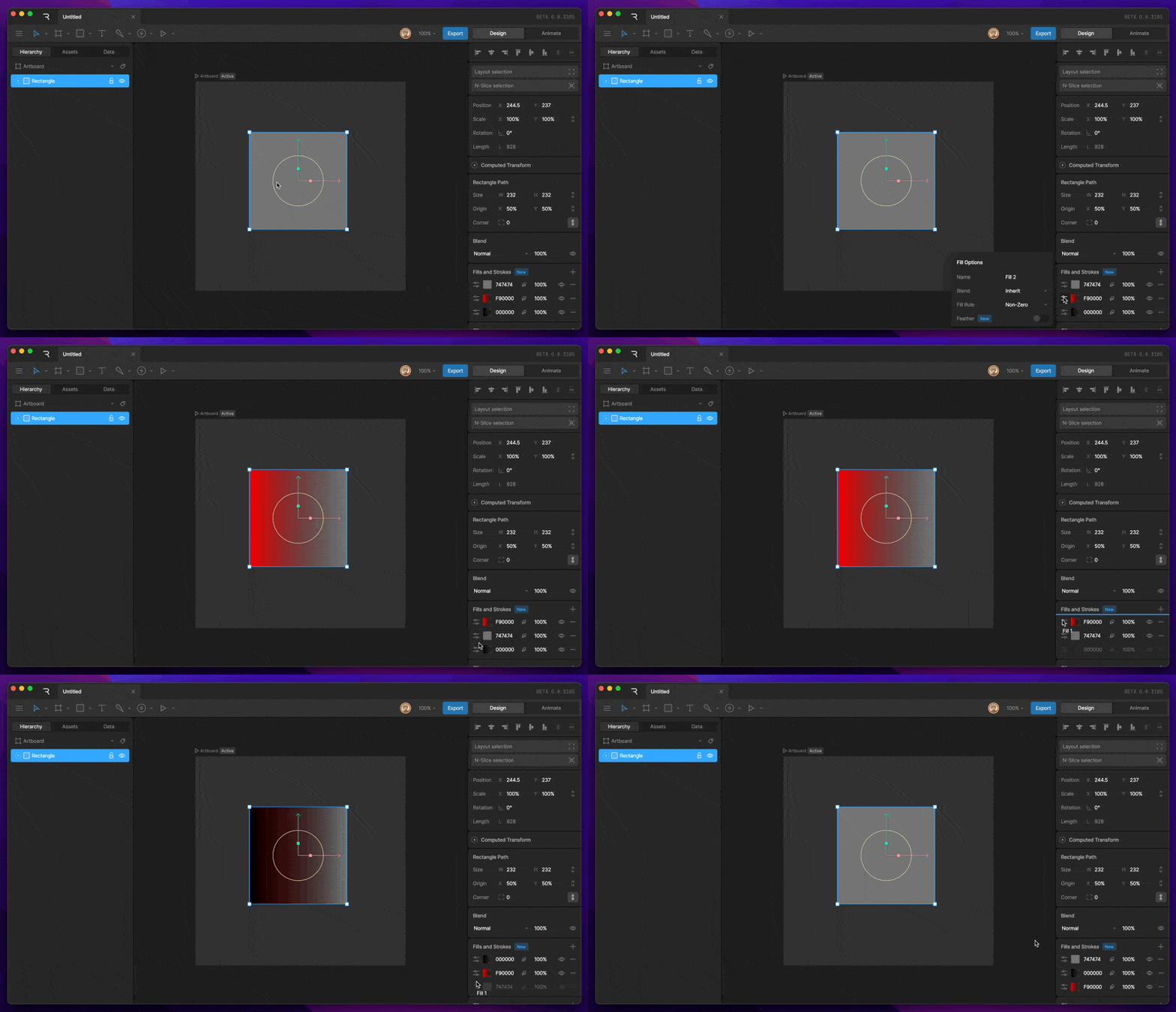 This order can be changed at any time by clicking and dragging on an empty area within the layer.
### **Fill Properties**
Each Fill has its own properties which can be edited and keyed on the timeline. Some of these properties can be found by using the fill option button.
This order can be changed at any time by clicking and dragging on an empty area within the layer.
### **Fill Properties**
Each Fill has its own properties which can be edited and keyed on the timeline. Some of these properties can be found by using the fill option button.
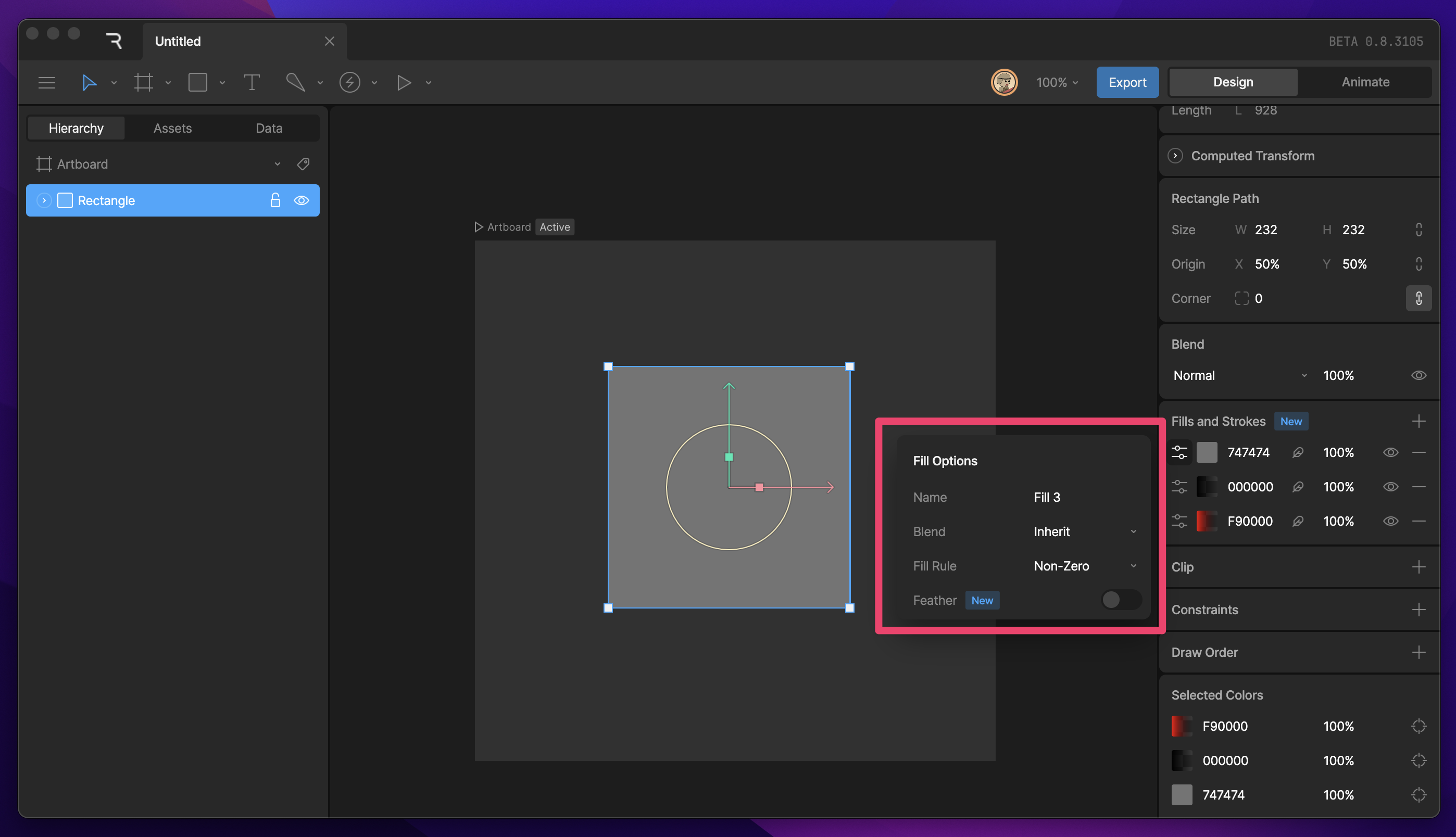 **Fill Name -** You can edit the name of a fill using this property.
**Blend -** This option can be used to change the Blend Mode of an individual Fill. By default, this mode will be set to inherit, which inherits the blend mode from the shape layer.
**Fill Rule -** This option can be used to change the fill rule for the Fill. This must be set to clock-wise if you want the fill to be feathered.
\*\*Feather - \*\*This option can be toggled to feather the chosen Fill. Read more about Feathering below.
### **Deleting and hiding a Fill**
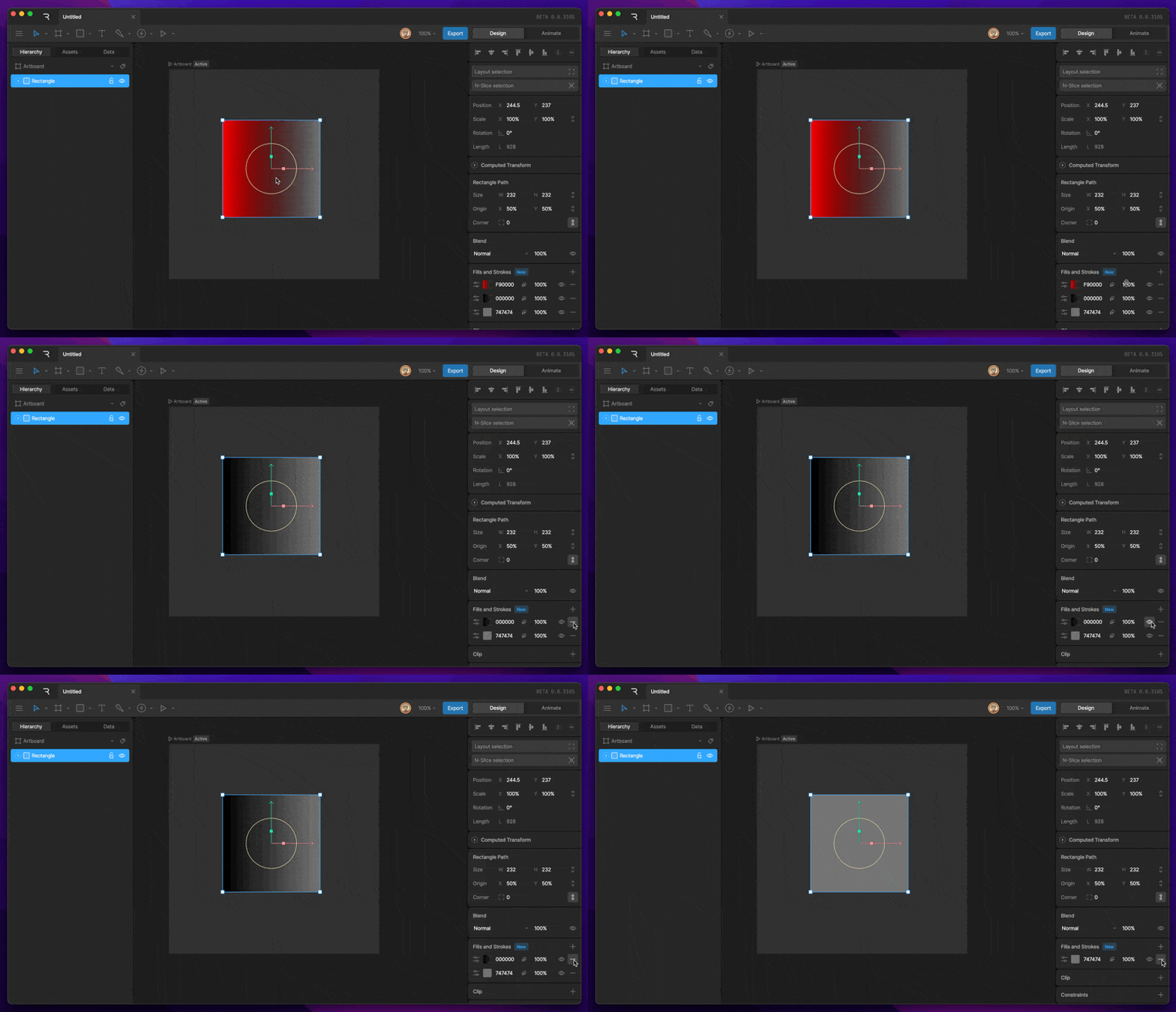
Often times we'll need to delete or hide a particular Fill. This can be done by selecting the shape, then using the eye icon to hide the Fill, or the minus icon to delete the fill.
**Fill Name -** You can edit the name of a fill using this property.
**Blend -** This option can be used to change the Blend Mode of an individual Fill. By default, this mode will be set to inherit, which inherits the blend mode from the shape layer.
**Fill Rule -** This option can be used to change the fill rule for the Fill. This must be set to clock-wise if you want the fill to be feathered.
\*\*Feather - \*\*This option can be toggled to feather the chosen Fill. Read more about Feathering below.
### **Deleting and hiding a Fill**
Often times we'll need to delete or hide a particular Fill. This can be done by selecting the shape, then using the eye icon to hide the Fill, or the minus icon to delete the fill.
 ### Fill Rule
The Fill Rule determines how overlapping paths in a shape will be filled:
* **Non-Zero** assigns a +1 value to clockwise paths and a -1 value to counter clock wise paths. Areas that equal a value other than 0 will be filled.
* **Even-Odd** assigns a +1 value to clockwise paths and a -1 value to counter clock wise paths. Areas that equal an even value will be filled while odd values wont be.
* **Clockwise** a Fill Rule exclusive to Rive. This fill rule enables manual subtraction of paths which can be found in edit vertices mode. This fill rule is also required for shapes where you'd like to enable vector feathering.
# Stroke
### Create a new Stroke
To create a Stroke, select a shape, then use the plus button under the Fill and Stroke section of the Inspector. Be sure to select Stroke from the new menu. You'll be able to tell that a layer is a Stroke by looking at the color box on the left side. Strokes are represented by an outlined box.
### Fill Rule
The Fill Rule determines how overlapping paths in a shape will be filled:
* **Non-Zero** assigns a +1 value to clockwise paths and a -1 value to counter clock wise paths. Areas that equal a value other than 0 will be filled.
* **Even-Odd** assigns a +1 value to clockwise paths and a -1 value to counter clock wise paths. Areas that equal an even value will be filled while odd values wont be.
* **Clockwise** a Fill Rule exclusive to Rive. This fill rule enables manual subtraction of paths which can be found in edit vertices mode. This fill rule is also required for shapes where you'd like to enable vector feathering.
# Stroke
### Create a new Stroke
To create a Stroke, select a shape, then use the plus button under the Fill and Stroke section of the Inspector. Be sure to select Stroke from the new menu. You'll be able to tell that a layer is a Stroke by looking at the color box on the left side. Strokes are represented by an outlined box.
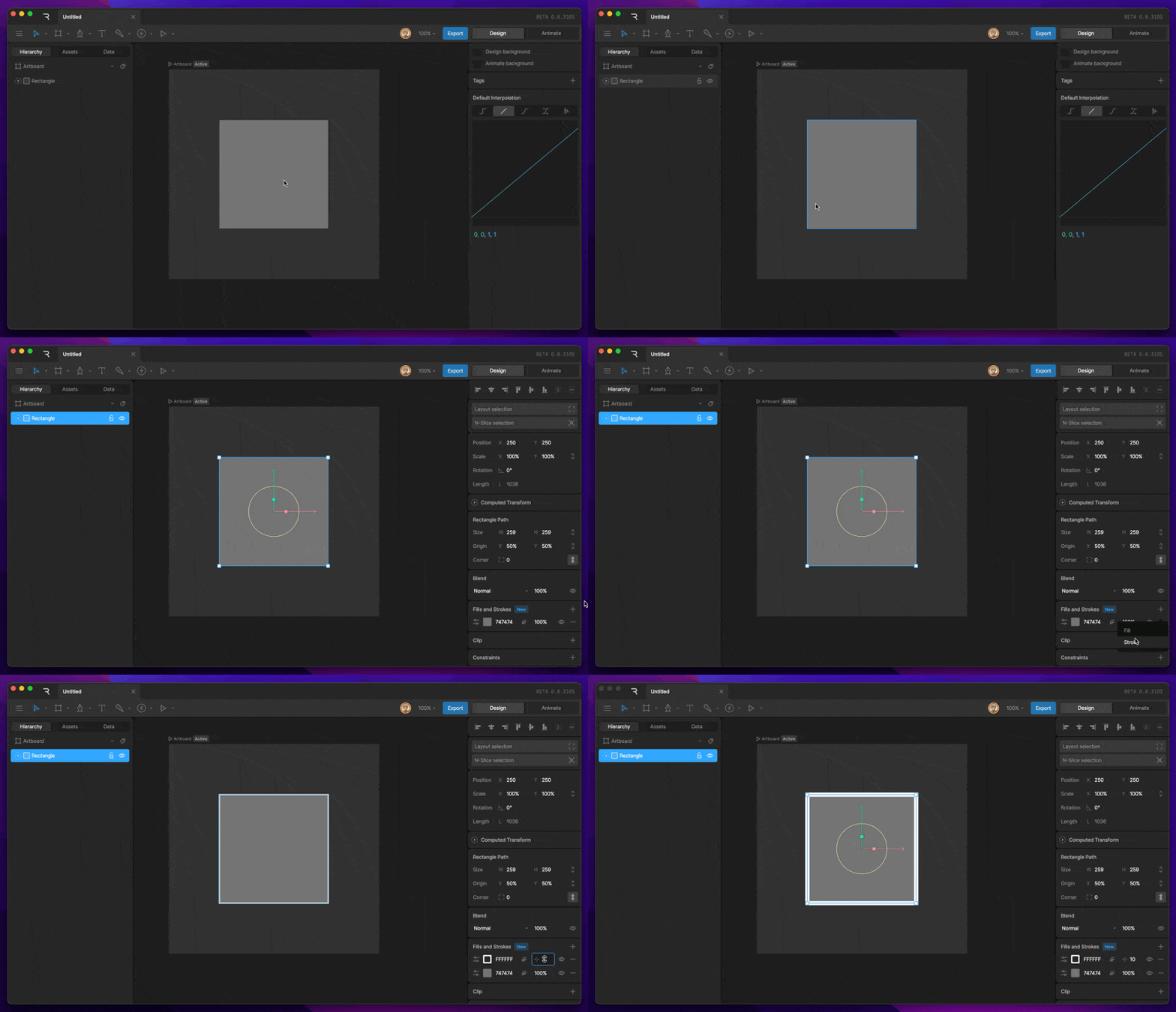 ### **Changing stroke color (solid)**
To change the color of a Stroke, select the color box on the left side of the Stroke layer. This will open the Color Picker. From there, you can use the various sliders to choose which color you'd like for the Stroke.
### **Changing stroke color (solid)**
To change the color of a Stroke, select the color box on the left side of the Stroke layer. This will open the Color Picker. From there, you can use the various sliders to choose which color you'd like for the Stroke.
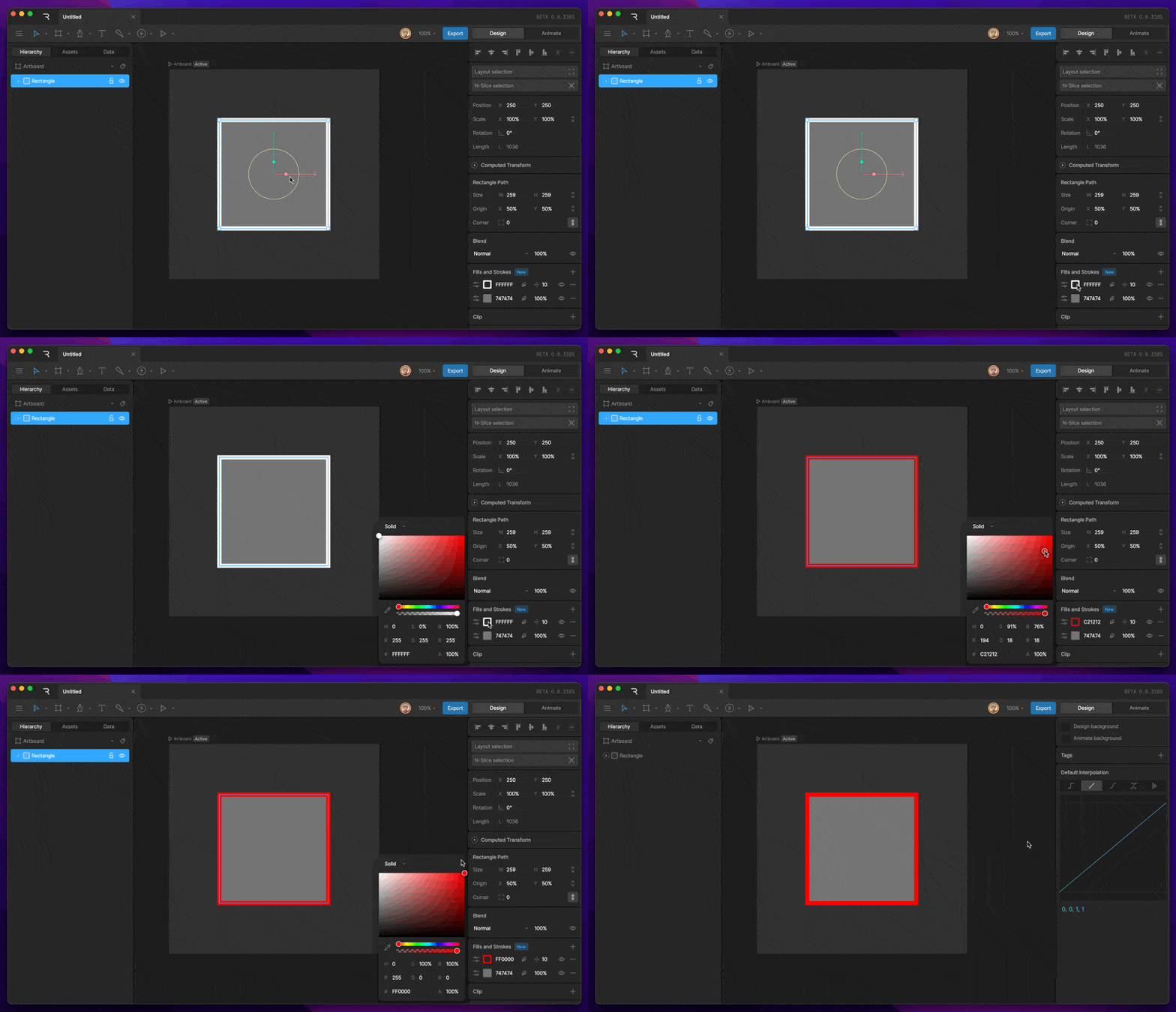 ### **Changing Stroke type**
By default, strokes are set to a solid color, but various stroke types are available from the Color Picker menu.
### **Changing Stroke type**
By default, strokes are set to a solid color, but various stroke types are available from the Color Picker menu.
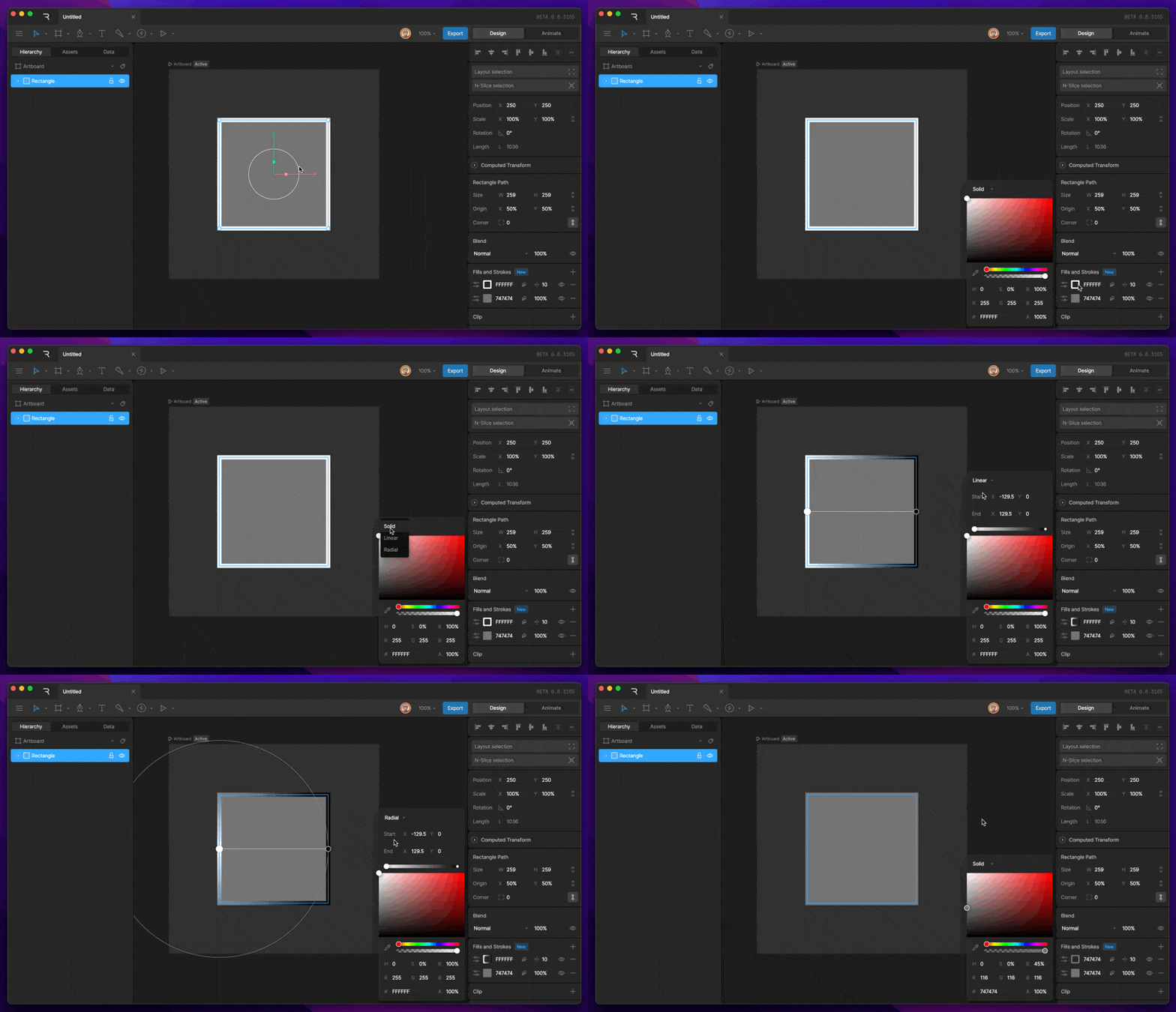 The different strokes that can be selected are:
* **Solid**
* **Linear Gradient**
* **Radial Gradient**
### **Changing Stroke color (Gradient)**
To change the color of a Stroke, select the color box on the left side of the Stroke layer. This will open the Color Picker.
When a gradient is selected, you'll notice a new bar appear above the color picker. This represents the color of the gradient at different points.
By default, a gradient has two points.
### **Changing the color of a stopper**
To change the color of a particular color stopper, start by selecting the stopper you'd like to change.
The different strokes that can be selected are:
* **Solid**
* **Linear Gradient**
* **Radial Gradient**
### **Changing Stroke color (Gradient)**
To change the color of a Stroke, select the color box on the left side of the Stroke layer. This will open the Color Picker.
When a gradient is selected, you'll notice a new bar appear above the color picker. This represents the color of the gradient at different points.
By default, a gradient has two points.
### **Changing the color of a stopper**
To change the color of a particular color stopper, start by selecting the stopper you'd like to change.
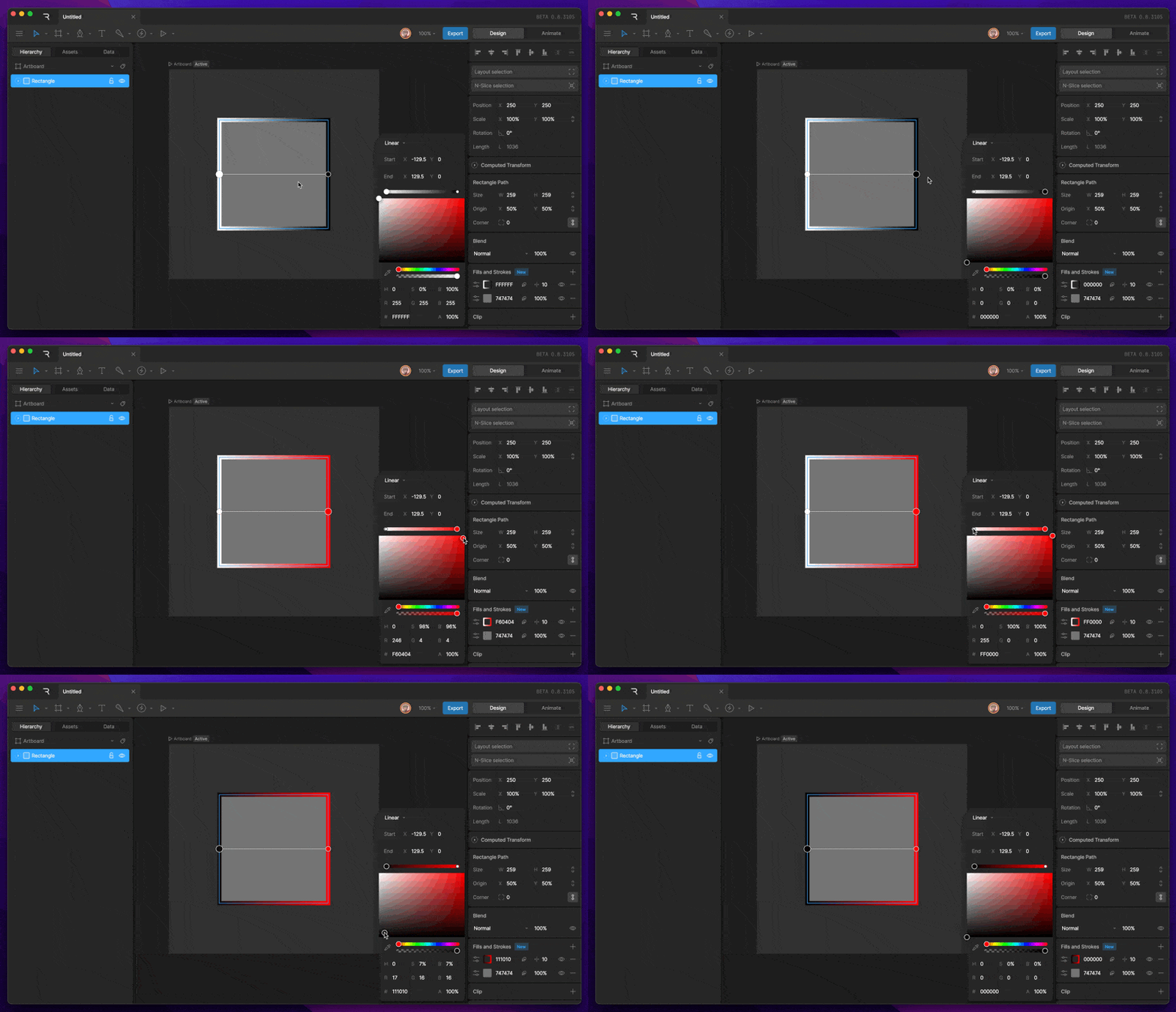 Next, use the various sliders to choose which color that stopper should be.
### **Adding and removing stoppers**
To add a new color stopper, click any space along the long that isn't currently occupied by another stopper. This will generate an additional color stopper.
Next, use the various sliders to choose which color that stopper should be.
### **Adding and removing stoppers**
To add a new color stopper, click any space along the long that isn't currently occupied by another stopper. This will generate an additional color stopper.
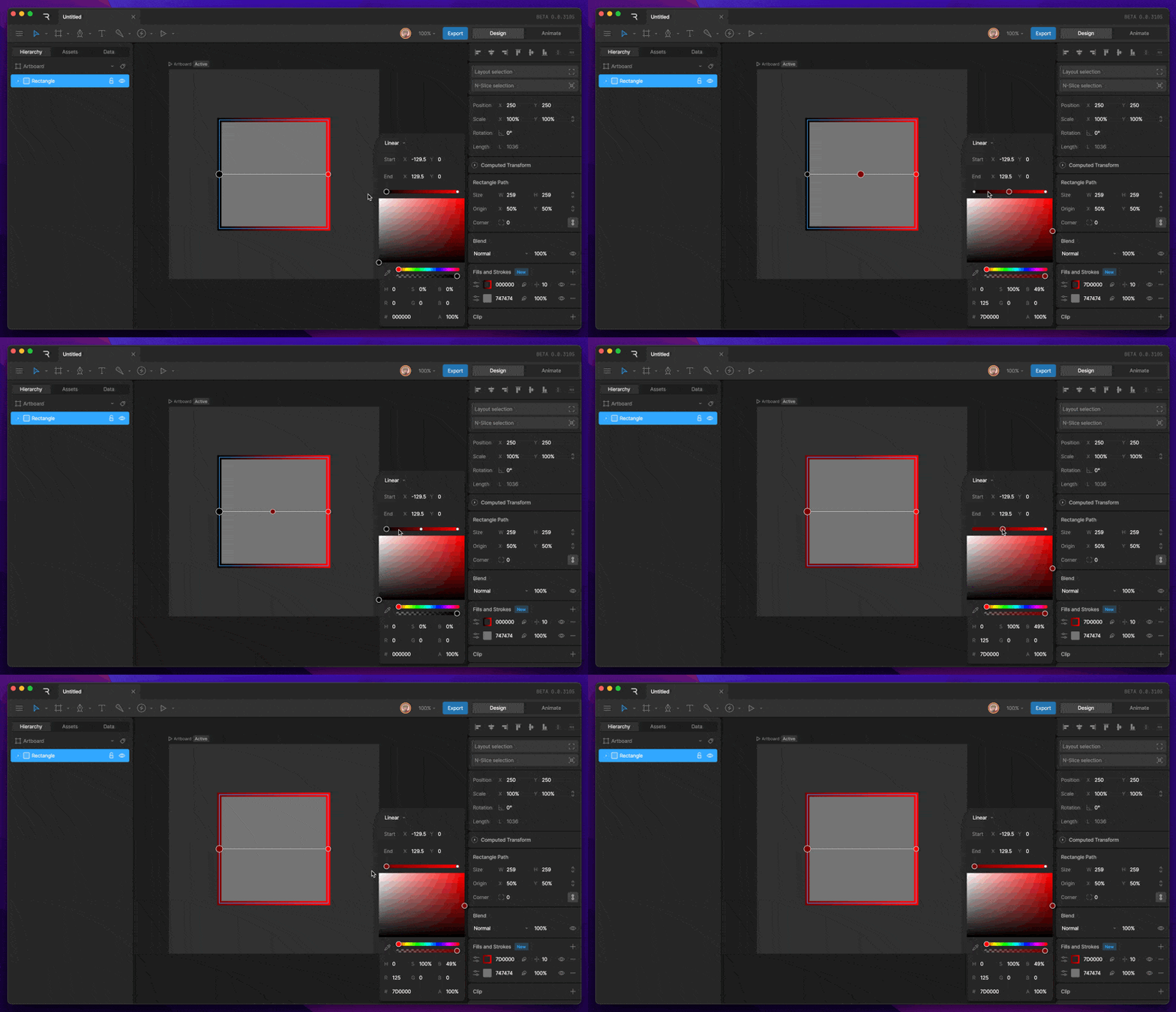 To delete a color stopper, select the stopper you'd like to delete, then hit the Delete or Backspace key.
### **Deleting and hiding a Stroke**
Often times we'll need to delete or hide a particular Stroke. This can be done by selecting the shape, then using the eye icon to hide the Stroke, or the minus icon to delete the Stroke.
# Stroke Properties
Each Stroke has its own properties which can be edited and keyed on the timeline. Some of these properties can be found by using the Stroke option button.
**Stroke Name -** You can edit the name of a Stroke using this property.
**Blend -** This option can be used to change the Blend Mode of an individual Stroke. By default, this mode will be set to inherit, which inherits the blend mode from the shape layer.
**Cap -** This option changes the end cap of a Stroke. Read more about the different Caps below.
* **Butt** The end of the stroke is a straight line and does not extend beyond the end vertices. On a zero-length path, the stroke will not be rendered at all.
* **Round** The ends of a stroke are rounded. On a zero-length path, the stroke is a full circle.
* **Square** The ends of a stroke are squared off and extend beyond the end vertices. On a zero-length path, the stroke is a square.
**Join -** This option changes how the corners of a Stroke are rendered. Read more about the different Join options below.
* **Round** creates a rounded corner.
* **Bevel** creates a beveled corner.
* **Miter** creates a mitered corner.
**Apply Transformations -** The Apply Transformations toggle determines whether the shape layers scale will affect the thickness of the stroke. When this is toggled off, the thickness of the stroke will stay the same regardless of scale.
**Feather -** This option can be toggled to feather the chosen stroke. Read more about Feathering below.
**Stroke Type** - At the bottom of the Stroke Options Panel, you'll find options to change your stroke between a solid, trim, dashed stroke.
* **Solid -** Renders the stroke as a solid stroke. This is the default stroke type for each new stroke created.
* **Trim -** Lets you animate the start, end, and offset of a line segment. Read more [here](/editor/manipulating-shapes/trim-path).
* **Dashed -** Lets you create dashed strokes with animatable property like the length of the dashed segment and offset. Read more [here.](/editor/manipulating-shapes/trim-path)
# Vector Feathering
Vector feathering is a new way to feather both Fills and Strokes. Vector Feathering is a technique we invented at Rive that can soften the edge of vector paths without the typical performance impact of traditional blur effects.
### **Enabling Vector Feathering**
There are two main ways to enable vector feathering on any Stroke of Fill.
To delete a color stopper, select the stopper you'd like to delete, then hit the Delete or Backspace key.
### **Deleting and hiding a Stroke**
Often times we'll need to delete or hide a particular Stroke. This can be done by selecting the shape, then using the eye icon to hide the Stroke, or the minus icon to delete the Stroke.
# Stroke Properties
Each Stroke has its own properties which can be edited and keyed on the timeline. Some of these properties can be found by using the Stroke option button.
**Stroke Name -** You can edit the name of a Stroke using this property.
**Blend -** This option can be used to change the Blend Mode of an individual Stroke. By default, this mode will be set to inherit, which inherits the blend mode from the shape layer.
**Cap -** This option changes the end cap of a Stroke. Read more about the different Caps below.
* **Butt** The end of the stroke is a straight line and does not extend beyond the end vertices. On a zero-length path, the stroke will not be rendered at all.
* **Round** The ends of a stroke are rounded. On a zero-length path, the stroke is a full circle.
* **Square** The ends of a stroke are squared off and extend beyond the end vertices. On a zero-length path, the stroke is a square.
**Join -** This option changes how the corners of a Stroke are rendered. Read more about the different Join options below.
* **Round** creates a rounded corner.
* **Bevel** creates a beveled corner.
* **Miter** creates a mitered corner.
**Apply Transformations -** The Apply Transformations toggle determines whether the shape layers scale will affect the thickness of the stroke. When this is toggled off, the thickness of the stroke will stay the same regardless of scale.
**Feather -** This option can be toggled to feather the chosen stroke. Read more about Feathering below.
**Stroke Type** - At the bottom of the Stroke Options Panel, you'll find options to change your stroke between a solid, trim, dashed stroke.
* **Solid -** Renders the stroke as a solid stroke. This is the default stroke type for each new stroke created.
* **Trim -** Lets you animate the start, end, and offset of a line segment. Read more [here](/editor/manipulating-shapes/trim-path).
* **Dashed -** Lets you create dashed strokes with animatable property like the length of the dashed segment and offset. Read more [here.](/editor/manipulating-shapes/trim-path)
# Vector Feathering
Vector feathering is a new way to feather both Fills and Strokes. Vector Feathering is a technique we invented at Rive that can soften the edge of vector paths without the typical performance impact of traditional blur effects.
### **Enabling Vector Feathering**
There are two main ways to enable vector feathering on any Stroke of Fill.
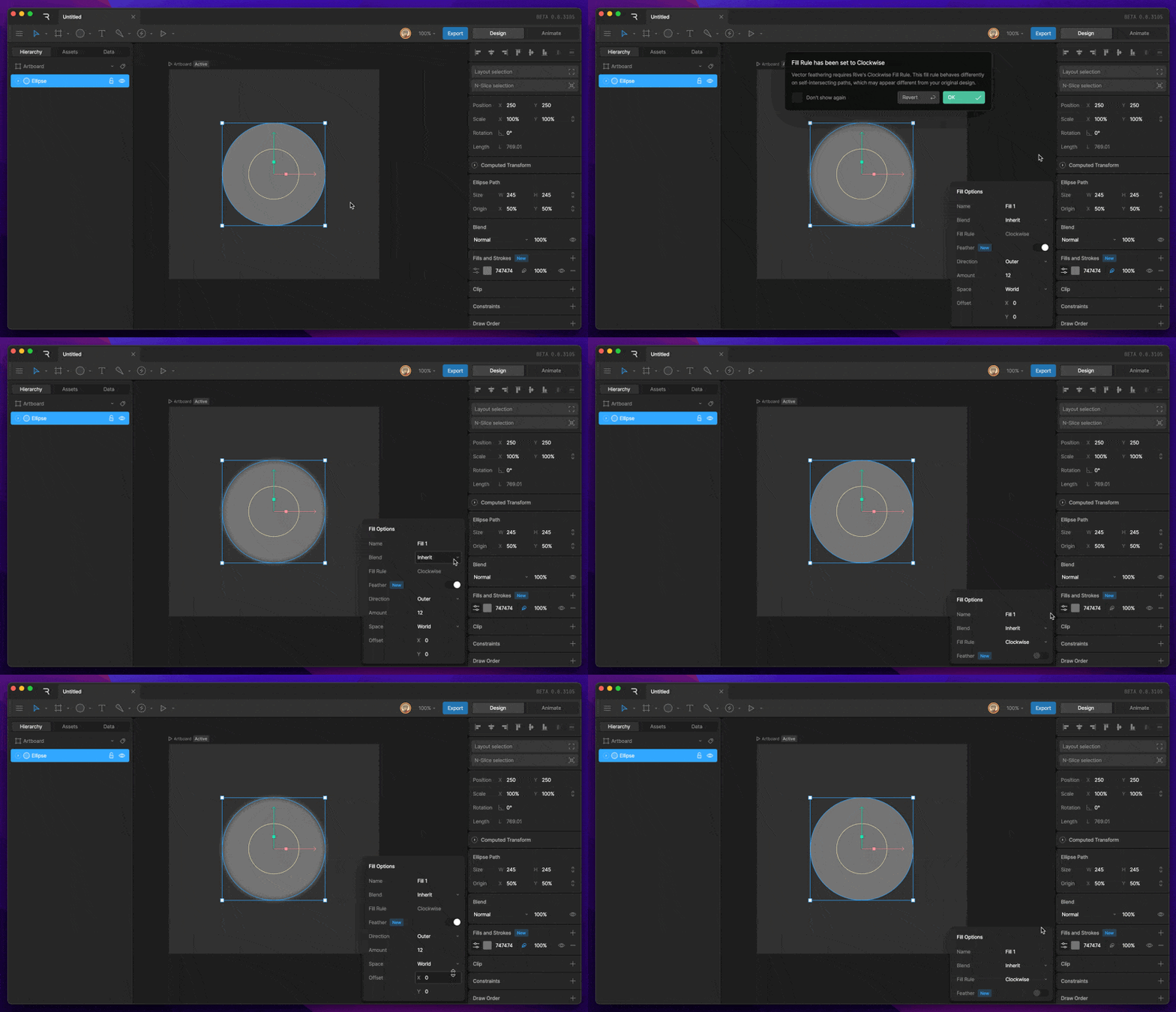 * **Feather Icon -** The feathering icon can be used on any Fill or Stroke layer to enable vector feathering.
* **Feather Toggle -** The feather toggle can be found in the Fill / Stroke options panel.
### Feathering Options
Feathers can be customized in a number of ways. The Feathering options can be found in the options panel once Feathering has been enabled on a Fill or Stroke.
**Direction** - This option lets you choose which direction the path will feather as you increase the feather amount.
* **Feather Icon -** The feathering icon can be used on any Fill or Stroke layer to enable vector feathering.
* **Feather Toggle -** The feather toggle can be found in the Fill / Stroke options panel.
### Feathering Options
Feathers can be customized in a number of ways. The Feathering options can be found in the options panel once Feathering has been enabled on a Fill or Stroke.
**Direction** - This option lets you choose which direction the path will feather as you increase the feather amount.
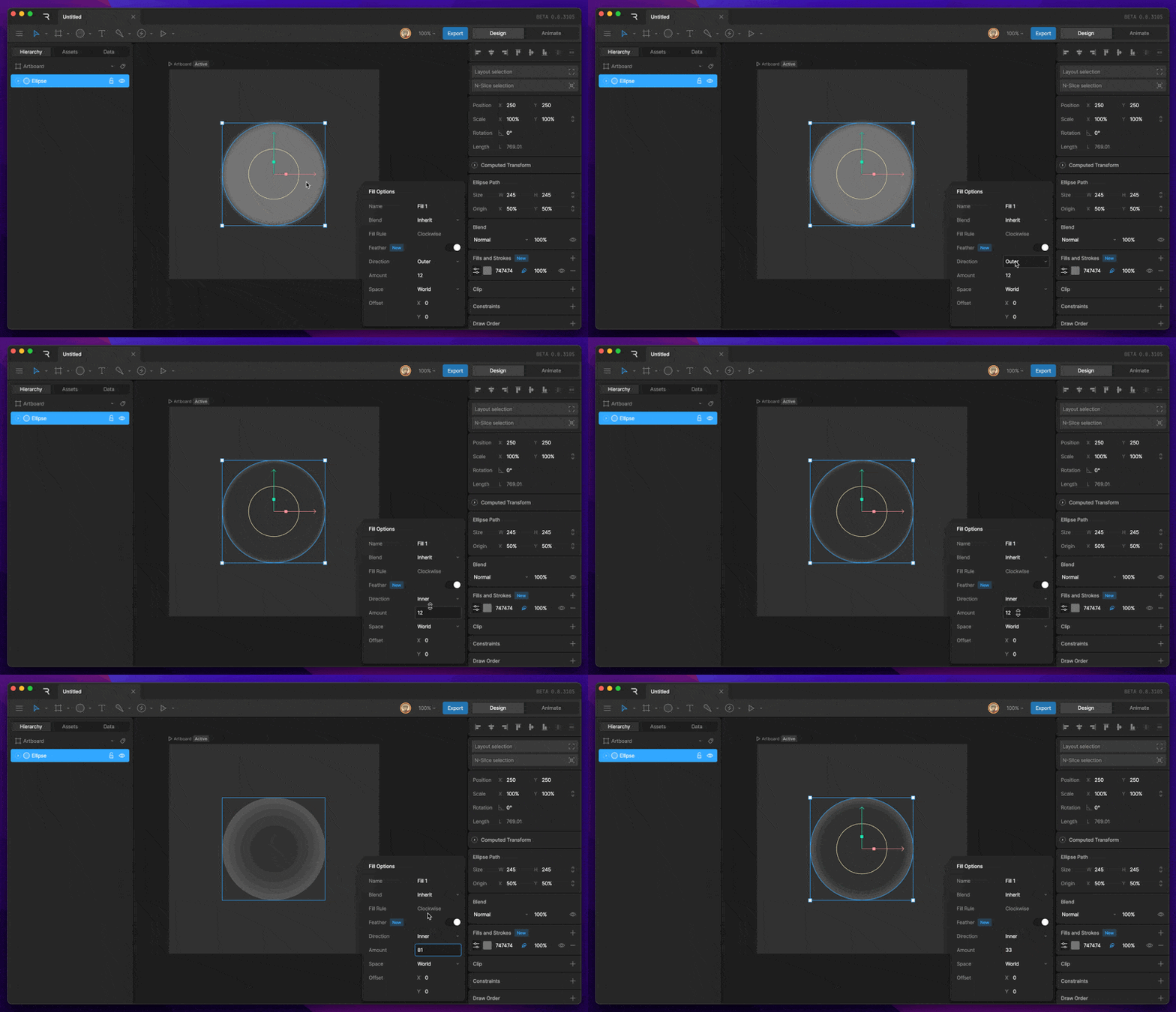 * Outer - This option creates a feather that will feather outward from the path.
* Inner - This option creates a feather that will feather inward from the path.
**Amount** - This option lets you increase or decrease the amount of feather applied.
* Outer - This option creates a feather that will feather outward from the path.
* Inner - This option creates a feather that will feather inward from the path.
**Amount** - This option lets you increase or decrease the amount of feather applied.
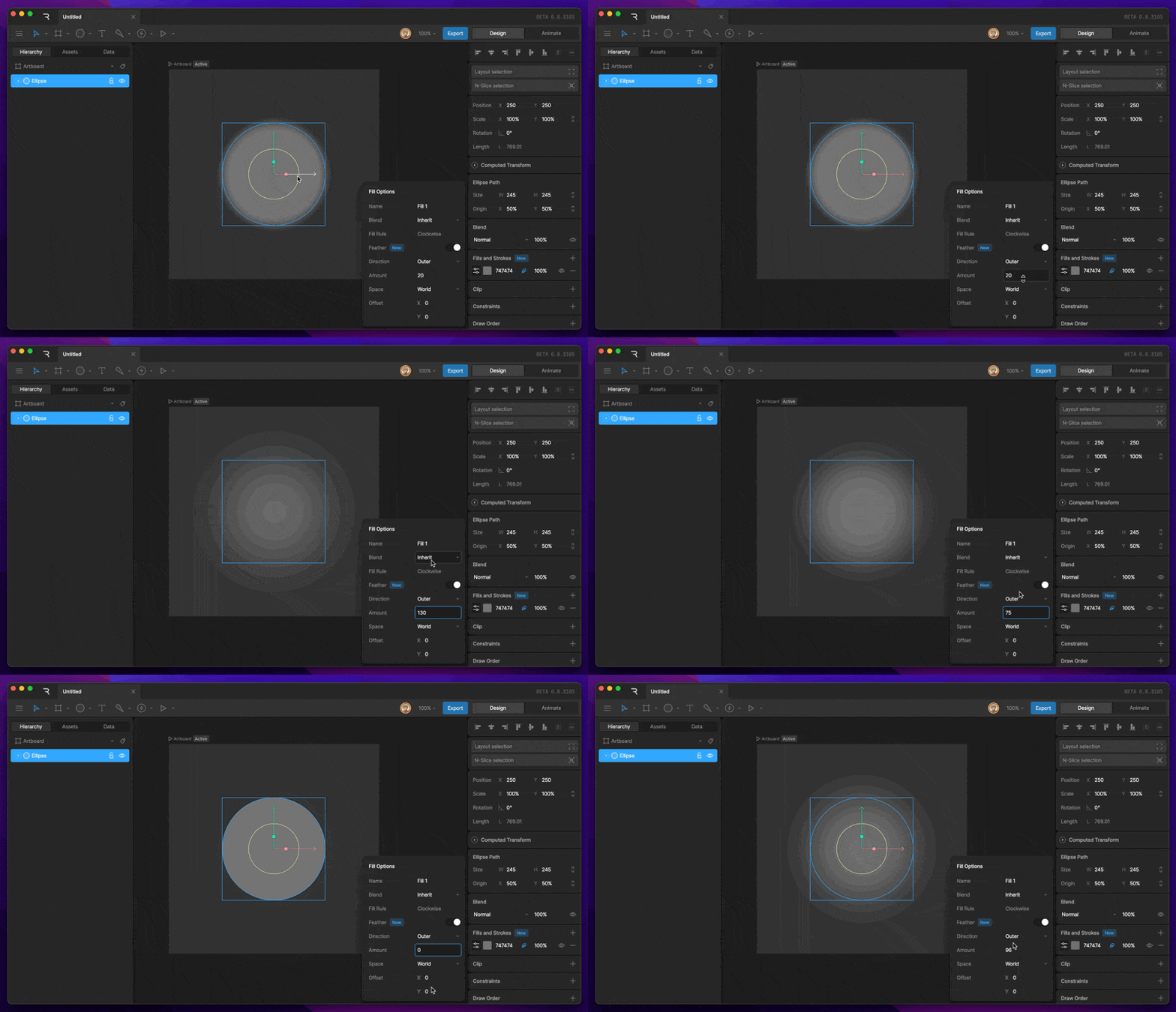 **Space -** Determines how the feathered fill or stroke will apply transforms from the parent if any offset is present on the feather.
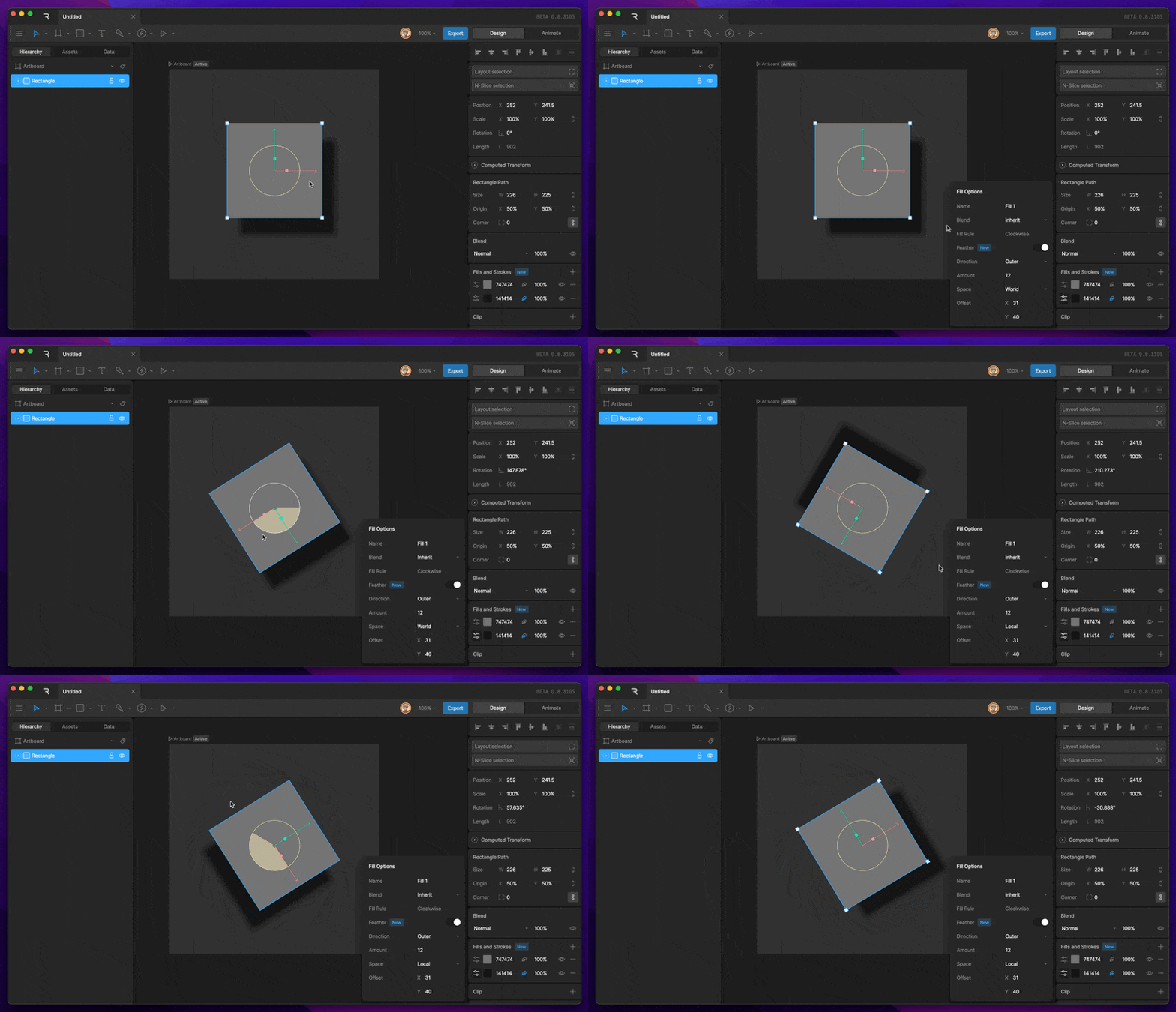 * World - Transforms will be applied from the world transform. Feather will now act as a drop shadow.
* Local - Transforms will be applied from the local transform. This mode will have the feather work with transforms as you'd expect.
**Offset** - The Offset properties let you move the feather away from the path by increasing or decreasing the X and Y numbers.
# Effect Groups
Effect groups let you apply a single path effect — or a stack of effects — to multiple strokes and fills at once, without having to configure each one individually. This is useful any time you have multiple shapes that need to share the same trim, dash, or scripted effect behavior, and you want to control them from one place.
* World - Transforms will be applied from the world transform. Feather will now act as a drop shadow.
* Local - Transforms will be applied from the local transform. This mode will have the feather work with transforms as you'd expect.
**Offset** - The Offset properties let you move the feather away from the path by increasing or decreasing the X and Y numbers.
# Effect Groups
Effect groups let you apply a single path effect — or a stack of effects — to multiple strokes and fills at once, without having to configure each one individually. This is useful any time you have multiple shapes that need to share the same trim, dash, or scripted effect behavior, and you want to control them from one place.