> ## Documentation Index
> Fetch the complete documentation index at: https://rive.app/docs/llms.txt
> Use this file to discover all available pages before exploring further.
# Assets
export const VideoEmbed = ({src}) => {
return
;
};
export const YouTube = ({id, timestamp}) => {
const videoSrc = timestamp ? `https://www.youtube.com/embed/${id}?start=${timestamp}` : `https://www.youtube.com/embed/${id}`;
return ;
};
Assets are reusable resources in a Rive file. Some assets are imported from external files, such as images, fonts, audio, and custom blobs. Others are created in Rive, such as scripts and components.
This page focuses on imported file assets. For these assets, you can control whether the asset is included in the exported .riv file, loaded separately at runtime, or excluded from the export.
For other asset types, see [Scripts](/scripting/getting-started) and [Components](/editor/fundamentals/components).
## Assets Panel
Use the Assets panel to find, manage, and create assets in your file. The panel includes imported file assets, such as images, fonts, audio, and blobs, along with assets created in Rive, such as scripts and components.
Use the panel to import new assets, create Rive assets, sort and filter by type, and select an asset to view its settings in the Inspector.
## Asset Types
Imported file assets include:
* **Raster images:** JPEG, PNG, WebP
* [Photoshop files](/editor/assets/psd): PSD
* [SVG files](/editor/assets/svg): Vector artwork imported as editable Rive content
* [Fonts](/editor/text/fonts): TTF, OTF
* [Audio](/editor/assets/audio): MP3, WAV, FLAC
* [Lottie](/editor/assets/lottie): `.lottie` files, available on Enterprise plans
* **Blob assets:** Advanced custom assets
Blob assets are useful for advanced workflows where a script needs access to a custom file type, such as a 3D model.
## Importing Assets
### Drag and Drop
You can import assets by dragging files into Rive or by using the Assets panel.
If the file type is not directly supported, Rive asks if you want to import it as a custom blob asset.
### Browse Files
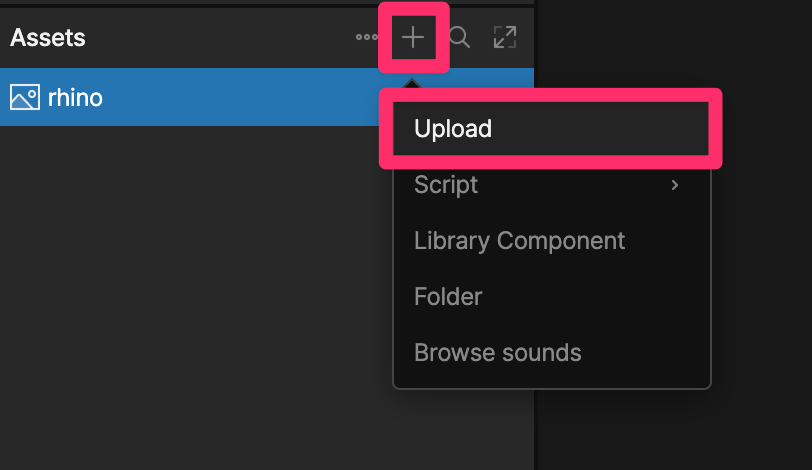
To import from the Assets panel, click **+**, then choose the asset you want to import.
 ### Asset-specific workflows
* [SVG Files](/editor/assets/svg) for importing SVGs from Figma, Illustrator, and other vector tools.
* [Photoshop Files](/editor/assets/psd) for importing layered PSD files.
* [Font Files](/editor/text/fonts) for adding custom and Google Fonts.
* [Audio Assets](/editor/assets/audio) for browsing sounds, importing audio, and creating clips.
## Asset Settings
Select an asset in the Assets panel to view its settings in the Inspector. The available settings depend on the asset type.
Asset settings panels can include:
* [Information](#information): Details about the selected asset.
* [Compression](#compression): Image compression settings for raster images and PSD files.
* [Export Options](#export-options): Settings that control how the asset is handled when exporting a `.riv` file.
### Asset-specific workflows
* [SVG Files](/editor/assets/svg) for importing SVGs from Figma, Illustrator, and other vector tools.
* [Photoshop Files](/editor/assets/psd) for importing layered PSD files.
* [Font Files](/editor/text/fonts) for adding custom and Google Fonts.
* [Audio Assets](/editor/assets/audio) for browsing sounds, importing audio, and creating clips.
## Asset Settings
Select an asset in the Assets panel to view its settings in the Inspector. The available settings depend on the asset type.
Asset settings panels can include:
* [Information](#information): Details about the selected asset.
* [Compression](#compression): Image compression settings for raster images and PSD files.
* [Export Options](#export-options): Settings that control how the asset is handled when exporting a `.riv` file.
 ### Information
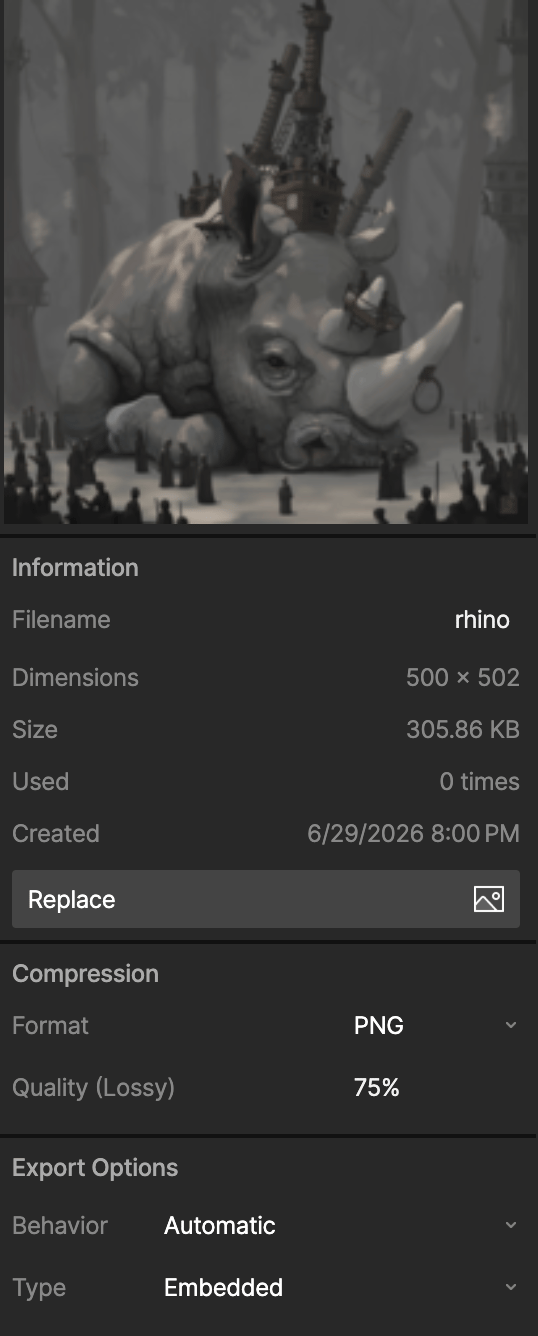
The **Information** panel shows details about the selected asset, such as file size, dimensions, usage count, and creation date.
Use **Replace** to swap the source asset without changing how the asset is used in the Rive file. For example, replacing an image updates the asset everywhere it is used.
The information shown depends on the asset type:
* **Fonts** can show family, style, supported scripts, publisher/designer information, license details, and glyphs.
* **Audio** can show volume, format, channels, sample rate, duration, and an audio preview.
### Compression
Raster images and PSD files include a **Compression** panel. Use compression settings to control how the asset is encoded in the exported `.riv` file.
Choose a compression format, then adjust the **Quality** value to balance image quality and file size. WebP is recommended for most raster images because it usually provides smaller file sizes while preserving good visual quality.
### Export Options
Export options control how an imported asset is handled when you export a .riv file for runtime. Use these settings to decide whether an asset is included in the .riv file, loaded separately at runtime, or excluded from the export.
The available export options depend on the asset type.
#### Behavior
**Behavior** controls whether the asset is exported.
* **Automatic**: Export the asset if it is used in the file.
* **Force Export**: Export the asset even if it is not currently used in the file.
* **Prevent Export**: Do not export the asset, even if it is used in the file.
SVG assets only use Automatic because SVGs are converted to Rive vector objects rather than exported as separate file assets.
Use **Prevent Export** when the asset is only a placeholder in the Rive file and will be replaced at runtime. For example, a profile card might use a placeholder avatar in the editor, while your app loads the real user's avatar at runtime.
Use **Force Export** when an asset may not be visible or directly used in the editor, but still needs to be available at runtime. For example, a file might show one image in the editor, while your app randomly selects from a set of images at runtime.
#### Type
Type controls how the asset is included or referenced by the exported .riv file. This option is available for all imported asset types except SVGs.
* **Embedded**: Include the asset data directly in the .riv file.
* **Referenced**: Store a reference to the asset so it can be loaded separately at runtime.
* **Hosted**: Load the asset from Rive’s servers instead of embedding it in the `.riv` file. Hosted assets are available on paid Voyager plans.
#### Source
See [Audio Assets](/editor/assets/audio#export-settings) for audio-specific export settings, including Source.
#### Include
See [Font Assets](/editor/text/fonts#export-settings) for font-specific export settings, like Include.
### Information
The **Information** panel shows details about the selected asset, such as file size, dimensions, usage count, and creation date.
Use **Replace** to swap the source asset without changing how the asset is used in the Rive file. For example, replacing an image updates the asset everywhere it is used.
The information shown depends on the asset type:
* **Fonts** can show family, style, supported scripts, publisher/designer information, license details, and glyphs.
* **Audio** can show volume, format, channels, sample rate, duration, and an audio preview.
### Compression
Raster images and PSD files include a **Compression** panel. Use compression settings to control how the asset is encoded in the exported `.riv` file.
Choose a compression format, then adjust the **Quality** value to balance image quality and file size. WebP is recommended for most raster images because it usually provides smaller file sizes while preserving good visual quality.
### Export Options
Export options control how an imported asset is handled when you export a .riv file for runtime. Use these settings to decide whether an asset is included in the .riv file, loaded separately at runtime, or excluded from the export.
The available export options depend on the asset type.
#### Behavior
**Behavior** controls whether the asset is exported.
* **Automatic**: Export the asset if it is used in the file.
* **Force Export**: Export the asset even if it is not currently used in the file.
* **Prevent Export**: Do not export the asset, even if it is used in the file.
SVG assets only use Automatic because SVGs are converted to Rive vector objects rather than exported as separate file assets.
Use **Prevent Export** when the asset is only a placeholder in the Rive file and will be replaced at runtime. For example, a profile card might use a placeholder avatar in the editor, while your app loads the real user's avatar at runtime.
Use **Force Export** when an asset may not be visible or directly used in the editor, but still needs to be available at runtime. For example, a file might show one image in the editor, while your app randomly selects from a set of images at runtime.
#### Type
Type controls how the asset is included or referenced by the exported .riv file. This option is available for all imported asset types except SVGs.
* **Embedded**: Include the asset data directly in the .riv file.
* **Referenced**: Store a reference to the asset so it can be loaded separately at runtime.
* **Hosted**: Load the asset from Rive’s servers instead of embedding it in the `.riv` file. Hosted assets are available on paid Voyager plans.
#### Source
See [Audio Assets](/editor/assets/audio#export-settings) for audio-specific export settings, including Source.
#### Include
See [Font Assets](/editor/text/fonts#export-settings) for font-specific export settings, like Include.