> ## Documentation Index
> Fetch the complete documentation index at: https://rive.app/docs/llms.txt
> Use this file to discover all available pages before exploring further.
# Events Overview
> Creating and signaling Rive Events
export const YouTube = ({id, timestamp}) => {
const videoSrc = timestamp ? `https://www.youtube.com/embed/${id}?start=${timestamp}` : `https://www.youtube.com/embed/${id}`;
return ;
};
Events live within an artboard and are used to signal that something has happened. They can be fired from timelines, states, transitions, or listeners.
Rive supports three types of Events:
* [Open URL Event](/editor/events/open-url-events) — Opens a URL at runtime
* [Audio Event](/editor/events/audio-events) — Plays a sound
* [General Event (deprecated)](/editor/events/general-events) — Previously used to communicate with runtime code
## Creating an Event
Use the Events tool located in the Toolbar and click anywhere on the artboard.
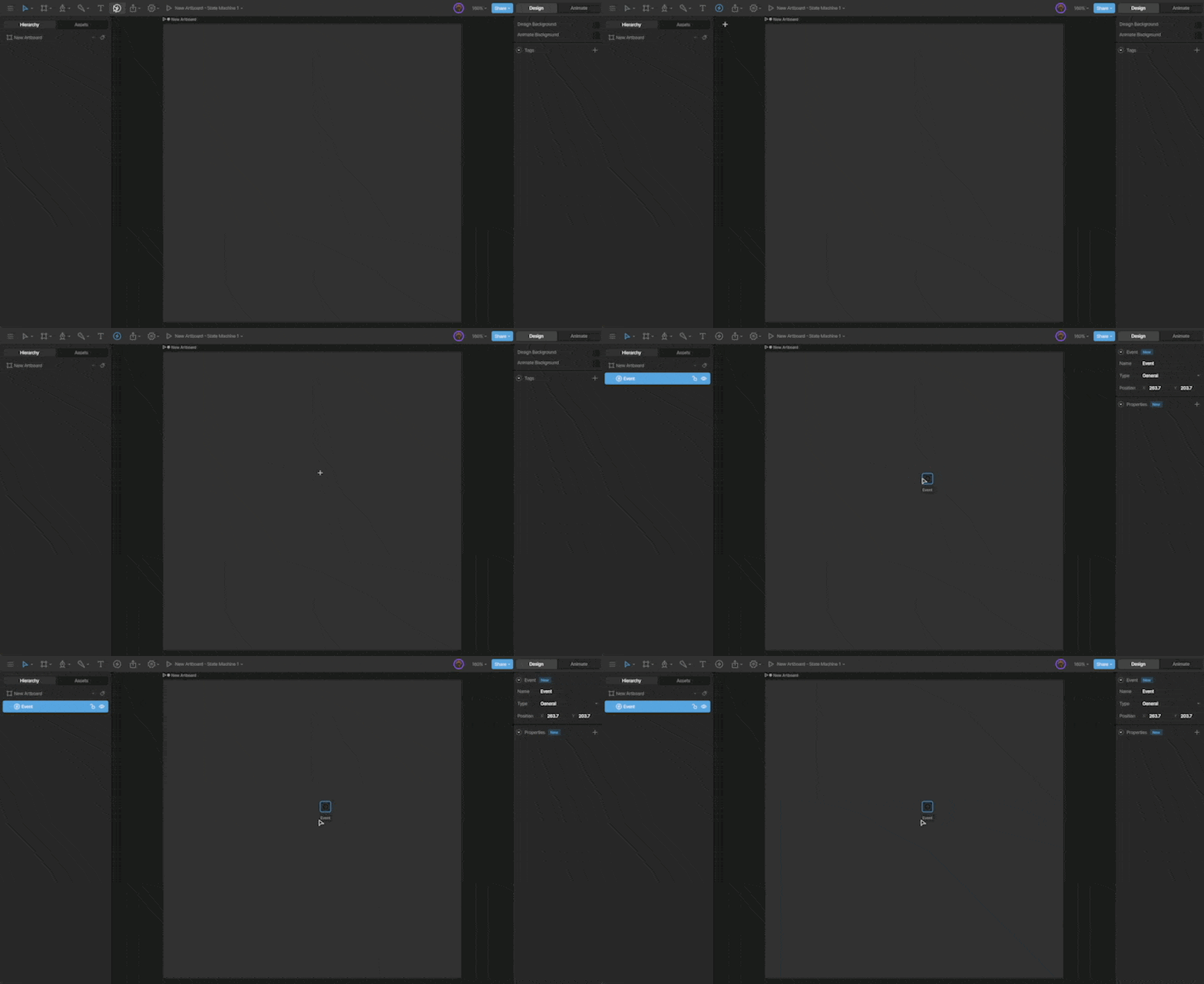
You'll notice that the Event is displayed on the artboard and in the Hierarchy.
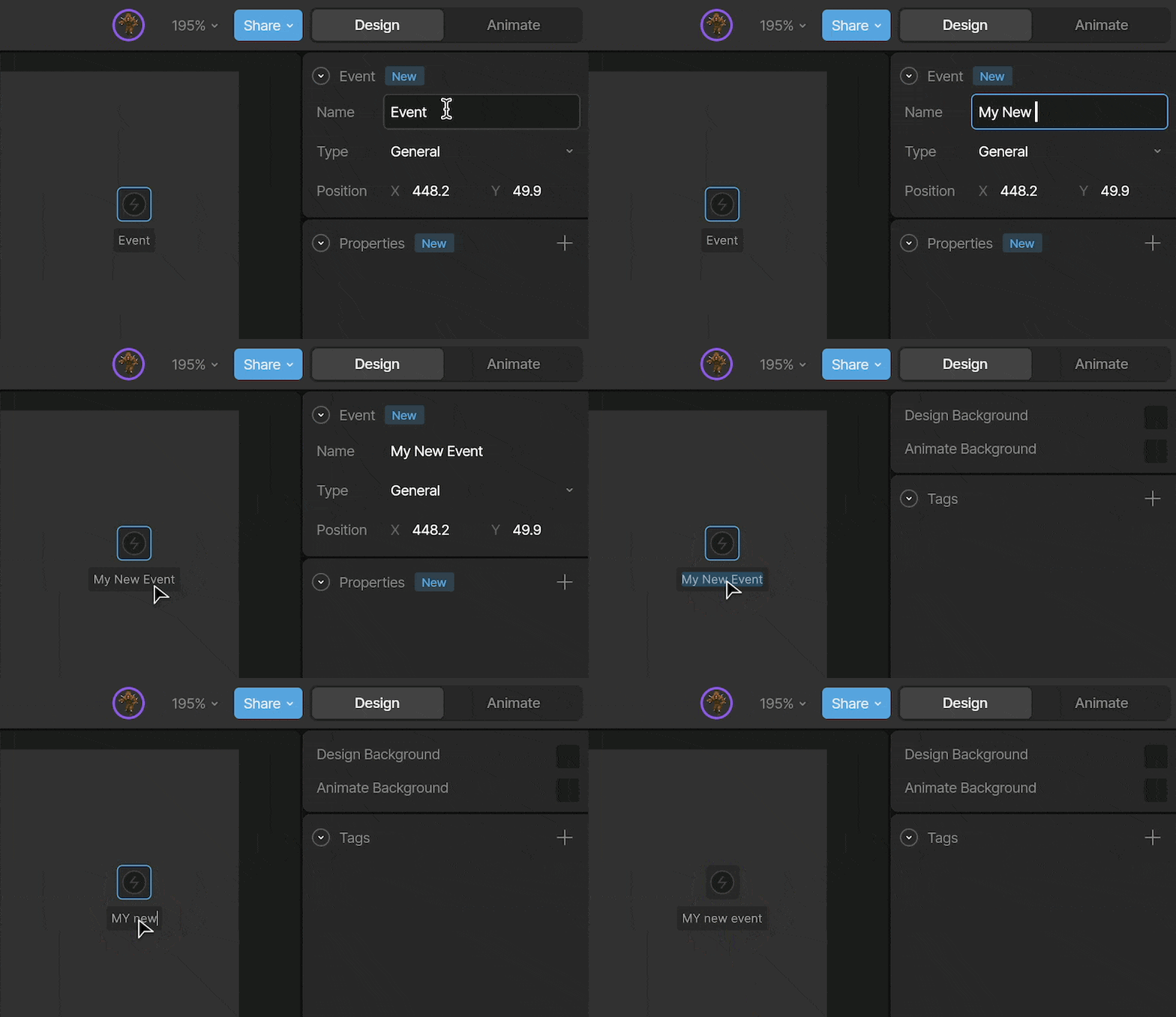
Give your event a name so it’s easy to identify and reference.
You can rename it using the **Name** field, or by double-clicking the name directly on the artboard.
The Type dropdown allows you to change the Event type between Audio, URL, and General.
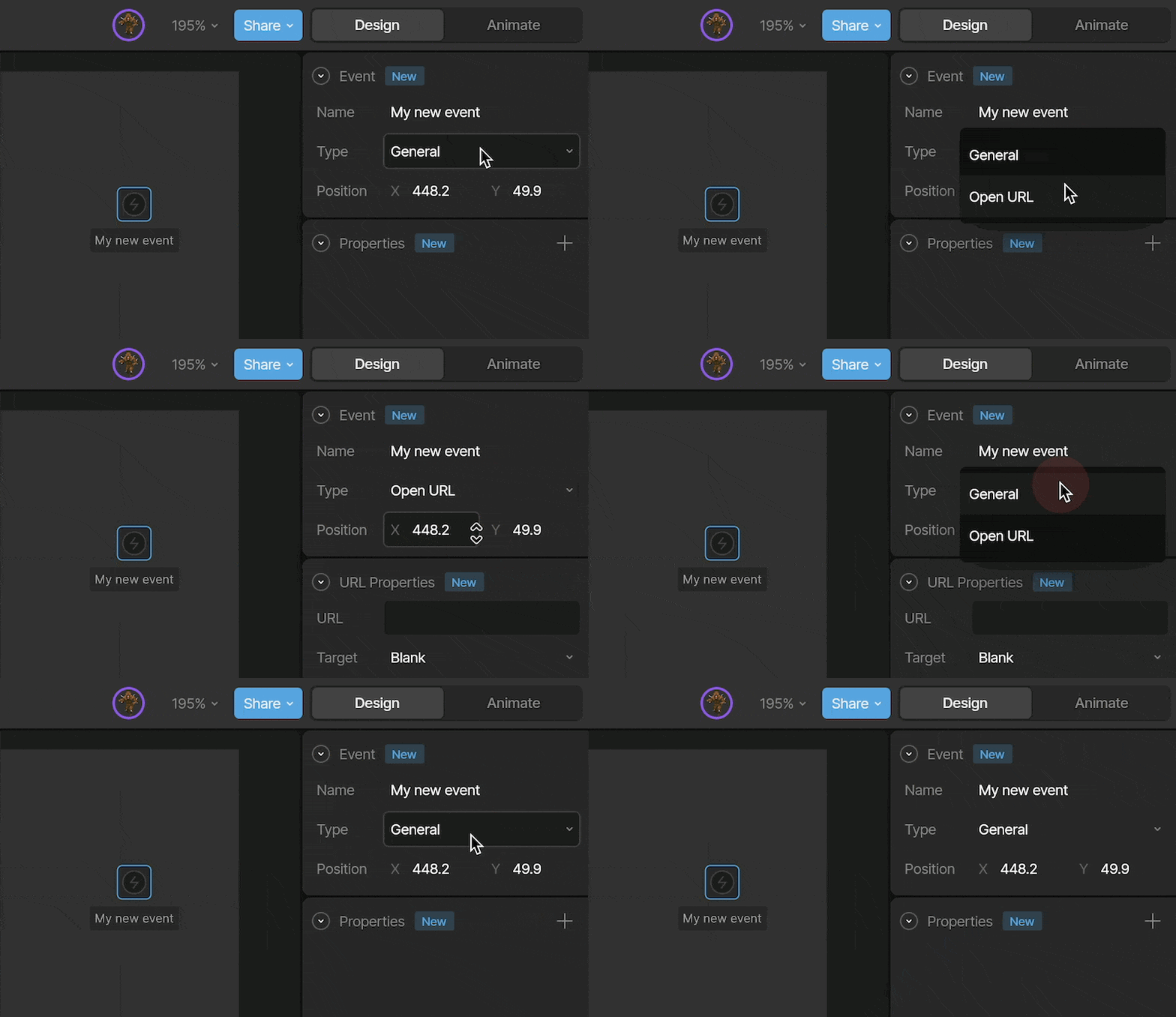
Each Event type has its own set of properties.
For more information on the specific event types, see [Open URL Events](/editor/events/open-url-events), [Audio Events](/editor/events/audio-events), and [General Events (deprecated)](/editor/events/general-events).
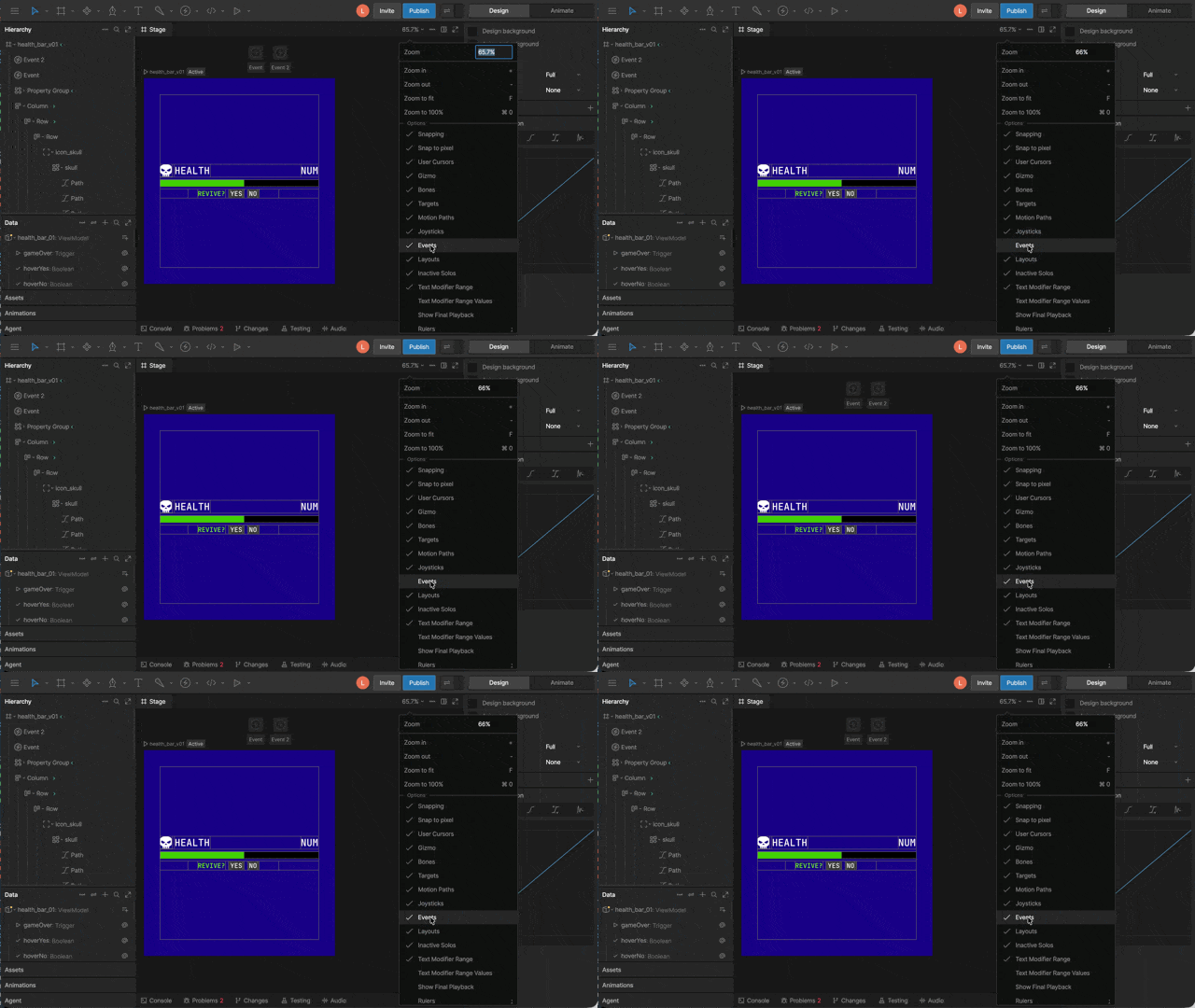
If events aren't visible on the stage, open the **View Options** menu and make sure **Events** is enabled.
 ## Signaling an Event
We can signal an Event in four ways: from a timeline, a listener, a state, or a transition.
### Timeline
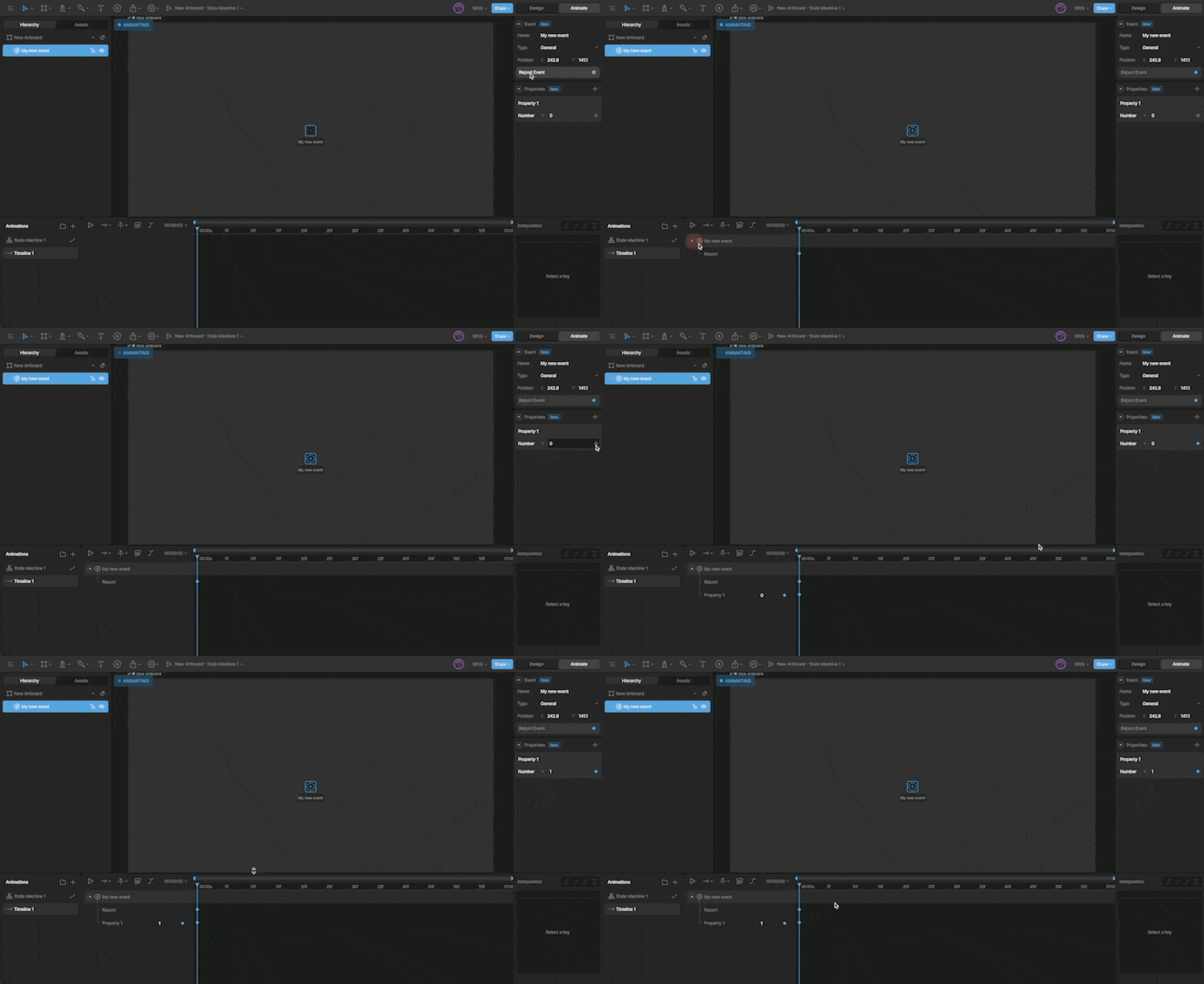
Signaling an Event from the timeline lets you control the exact moment in an animation when the Event fires.
First, select the timeline you want to add the Event to. Then use the **Report Event** button in the Inspector.
### Transition & State
You can report an event on a Transition or a State. To report an event, select the desired State or Transition and use the `+` button next to the Events section in the Inspector.
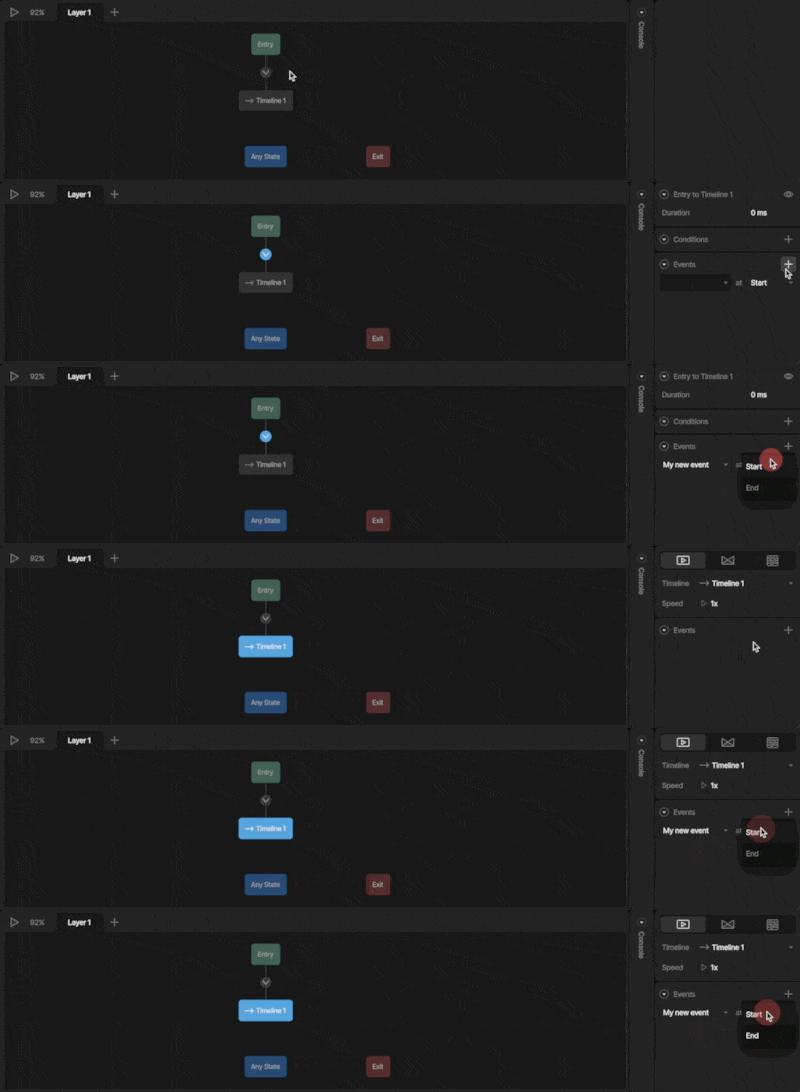
Now that we've selected the Event, we can decide whether it is signaled at the start or end of the Transition or State.
### Listeners
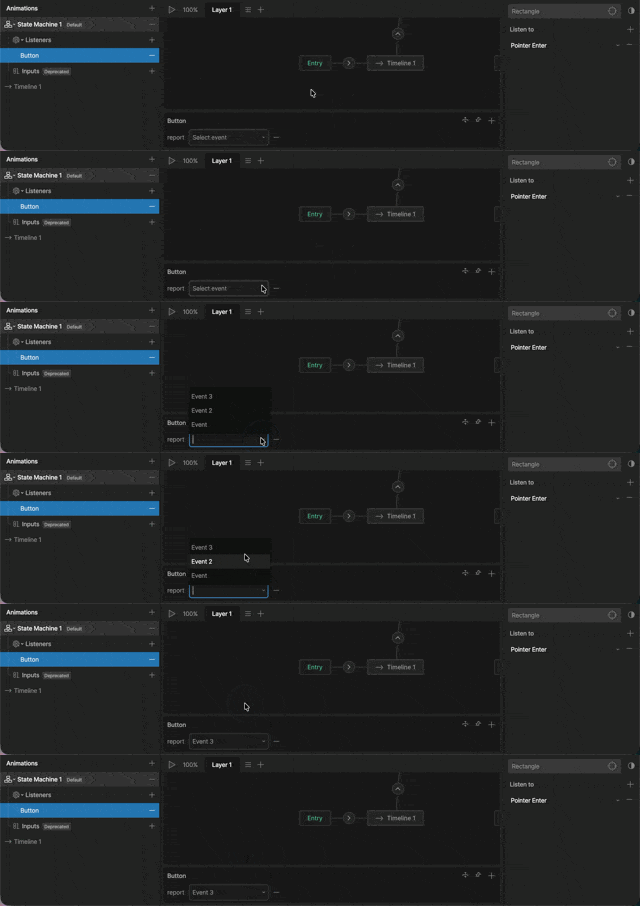
With your [Listener](/editor/state-machine/listeners) selected, click the `+` below the State Machine Graph, and select **Report Event**.
## Signaling an Event
We can signal an Event in four ways: from a timeline, a listener, a state, or a transition.
### Timeline
Signaling an Event from the timeline lets you control the exact moment in an animation when the Event fires.
First, select the timeline you want to add the Event to. Then use the **Report Event** button in the Inspector.

### Transition & State
You can report an event on a Transition or a State. To report an event, select the desired State or Transition and use the `+` button next to the Events section in the Inspector.

Now that we've selected the Event, we can decide whether it is signaled at the start or end of the Transition or State.
### Listeners
With your [Listener](/editor/state-machine/listeners) selected, click the `+` below the State Machine Graph, and select **Report Event**.