> ## Documentation Index
> Fetch the complete documentation index at: https://rive.app/docs/llms.txt
> Use this file to discover all available pages before exploring further.
# Embed URLs Overview
> Embed URLs are a fast, no-code way to share or embed your Rive files on the web.
Generating embed URLs is available on Voyager and Enterprise plans. [Learn more about our plans and pricing](https://rive.app/pricing?utm_source=docs\&utm_medium=content).
Embed URLs let you quickly generate a public version of your file for embedding or sharing.
Unlike [inviting someone to collaborate](/account-admin/workspaces/managing-workspace-members#inviting-members-to-a-workspace), an embed URL is a **snapshot** of your file at the moment it’s generated. If you make changes later, you’ll need to generate a new link to reflect those updates.
## Creating an embed URL
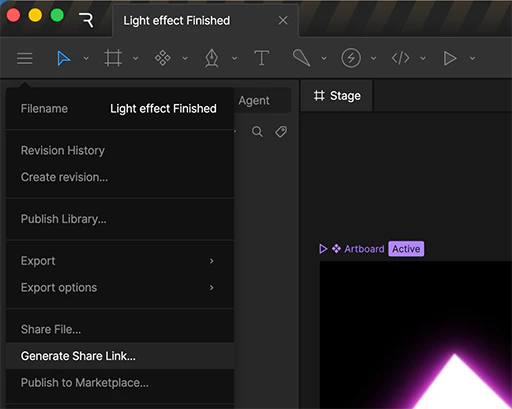
In the Rive editor, click the **hamburger menu** in the top-left corner and select **Generate Embed URL**.
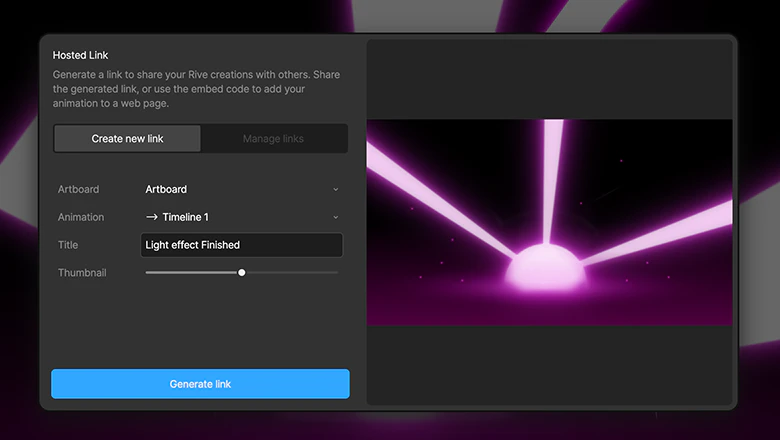
 In the dialog that appears, click **Generate Embed URL**.
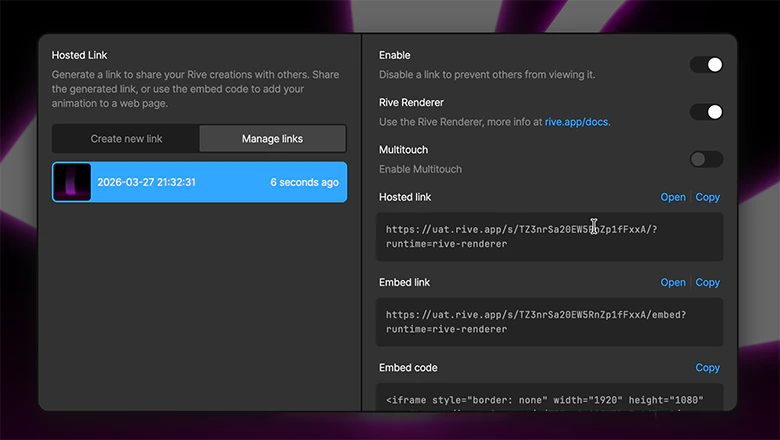
 Once the link is generated, select the option that best fits how you plan to use your file.
For more information on using embed URLs with tools like Framer, Webflow, and Notion, see [Integrations](/integrations/overview).
Once the link is generated, select the option that best fits how you plan to use your file.
For more information on using embed URLs with tools like Framer, Webflow, and Notion, see [Integrations](/integrations/overview).
 ### Embed URL types
* **Hosted link** — Opens your file on a dedicated Rive page with a framed viewer. Ideal for sharing with clients or stakeholders.
* **Embed link** — Displays your file without the surrounding Rive UI. Useful for platforms that automatically preview links (e.g. Notion, Telegram).
* **Embed code** — An iframe snippet for embedding your file into sites where you can edit HTML (e.g. WordPress).
* **Framer code (Deprecated)** — See the new official [Rive Framer Plugin](https://www.framer.com/marketplace/plugins/rive/).
### Embed URL options
* **Enable** — Turn the link on or off to control access.
* **Rive Renderer** — Use the Rive Renderer (recommended) or Canvas renderer.
* **Multi-touch** — Enable support for multi-touch interactions.
Certain features, such as [Vector Feathering](https://rive.app/blog/introducing-vector-feathering?utm_source=docs\&utm_medium=content), are only available using the Rive Renderer. See our [Feature Support](/feature-support) page for more information.
## Sharing on Social Media
1. Copy the **Hosted Link**
2. Paste it into your favorite platform
3. See your Rive creation unfurl when you post
## Managing embed URLs
Visit the [Embed URLs](https://rive.app/account/links?utm_source=docs\&utm_medium=content) section of your settings to manage the links you've generated. You can disable an embed URL by setting its Active toggle to off.
### Embed URL types
* **Hosted link** — Opens your file on a dedicated Rive page with a framed viewer. Ideal for sharing with clients or stakeholders.
* **Embed link** — Displays your file without the surrounding Rive UI. Useful for platforms that automatically preview links (e.g. Notion, Telegram).
* **Embed code** — An iframe snippet for embedding your file into sites where you can edit HTML (e.g. WordPress).
* **Framer code (Deprecated)** — See the new official [Rive Framer Plugin](https://www.framer.com/marketplace/plugins/rive/).
### Embed URL options
* **Enable** — Turn the link on or off to control access.
* **Rive Renderer** — Use the Rive Renderer (recommended) or Canvas renderer.
* **Multi-touch** — Enable support for multi-touch interactions.
Certain features, such as [Vector Feathering](https://rive.app/blog/introducing-vector-feathering?utm_source=docs\&utm_medium=content), are only available using the Rive Renderer. See our [Feature Support](/feature-support) page for more information.
## Sharing on Social Media
1. Copy the **Hosted Link**
2. Paste it into your favorite platform
3. See your Rive creation unfurl when you post
## Managing embed URLs
Visit the [Embed URLs](https://rive.app/account/links?utm_source=docs\&utm_medium=content) section of your settings to manage the links you've generated. You can disable an embed URL by setting its Active toggle to off.