> ## Documentation Index
> Fetch the complete documentation index at: https://rive.app/docs/llms.txt
> Use this file to discover all available pages before exploring further.
# Freehand Drawing with Pencil, Brush, and Eraser
> Draw and edit vector artwork with the Pencil, Brush, and Eraser tools.
export const VideoEmbed = ({src, maxWidth}) => {
return
;
};
Use the **Pencil**, **Brush**, and **Eraser** tools to draw with a mouse, trackpad, or stylus. These tools share many of the same drawing controls, but create or modify artwork differently.
* **Brush** creates freehand paths with configurable tips and variable thickness.
* **Pencil** creates freehand paths with a consistent thickness.
* **Eraser** uses similar controls to the Brush, but removes from existing shapes rather than creating new ones.
## Brush tool
Use the **Brush Tool** to draw freehand with configurable tips and
variable thickness.
Each new Brush drawing creates a Brush Shape containing a **spine**.
Unlike a standard path, a spine retains information about the brush
stroke, including its width variation and smoothing.
### Brush spines
A Brush Shape can contain one or more spines. Select the Brush Shape to view its spines in the **Brush Spines** section of the Inspector.
Each spine has its own **Width** and **Smoothing**. Changing the width preserves any width variation created while drawing.
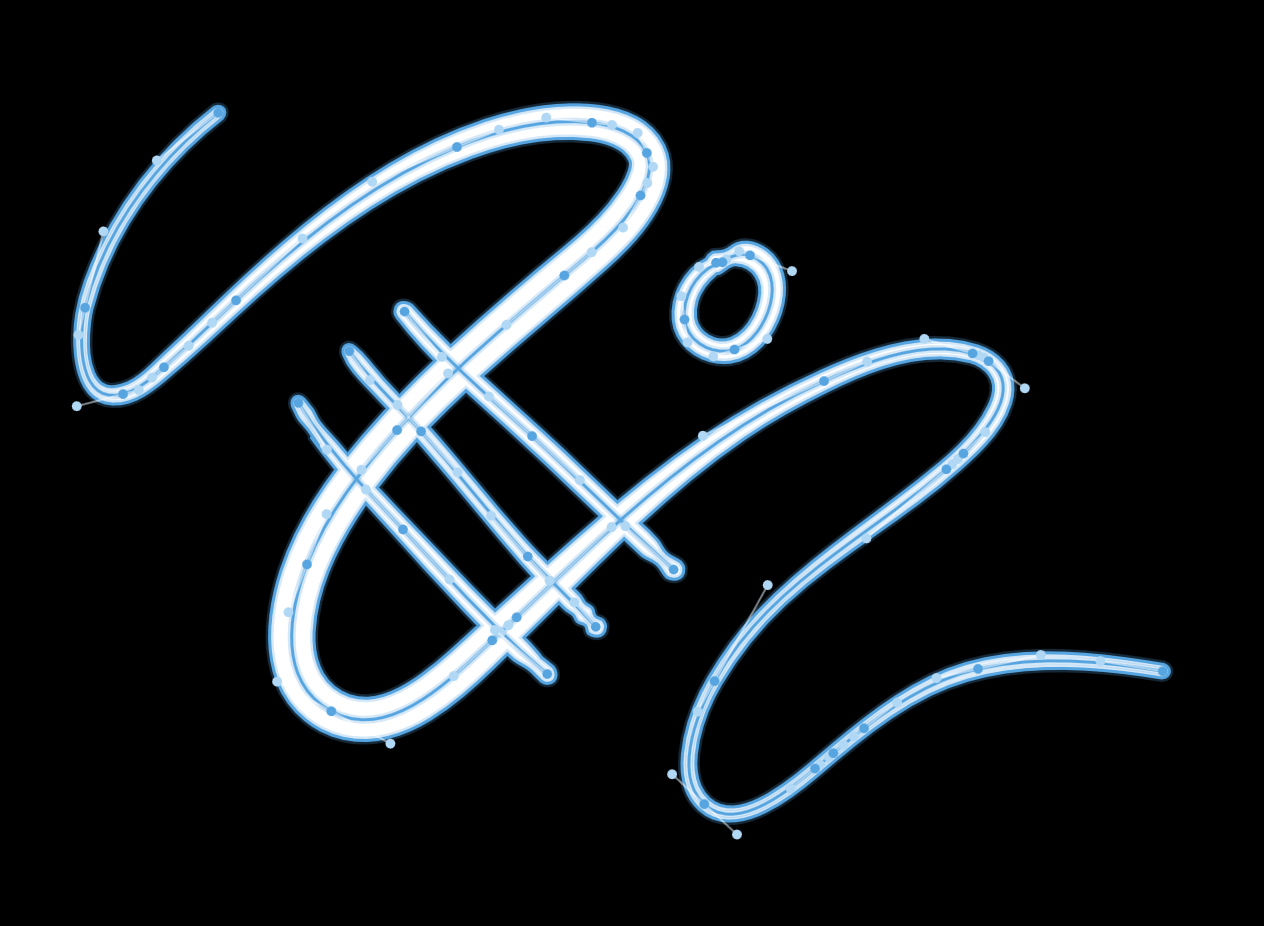 Use the [Shape Bend Tool](/docs/editor/design/shape-bend-tool) to adjust the width at specific points along a spine.
#### Flattening spines
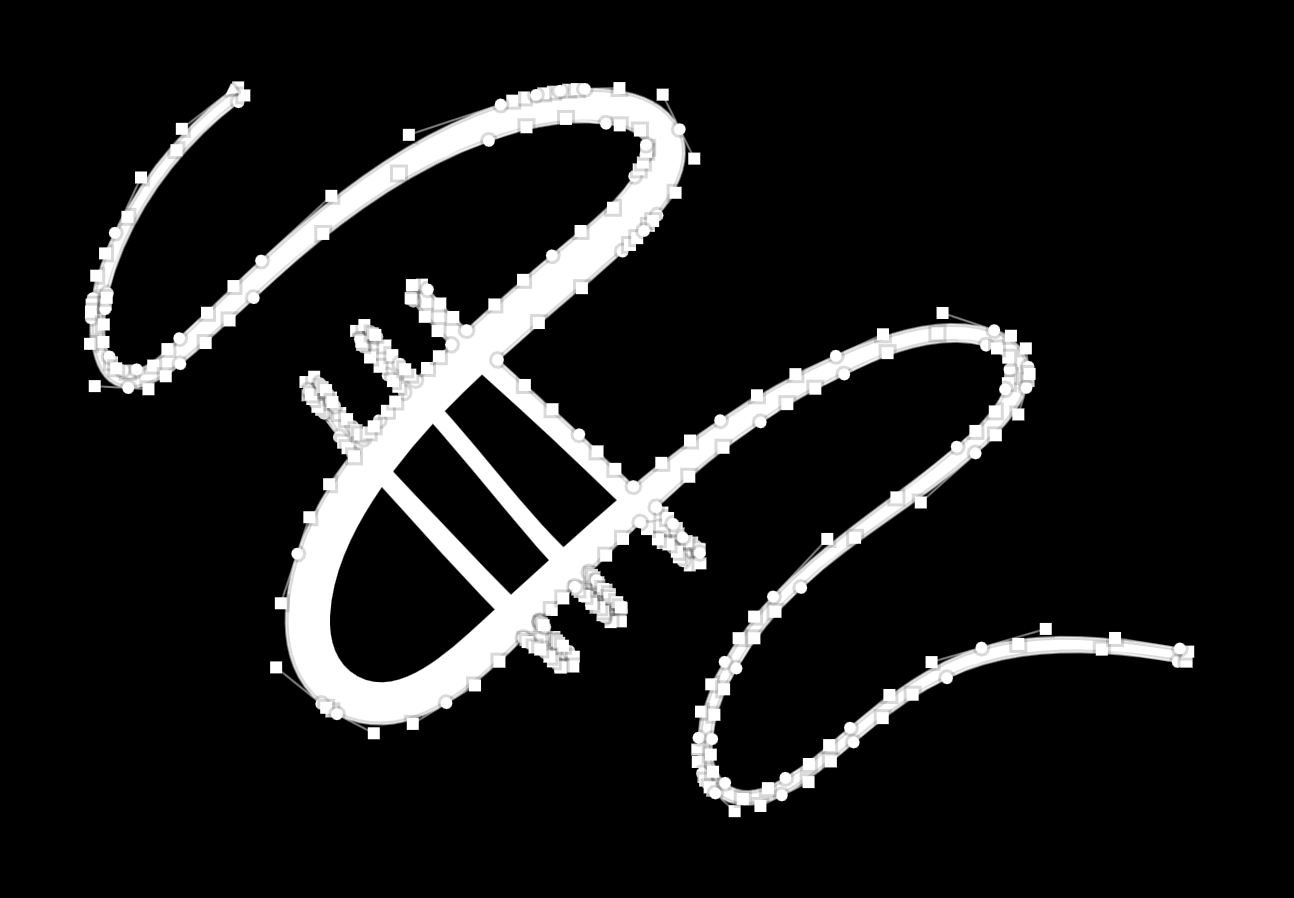
Select **Flatten** to bake all spines into regular vector geometry.
Use the [Shape Bend Tool](/docs/editor/design/shape-bend-tool) to adjust the width at specific points along a spine.
#### Flattening spines
Select **Flatten** to bake all spines into regular vector geometry.
 ### Drawing options
Use the options at the top of the panel to control how the Brush behaves while drawing.
### Drawing options
Use the options at the top of the panel to control how the Brush behaves while drawing.
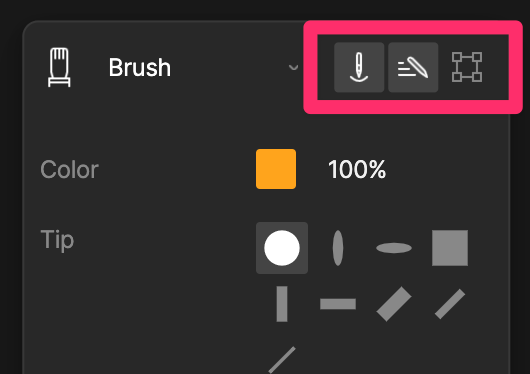 * **Pen Pressure** varies the width of the brush based on pressure from a supported stylus.
* **Speed** varies the width of the brush based on how quickly you draw.
* **Hide Bounding Box** hides the selection bounding box while drawing.
### Brush Tip
Use **Tip** to choose the shape of the Brush. Rive includes a selection of predefined brush tips.
Brush tips maintain a fixed orientation as you draw and don't rotate with the direction of the stroke.
### Size and width
Use **Size** to set the maximum width of the Brush.
**Min Width** sets the minimum width the Brush can reach when **Pen Pressure** or **Speed** is enabled. Increase the value for more consistent strokes, or decrease it for greater variation in width.
### Smoothing
Use **Smoothing** to reduce small variations in the path as you draw, creating smoother curves.
Higher values produce smoother paths, while lower values more closely follow the movement of the pointer.
### Stabilize
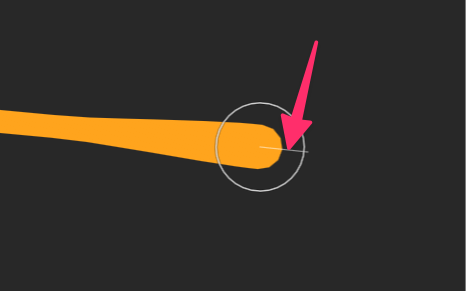
Use **Stabilize** to smooth your drawing by adding distance between the pointer and the path as you draw. Higher values increase this distance, giving the path more time to smooth out changes in direction.
#### Show Leash
Enable **Show Leash** to display the distance between the pointer and the path while drawing.
* **Pen Pressure** varies the width of the brush based on pressure from a supported stylus.
* **Speed** varies the width of the brush based on how quickly you draw.
* **Hide Bounding Box** hides the selection bounding box while drawing.
### Brush Tip
Use **Tip** to choose the shape of the Brush. Rive includes a selection of predefined brush tips.
Brush tips maintain a fixed orientation as you draw and don't rotate with the direction of the stroke.
### Size and width
Use **Size** to set the maximum width of the Brush.
**Min Width** sets the minimum width the Brush can reach when **Pen Pressure** or **Speed** is enabled. Increase the value for more consistent strokes, or decrease it for greater variation in width.
### Smoothing
Use **Smoothing** to reduce small variations in the path as you draw, creating smoother curves.
Higher values produce smoother paths, while lower values more closely follow the movement of the pointer.
### Stabilize
Use **Stabilize** to smooth your drawing by adding distance between the pointer and the path as you draw. Higher values increase this distance, giving the path more time to smooth out changes in direction.
#### Show Leash
Enable **Show Leash** to display the distance between the pointer and the path while drawing.
 ### Add to Selected
Enable **Add to Selected** to add each new stroke as a spine in the selected Brush Shape instead of creating a new Brush Shape.
This lets you build up a single shape with multiple brush strokes.
## Pencil tool
Use the **Pencil Tool** to draw freehand paths with a consistent thickness. Pencil creates the same type of path and stroke as the [Pen Tool](/docs/editor/fundamentals/pen-tool-overview), but lets you create the path by drawing freehand rather than placing vertices manually.
The Pencil shares many of the same controls as the Brush, including **Smoothing**, **Stabilize**, **Show Leash**, **Hide Bounding Box**, and **Add to Selected**. It does not support brush tips, variable width, **Pen Pressure**, or **Speed**.
### Thickness
Use **Thickness** to set the width of the stroke.
## Eraser tool
Use the **Eraser Tool** to remove portions of existing shapes by drawing over them. Like the Brush Tool, the Eraser uses a **spine**, allowing it to use configurable tips and variable width.
The Eraser shares many of the same controls as the Brush, including **Tip**, **Size**, **Min Width**, **Smoothing**, **Stabilize**, **Hide Bounding Box**, **Pen Pressure**, and **Speed**. It does not include **Color**, **Show Leash**, or **Add to Selected**.
### Simplify
Use **Simplify** to clean up the outline left behind when erasing flattened shapes. Higher values simplify the resulting path more aggressively.
Simplify only affects flattened shapes, which are erased destructively. Brush shapes are erased non-destructively and aren't affected by this setting.
Hold `⌘` (or `Ctrl` on Windows) to temporarily switch to the [Shape Bend Tool](/docs/editor/design/shape-bend-tool) and see how **Simplify** affects the number of vertices created while erasing.
### Add to Selected
Enable **Add to Selected** to add each new stroke as a spine in the selected Brush Shape instead of creating a new Brush Shape.
This lets you build up a single shape with multiple brush strokes.
## Pencil tool
Use the **Pencil Tool** to draw freehand paths with a consistent thickness. Pencil creates the same type of path and stroke as the [Pen Tool](/docs/editor/fundamentals/pen-tool-overview), but lets you create the path by drawing freehand rather than placing vertices manually.
The Pencil shares many of the same controls as the Brush, including **Smoothing**, **Stabilize**, **Show Leash**, **Hide Bounding Box**, and **Add to Selected**. It does not support brush tips, variable width, **Pen Pressure**, or **Speed**.
### Thickness
Use **Thickness** to set the width of the stroke.
## Eraser tool
Use the **Eraser Tool** to remove portions of existing shapes by drawing over them. Like the Brush Tool, the Eraser uses a **spine**, allowing it to use configurable tips and variable width.
The Eraser shares many of the same controls as the Brush, including **Tip**, **Size**, **Min Width**, **Smoothing**, **Stabilize**, **Hide Bounding Box**, **Pen Pressure**, and **Speed**. It does not include **Color**, **Show Leash**, or **Add to Selected**.
### Simplify
Use **Simplify** to clean up the outline left behind when erasing flattened shapes. Higher values simplify the resulting path more aggressively.
Simplify only affects flattened shapes, which are erased destructively. Brush shapes are erased non-destructively and aren't affected by this setting.
Hold `⌘` (or `Ctrl` on Windows) to temporarily switch to the [Shape Bend Tool](/docs/editor/design/shape-bend-tool) and see how **Simplify** affects the number of vertices created while erasing.